Domain Configuration
The Domain Configuration section in SureIdP allows admins to register and manage organizational domains to securely authenticate users. Domains can be configured as either Default or Custom, depending on the organization's identity requirements.
Steps to Configure a Domain in SureIdP
Clicking on Get Started button will open up the Choose Domain popup in which domain type should be selected
In the Choose Domain Type popup:
- Select one of the following and click OK:
- Default Domain – Use this to manage users without requiring email or domain verification. No verification will be done for the Default Domain type.
- Custom Domain – Use this to manage users under your organization’s verified domain.
- Select one of the following and click OK:
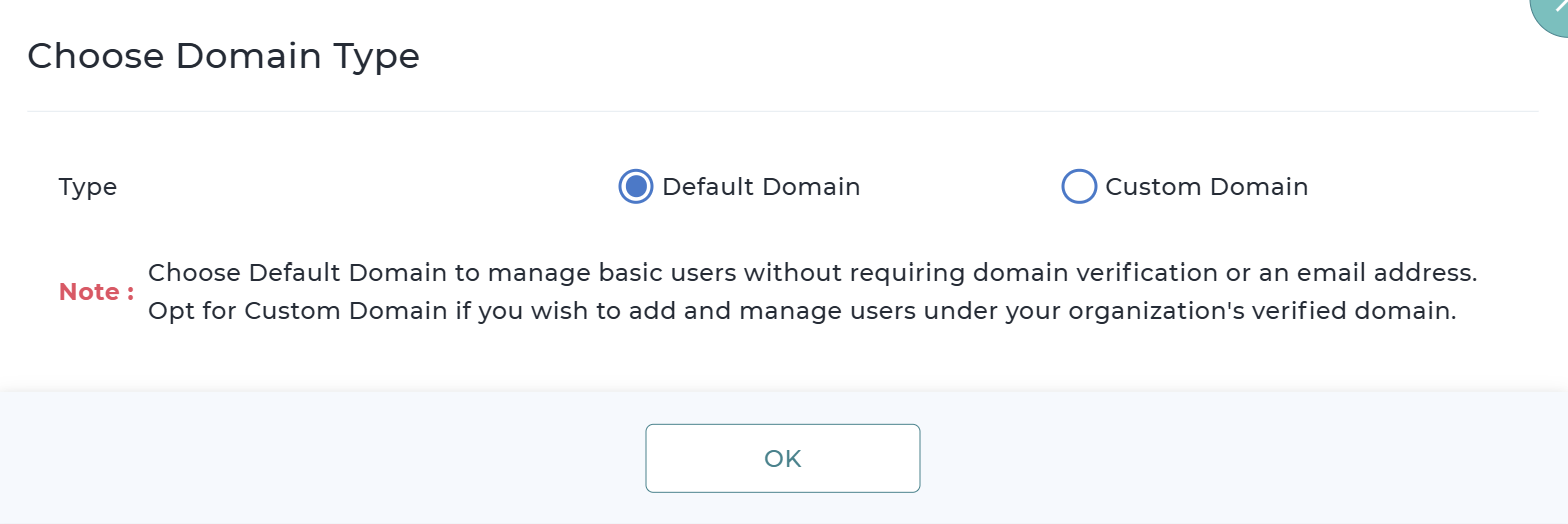
The default domain is designed to simplify onboarding for organizations without a dedicated domain. Choosing Default Domain will create a domain entry directly without prompting any details.
If Custom Domain is selected, provide the below information
- Domain Name - Specify the domain name owned by your organization to enable users with this domain to be added.
- Verification Email - Enter an email address from the selected domain that you have access to.
After providing the domain details, click either Verify Domain or Save.
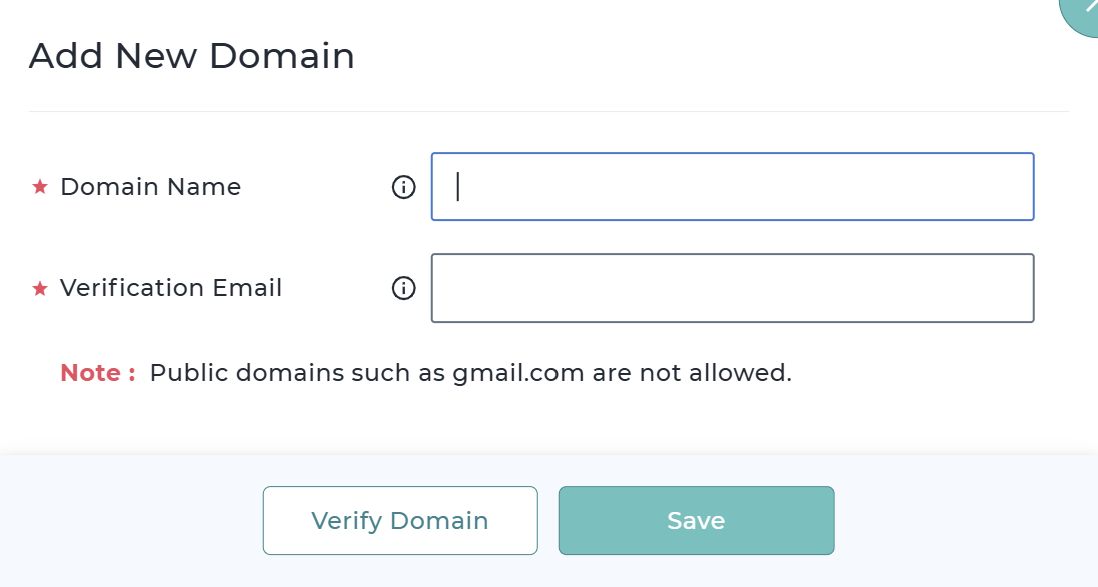
Clicking on Save will add the domain entry in the table section and you can choose to verify the added entry later.
Clicking on Verify Domain will trigger an email for verification. Open the email and click the Verify Domain link.
A confirmation message will appear indicating that the domain has been successfully verified. The domain status in the SureMdm Console will be updated to Verified.
Click Next to start adding users or you can later add it from the Users tab.
Once the domain is Successfully verified, the domain entry will be added in the table section under the Domains tab.
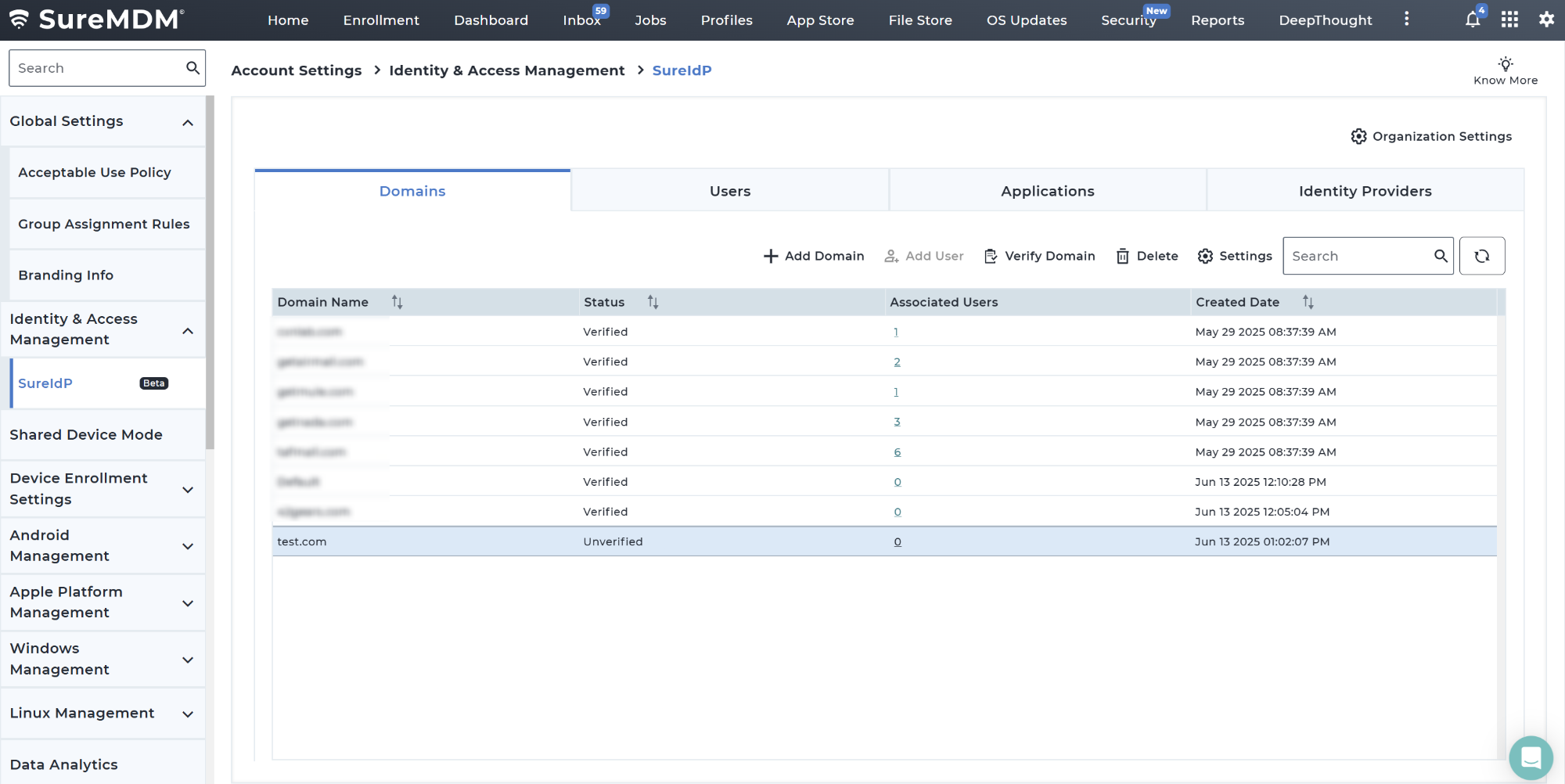
Domain Actions
- Add Domain - Use this option to add domain for SureIdP configuration
- Add User - Use this option to add users for the selected domain
- Verify Domain - Use this option to trigger verification process for the created domain
- Delete - Use this option to delete an added domain
- Search - Use this text box to search for the domain entry
- Refresh - Use this option to initiate refresh
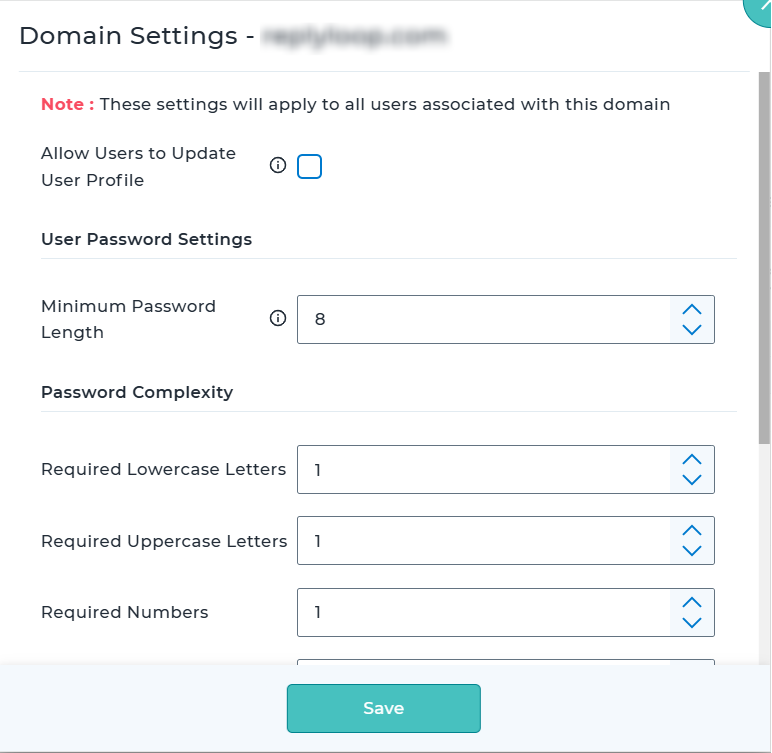
- Settings - Use this option to configure below settings for selected domain. These settings will apply to all users associated with this domain.
| Field | Description |
|---|---|
| Allow Users to Update User Profile | Enables users to update Phone Number, First Name, and Last Name post-password setup |
| Minimum Password Length | Set the minimum length for user passwords. A value of 8 or more is recommended for better security. |
| Required Lowercase Letters | Specify the minimum number of lowercase letters required in the password. |
| Required Uppercase Letters | Specify the minimum number of uppercase letters required in the password. |
| Required Numbers | Specify the minimum number of numeric characters required in the password. |
| Required Special Characters | Specify the minimum number of special characters required in the password. |
| Restrict Use of Username/Email in Password | Restrict Use of Username/Email in Password |
| Password History | Specify how many recent passwords are disallowed for reuse to enhance password security. |
| Password Expiration (In Days) | Set the time period after which users must update their passwords for security. Between 30-90 days is recommended. |