Authentication and Access Control
Introduction
Authentication Policies in SureIdP allow administrators to define access rules and authentication methods that control how users log in to SAML-based applications. These policies are reusable and can be assigned to any application configured under SureIdP → Applications.
With authentication policies, you can:
- Restrict access to specific platforms (e.g., Android, iOS)
- Allow login only from managed devices
- Choose between password-based or passwordless authentication
- Enforce multi-factor authentication (MFA)
- Target individual users or a list of users
Steps to Create and Use an Authentication Policy
Go to the SureMDM Web Console.
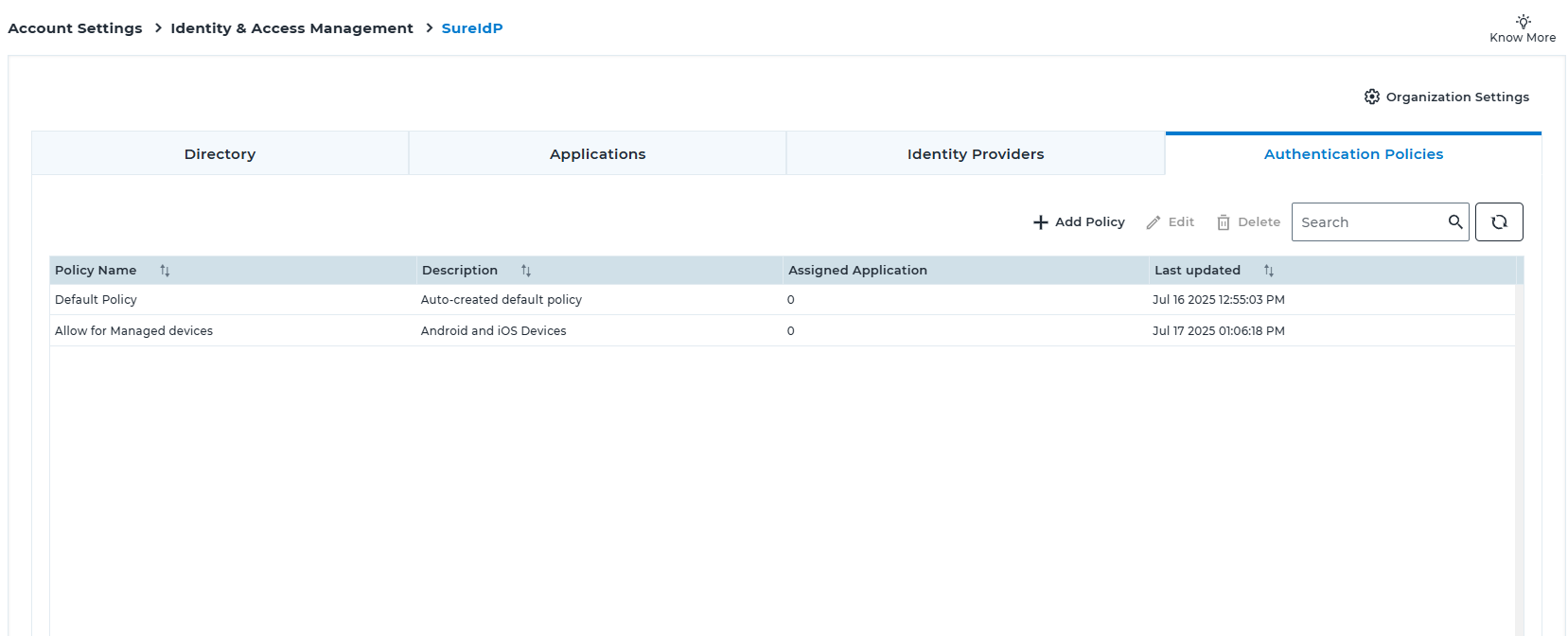
Navigate to Account Settings → Identity & Access Management → SureIdP → Authentication Policies tab.
Click the +Add Policy button.
Enter a unique Policy Name and a brief Description.
Under Rule 1, choose the Platforms you want to apply the rule to (e.g., Android, iOS, Windows, etc.).
Enter specific usernames or email IDs in the Users field if the rule should target selected individuals, or select All Users.
Select the Device Management Status as Managed, Unmanaged, or All Devices.
Choose whether Access is Allowed or Denied for this rule.
Choose the Authentication Method (Password or Passwordless) and Enable MFA if required.
If needed, click Add Rule to create Rule 2, Rule 3, and so on (maximum of 5 rules allowed per policy).
After adding all necessary rules, configure the Default Access Behavior at the bottom of the form.
In Default Access Behavior, define what happens if none of the rules match — specify whether access should be allowed or denied and which authentication method to use.
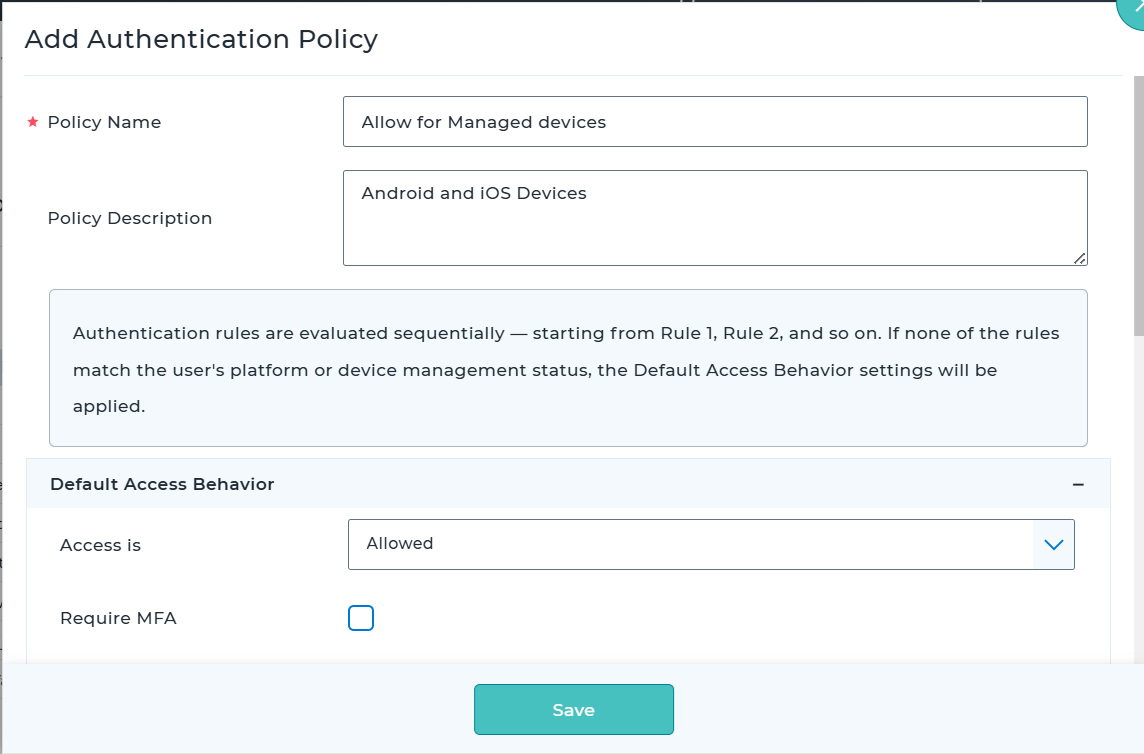
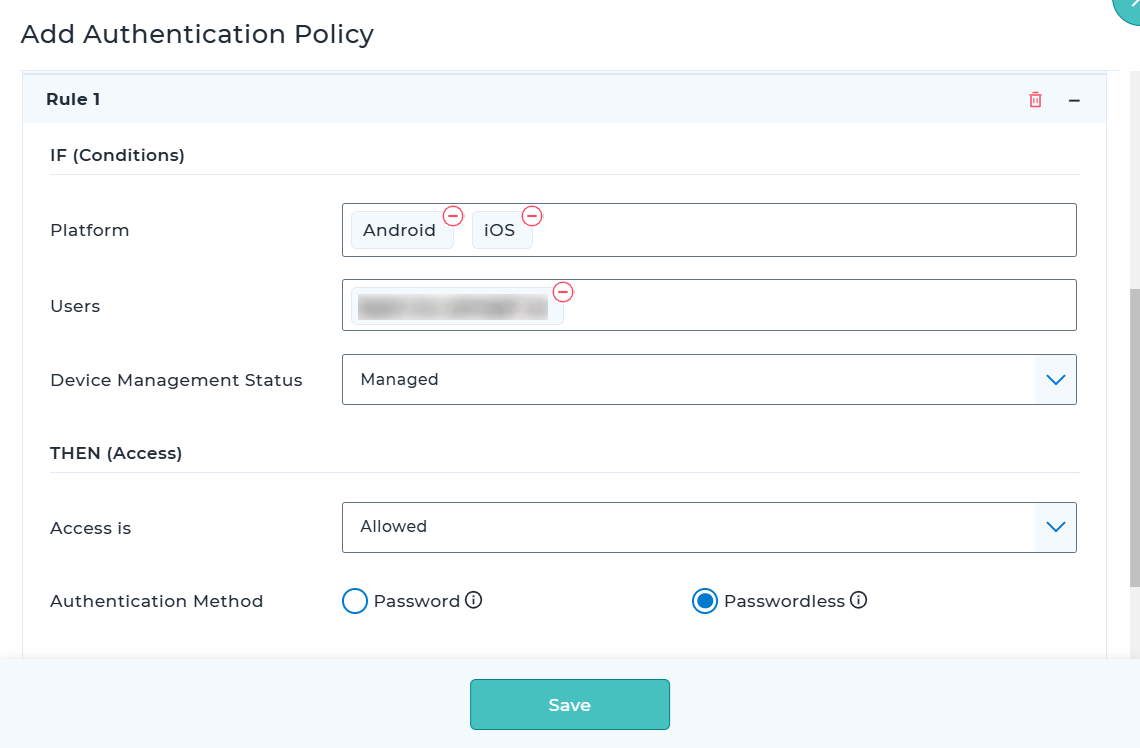
Click Save to create the policy.
Go to the SureIdP → Applications tab and either add a new SAML application or edit an existing one.
In the Access Rules & Authentication section of the application, select the policy you just created from the Authentication Policy dropdown.
Save the application configuration. The selected policy will now be enforced for user logins to this application.
Rule Evaluation and Priority
SureIdP evaluates authentication rules sequentially, starting from Rule 1, then Rule 2, then Rule 3, and so on.
As soon as a rule matches a user’s context (e.g., platform, email, device state), that rule is applied, and the rest of the rules are skipped.
Use Case Example
Scenario 1:
You want only users on managed Android or iOS devices to access Office 365, using passwordless authentication via certificates. MFA is not required.
How to Configure:
- Policy Name: Managed Android/iOS – Passwordless
- Description: Restrict to mobile devices with cert-based login
Under Rule 1:
- Platform: Android, iOS
- Users: All Users
- Device Management Status: Managed
- Access: Allowed
- Authentication Method: Passwordless
- Enable MFA: Leave unchecked
In Default Access Behavior:
- Access: Denied
Now, only users on SureMDM-managed Android or iOS devices will be able to access Office 365.
Users will be denied access on all other platforms.
Scenario 2:
Allow CEO and CTO to access applications from any platform and any device, using password-based authentication.
For all other users:
- Allow access only from managed Android and iOS devices
- Use passwordless authentication
- Enforce MFA
- Deny access on other platforms and all unmanaged devices
How to Configure:
- Policy Name: Exec + Managed Mobile – Passwordless + MFA
- Description: Allow unrestricted access for CEO/CTO. For others, allow access only from managed Android/iOS devices using passwordless authentication with MFA.
Under Rule 1:
- Platform: Any Platform
- Users: ceo@company.com, cto@company.com
- Device Management Status: All Devices
- Access: Allowed
- Authentication Method: Password
- Enable MFA: Unchecked
Under Rule 2:
- Platform: Android, iOS
- Users: All Users (leave field empty)
- Device Management Status: Managed
- Access: Allowed
- Authentication Method: Passwordless
- Enable MFA: Checked
In Default Access Behavior:
- Access: Denied
- Authentication Method: Password (not used, since access is denied)
With this configuration:
- CEO and CTO can log in from any platform using password authentication.
- All other users can access only from SureMDM-managed Android or iOS devices, with passwordless login and MFA.
- Users will be denied access on unmanaged devices and all non-mobile platforms (e.g., Windows, macOS, Linux).