Android Management
SureMDM empowers organizations to effectively manage and secure their fleet of Android devices, ensuring enhanced productivity, data protection, and streamlined device administration. With its wide range of features and robust capabilities, SureMDM provides end-to-end Android management, enabling businesses to optimize their mobile operations and achieve their goals efficiently.
Android Enterprise Enrollment
In this section, you can easily enroll your SureMDM account into the Android Enterprise. Click here for more information.
Miscellaneous Settings
In this section, you can access and configure various Android management settings to enhance your device management capabilities. The following settings are available under this section:
| Settings | Description |
|---|---|
| Default Connectivity Option For Install/File Transfer/OS Update Job | Select the connectivity option (Wi-Fi only/ Mobile Data only /Any Network/Ethernet Only/Ethernet or Wi-Fi only) from the drop-down menu. |
| Enable Advanced Device Management | Enabling this option will install the Enterprise Agent (EA) and/or OEM Agent on supported devices during enrollment. The EA and OEM Agent provides advanced device management features such as silent installation, remote touch events, and more. |
| Enable Overwrite Existing Profile | Enabling this option will automatically remove the previously applied profile when a new one is deployed, ensuring that only the latest configuration remains active on the device. The option currently applies only to “Application Policy”(Apps added as a result of configuration made in 'Mail Configuration', 'VPN' and 'OEM Config Policy' also will be affected), “Branding”, “Certificate” and “Wi-Fi Configuration” sections of the Profile and is supported on SureMDM Agent V >= 27.41.80 |
| Device Deletion Action | You can select the following action which will perform when the device is deleted from the SureMDM console: 1. Deregister the device and Stop the SureMDM Service 2. Deregister the device and reset SureMDM Agent settings 3. Wipe the device This option is supported only on SureMDM Agent version 27.20.13 and above. |
| Enrollment Action for Insecure Devices | Select the desired action—Wipe, Lock, or Proceed—when an insecure device is detected during enrollment. |
| Location Tracking and Fence | |
| Enable High Accuracy Geo-Fence | Select this option to have better accuracy on the exact location of devices and will be supported on SureMDM Agent version 14.69 and above. |
| Online/Offline Status Update | |
| Enable Periodic Online/Offline Status Update | Enabling this option provides more accurate and frequent updates on the online/offline status of devices. This feature works only on Android devices with SureMDM Agent version 27.18.01 or higher and may result in additional data consumption on the device. |
| Google Play Developer API | |
| Enable Play Developer API | You can enable the Google Play developer API |
| Application Feedback Alert | This feature provides informational and error alerts for managed configuration deployment of Play Store applications deployed through an Application Policy, helping administrators monitor configuration deployment status and identify deployment issues. To know more about configuring and using this feature, click here. |
Application Feedback Alert
The Application Feedback Alert feature provides visibility into the deployment status of managed configurations for Play Store applications deployed through an Application Policy. This feature helps administrators verify whether the managed configurations are successfully applied on devices and identify any issues encountered during deployment.
Once configured, the system generates informational or error alerts whenever the selected application is deployed through an Application Policy. Alerts are sent to MDM, Email, or both based on the configured notification settings.
This feature is applicable only for Play Store applications.
Steps to Configure Application Feedback Alert
- Navigate to SureMDM Console > Settings > Account Settings > Android Management > Miscellaneous > Application Feedback Alert
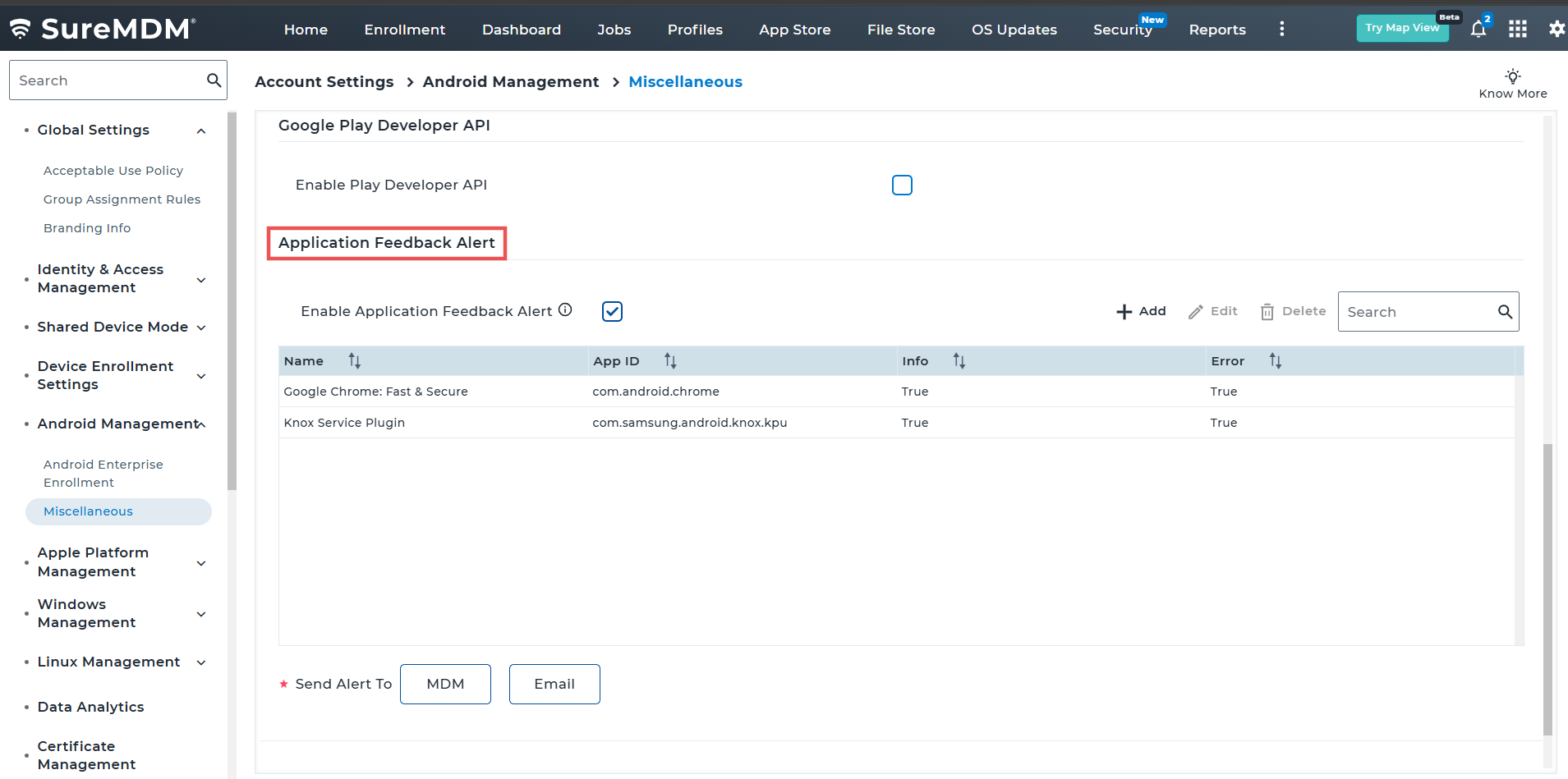 |
|---|
Enable the Application Feedback Alert option.
Click Add.
Select the required application from play store and click Select.
In the App Settings prompt, enable Info, Error, or both alert types based on the requirement and click OK.
Under Send Alert To, select the required alert destination:
MDM
Email
Or both
If Email is selected, specify the recipient email address.
- Click Apply to save the configuration.
- Use the Edit option to modify the configured alert settings for the added application.
- Use the Delete option to remove the application from managed configuration deployment monitoring.
Deploy Play Store Application using Application Policy
Follow the steps provided in the Play for Work section to add a Play Store application through an Application Policy and deploy it to devices:
Application Policy Profile (AEP) Documentation
After the configured application is deployed to a device through an Application Policy, the system validates the deployment of the managed configurations configured for the application.
- If the managed configurations are successfully applied, an informational alert is generated.
- If the managed configurations fail to apply or encounter issues during deployment, an error alert is generated.
The generated alerts are sent to the configured destination (MDM, Email, or both), enabling administrators to quickly identify and troubleshoot managed configuration deployment issues.