OS Login with SureIdP Authentication
Configure OS Login profile
The OS Login payload empowers IT administrators to customize the operating system login experience and enforce granular access control on devices enrolled with SureMDM Agent.
These settings allow administrators to enforce secure login via SureIdP, manage offline credential expiry, enable user account takeover, define platform login screen branding, device-to-user binding and apply conditional access based on location, Wi‑Fi SSID, IP, time, or compliance status.
Applicable on Windows, macOS and Linux platforms.
Steps to Configure OS Login Profile
- On the SureMDM Web Console, navigate to: Profiles > Windows / macOS / Linux > Add > OS Login > Configure.
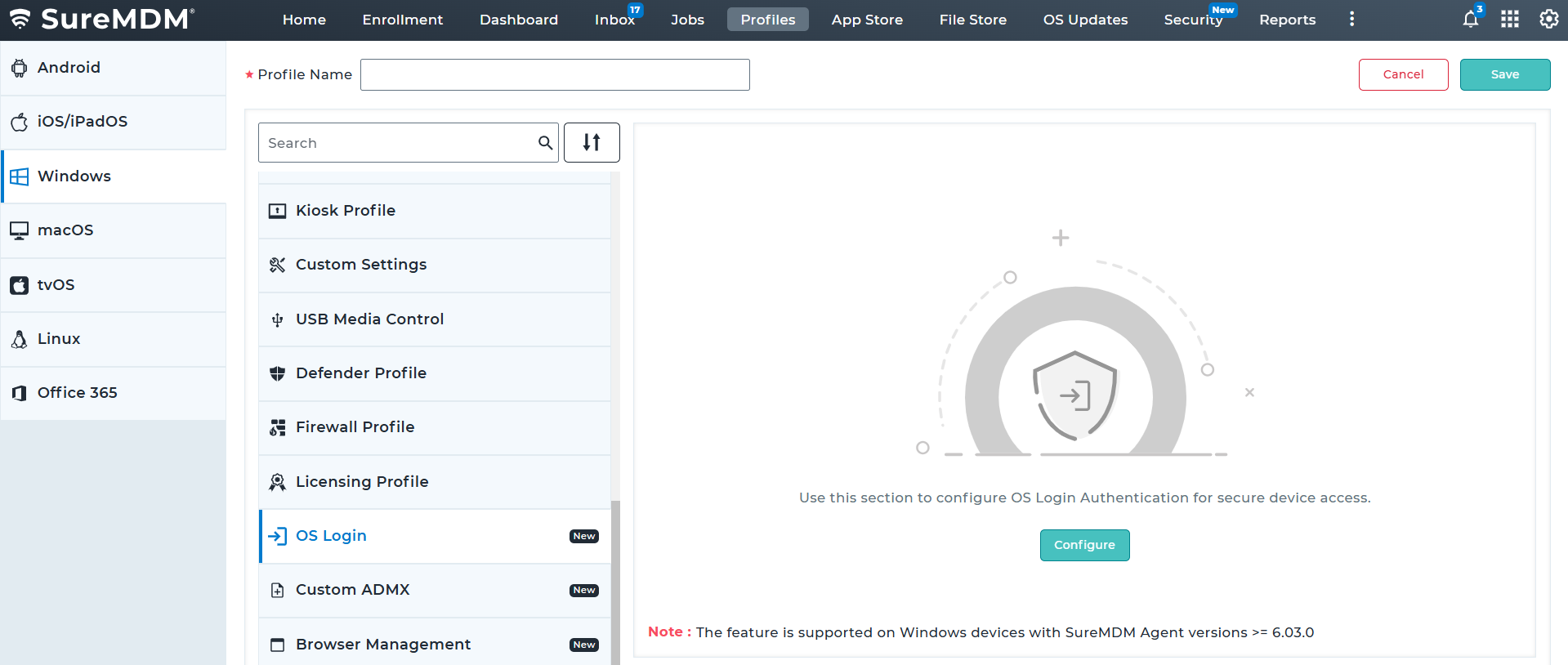
Enter a Profile Name and click Add.
In the Configure OS Login screen, configure the required options under the available accordions.
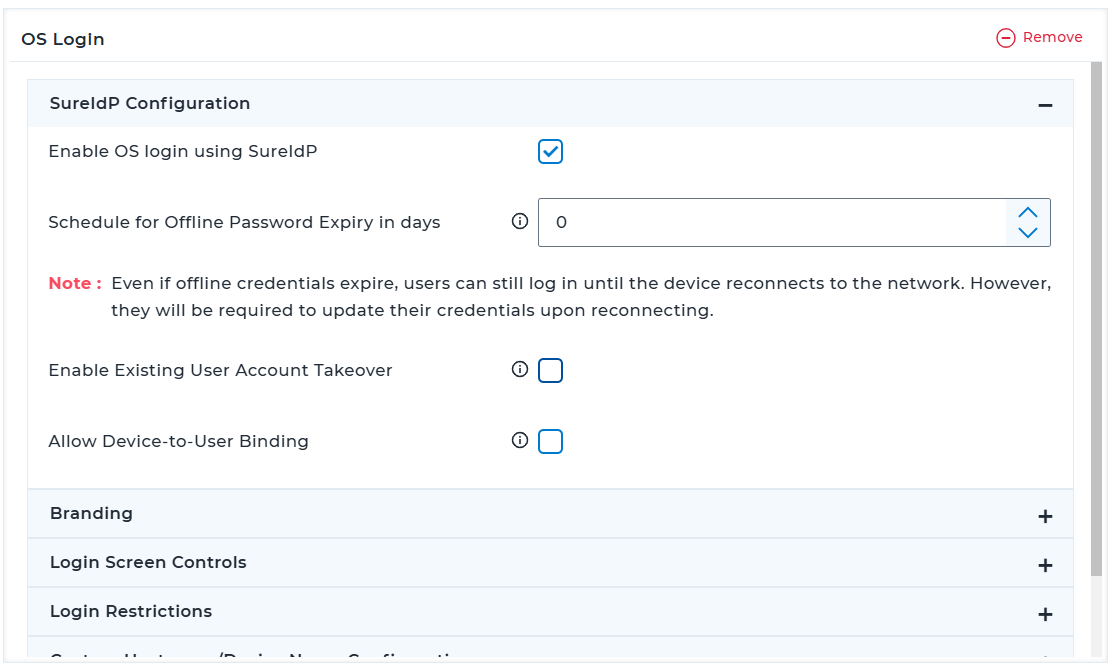
3.1 SureIdP Configuration
| Setting | Description |
|---|---|
| Enable OS login using SureIdP | Enforce OS login through SureIdP credentials by enabling this option. If a SureIdP Account is not present on the device, the user will see an "Add SureIdP User" button. Click the "Add SureIdP User" button. Log in using your SureIdP user credentials. |
| Schedule for Offline Password Expiry (days) | Set the duration after which credentials will expire when the device is offline. Users must reset their credentials upon reconnecting to SureIdP if their offline password has expired. Note: Even if credentials expire while the device is offline, users can still log in until the device reconnects to the network. However they will be required to update their credentials upon reconnecting. |
| Enable Existing User Account Takeover | Enable this setting to let SureIdP take over an existing local user account on the device during the user's first login. Specify the local account name when creating the user, or SureIdP will match the account using the first name and last name. This ensures seamless integration of the user's existing profile and data into the SureIdP-managed environment. |
| Allow Device-to-User Binding | When this option is enabled, only the devices bound to the user in the SureIDP Users section will be permitted to log in. |
3.2 Branding
| Setting | Description |
|---|---|
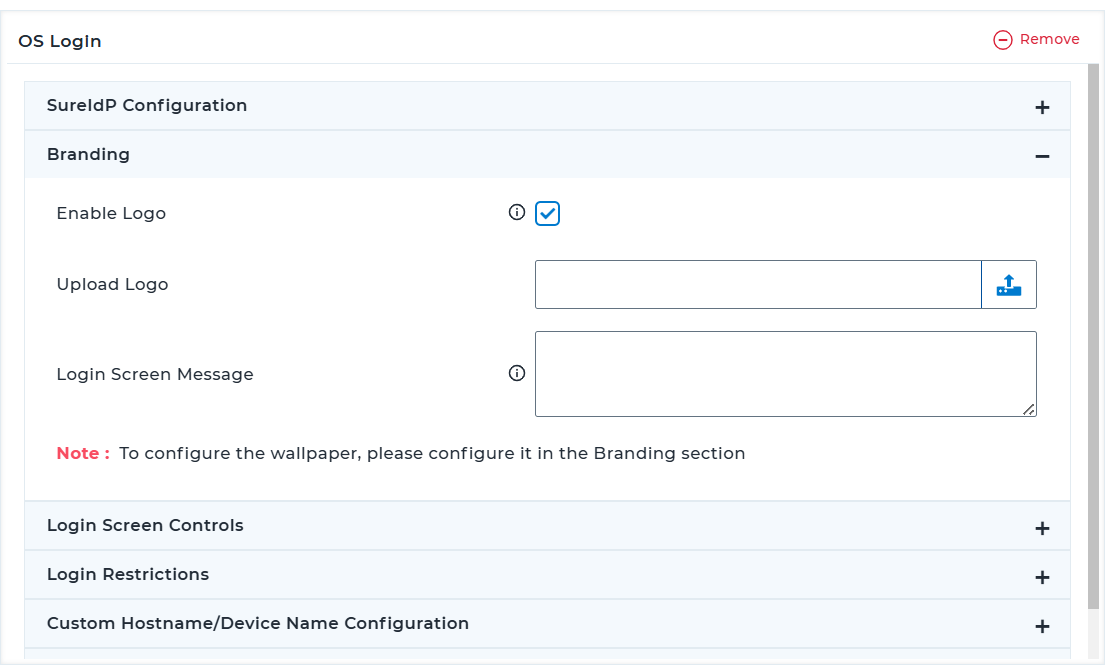
| Enable Logo | Upload a logo to prominently display your organization's branding on the login screen. Max Dimensions: 300*300, Supported file types: .png, .jpeg, .jpg |
| Upload Logo | Choose and upload the logo image from the local drive. |
| Enable Wallpaper | Enable this option to set a custom background image. Max Dimensions: 3840*2160, Supported file types: .png, .jpeg, .jpg. Note: This option is supported only for macOS profiles. |
| Upload Wallpaper | Choose and upload the background image from the local drive. Note: This option is supported only for macOS profiles. |
| Login Screen Message | Add a personalized or informative message for users, such as instructions or greetings. |
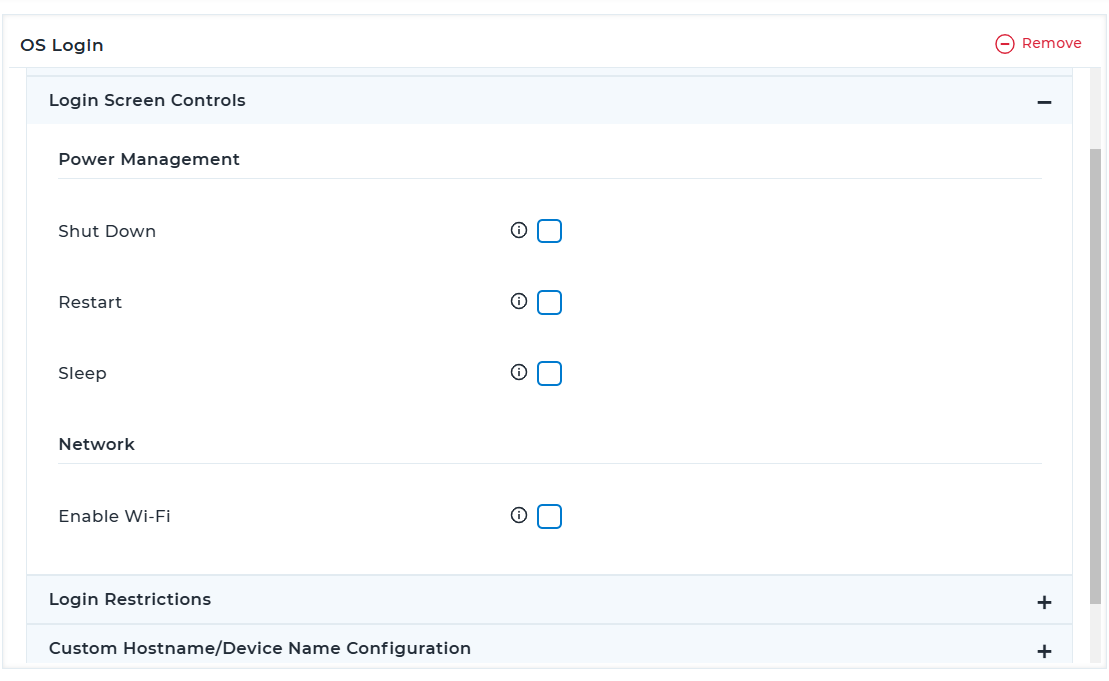
3.3 Login Controls
| Setting | Description |
|---|---|
| Shut Down | Allows the user to shut down the device from the login screen. |
| Restart | Allows the user to restart the device from the login screen. |
| Sleep | Allows the user to put the device into sleep mode from the login screen. |
| Enable Wi-Fi | Allows the user to enable or disable Wi-Fi from the login screen. |
3.4 Login Restrictions
| Setting | Description |
|---|---|
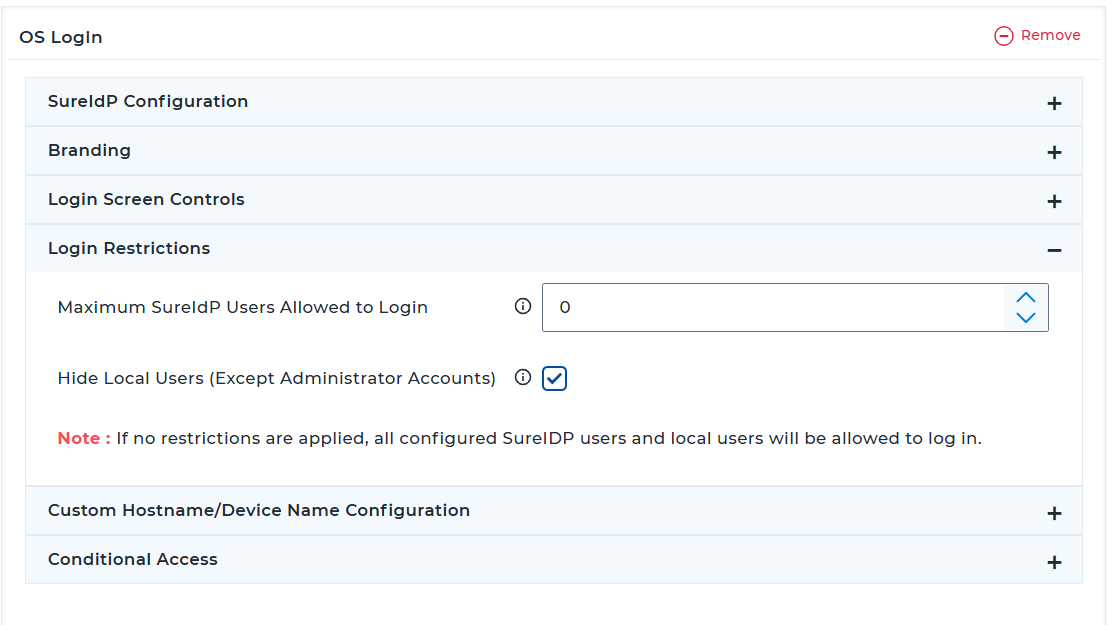
| Maximum SureIdP Users Allowed to Login | Limit the number of SureIdP users who can log in to the device. |
| Hide Local Users (Except Administrator Accounts) | Prevent local (non-SureIdP) user accounts from showing up on the login screen. Leave unchecked if both SureIdP and local login should be allowed. |
3.5 Custom Hostname / Device Name Configuration
| Setting | Description |
|---|---|
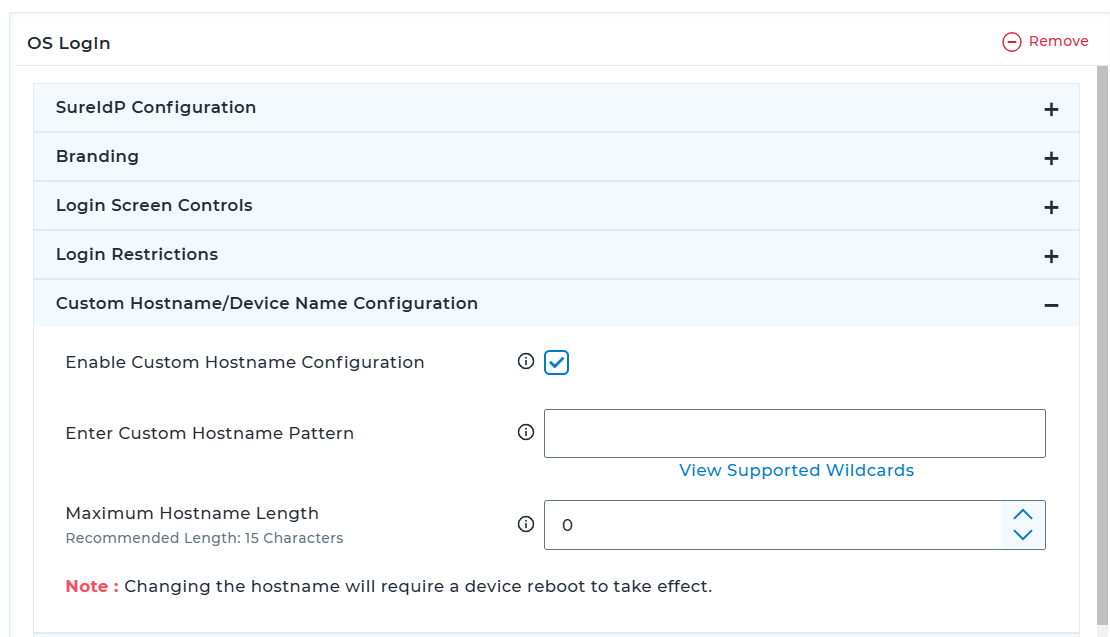
| Enable Custom Hostname Configuration | Allow customization of hostnames shown at login. |
| Enter Custom Hostname Pattern | Use wildcards to define dynamic hostname formats. Click View Supported Wildcards to view the supported wildcard values and its description. |
| Maximum Hostname Length | Enforce a character limit for hostnames. |
Note: Hostname changes require a device reboot.
3.6 Conditional Access
Conditional Access allows you to enforce strict login controls based on predefined rules. When enabled, login access to the device is granted only if the device meets the specified conditions, such as allowed location, Wi-Fi SSID, IP range, time window, or overall compliance with SureMDM policies.
If the device does not meet the configured login rules, it will automatically log out within 60 seconds and block further login attempts until all required conditions are satisfied.
| Setting | Description |
|---|---|
| Enable Conditional Access | Enable this setting to define allowed login rules for conditional access. |
| Login Rules Evaluation Frequency | Choose how often the device's login access conditions should be verified. (e.g., every 5 minutes; recommended value is 30 minutes) |
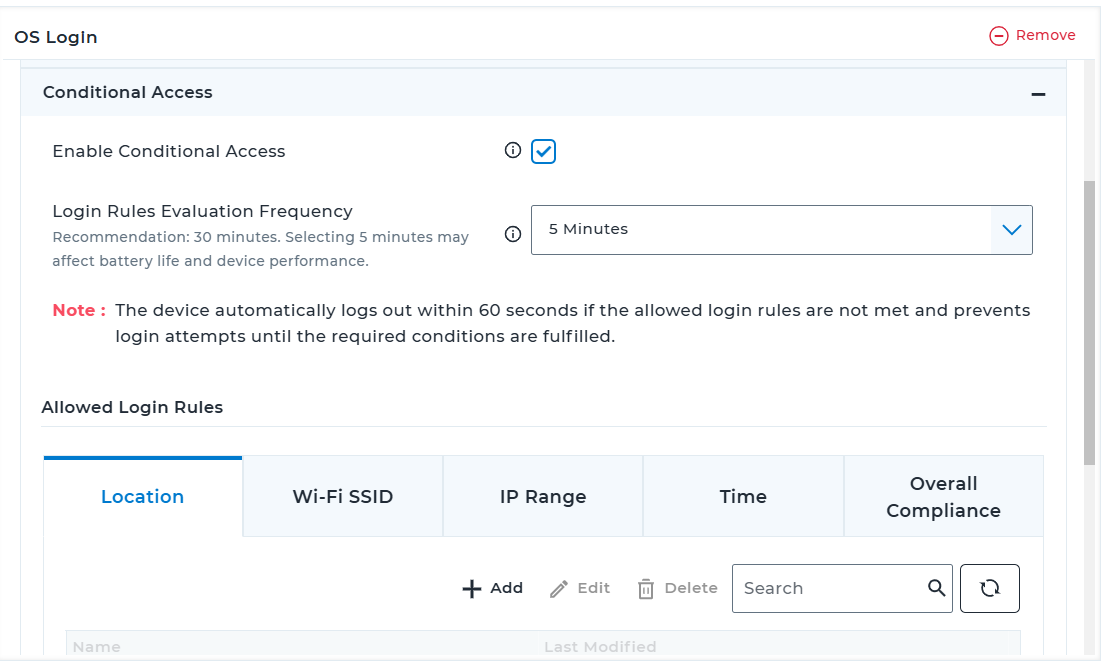
3.6.1 Allowed Login Rules for Conditional Access (tabs with Add/Edit/Delete controls):
- Location: Define geofenced areas using map
- Wi‑Fi SSID: Permit login only when connected to specified SSIDs
- IP Range: Allow login from defined IP address ranges
- Time: Restrict login access to specific times/days
- Overall Compliance: Enable this to allow login only if the device meets overall compliance requirements applied through SureMDM Compliance Policy
For all the rule parameters, multiple entries can be added. Added entries will be reflected under the table section.
Click Save.
The newly created profile will be listed in the Profiles section.Go back to the Home tab and select the Windows / macOS / Linux device(s) or group(s).
Click Apply to launch the Apply Job/Profile To Device prompt.
In the prompt, select the created profile and click Apply.
Post-Deployment Behavior on Windows Devices for OS Login Profile
The OS Login profile, when deployed from the SureMDM Console, enables centralized and secure user login via SureIdP credentials.
Below is the step-by-step behavior observed on the target Windows device post deployment:
- Login Screen Change
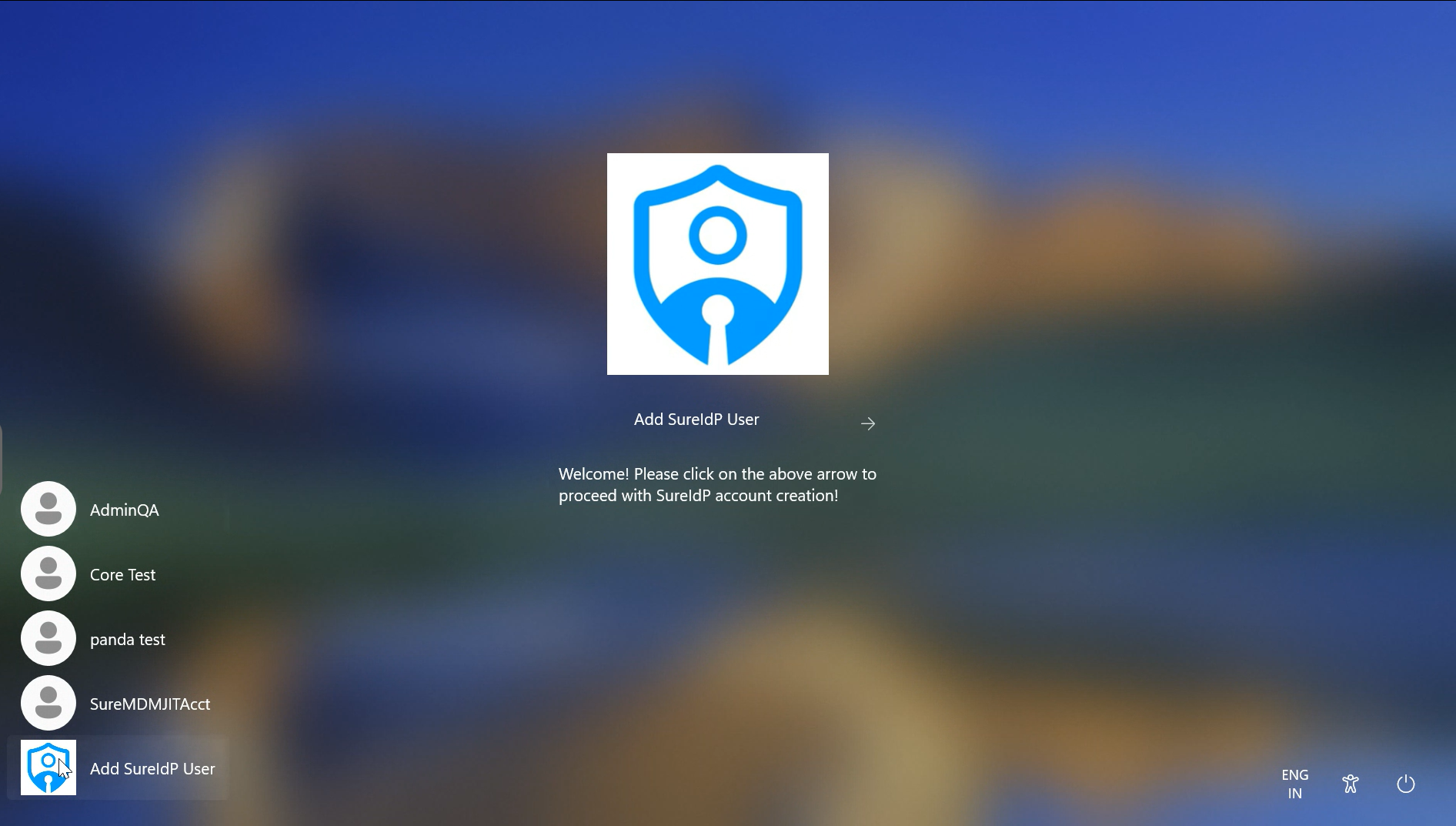
- Upon device reboot or user sign-out, the login screen displays a new account tile: Add SureIdP User.
- A welcome message is shown as configured in the Branding section: "Welcome! Please click on the above arrow to proceed with SureIdP account creation!"_
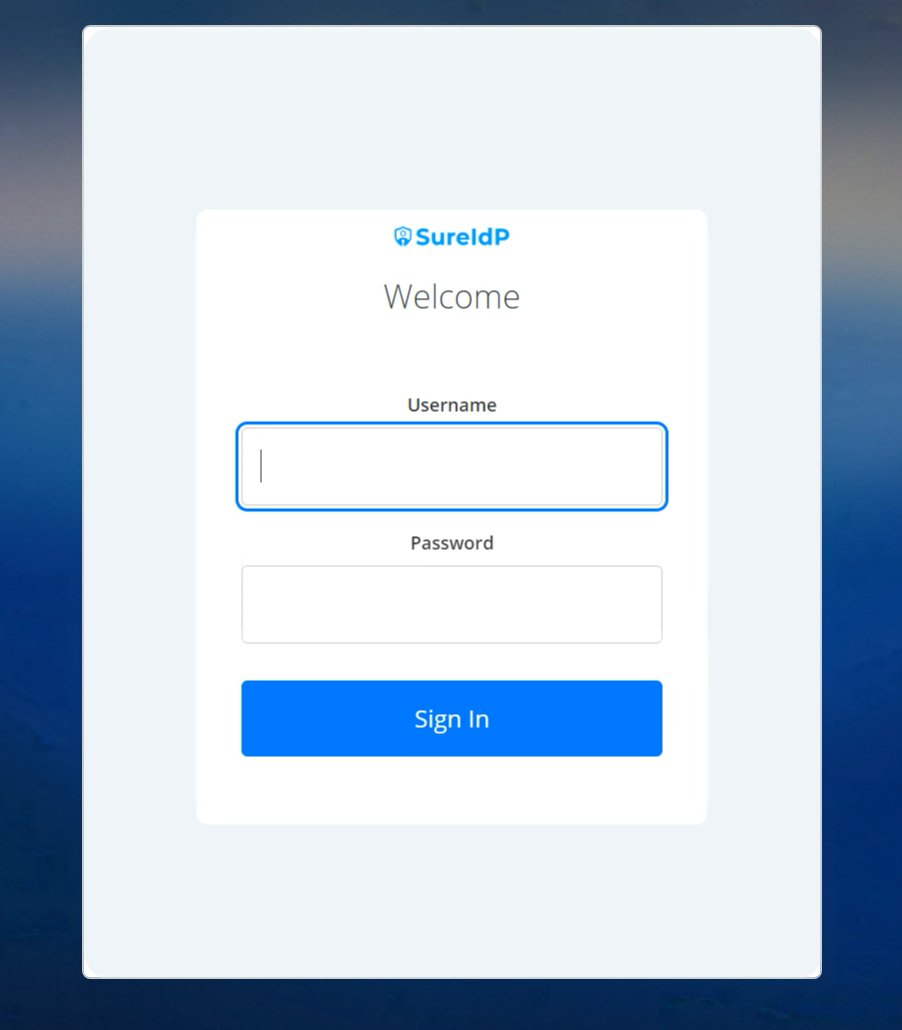
- SureIdP Login Prompt
- On clicking the Add SureIdP User tile, users see a custom SureIdP login UI.
- The login page includes fields for Username and Password, and a Sign In button.
- After entering credentials, click Sign in.
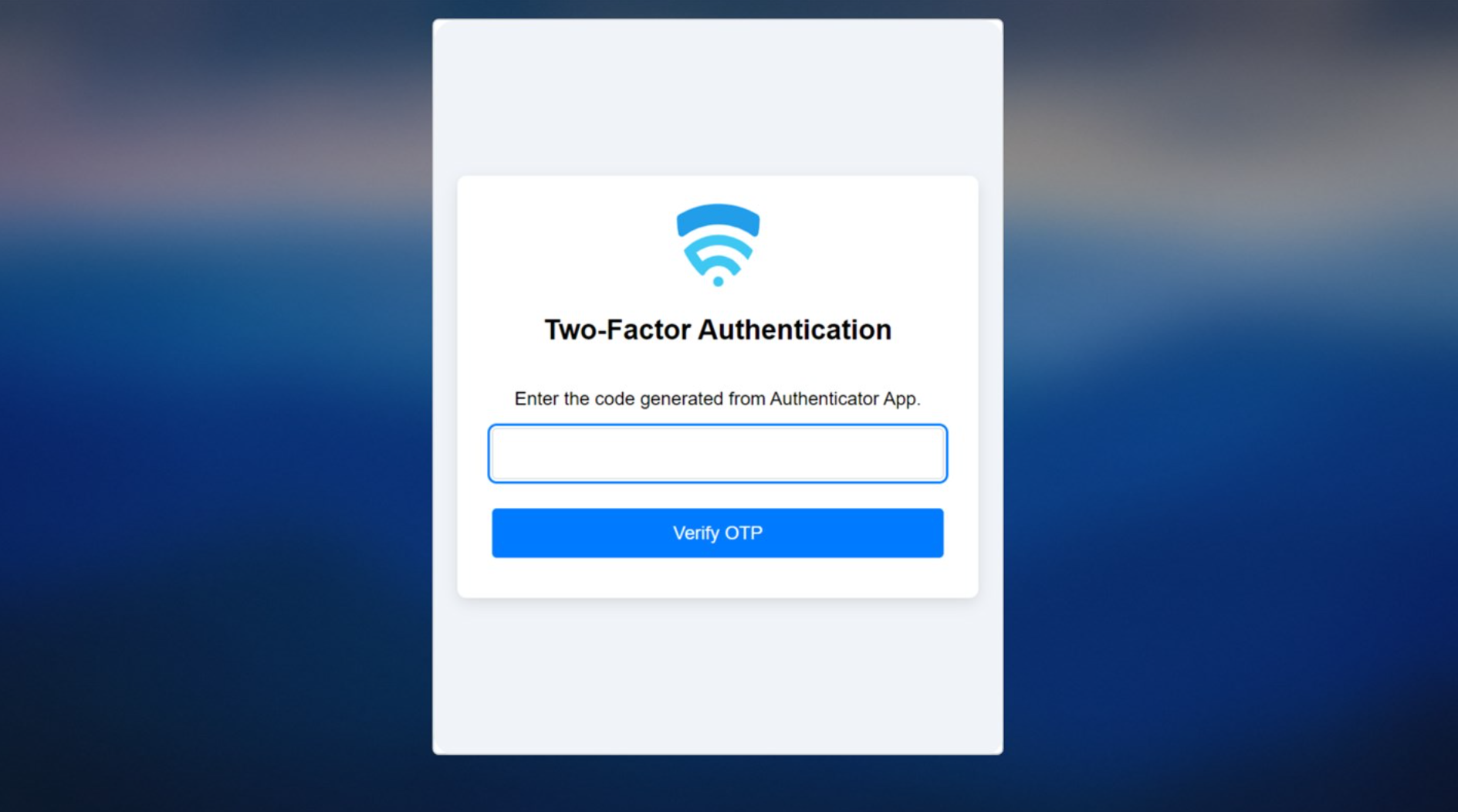
- Multi-Factor Authentication (if enabled)
- If MFA is configured, users see a Two-Factor Authentication screen.
- Users must enter the OTP from their authenticator app and click Verify OTP.
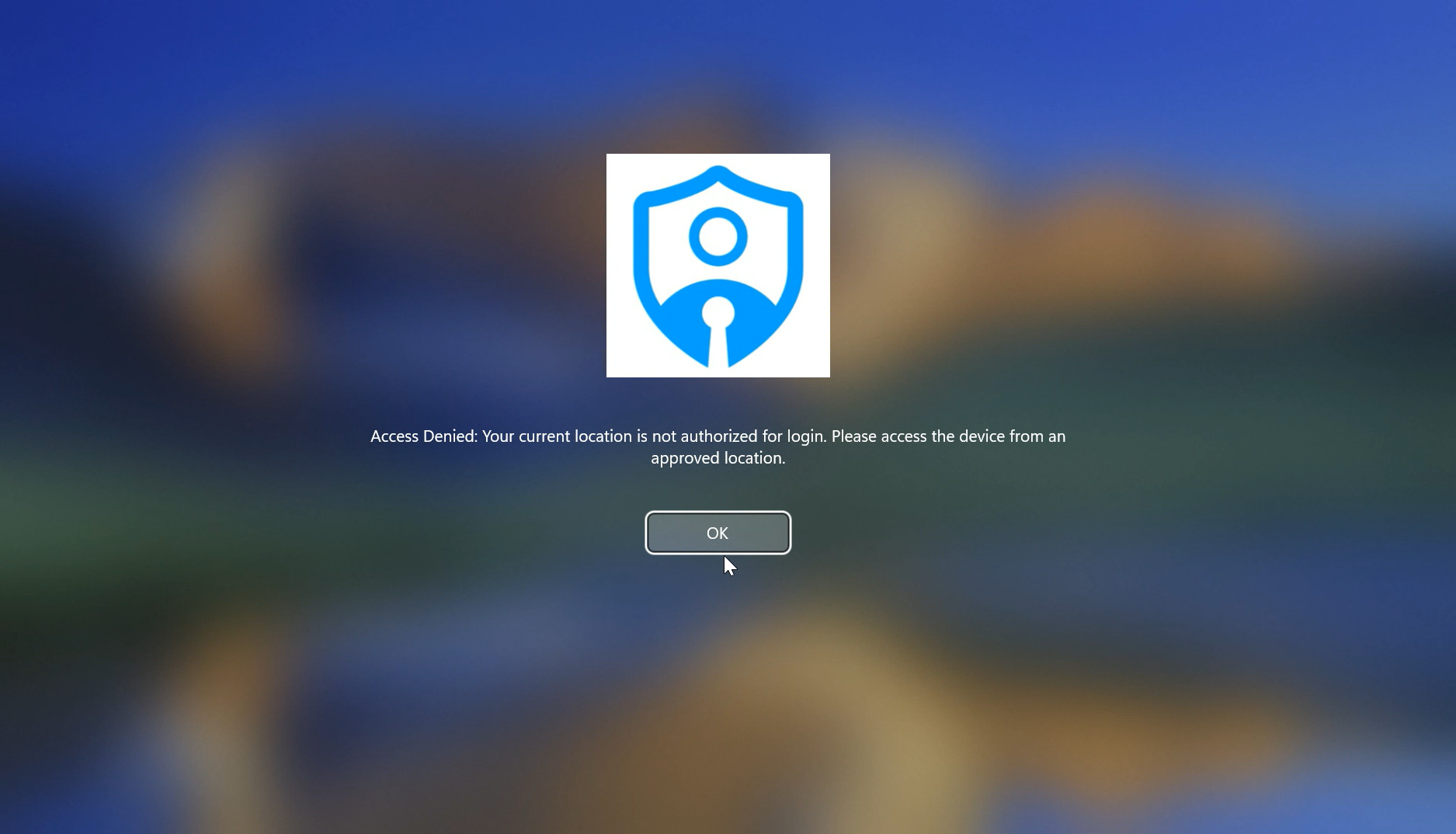
- Conditional Access
- Below screen indicates that access has been denied because one or more Conditional Access requirements were not satisfied.
- Account Setup Progress
- After successful authentication, a Windows progress screen appears.
- During the progress, a user profile will be created and the system will prepare the desktop.
- Desktop Access
- The user is logged in to the Windows desktop.
- Standard applications and SureMDM-managed configurations (e.g., SureMDM Agent, Start Kiosk, etc.) will be available.
This demonstrates seamless integration of SureIdP as the primary identity provider for Windows login, ensuring secure and policy-compliant access to enterprise-managed devices.