Microsoft Entra (Office 365) - SSO and Conditional Access
Prerequisites:
- The domain must be a custom verified domain (e.g., yourcompany.com)
- Default/Initial (
*.onmicrosoft.com) domains cannot be federated. - While adding the Entra application, use a Global Administrator account to grant permissions required for federation via Microsoft Graph API.
Steps to Configure Microsoft Entra (Office 365) Integration
- Add and Verify Custom Domain
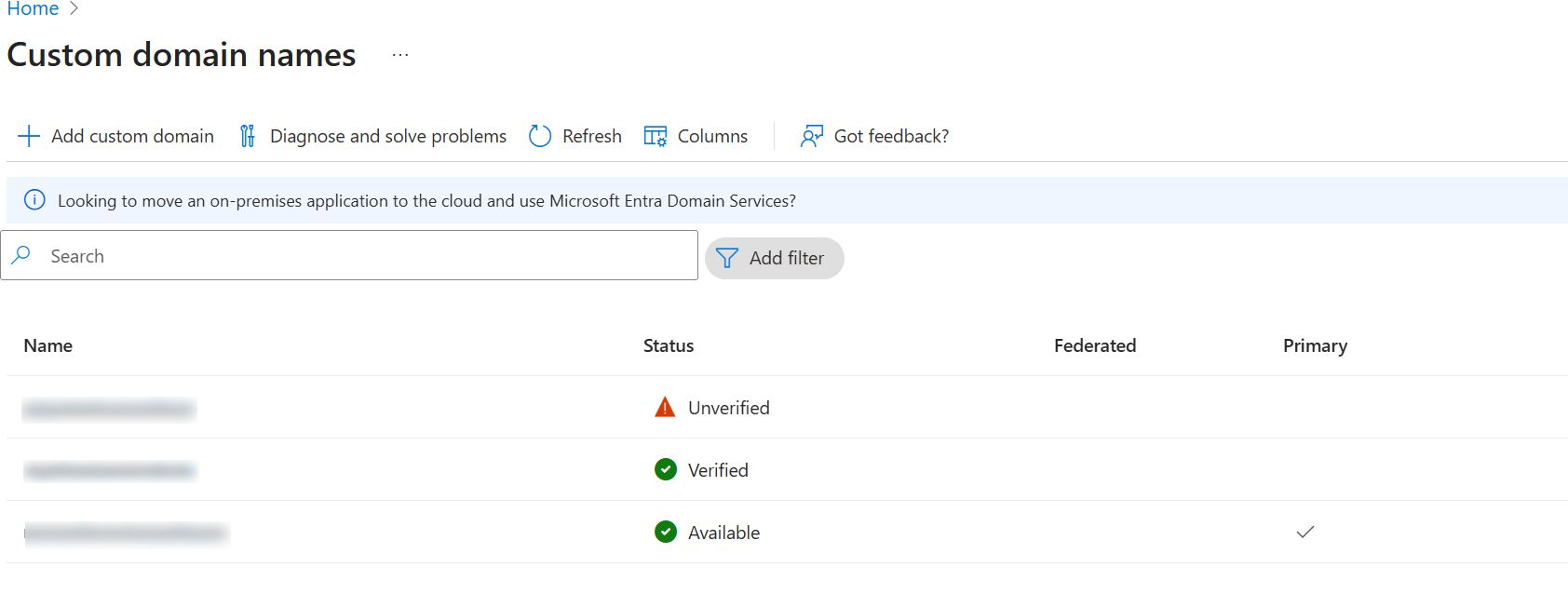
- Add your custom domain in SureIdP → Domains and complete verification.
- Ensure the same domain is also verified in the Microsoft Entra portal.
- Refer to this guide for domain setup instructions.
- Create Entra SAML Application
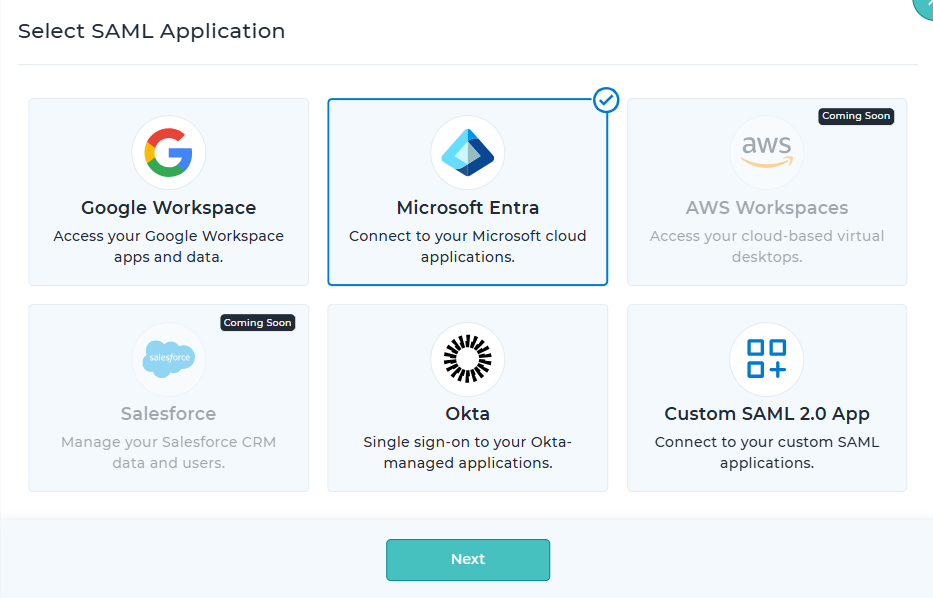
- Navigate to SureIdP → Applications, select Microsoft Entra, and click Next.
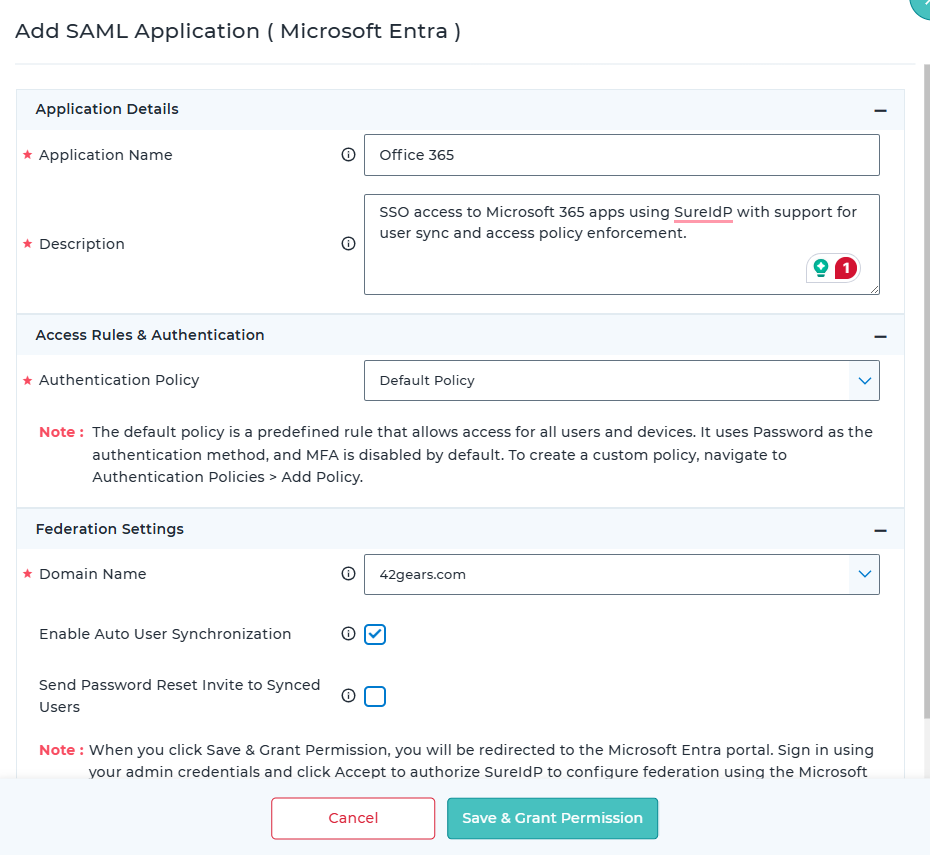
- Click Add SAML Application and provide the application name and description.
- Configure Authentication Policy
- In the Access Rules & Authentication section, select an existing Authentication Policy.
- Refer to the Authentication Policy section for details on configuring conditional access and authentication methods.
- Set Federation Options
- Domain Name: Select the verified custom domain to be federated.
- Auto User Synchronization: Enable to automatically sync users from Microsoft Entra into SureIdP → Users.
- Send Password Reset Invite:
Enable this option to automatically send password reset invitations to all users synced from Microsoft Entra.
If disabled, you'll need to manually send invites later from the Users section.
It’s recommended to enable this option during setup, as users must reset their passwords after federation. Post-federation, Microsoft Entra credentials will no longer be valid for login.
- Authorize via Microsoft Graph API
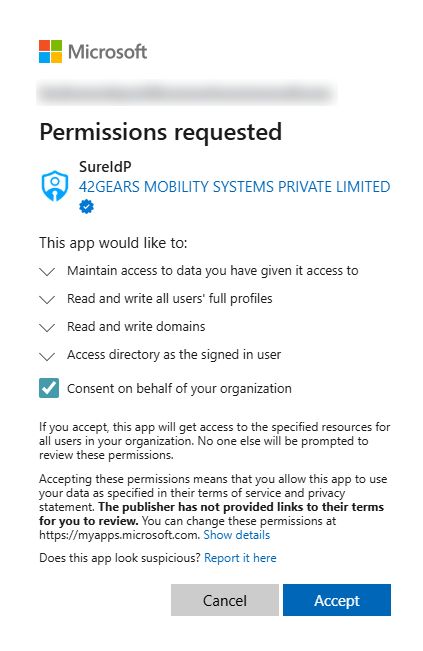
- Click Save & Grant Permission. You’ll be redirected to the Microsoft Entra portal.
- Sign in with a Global Administrator account and click Accept to authorize SureIdP.
Note: Federation is not supported for*.onmicrosoft.comdomains. Authorization will fail if the account lacks Global Admin privileges.
- Post-Authorization Sync
- After authorization, users from the selected domain will be synced into SureIdP → Users.
- Ensure all users complete password setup. You can track password status in the user list under the Status column.
- Enable Federation
- Edit the Entra application in SureIdP and Enable Federation with SureIdP.
- This switches the domain’s authentication from Microsoft Entra to SureIdP.
- All users under this domain will now authenticate through SureIdP.
- Users who haven’t set a new password will encounter an "Invalid Credentials" error when attempting to sign in.
- Federation changes may take anywhere from 10 minutes to up to 2 hours to fully propagate and reflect authentication via SureIDP. If you still see the Microsoft Entra ID (Azure AD) login screen, please wait a little longer and try again.
User Login Flow
User attempts to access a federated application (e.g., Office 365).
SureIdP evaluates access using the assigned Authentication Policy.
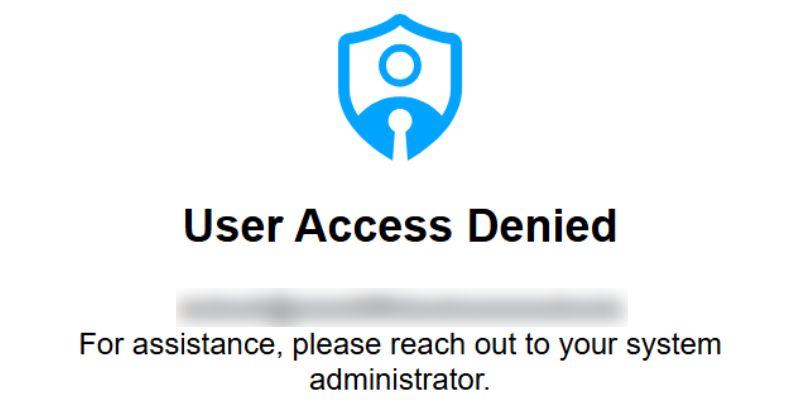
- If access is denied based on allowed platform, users, or other rules, an appropriate error message is shown.
If access is allowed, the user is prompted to authenticate using the selected method (password or certificate).
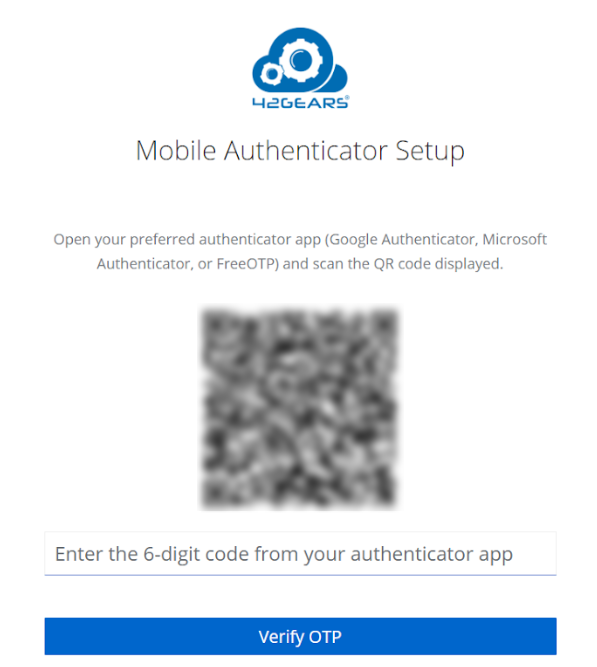
If MFA is enabled, a second-factor prompt is triggered.
Upon successful authentication, the user is granted access.
SSO allows seamless access to other Microsoft 365 applications without re-authentication.
Key Considerations
Only one domain can be configured for Microsoft Entra integration per SureMDM account.
Once the Microsoft Entra application is federated:
- All users under the federated domain will be affected.
- Users must reset their passwords to log in via SureIdP.
Always send password reset invitations before enabling federation.
- Federation should be enabled after users have successfully reset their passwords.
Federation changes may take anywhere from 10 minutes to up to 2 hours to fully propagate and reflect authentication via SureIDP. If you still see the Microsoft Entra ID (Azure AD) login screen, please wait a little longer and try again.
After federation:
- New users must be created in the SureIdP → Users section.
- User creation directly in the Microsoft Entra portal will no longer be supported.
Any users created or deleted in SureIdP will automatically sync to Microsoft Entra.
To test Microsoft Entra without impacting the production domain:
- Register a separate, unused custom domain and use it exclusively for federation and user testing.
Subdomain Federation Setup
This section describes how to test federation using a subdomain instead of the primary domain, without affecting existing production authentication. It is intended for testing and pilot validation scenarios.
The configured subdomain will be used as the login email domain.
Example: If sub.example.com is configured, users must log in using user@sub.example.com.
Steps to Promote a Subdomain in Microsoft Entra ID
Install Microsoft Graph Module
Install-Module Microsoft.GraphConnect with Required Permissions
Connect-MgGraph -Scopes "Domain.ReadWrite.All", "Directory.AccessAsUser.All"Sign in using a Global Administrator account when prompted
List Available Domains
Get-MgDomain | Select-Object Id, IsVerified, IsDefault, IsPrimary
Identify the subdomain to be used for testing
Ensure the domain is verified
Promote the Subdomain
Invoke-MgGraphRequest -Method POST -Uri
"https://graph.microsoft.com/v1.0/domains/sub.example.com/promote"
Replace sub.example.com with the required subdomain
Verify Promotion
Get-MgDomain -DomainId "sub.example.com"
Confirm the following in output:
IsRoot: True
IsRoot: True indicates the subdomain is successfully promoted and ready for federation.