Licenses
In SureAsset, licenses are used to manage digital licenses and subscription-based software across your organization. The platform supports multiple license types and provides tools to allocate license seats, ensure compliance, track renewals, and monitor licensing costs.
To add Licenses to SureAsset, follow these steps:
- Navigate to the Licenses section in SureAsset.
- Click Create New.
 |
|---|
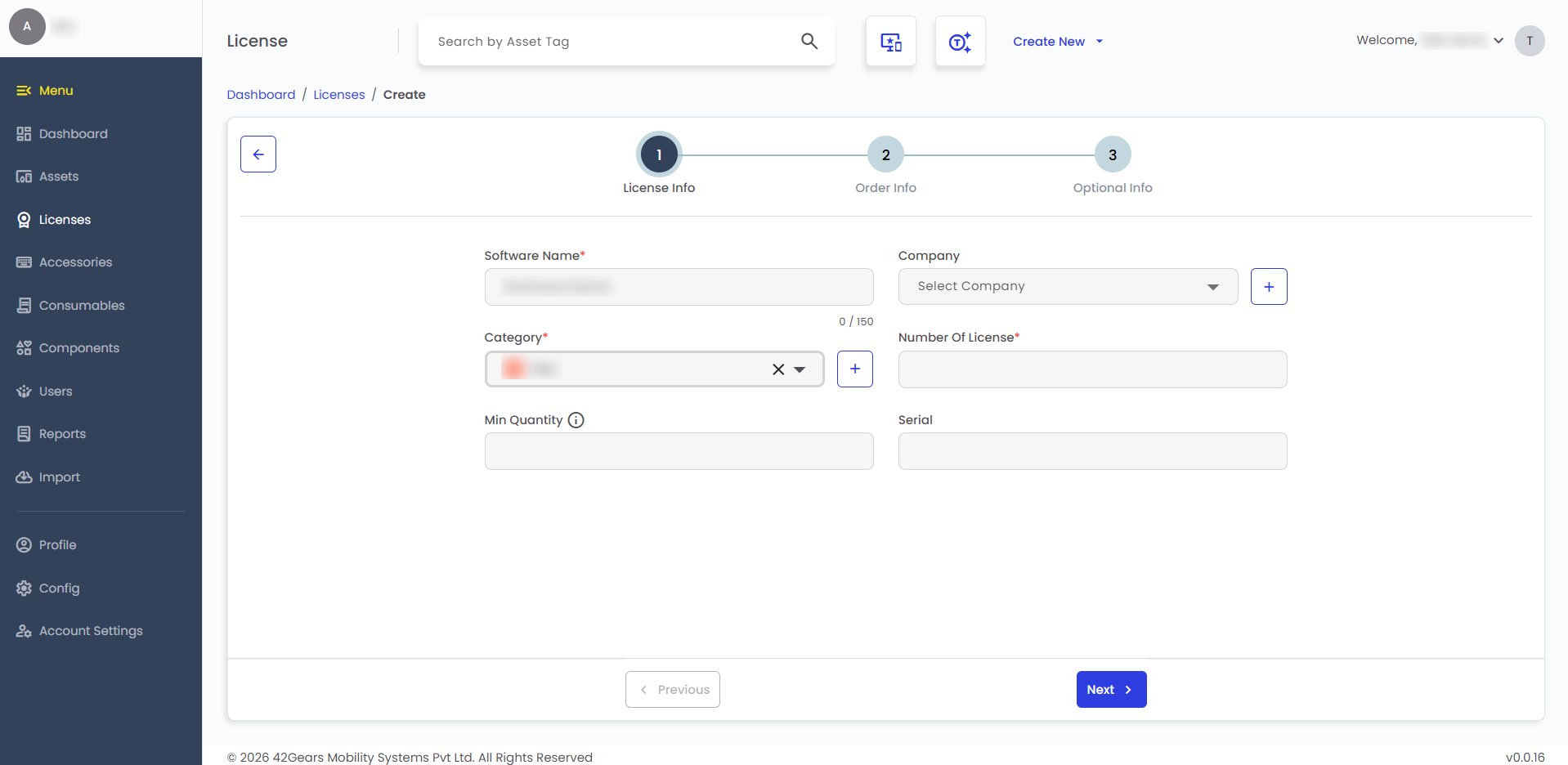
- Configure the following License Info details:
- Software Name - Enter the name of the software.
- Company - Select the company associated with the license.
- Category - Select the license category.
- Number of Licenses - Enter the total number of licenses available.
- Minimum Quantity - Enter the minimum quantity to trigger low-availability alerts.
- Serial - Enter the license serial or key.
- Configure the following Order Info details:
- License Name - Enter a name to identify the license.
- License Email - Enter the email address associated with the license.
- Supplier - Select the supplier of the license.
- Manufacturer - Select the software manufacturer.
- Order Number - Enter the purchase order number.
- Purchase Date - Select the license purchase date.
- Purchase Cost - Enter the license purchase cost.
- Purchase Order - Enter the purchase order reference.
- Expiration Date - Select the license expiration date.
- Termination Date - Select the license termination date, if applicable.
- Depreciation - Select the depreciation policy for the license.
- Configure the following Optional Info details:
- Reassignable - Enable to allow the license to be reassigned.
- Maintained - Enable to indicate the license is under maintenance.
- Notes - Enter additional information about the license, if required.
- Image - Upload an image related to the license.
note
Use the + icon next to a field to add a new entry. Enter the details and click Create.
- After entering the required details, click Create to add the license.
- To assign the license, click Checkout and configure the details to check out the license to users or assets.