Configuration (Config)
Before adding or managing assets in SureAsset, configure the required information such as company details, locations, departments, manufacturers, models, and other related data. These configurations ensure accurate asset tracking and efficient use of the system.
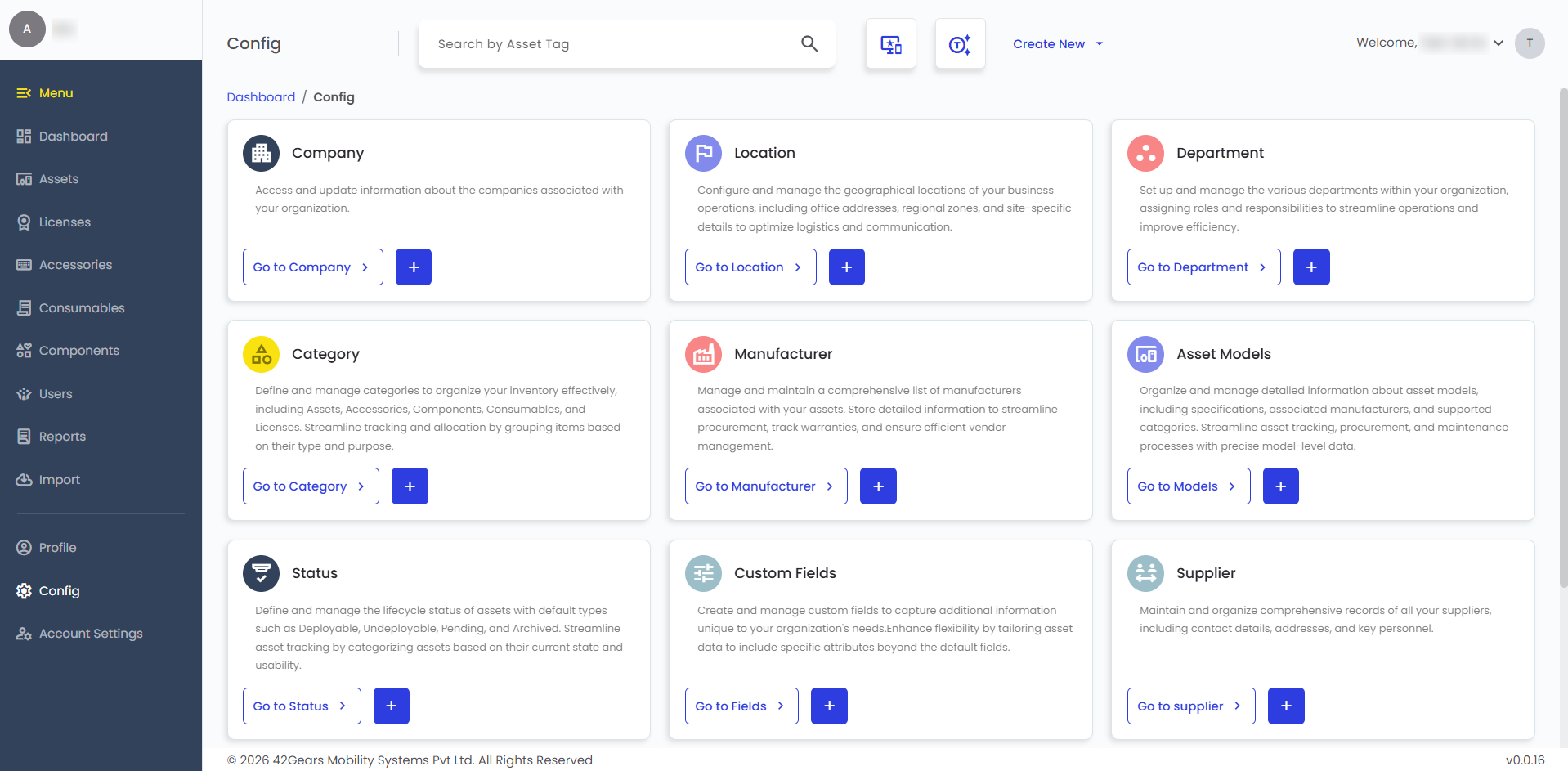
To configure each option, follow the steps given below:
- Navigate to Config from the left panel.
- Select the required configuration option which includes: Company, Location, Department, Category, Manufacturer, Asset Models, Status, Custom Fields, Supplier, and Depreciations.
- Click + (Create New).
- Enter the required details and upload an image if required.
- Click Create.
The sections below provide an overview of each configuration option and the associated configuration fields.
Company
This option helps to manage information about the organizations associated with your account.
- Company Name - Enter the official company name
- Company Logo - Upload the official company logo
Location
This option allows you to configure and manage geographical locations such as offices, regions, or sites.
- Location Name - Enter the location name (office/region/site)
- Parent Location - Select the higher-level location this location belongs to
- Manager - Select the manager responsible for the locationnote
To add a manager, click + and enter the required details.
- Address Line 1 and Address Line 2 - Enter the location’s address using one or both address lines.
- City, State, Country - Enter city, state, and country
- Zip code - Enter the postal code of the location
- Currency - Enter the local currency
Department
This option helps to define and manage departments within your organization.
- Department Name - Enter the name of the department
- Company - Select the company this department belongs to
- Manager - Select the manager responsible for the department
- Location - Select the location associated with the department
- Notes - Enter additional information about the department, if required
Category
This option helps you organize inventory items such as assets, accessories, components, consumables, and licenses.
- Category Name - Enter the name of the category
- Category Type - Select the category type (Accessory/ Asset/ License/ Consumable/ Component)
- Notes - Enter additional information about the category, if required
- Category logo - Upload an image to represent the category
Manufacturer
This option helps you to manage information about asset manufacturers and vendors.
- Manufacturer Name - Enter the name of the manufacturer
- URL - Enter the manufacturer’s website URL
- Warranty URL - Enter the URL for warranty information
- Support URL - Enter the URL for manufacturer support
- Support contact, Support Email - Enter the manufacturer’s support contact number and email address
- Notes - Enter additional information about the manufacturer, if required
- Manufacturer Logo - Upload the manufacturer’s logo
Asset Models
This option helps you to manage detailed model-level information for assets.
- Model Name - Enter the name of the asset model
- Category - Select the category this model belongs to
- Manufacturer - Select the manufacturer of this model
- Model Number - Enter the manufacturer’s model number
- Depreciation - Select the depreciation policy for this model
- EOL Duration - Enter the End-of-Life duration in months
- Fields set - Select the field set associated with this model
- Add default values - Enable to automatically populate default values for this model
- Notes - Enter additional information about the model, if required
- Users may request this model - Enable to allow users to request this model
Status
This option helps you to define the lifecycle state of assets.
- Status Name - Enter the name of the status
- Status Type - Select the type of status (Pending/Deployable/Undeployable/Archived)
- Notes - Enter additional information about the status, if required
- Status Colour - Select a color to represent the status
Custom Fields
This option helps you to capture additional asset information specific to your organization.
- Field Name - Enter the name of the custom field
- Element - Select the field type (Textbox/Listbox/Textarea/Checkbox/Radio Button)
- Format - Specify the format for the field
- Help Text - Enter guidance or instructions for users on how to fill this field
- Requestable in Asset List - Enable to make this field available when users request assets
Supplier
This option helps you to maintain records of vendors and suppliers associated with your assets.
- Supplier Name - Enter the name of the supplier
- Address Line 1 and Address Line 2 - Enter the location’s address using one or both address lines.
- City, State , Country - Enter city, state and country
- Zip code - Enter the postal code of the supplier location
- Contact, Alternate Contact - Enter the primary contact and alternate contact of the supplier
- Email - Enter the contact email address of the supplier
- Notes - Enter additional information about the supplier, if required.
Depreciations
This option helps to manage asset depreciation schedules for financial tracking.
- Depreciation Name - Enter the name of the depreciation policy
- Duration - Enter the duration of the depreciation in months
- Notes - Enter additional information about the depreciation policy, if required