Assets
In SureAsset, assets represent the valuable items your organization owns or manages, including:
- Physical Assets - Computers, monitors, furniture, vehicles
- Equipment - Machinery, tools, and specialized equipment
- Infrastructure - Network devices, servers, and storage systems
To add Assets to SureAsset, follow these steps:
- Navigate to the Assets section in SureAsset.
- Click Create New.
 |
|---|
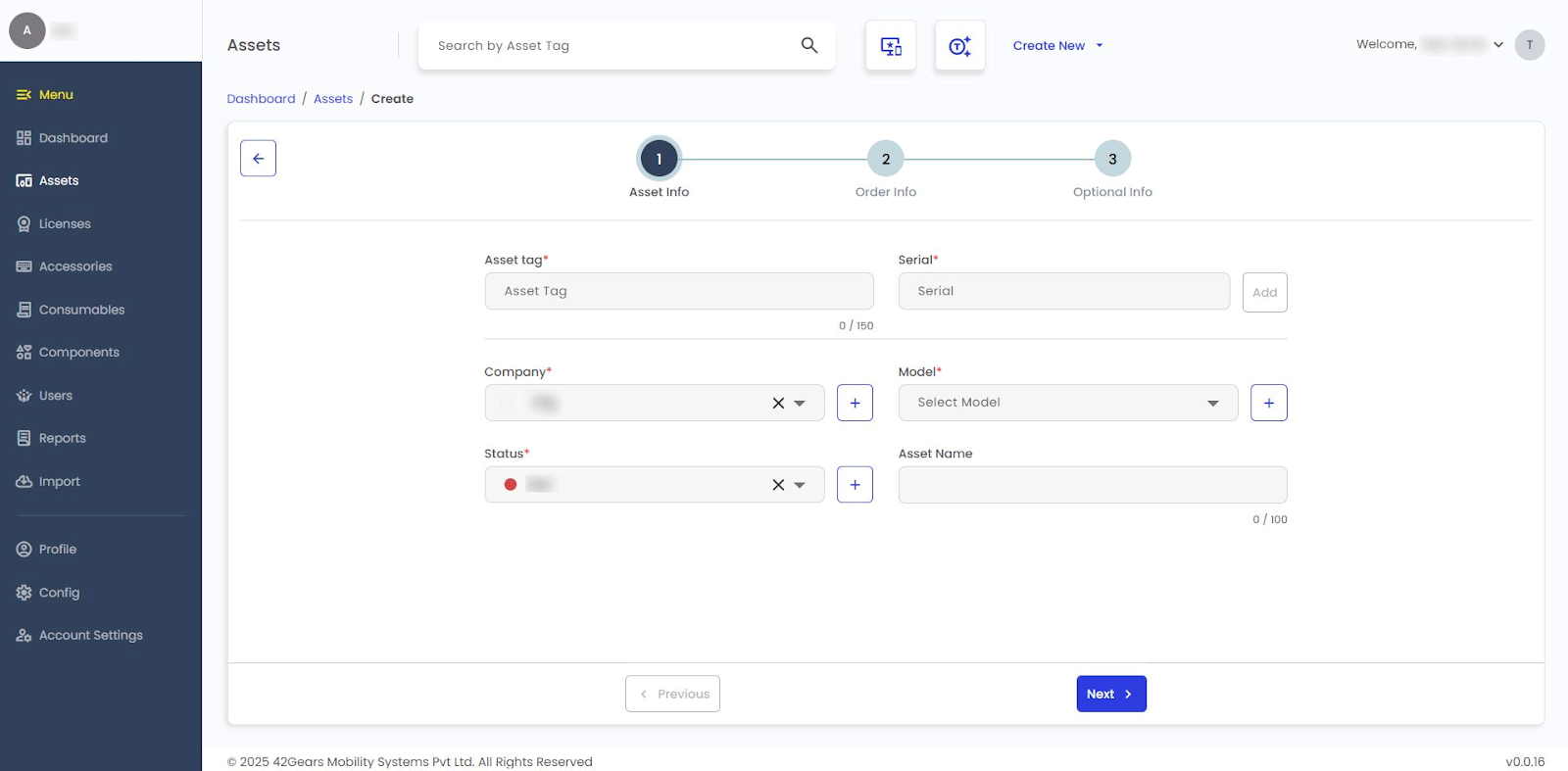
- Configure the following Asset Info details:
Asset Tag - Enter the unique asset tag used to identify the asset.
Serial - Enter the manufacturer’s serial number for the asset.
noteClick Add after entering Serial Number.
Company - Select the company that owns the asset.
Model - Select the asset model.
Status - Select the current status of the asset.
Asset Name - Enter a name to identify the asset.
- Configure the following Order Info details:
- Location - Select the location where the asset is assigned or stored.
- Supplier - Select the supplier from whom the asset was purchased.
- Warranty - Enter the warranty information or duration.
- Order Number - Enter the purchase or order reference number.
- Purchase Date - Select the date the asset was purchased.
- Purchase Cost - Enter the purchase cost of the asset.
- EOL Date - Select the end-of-life date for the asset.
- Configure the following Optional Info details:
- BYOD - Indicate whether the asset is a Bring Your Own Device (BYOD).
- Requestable - Enable to allow users to request this asset.
- Next Audit Date - Select the next scheduled audit date for the asset.
- Notes - Enter any additional information about the asset, if required.
- Upload Image - Upload an image of the asset for reference.
note
Use the + icon next to a field to add a new entry. Enter the details and click Create.
- Click Create.
The Asset will be successfully added to the SureAsset.