Printronix Auto ID Printer Enrollment
42Gears has integrated Printronix Auto ID Printers with SureMDM to streamline printer management and boost operational efficiency. This integration allows IT administrators to remotely enroll, configure, and monitor Printronix Auto ID Printers through a centralized SureMDM console. With enhanced visibility and control, businesses can reduce manual intervention, ensure consistent printer performance, and simplify large-scale deployment.
Enroll Printronix Auto ID Printer in SureMDM
To enroll the Printronix Auto ID Printer in the SureMDM Console, follow these steps:
Prerequisite
- Configure No Authentication in the SureMDM Console.
- Configure Enable Things Gateway in the SureMDM Console.
- The host machine and printer should be connected to the same local network via Ethernet or Wi-Fi.
Steps:
Obtain the IP address from the printer display or by navigating to Settings > Network > Ethernet > IP Address.
Run this IP address in a browser to open the Printronix tool.
noteOmit any leading zeros in the IP address.
Login with your previously entered credentials or with the default credentials(if asked).
noteThe default Username is "root" and password is not required.
In the Administration page, navigate to the System Administration section and enable the NTP and MQTT checkboxes, and click on the Submit button at the bottom of the page.
Back in the displayed menu, choose Network to configure the printer to synchronize with a network time server by scrolling down to the NTP section and entering either the URL or IP address of the time server you wish to use in the “Static NTP server 1”.
Example: time.google.comConfigure a second or third server, if desired. Enter the appropriate time zone offset from UTC and click on the Submit button at the bottom of the page.
Navigate back to the Configuration page, click on MQTT and enter the below configuration details and click on Submit to save the settings.
a. Connect - Option to initiate the connection to the MQTT broker.
- Enable the TLS and Autoconnect checkbox.
b. Server - It is the Broker URL that allows the printer to communicate with SureMDM for centralized control, configuration sync, or data exchange. For the values, refer to the SureMDM account URLs below based on the regions as follows:
- If your SureMDM URL is dns.suremdm.io (US), then use the server mqttbrokerusdns.suremdm.io
- If your SureMDM URL is dns.eu.suremdm.io (EU), then use the server mqttbrokereu.eu.suremdm.io
- If your SureMDM URL is dns.in.suremdm.io (IN), then use the server mqttbrokerin.in.suremdm.io
- If your SureMDM URL is dns.eu2.suremdm.io (EU2), then use the server mqttbrokereu.eu2.suremdm.io
- If your SureMDM URL is dns.me.suremdm.io (ME), then use the server mqttbrokerme.me.suremdm.io
- If your SureMDM URL is suremdm.42gears.com (US Master), then use the server mqttbrokerusmaster.42gears.com
c. Topic - It is the communication channel or subject identifier used in messaging protocols like MQTT. The values are the same for all the regions, i.e., printronix (all lowercase).
d. Port - It is the specific network port used by the Printronix Auto ID printers to communicate with the MQTT broker.
- The values are the same for all the regions, i.e., 8883.
e. Tenant ID - It is the SureMDM Account ID where the device has to be enrolled.
Navigate to Settings on the top right corner of the SureMDM console to get the Account ID.
f. MQTT Username - It is the authentication credential used by the printer to connect securely to an MQTT broker or server.
Format: iot-\<Account_id>
For example, if your SureMDM account ID is 1234554321, your MQTT username is: iot-1234554321
Navigate to Settings in the top right corner of the SureMDM console to get the Account ID.
g. MQTT Password - It is the secure Gateway password for connecting the Printronix Auto ID printers to the SureMDM console.
The Gateway Password can be copied from the Enable Things Gateway section under the Account Settings >> Things Management.
i) Leave both File Store Password and Private Key Password empty.
ii) Note the Agent ID to identify the printer in the SureMDM console.
h. Tenant ID - It is the identifier used to associate the device with a specific tenant/environment. Value here is the SureMDM account ID.
i. CA Certificate - It is a digital certificate used to verify whether a server or client certificate can be trusted.
- Upload the certificate by choosing the file from the system and Click Install
Navigate back to the Configuration page, click on System menu and click on the Reboot button.
- The printer will restart and if valid details are entered, the Printronix printers will be successfully enrolled in the SureMDM console.
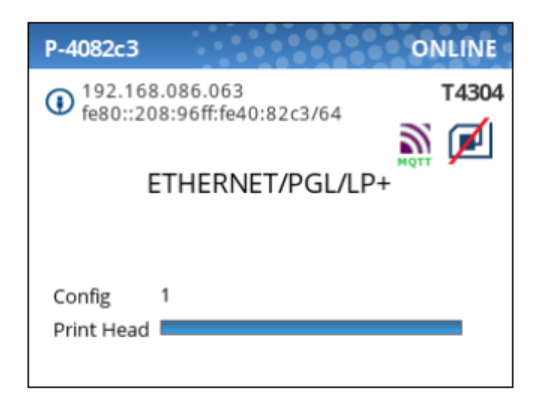
noteTo verify, check the printer display after restarting. In the upper-right corner, you will see an MQTT icon. If the printer is connected, the icon will appear in purple and green as shown; otherwise, it will be light grey.