Configure SureLock Settings
Follow these steps for configuring Okta from the SureLock Settings Job:
- Navigate to the SureLock Settings Job.
- On the SureMDM Console, click Jobs.
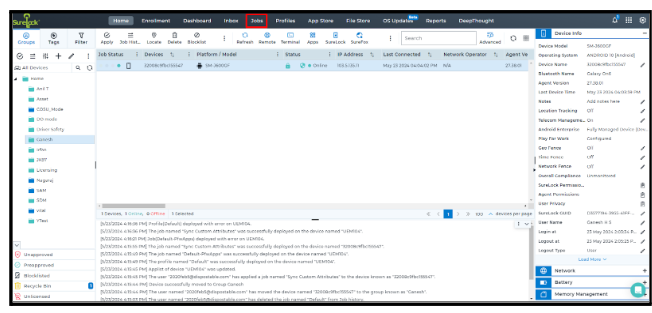
- Click the New Job option, select Android as the operating system, and then click on the SureLock Settings Job.
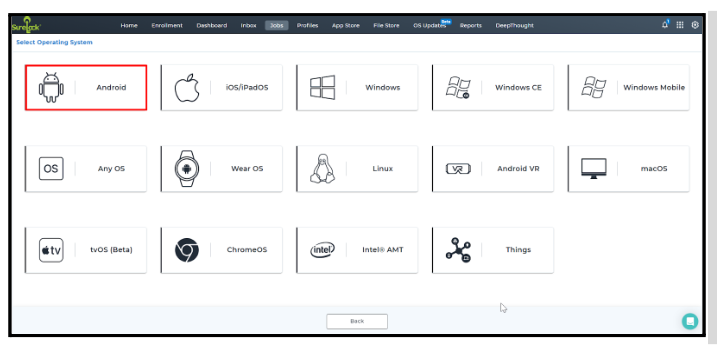
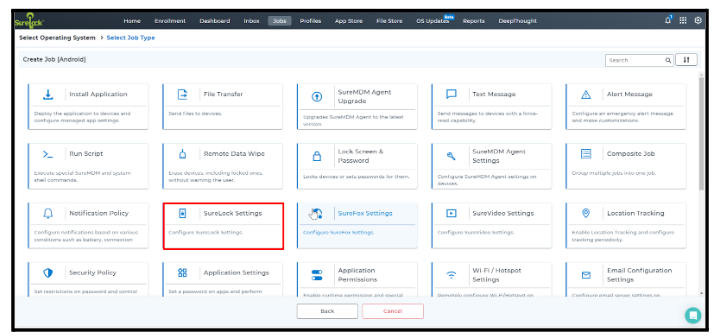
- Configure Shared Device Mode
- In SureLock Settings, click the Shared Device Mode feature.
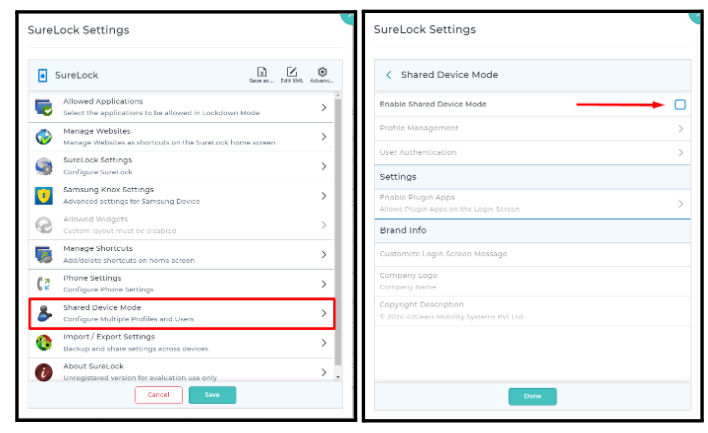
By default, the Shared Device Mode feature is disabled; enable it by clicking the checkbox.
Next, create a profile in the Profile Management section.
note
The Profile Name must exactly match the attribute specified in the Okta portal.
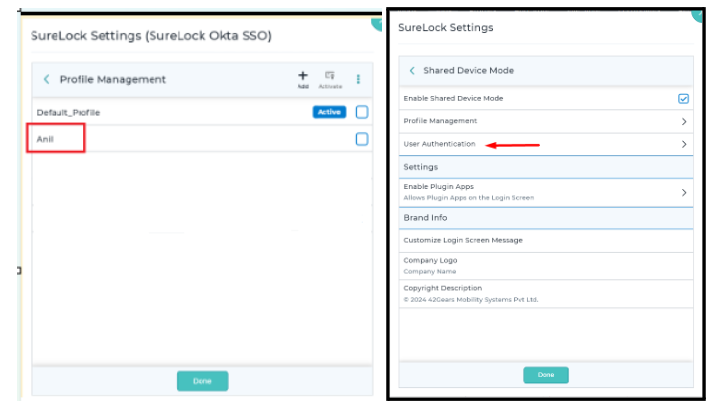
After enabling the Shared Device Mode feature, click on the User Authentication option.
Click on the Server Configuration option.
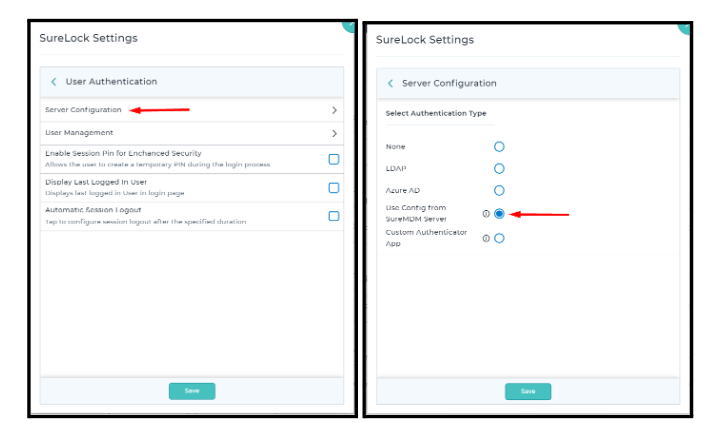
- From the Authentication Type options, select the Use Config from SureMDM Server radio button, then click the Save.
- Apply SureLock Settings to the enrolled devices.
On the SureMDM Console, use the Apply button to push the SureLock Settings Job to the enrolled devices from the SureMDM Console.
On the SureLock Home Screen, tap on Login.
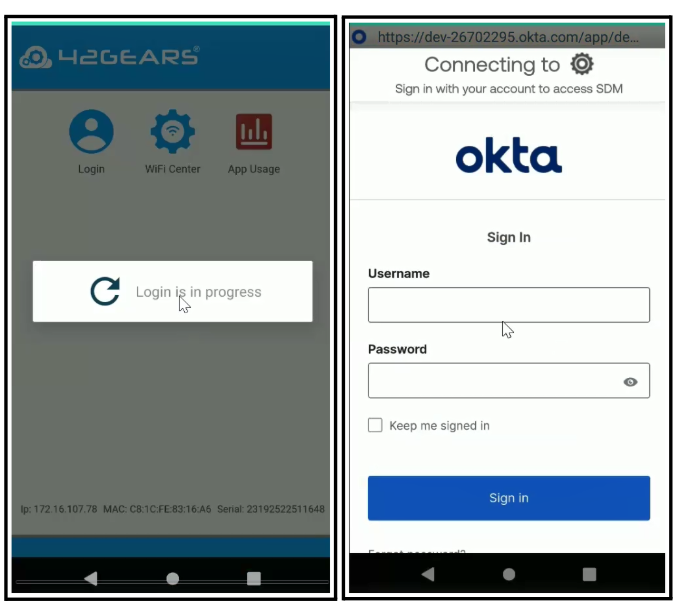
- Enter the User’s Username and Password.
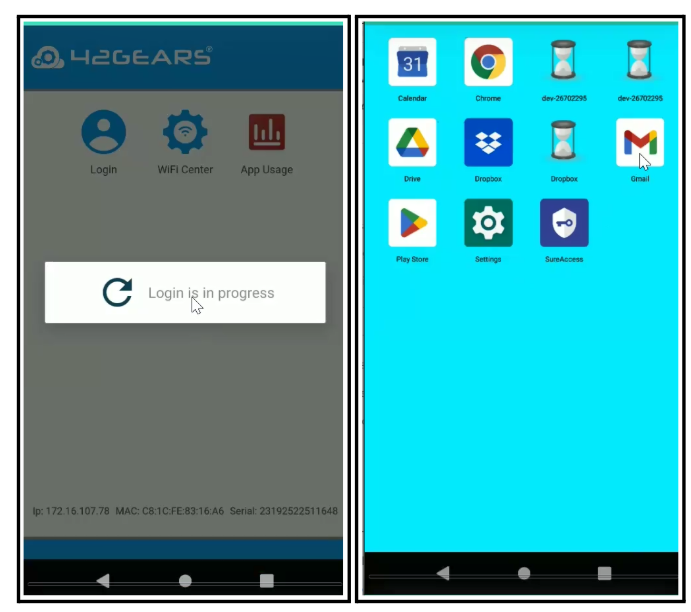
We have successfully configured Shared Device Mode using Okta. Once the user logs in, the corresponding profile on SureLock should load.