OneLogin
This strategic approach seamlessly integrates OneLogin capabilities with the 42Gears UEM Agent, maintaining the right balance between user convenience and enterprise security.
The integration begins by configuring OneLogin as a SAML Identity Provider (IdP) to enable Shared Device Mode. This involves creating a custom SAML application in the OneLogin Admin portal, setting authentication parameters, and managing user access through roles and user assignments.
The setup then extends into the SureMDM and SureLock applications, creating a unified authentication experience that simplifies access while securing shared device environments.
The integration process consists of three main steps:
Configure OneLogin for SAML Integration
Configure Shared Device Mode in SureMDM
Configure SureLock Settings
Step 1: Configure OneLogin for SAML Integration
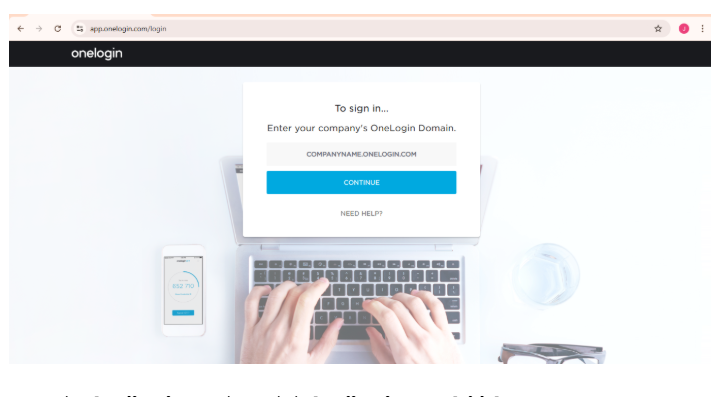
- Navigate to the OneLogin Portal and log in with your credentials.
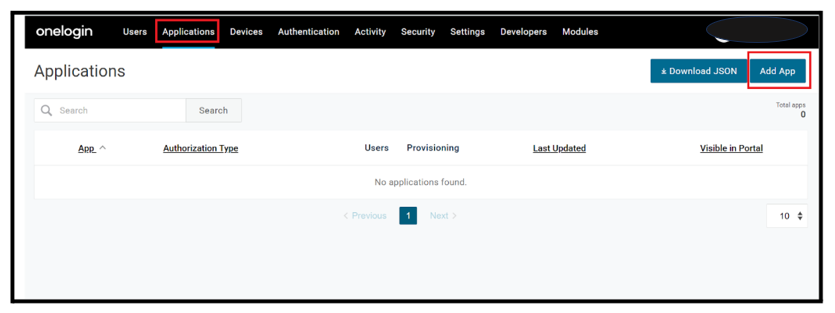
- Go to the Applications tab → Click Applications > Add App.
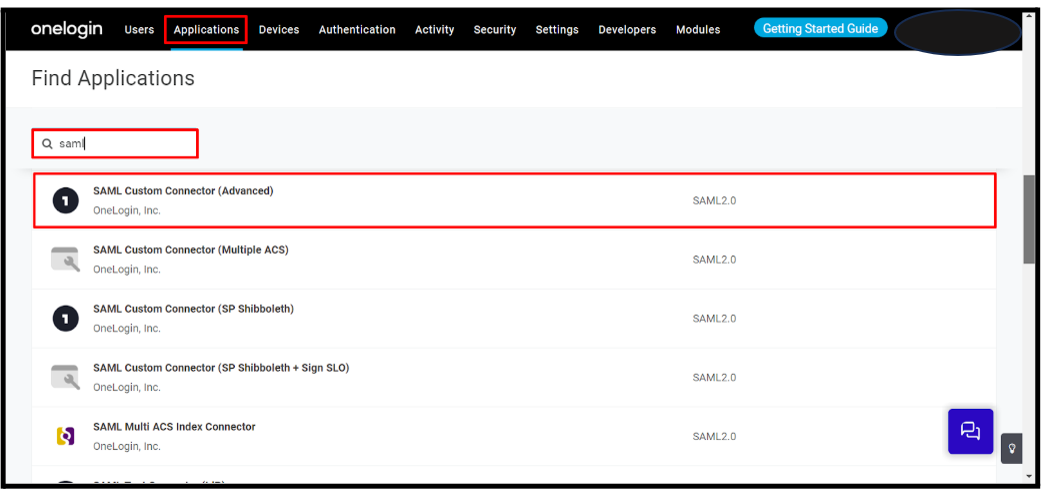
Search for SAML Custom Connector in the search bar.
Select SAML Custom Connector (Advanced).
Complete the required configuration changes, add a description, and click Save
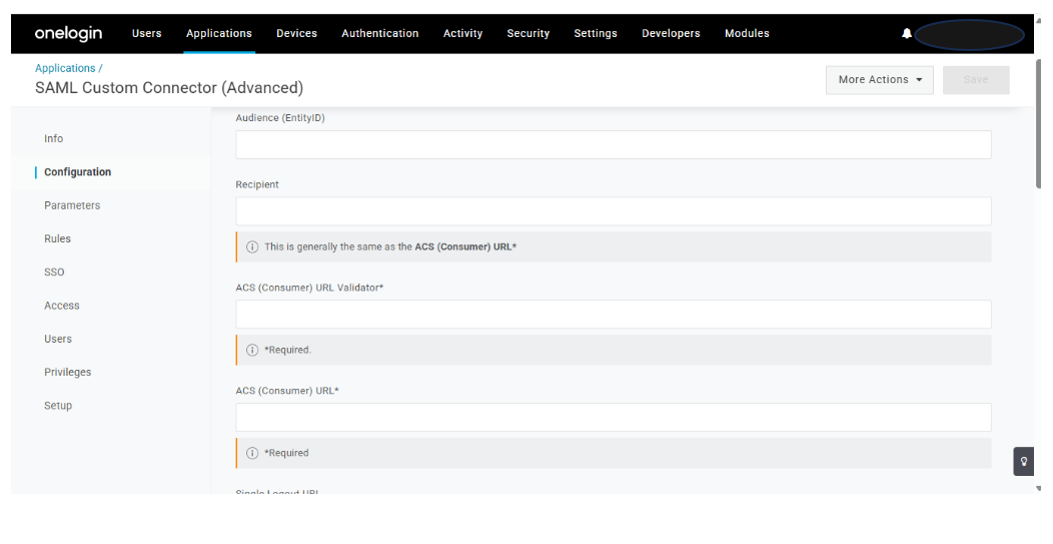
Under the Configuration section, enter the following:
Audience (EntityID):
urn:42gears:suremdm:SAML2ServiceProviderACS (Consumer) URL Validator and ACS (Consumer) URL:
https://<Account_URL>/sharedsaml?id=<Account_ID>note<Account_URL>and<Account_ID>refer to your SureMDM account details.The Single Logout URL and Login URL fields are optional. If you choose to use them, enter the same value as the ACS (Consumer) URL Validator. Otherwise, leave them blank.
Go to the SSO section.
Change SAML Signature Algorithm to SHA-256.
Click Save.
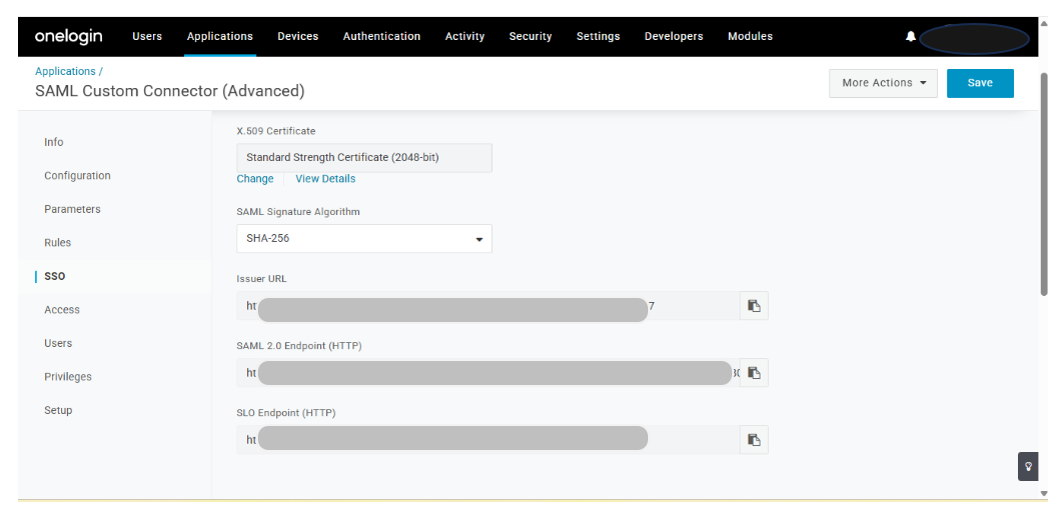
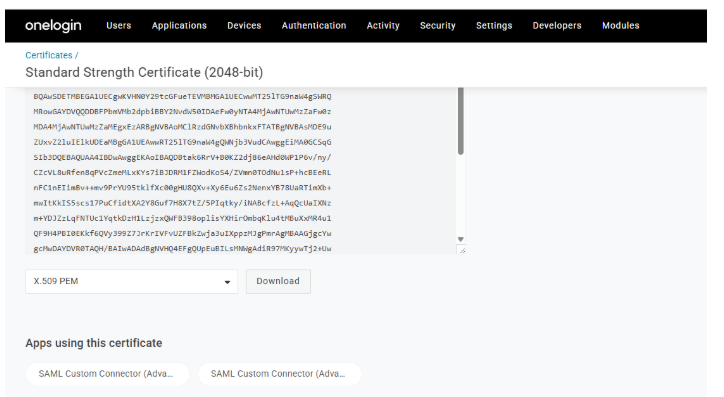
In the SSO section, under X.509 Certificate, click View Details.
- On the new page, scroll down and download the X.509 PEM certificate.
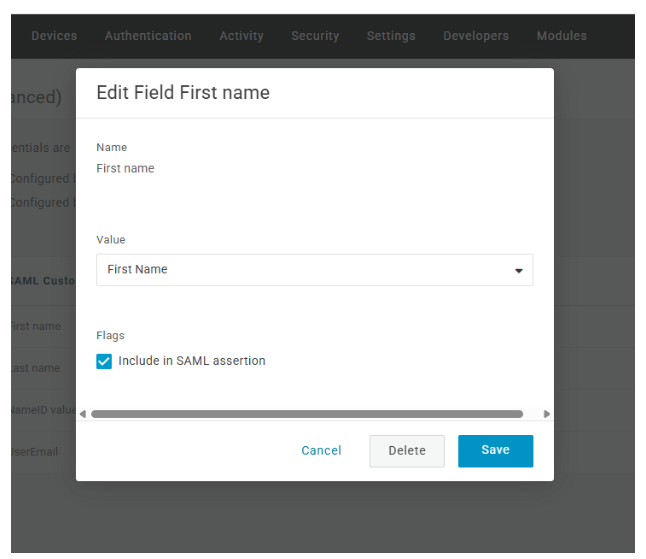
Go to the Parameters section.
Set Credentials are to Configured by Admin.
Click Add to open the New Field pop-up.
Enter the Name and Value of the attribute.
Check Include in SAML assertion.
Click Save.
Return to the SSO section and copy the following values:
Issuer URL
SAML 2.0 Endpoint (HTTP)
SLO Endpoint (HTTP)
Step 2: Configure Shared Device Mode in SureMDM
Log in to the SureMDM Console.
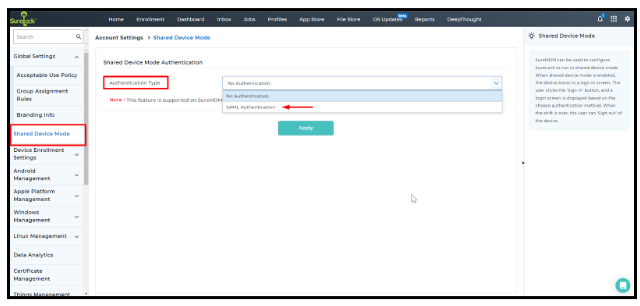
Navigate to Settings > Account Settings > Shared Device Mode.
Set Authentication Type to SAML Authentication.
Enter the information captured in point 8 of Step 1:
Service Identifier = Issuer URL
Sign On Service URL = SAML 2.0 Endpoint (HTTP)
Logout Service URL = SLO Endpoint (HTTP)
Upload the certificate downloaded in Step 6.
Click Apply to save the changes.
Step 3: Configure SureLock Settings
In the SureMDM Console, navigate to the Jobs section.
Click New Job > Android > SureLock Settings Job.
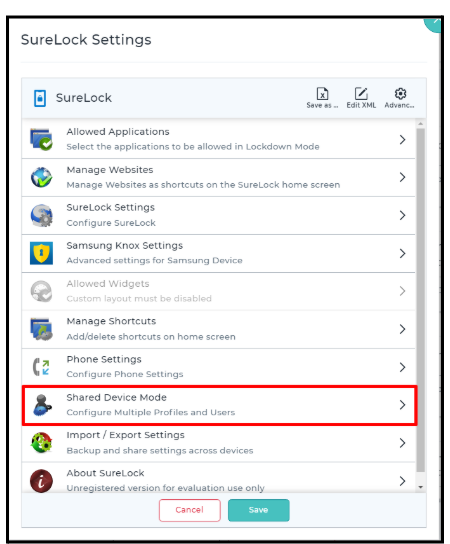
Scroll to Shared Device Mode and enable it.
Create a Profile under the Profile Management section.
noteThe Profile Name must match the Meta Tag used in the OneLogin portal.
Under User Authentication, click Server Configuration.
Select Use Config from SureMDM Server and click Save.
Push the SureLock Settings Job to the required devices.
On the device:
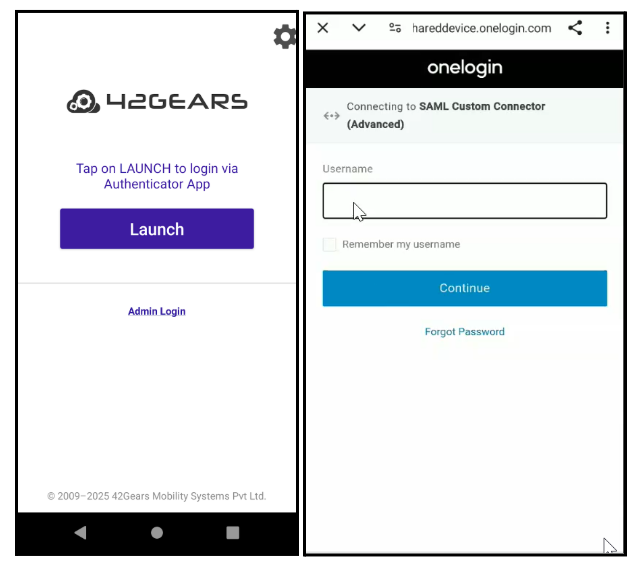
Launch SureLock and tap Launch on the shared device mode login screen.
Enter your Username and Password.
You will be successfully logged into Shared Device Mode using OneLogin.