Enabling Shared Device Mode from Account Settings
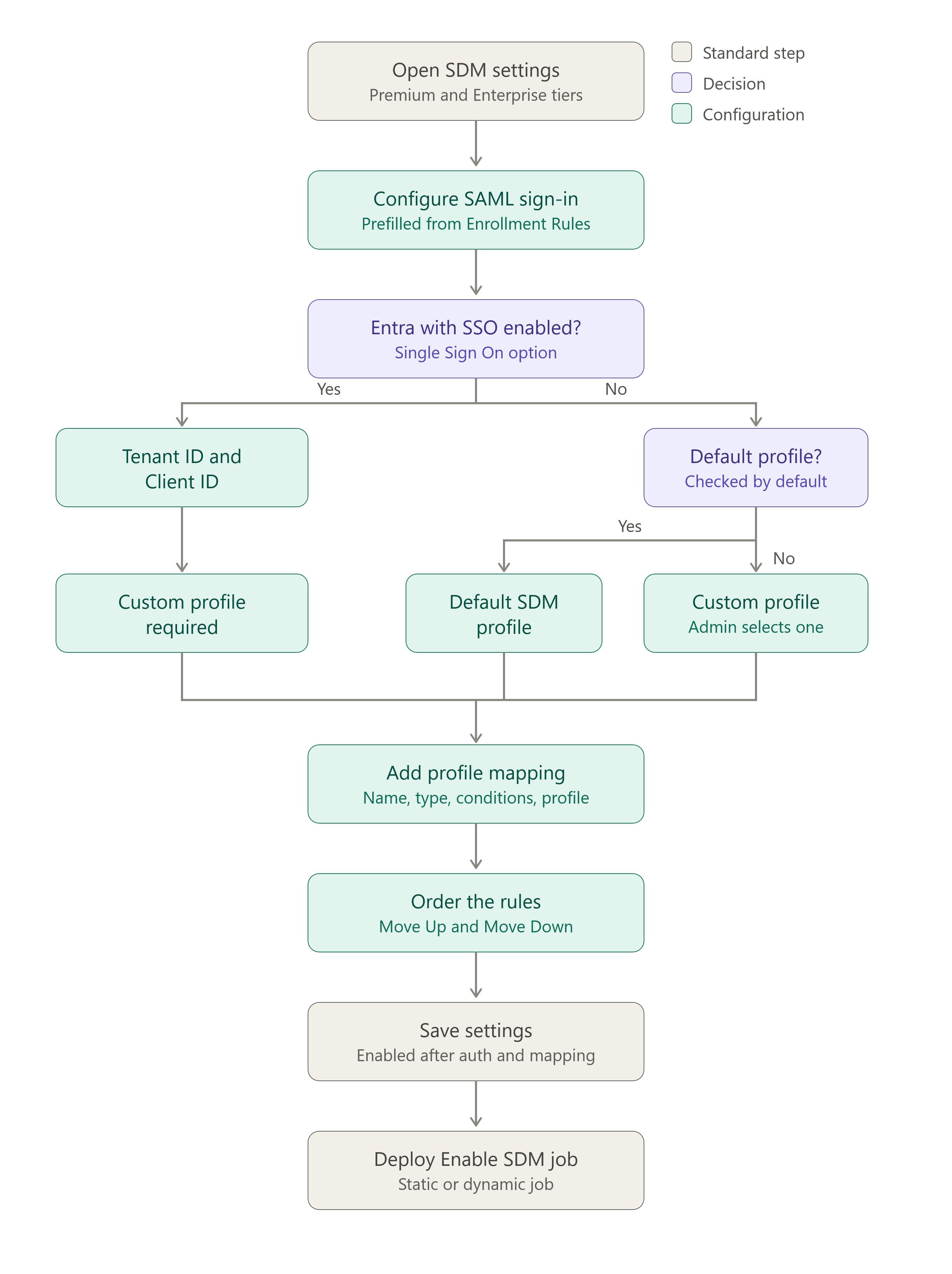
Administrators must configure Shared Device Mode settings in the SureMDM Console before deploying the SDM job to devices. The configuration includes defining the authentication method and profile mapping, which are required for user login and profile assignment during Shared Device Mode.
Administrators must configure the following sections in order to enable the Shared Device Mode for iOS/iPadOS platform:
- Authentication
- Profile Mapping
Configure Authentication
The Authentication section defines how users authenticate when accessing a Shared Device Mode device.
Navigate to Settings → Account Settings → Shared Device Mode → iOS/iPadOS → Configure
Under the Authentication section, configure the below required options
Authentication Options
| Field | Description |
|---|---|
| Authentication Type | Select the authentication method used to verify users. Currently supports SAML Authentication. |
| Select Identity Provider (IdP) | Choose the identity provider used for authentication. Currently supported: Microsoft Entra (Azure AD), SureIdP. |
| Enable Single Sign On | If enabled, the credentials entered in the agent will be used to perform Single Sign-on for MSAL applications. [Applicable only if Microsoft Entra is selected as IdP] |
| Tenant ID | Enter the Tenant ID registered in Azure Portal. [Applicable only if Microsoft Entra is selected as IdP] |
| Client ID | Enter the Application Client ID created in Azure Portal. Supported only on iOS 16 or later. [Applicable only if Microsoft Entra is selected as IdP] |
| Service Identifier | The unique identifier for the service provider, also known as Entity ID or Issuer URL. [Applicable only if Microsoft Entra is selected as IdP] |
| Sign On Service URL | It can also be found with different names such as "Single Sign-On URL," "SSO URL," or "Login URL" depending on the IdP. [Applicable only if Microsoft Entra is selected as IdP] |
| Logout Service URL | It can also be found with different names such as "Single Logout URL," "SLO URL," "Logout URL", based on the IDP. [Applicable only if Microsoft Entra is selected as IdP] |
- Service Identifier, Sign On Service URL & Logout Service URL values will be available once integration is done with SureMDM. If the integration has not yet been configured, refer to this guide for instructions on obtaining these values.
- For Microsoft Entra, if Conditional Access is configured, the Tenant ID and Client ID fields are automatically populated from the Entra integration settings. But it will be editable where admins can choose to modify the value if required.
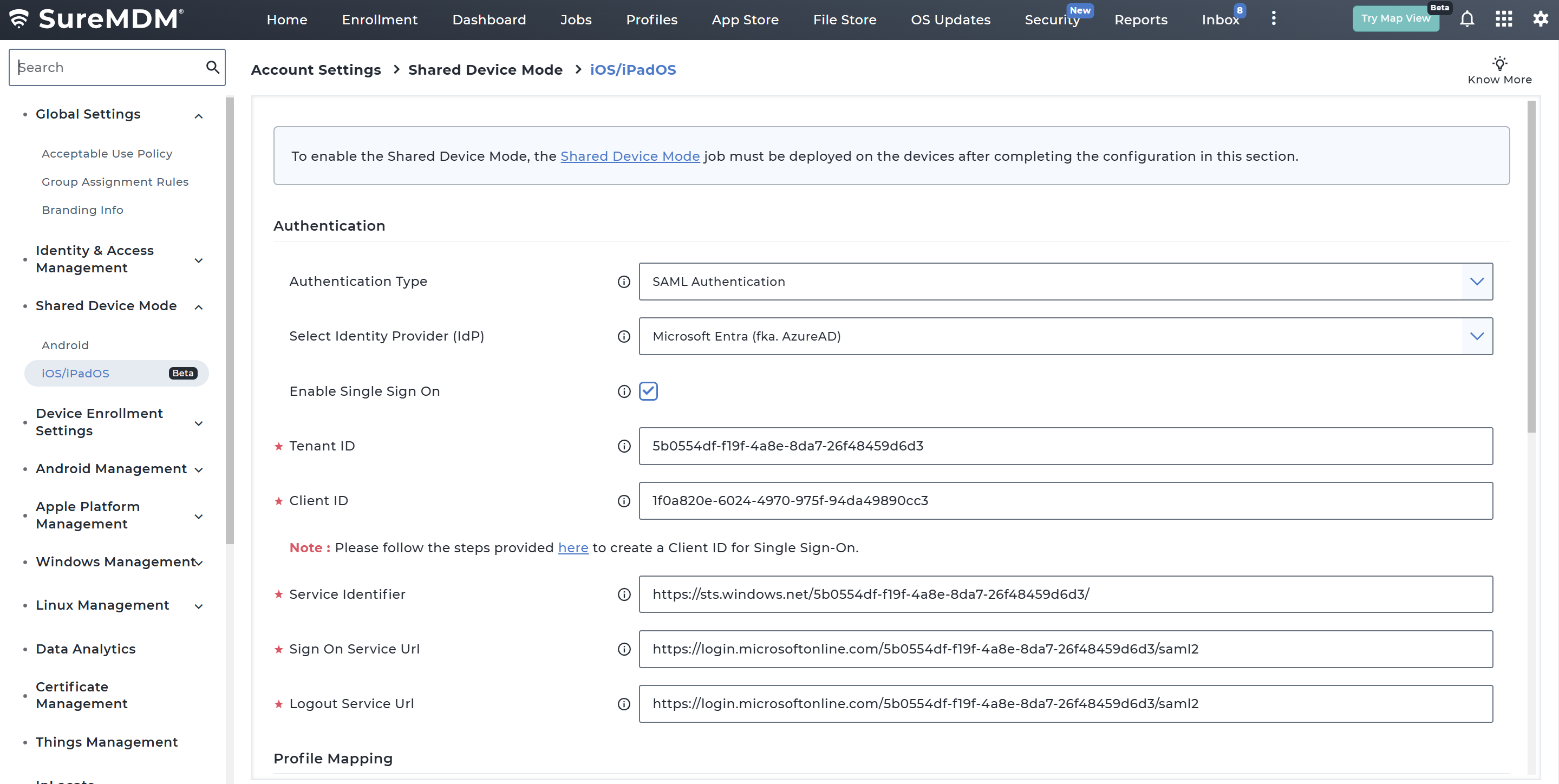
Creating App Registration in Azure
Applicable only for Microsoft Entra
If you intend to use a separate Client ID instead of the one configured for Conditional Access, follow the step-by-step process to create a Client ID (App Registration) in Azure Portal that can be used in SureMDM for Shared Device Mode (SDM) SSO on iOS using Microsoft Azure Portal.
1. Sign in to Azure Portal
- Open https://portal.azure.com
- Log in with your Azure Administrator account
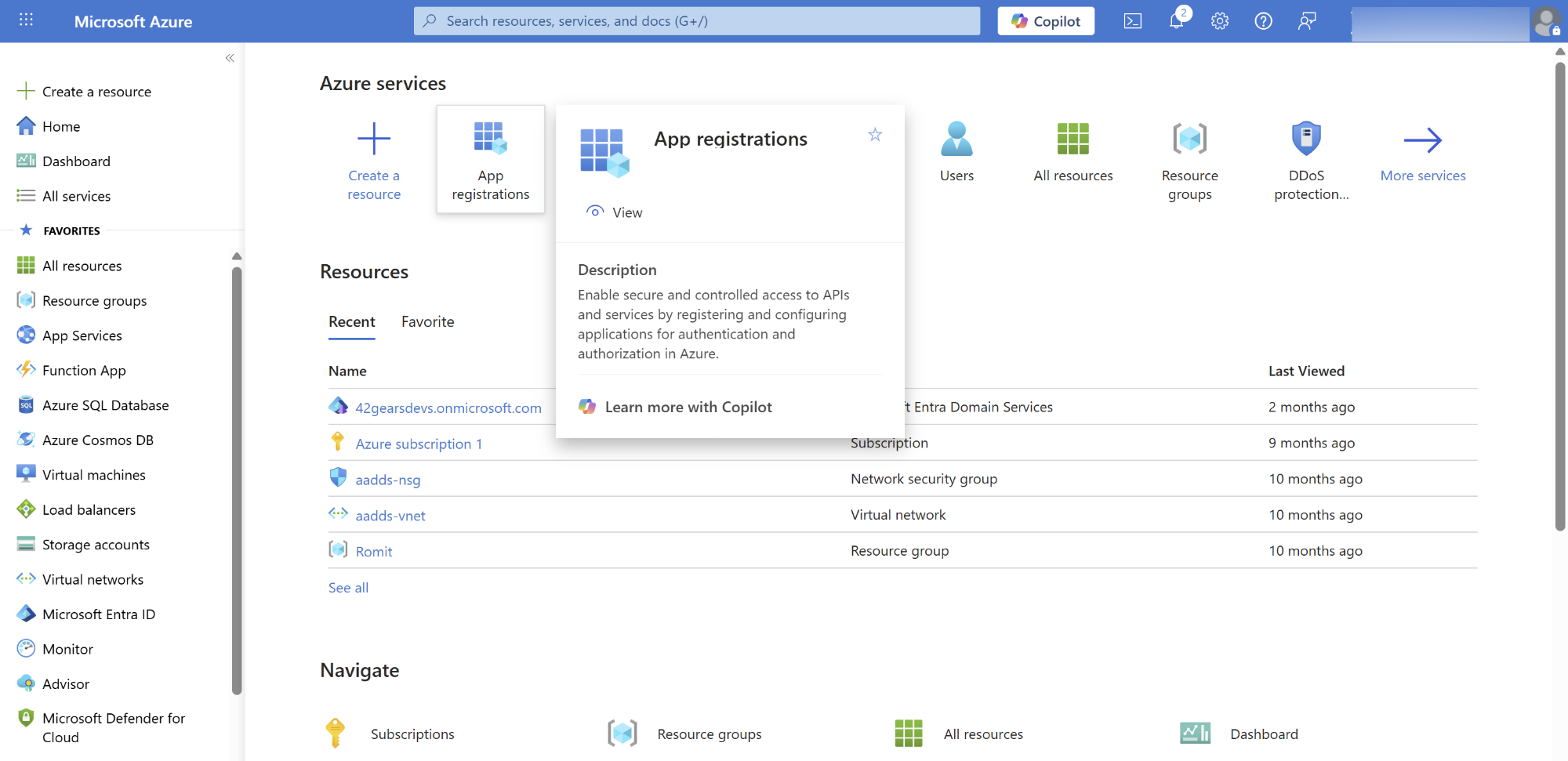
2. Go to App Registrations
- In the search bar, type App registrations
- Click App registrations under Microsoft Entra ID services
- Select + New registration
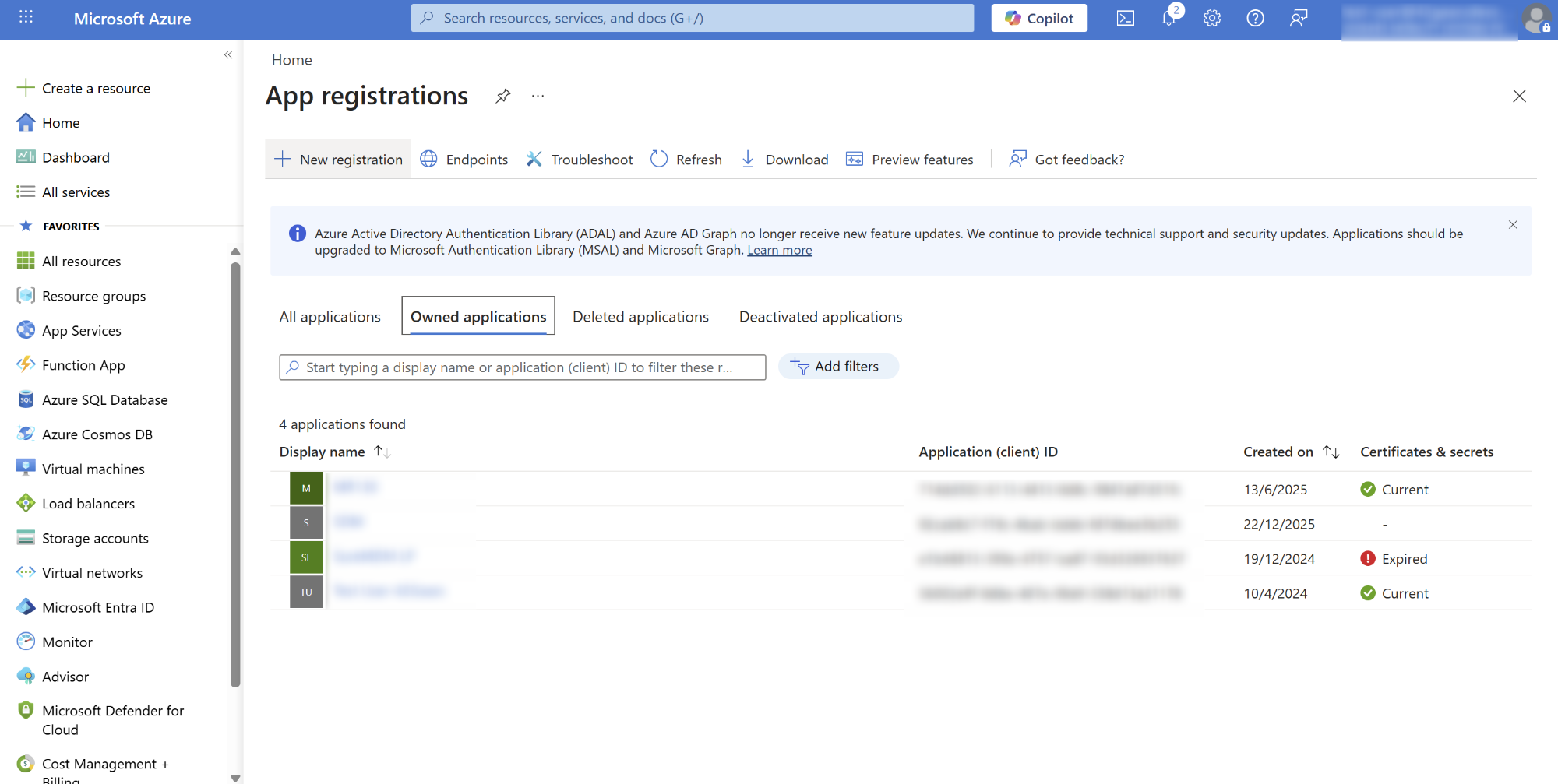
3. Register the Application
Fill in the required details:
Name
Enter a name such as SureMDM SDM SSO – iOSSupported account types
Select: Accounts in this organizational directory only (Single tenant)Click Register
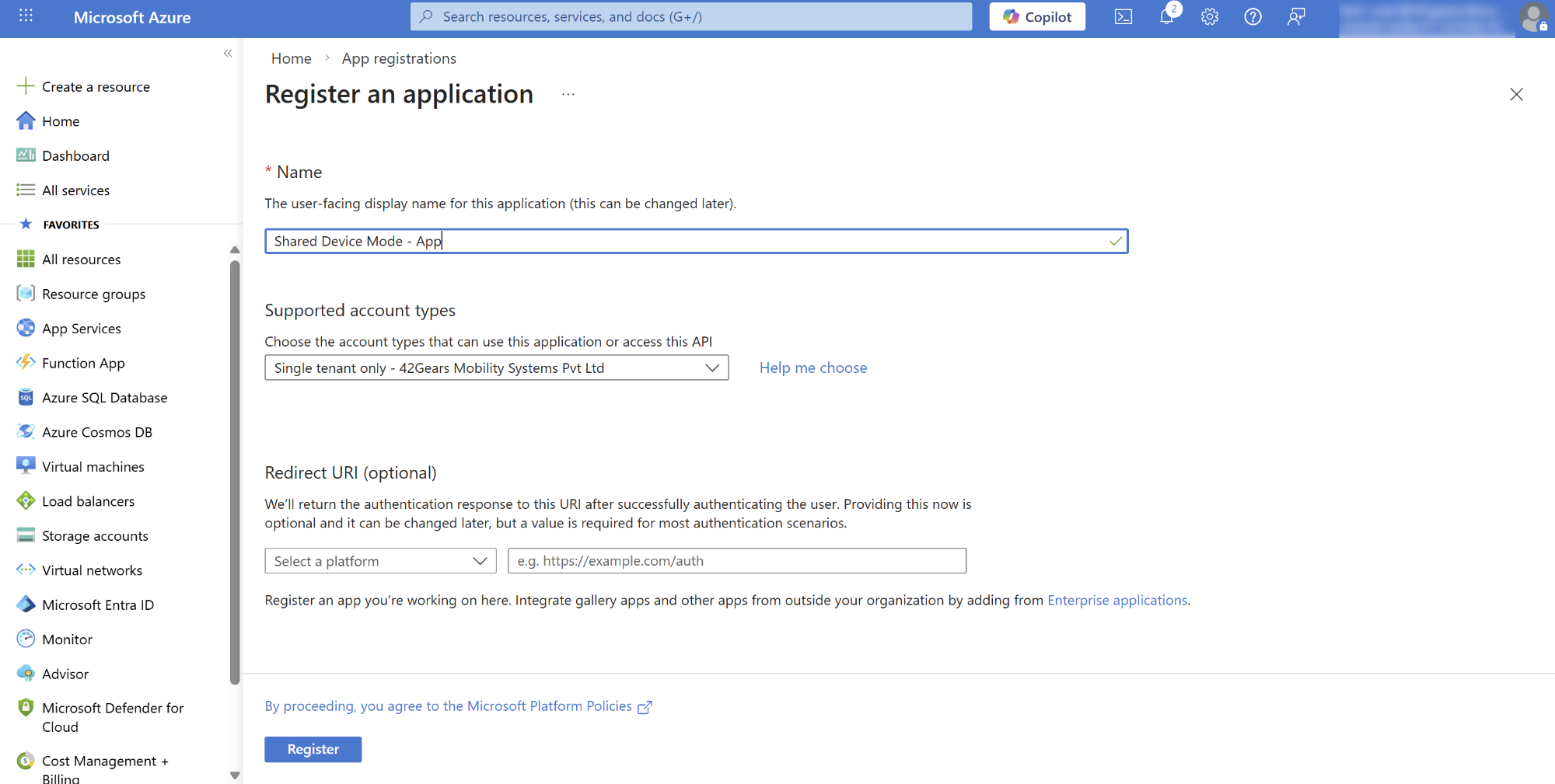
4. Redirect URI Configuration
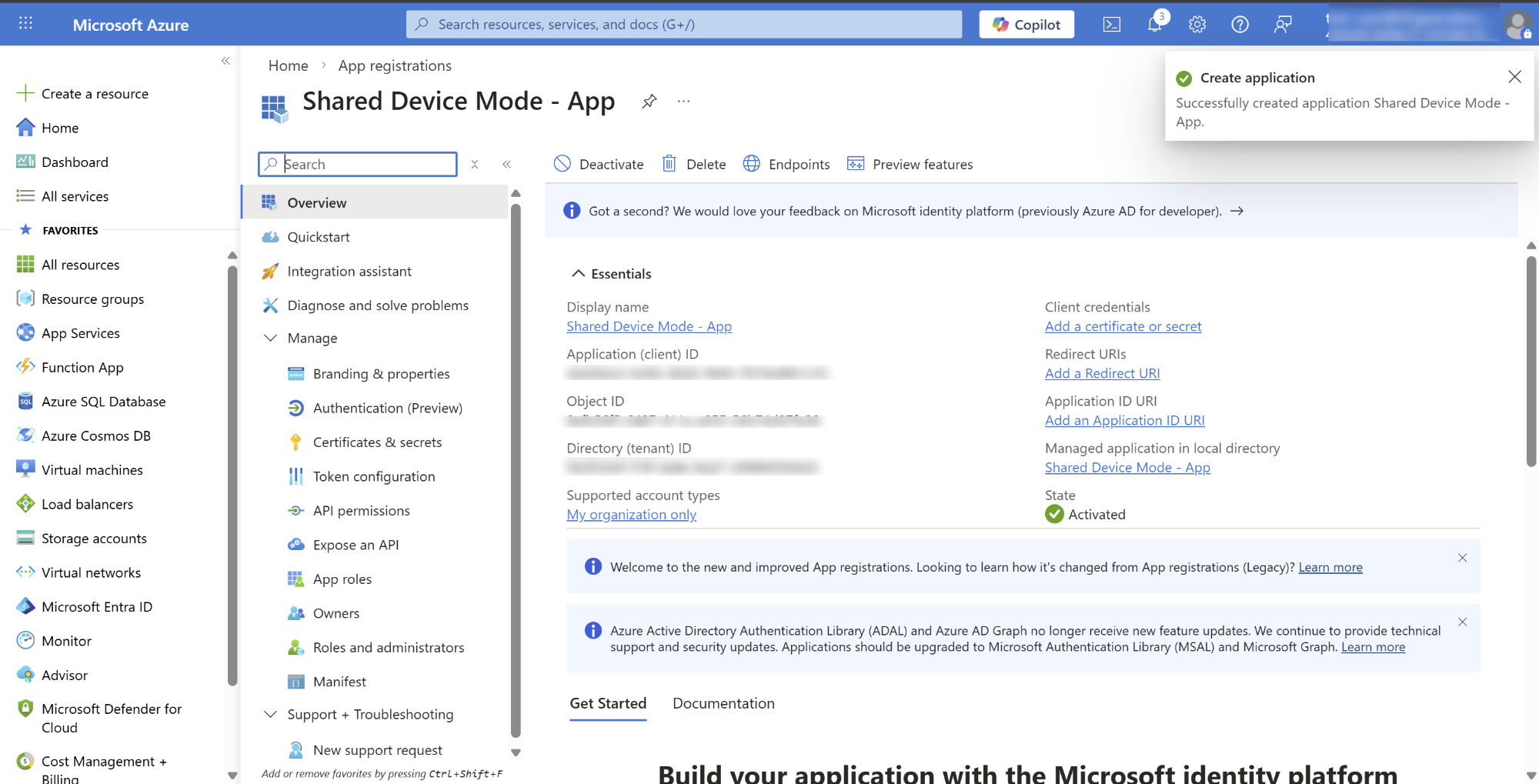
Once Registered, below Overview page will be displayed
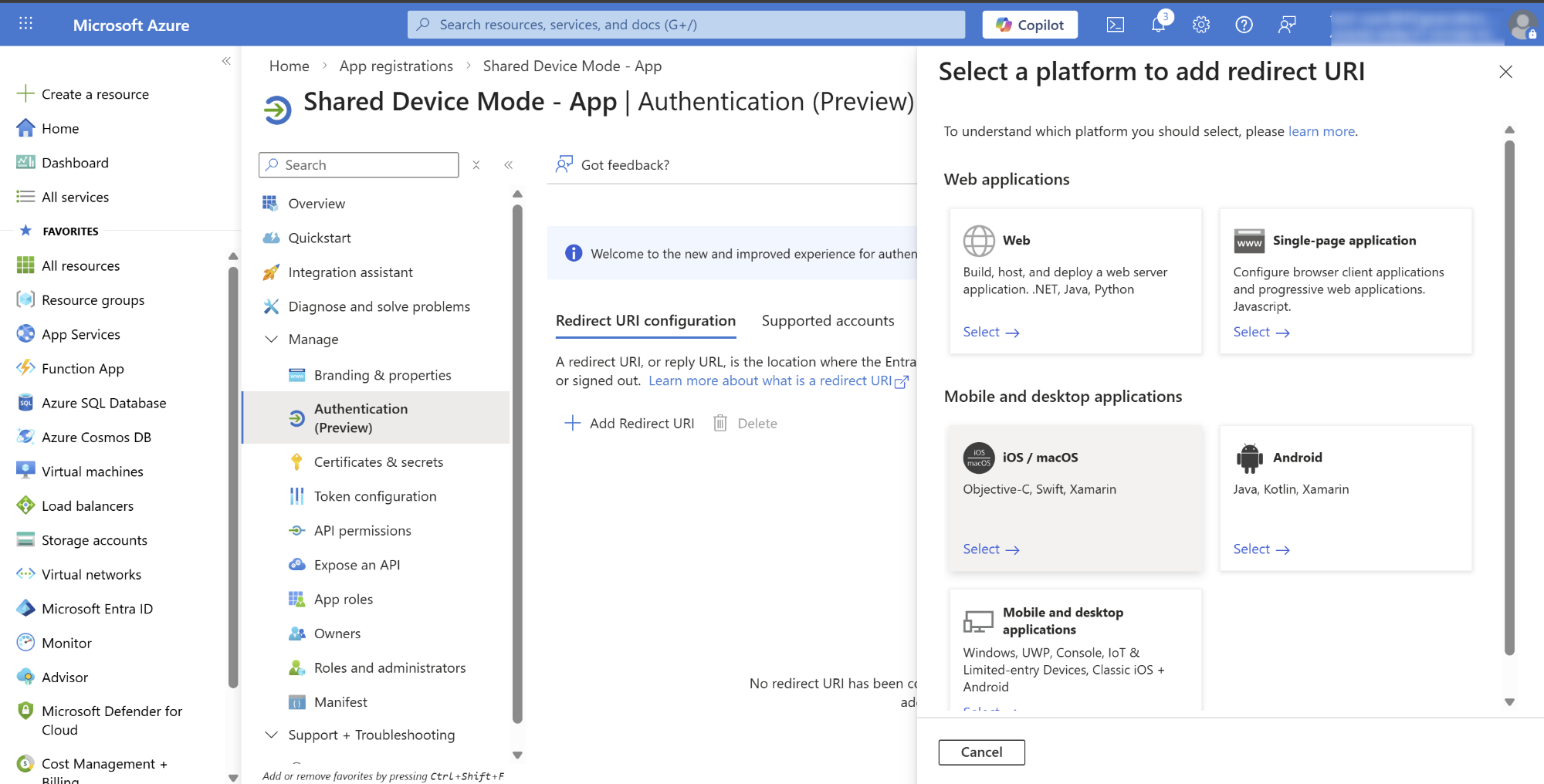
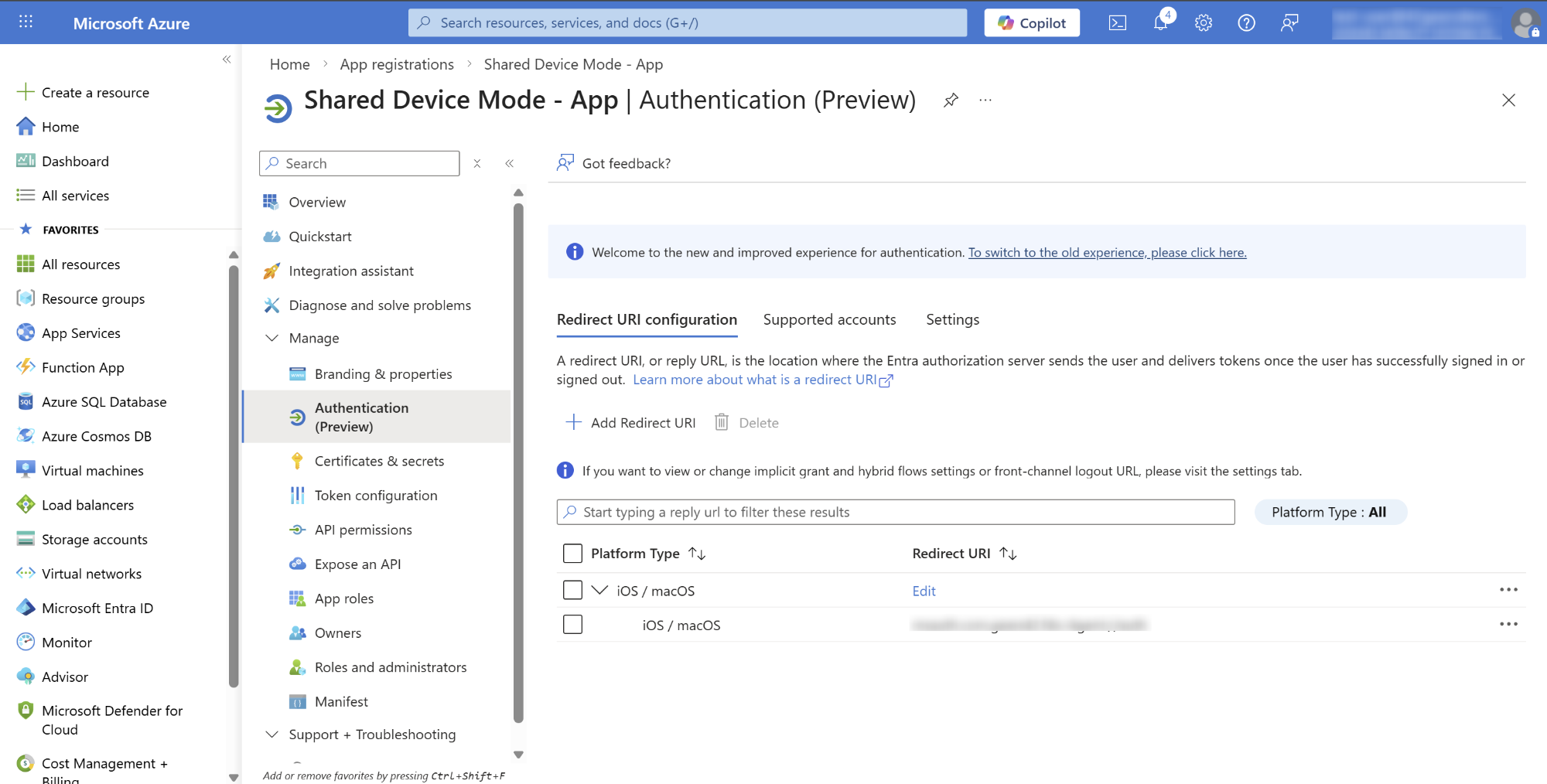
Select Authentication (Preview) and click on Add Redirect URI
Select iOS/macOS and add SureMDM Agent bundle ID
- Bundle ID of SureMDM Agent - com.gears42.Nix-Agent
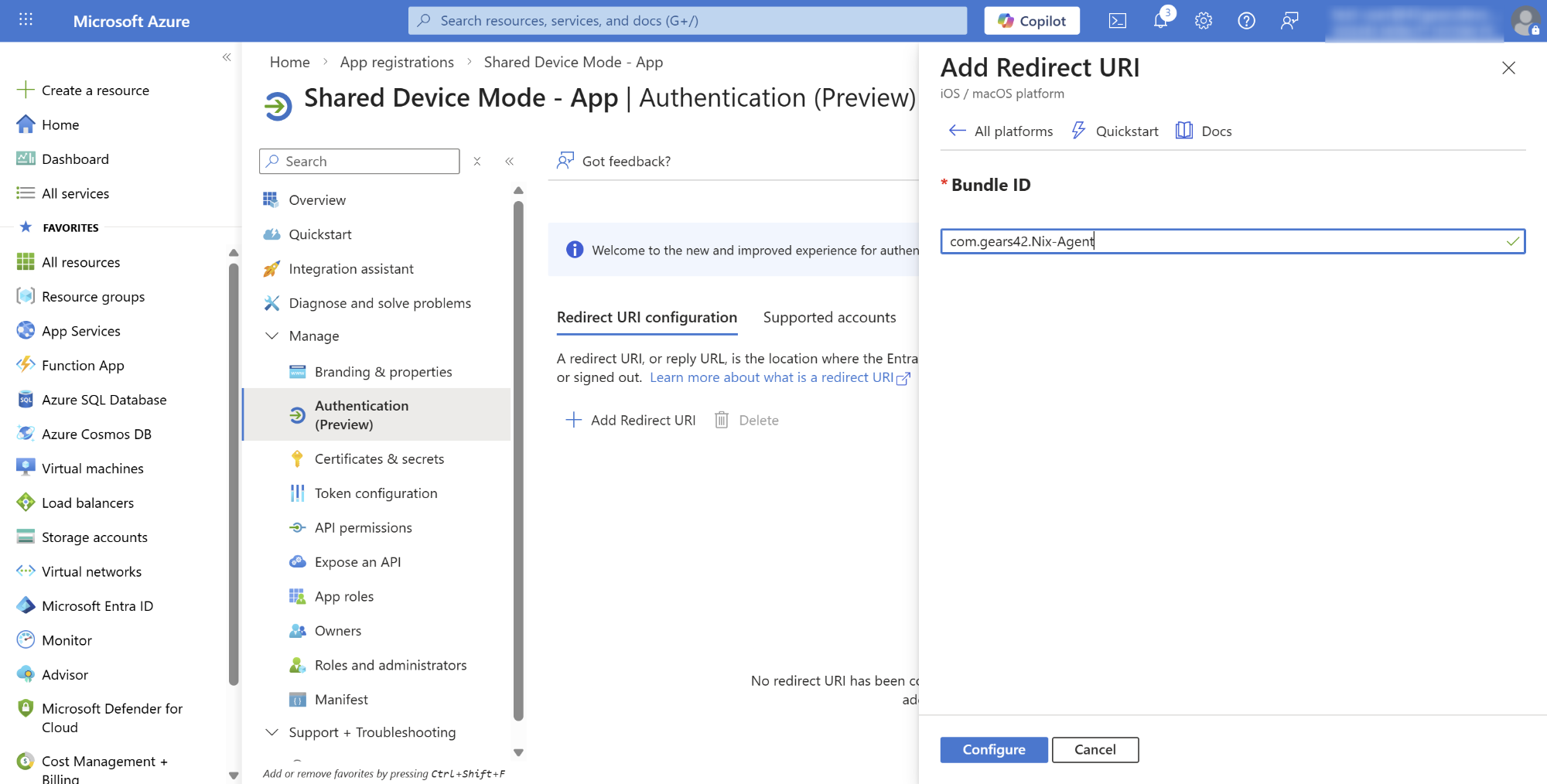
- Click Configure
5. Granting API Permissions
To enable Shared Device Mode (SDM) to access the required Microsoft Entra ID information, configure the GroupMember.Read.All and User.Read API permissions in the app registration and grant admin consent by following these steps.
Why are these API permissions required?
GroupMember.Read.All: Allows the application to read group membership information. This permission is required when Shared Device Mode needs to retrieve or evaluate a user's group memberships for the configured access or profile-mapping requirements.User.Read: Allows the application to read the signed-in user's basic profile information. This helps identify the authenticated user during the sign-in process.
Steps to configure the permissions:
- Sign in to the Microsoft Entra admin center and navigate to Manage > API permissions in the app registration.
-8569f8ba60c19709d4d032b68619daf4.png)
- Click Add a permission.

Under Select permissions, search for
GroupMember.Read.Alland select it.Add the permission to the app registration.
Once the permission appears in the API permissions table, click Grant admin consent to grant the required administrative consent.

- Repeat the same process for
User.Readand ensure that admin consent is granted if required by your organization's configuration.
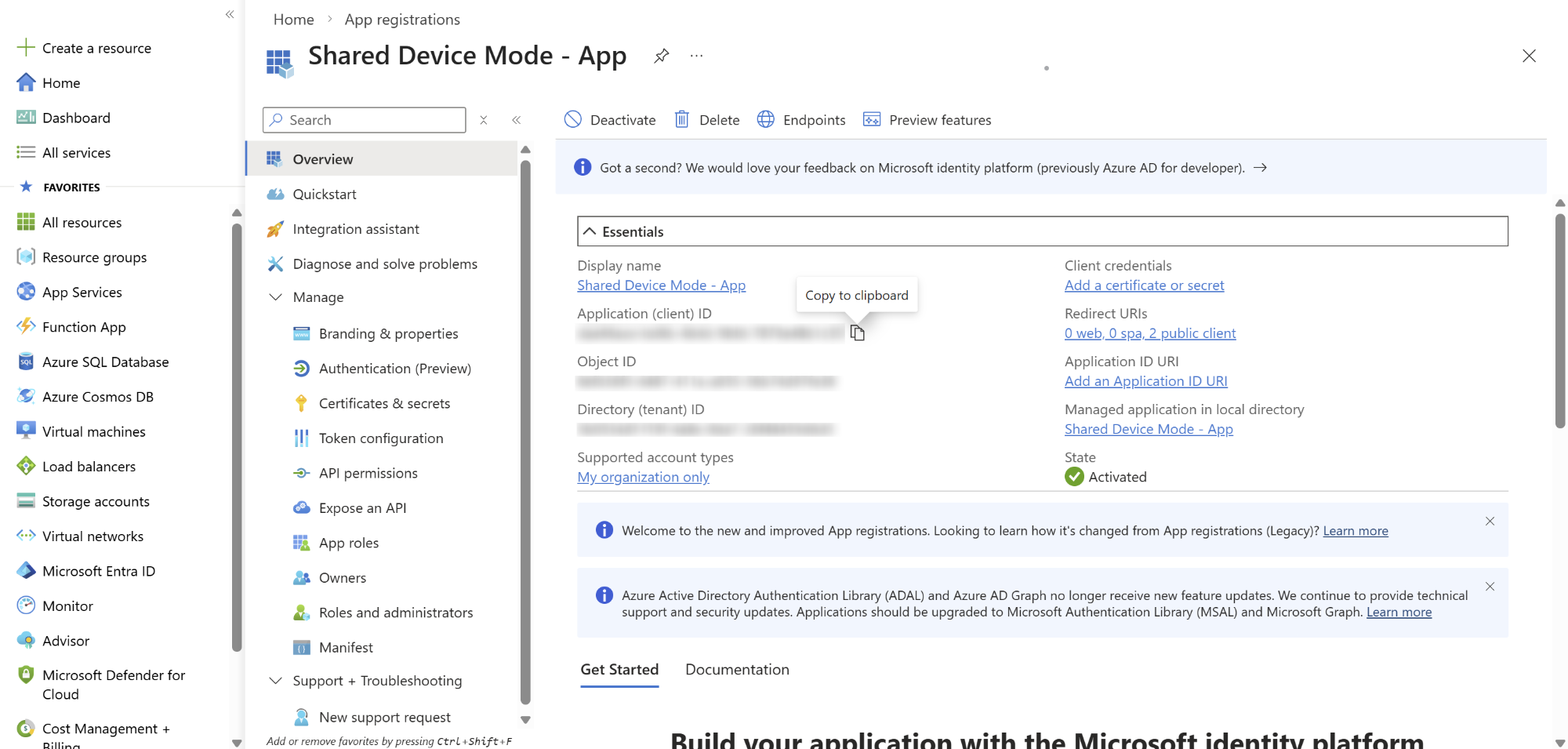
6. Copy the Client ID
Navigate to Overview menu
Copy the Client ID
This Client ID will be used in the SureMDM Console
Configure Profile Mapping
Profile Mapping defines how profiles are assigned to devices during Shared Device Mode operations.
Steps to Configure Profile Mapping
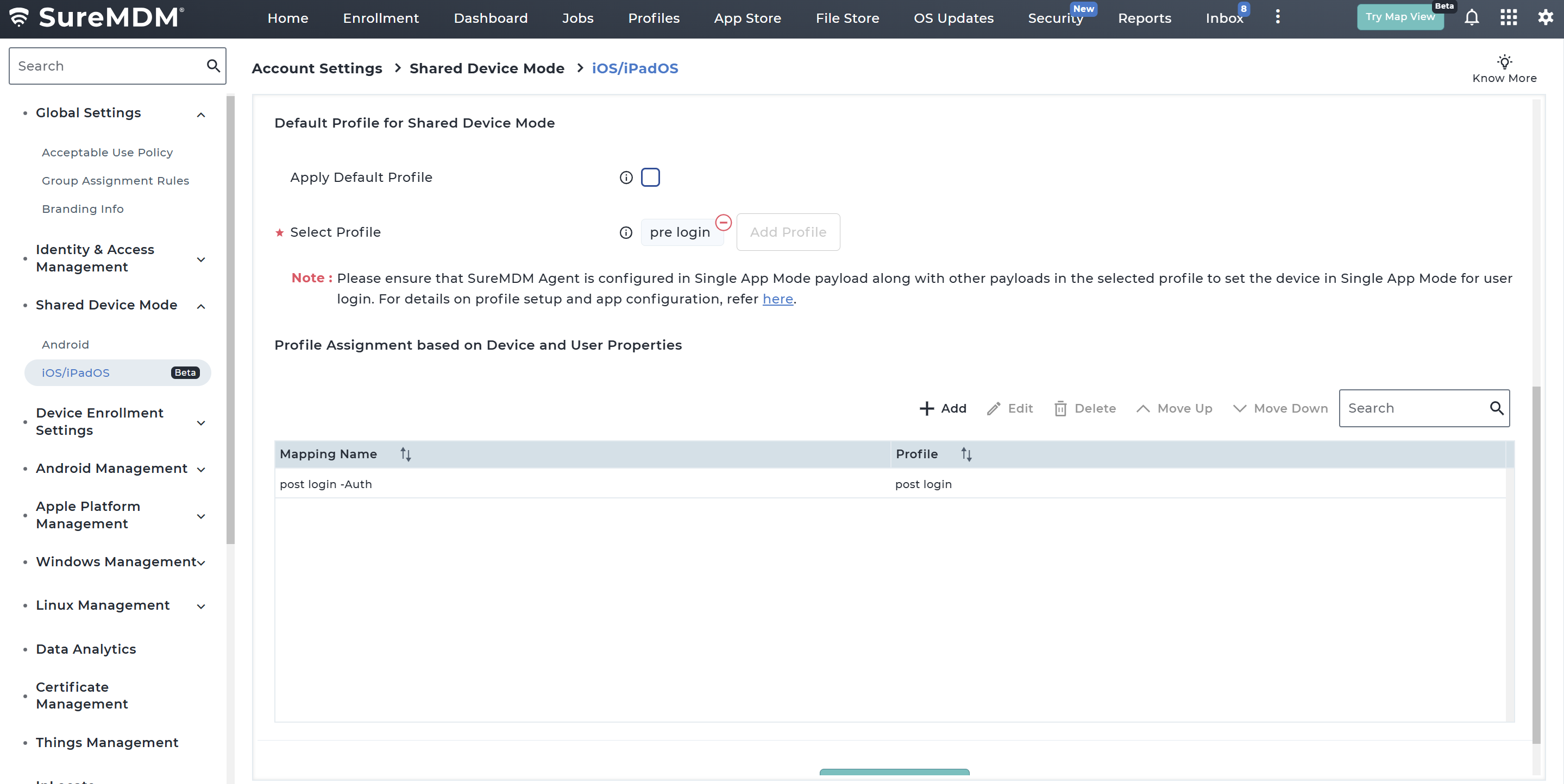
Navigate to Settings → Account Settings → Shared Device Mode → iOS/iPadOS → Configure → Access Profile Mapping section.
In the Profile Mapping section, configure the Profile for Shared Device Mode which would be applied:
- When Shared Device Mode is enabled
- When the user logs out
- When the user logs in
| Option | Description |
|---|---|
| Apply Default Profile | If enabled, applies the default SDM profile configured in the SureMDM backend. |
| Select Profile | Allows administrators to choose a custom profile to apply during login screen or logout state. Refer here for Profile configuration |
- If Single Sign-On is enabled for Microsoft Entra, default profile will not be applicable, only custom profile has to be selected. Ensure that the Authenticator and SureMDM Agent apps are included in the Allowlist payload, along with the required payloads in the selected profile, to support the user authentication flow when SSO is configured.
- For Microsoft Entra configuration without SSO or SureIdP, this configuration is required only when opting for a custom profile. Ensure that the selected profile includes the Single App Mode payload configured for the SureMDM Agent, along with any other required payloads, to place the device in Single App Mode and display the user login screen when Shared Device Mode is enabled.
Configure Profile Assignment Based on Mapping Type:
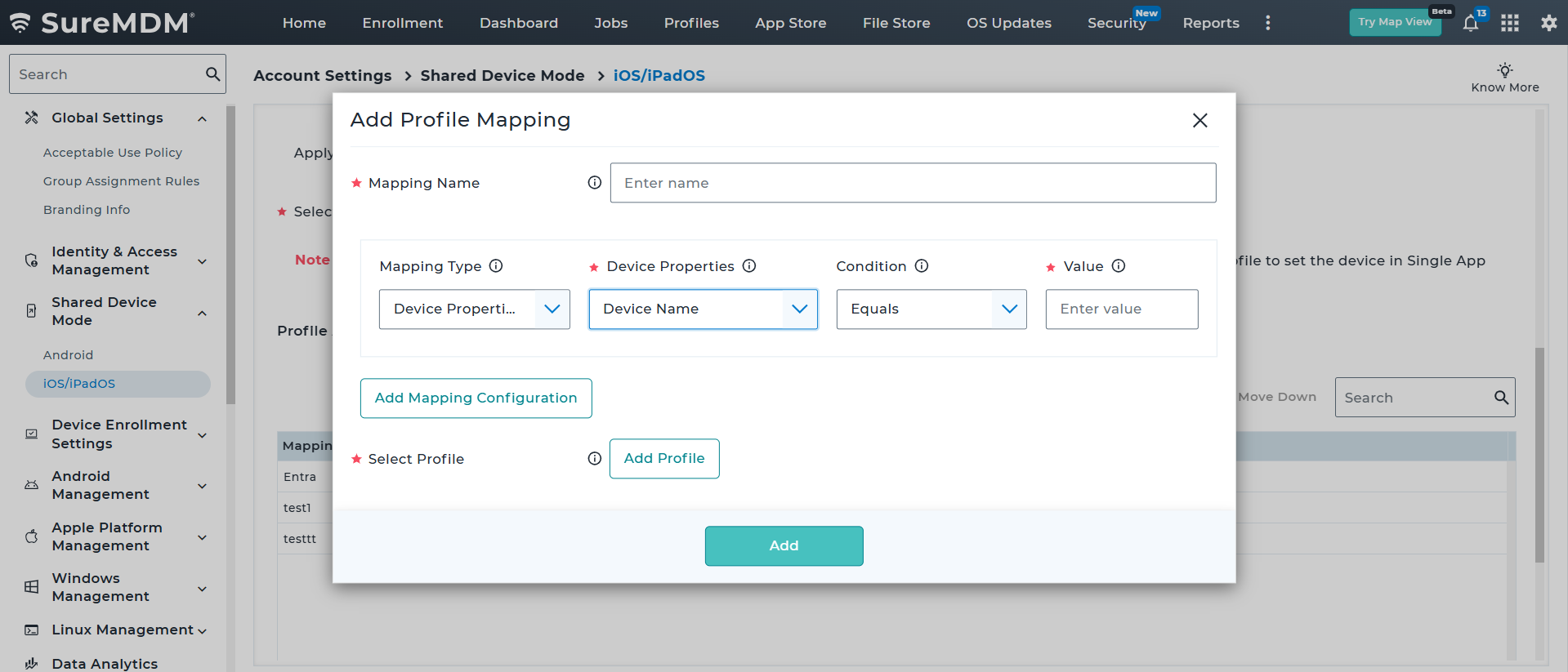
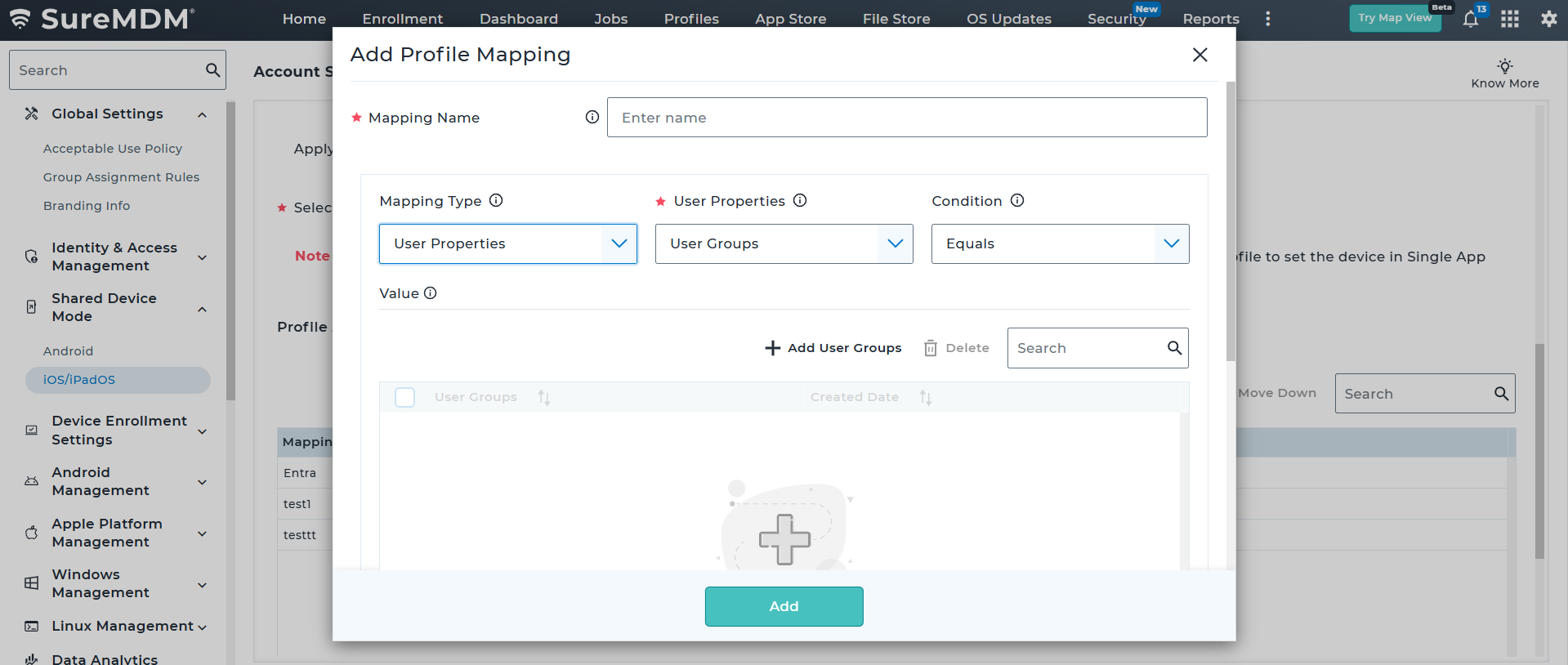
a. Click Add to create a new profile mapping rule.
| Field | Description |
|---|---|
| Mapping Name | Enter the name of the profile mapping. |
| Mapping Type | Specify the mapping type / rule type. - Device Properties - User Properties |
| User Properties | Select the required user property. - User Groups |
| Device Property | Select the required device property. Supported Device Properties - Device Name - Shared Device User Name - Group Path - Email ID - User Logged In |
| Condition | Specify the matching condition such as Contains, Equals, Not Equals |
| Value | Enter the Value that would be used for comparison. |
| Select Profile | Select a profile to be applied in Shared Device Mode (SDM) when a user logs in. |
(Optional) Click Add Field to define additional conditions and combine them using:
- AND
- OR
Click Add to save the mapping entry.
The added entry will get reflected in the table section.
Profile Mapping Priority
Profile mappings follow top-down evaluation.
Example:
- The system evaluates the first mapping rule.
- If the user matches the condition, the corresponding profile is applied.
- If not, the system checks the next mapping entry.
Functional Flow