Target Device Behavior After Applying Shared Device Mode
Once Shared Device Mode (SDM) is enabled on a device, its behavior changes to support secure multi-user access and dynamic configuration based on the logged-in user.
When SDM Job is Executed
- The device receives either the Default SDM Profile or a Custom Profile, based on the configuration.
- The device enters the configured authentication flow, where access is restricted as required until the user successfully signs in through the SureMDM Agent or the configured SSO method.
- A login screen is displayed, prompting the user to sign in before using the device.
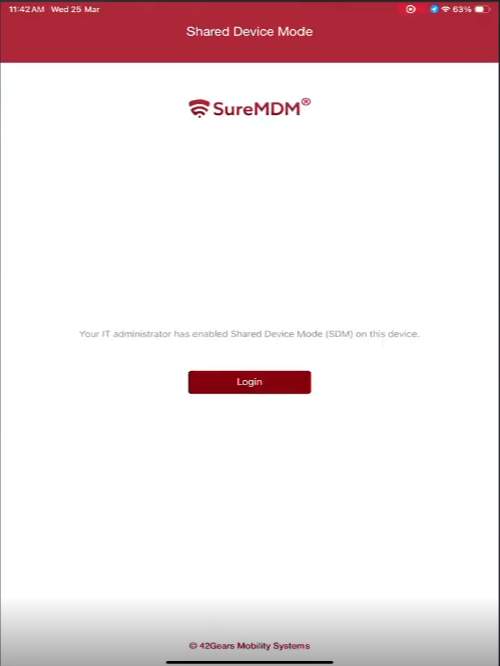
During Login
When SSO is not configured,
- The user logs in using the configured Identity Provider (IdP).
- The system evaluates the configured profile mapping rules.
- The appropriate user-specific profile is applied based on the matching conditions.
When SSO is configured,
- The user signs in through the configured SSO authentication flow (for example via the Microsoft Azure webview).
- Once signed in, the user can relevant apps (for example Microsoft apps for Microsoft Entra IdP) without needing to log in again on each app.
- The system evaluates the configured profile mapping rules.
- The appropriate user-specific profile is applied based on the matching conditions.
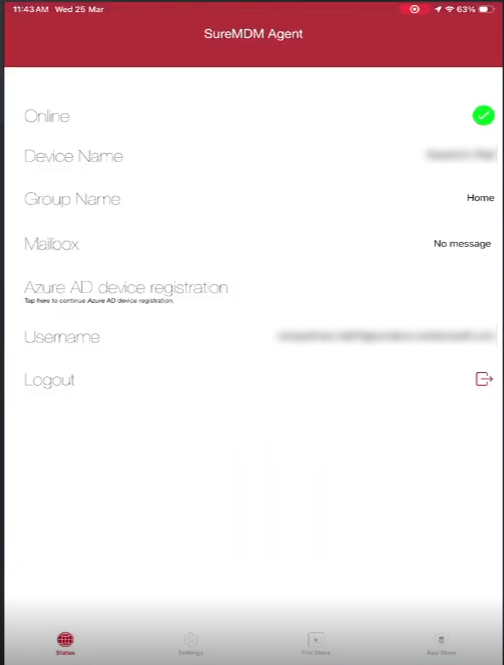
After Login
- The SureMDM Agent displays the logged-in user name along with a Logout option.
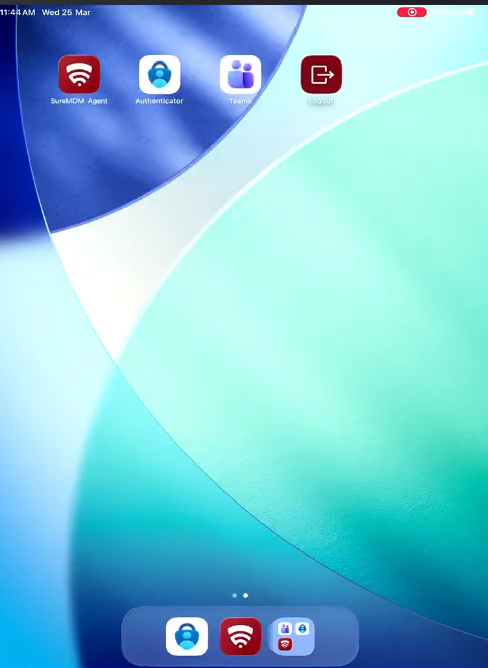
- A Logout web clip is added to the home screen for easy sign-out.
- The device is configured with the assigned profile, enabling access to apps and settings based on the user.
After Logout
- The device applies the Default or Custom Logout Profile.
- The device returns to the login screen in Single App Mode.
- The device is reset and ready for the next user.