Order Management
Overview
The Order Management feature enables SuperHub administrators to centrally review, approve, or reject license orders raised by Hub partners (Resellers/MSPs). This ensures controlled license distribution, compliance with commercial policies, and visibility into partner-driven license consumption before fulfillment.
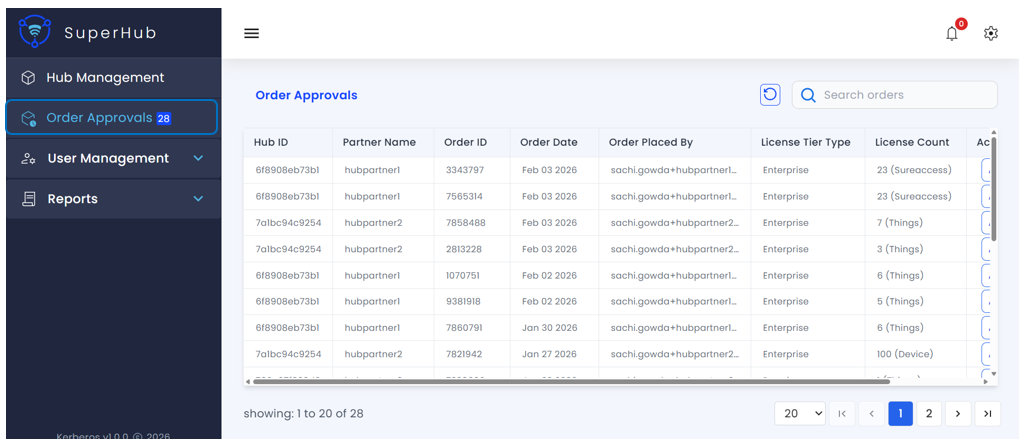
Accessing Order Management
To access Order Management:
- Log in to the SuperHub Console
- Navigate to Order Approvals from the left-hand menu
The page displays a tabular list of license orders submitted by Hub partners.
Order Details
Each row represents a single license order with the following information:
Hub ID — Unique identifier of the Hub account that placed the order
Partner Name — Name of the partner (Reseller / MSP) associated with the Hub
Order ID — System-generated unique identifier for the order
Order Date — Date when the order was placed (orders are listed in descending order by creation date)
Order Placed By — Email ID of the user who initiated the order
License Tier Type — Requested license tier (Standard / Enterprise / Premium)
License Count — Number of licenses requested along with product type (Device, VR, Things, SureIDP, or SureAccess)
Actions — Action buttons to Approve or Reject the order
Approve Order
To approve a license order:
- Review the order details sent from the SureMDM Hub
- Click Approve for the order
- Enter a mandatory approval reason for audit and traceability purposes
- Submit the approval
Once approved, the request is sent to the 42Gears team to fulfill the license request.
Reject Order
To reject a license order:
- Review the order details sent from the SureMDM Hub
- Click Reject for the order
- Enter a mandatory rejection reason for audit and partner visibility
- Submit the rejection
Once rejected, the license request does not move forward for the allocation process.
Key Actions
The following actions are available on the Order Management page:
Search Orders — Search for orders using parameters such as Order ID, Partner Name, and Hub ID
Refresh — Reload the list to fetch the latest order status updates
Pagination and Navigation — View the total number of orders, select page size (e.g., 20 records per page), and use navigation controls (First, Previous, Next, Last)