Create Hub Account
Overview
The Create Hub Account feature enables SuperHub administrators to onboard new partner Hub accounts, including resellers and MSPs (Managed Service Providers). This streamlined process captures essential organization and contact details required to establish a Hub and grant partner access to the platform.
Accessing Create Hub Account
To create a new Hub account:
- Log in to the SuperHub Console
- Navigate to Hub Management from the left-hand menu
- Click Create Hub Account
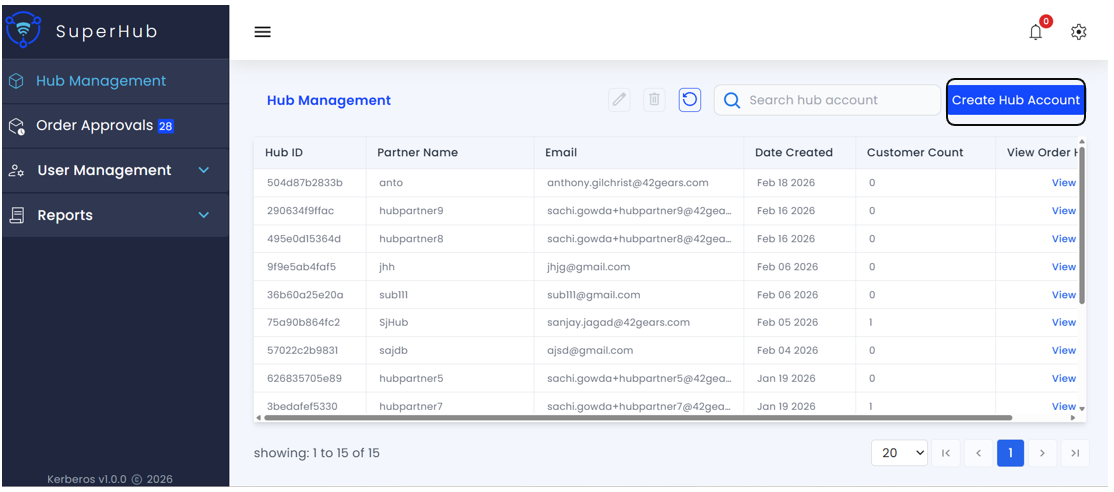
The Create Hub Account dialog will appear with fields for entering partner information.
Required Fields
The following information must be provided to create a Hub account:
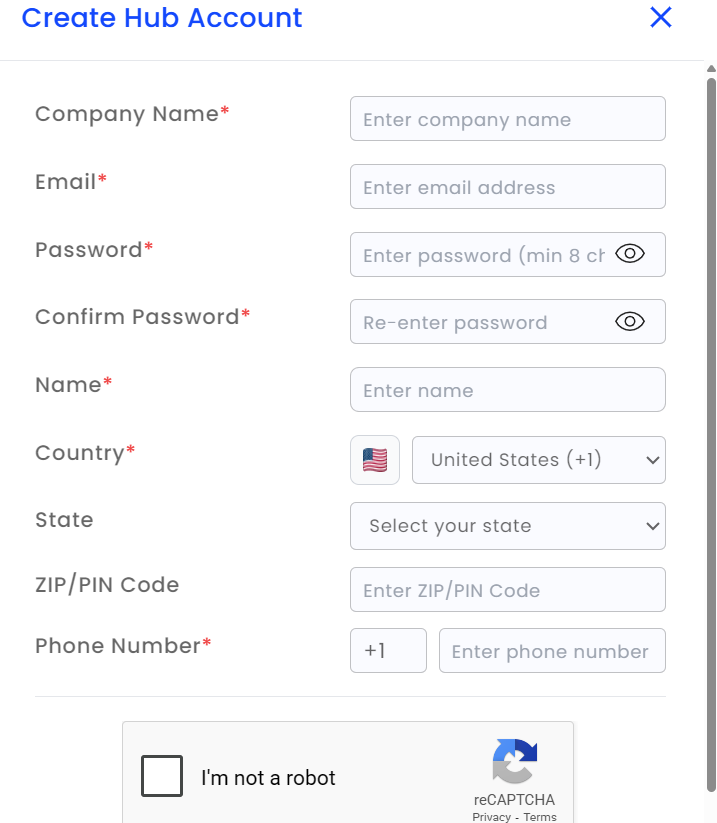
Company Name — The official name of the partner organization (mandatory)
Country — Select the country where the partner organization is located (mandatory). The country code will be automatically applied to the phone number field
State — The state or region associated with the partner organization (optional)
ZIP / PIN Code — The postal or PIN code corresponding to the organization's location (optional)
Name — Name of the primary contact person for the Hub account (mandatory)
Email — Email address that will serve as the primary login ID for the Hub account (mandatory)
Phone Number — Valid contact phone number for the partner (mandatory)
Password — Set a secure password for the Hub account that meets the minimum security requirements (mandatory)
Confirm Password — Re-enter the password to ensure accuracy (mandatory)
Additional Settings
Auto Approve Pending Orders
This setting controls the order approval workflow for the Hub account:
- Enabled — All license orders raised by this Hub will be automatically approved without requiring manual intervention from administrators
- Disabled — Orders will follow the standard approval workflow and require manual review
Actions
The following actions are available:
Create Hub Account — Click this button to create the Hub account after entering all mandatory fields. Upon successful creation, the Hub account will appear in the Hub Management list
Close (X) — Closes the Create Hub Account dialog without saving any changes