Hub Management
Overview
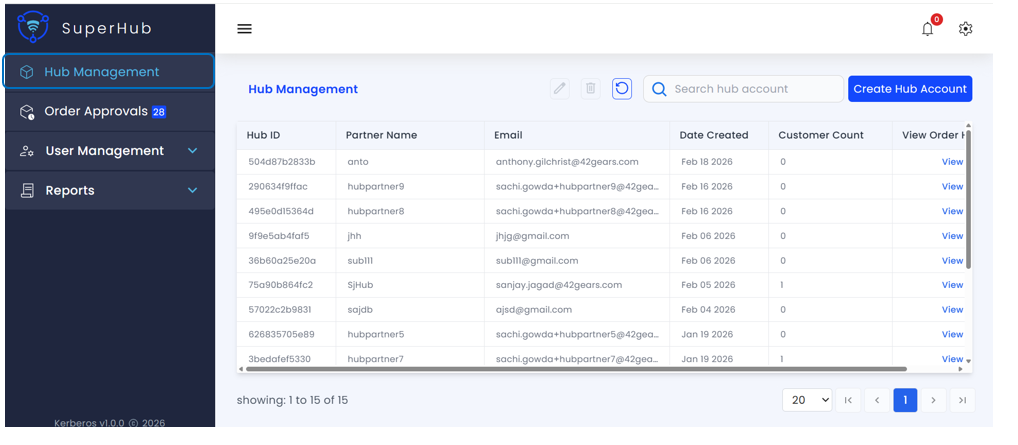
The Hub Management section of the SuperHub Console provides administrators with a centralized interface to manage Hub accounts created for partners such as resellers and Managed Service Providers (MSPs). Each Hub account represents a partner linked to the SuperHub and is displayed in a structured tabular view with key details to support effective administration and monitoring.
Accessing Hub Management
When an administrator logs in to the SuperHub Console, the system opens to the Hub Management page by default. This page displays a comprehensive list of all Hub accounts in a structured tabular view, enabling quick access to essential partner information and operational status.
Hub Account Information
For each Hub account, the following information is displayed:
Hub ID — A unique system-generated identifier for the Hub account
Partner Name — The name of the partner to whom the Hub account belongs
Email — The registered email address associated with the Hub account
Date Created — The date on which the Hub account was created
Customer Count — The number of customers currently managed under the Hub
View Order History — A link to view all license orders raised by the specific Hub account for tracking and auditing purposes
View Order History
The Order History page provides SuperHub administrators with visibility into all license orders raised by a specific Hub account. This feature enables administrators to track order details, monitor order status, and support auditing requirements.
Accessing Order History
To view order history:
- Navigate to the Hub Management section
- Locate the desired Hub account in the table
- Click View under the View Order History column
Order Details
Each row represents a single order and includes the following details:
Order ID — A unique system-generated identifier for the license order
Order Date — The date on which the order was placed by the Hub
Order Placed By — The email address or username of the Hub user who raised the order
License Tier Type — The type of license requested (Enterprise, Standard, or Premium)
License Count — The total number of licenses requested in the order, along with the license type (Device, Things, VR, SureIDP, or SureAccess)
Status — The current status of the order (Approved, Pending, or Rejected). Status values are visually differentiated for quick identification
Key Actions
The following actions are available on the Hub Management page:
Create Hub Account — Create new Hub accounts by clicking Create Hub Account. This opens a dialog to enter partner details and configure the Hub account
Search Hub Account — Filter Hub accounts by Hub ID, Partner Name, or Email for quick access to specific accounts
Edit Hub Account — Update Hub account details when needed. Click the Edit icon for the desired Hub account to modify its information
Delete Hub Account — Remove Hub accounts when necessary. This action permanently deletes the Hub account and should be performed with caution
Refresh List — Click Refresh to ensure the latest Hub account data is displayed, reflecting any recent changes or additions
Pagination and Navigation — Control the number of records displayed per page and navigate efficiently through large datasets using pagination controls