Enabling Shared Device Mode from Account Settings
Administrators must configure Shared Device Mode settings in the SureMDM Console before deploying the SDM job to devices. The configuration includes defining the authentication method and profile mapping, which are required for user login and profile assignment during Shared Device Mode.
Administrators must configure the following sections in order to enable the Shared Device Mode for iOS/iPadOS platform:
- Authentication
- Profile Mapping
Configure Authentication
The Authentication section defines how users authenticate when accessing a Shared Device Mode device.
Navigate to Settings → Account Settings → Shared Device Mode → iOS/iPadOS → Configure
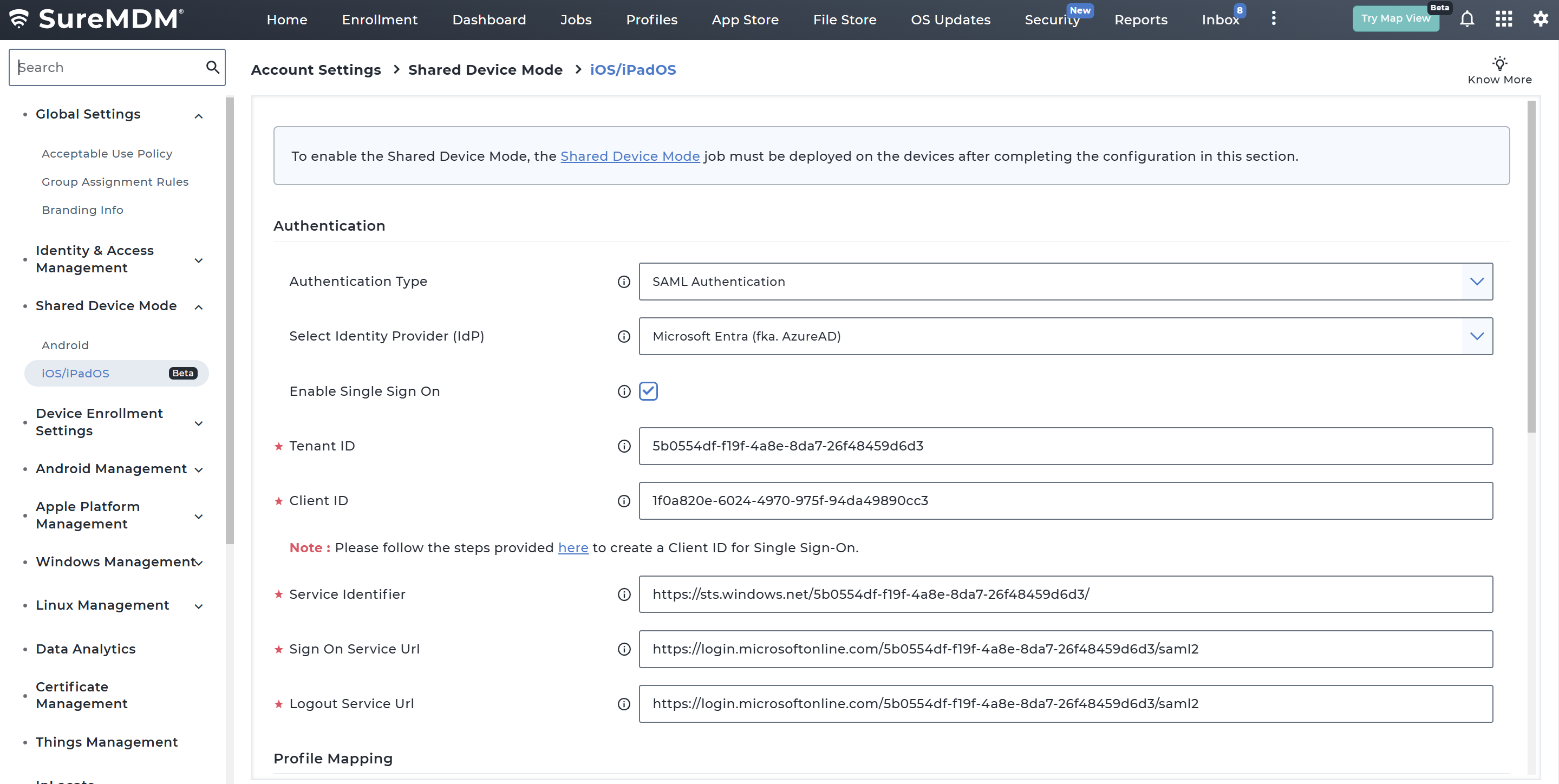
Under the Authentication section, configure the below required options
Authentication Options
| Field | Description |
|---|---|
| Authentication Type | Select the authentication method used to verify users. Currently supports SAML Authentication. |
| Select Identity Provider (IdP) | Choose the identity provider used for authentication. Currently supported: Microsoft Entra (Azure AD). |
| Enable Single Sign On | If enabled, the credentials entered in the agent will be used to perform Single Sign-on for MSAL applications. |
| Tenant ID | Enter the Tenant ID registered in Azure Portal. |
| Client ID | Enter the Application Client ID created in Azure Portal. Supported only on iOS 16 or later. |
| Service Identifier | The unique identifier for the service provider, also known as Entity ID or Issuer URL. |
| Sign On Service URL | It can also be found with different names such as "Single Sign-On URL," "SSO URL," or "Login URL" depending on the IdP. |
| Logout Service URL | It can also be found with different names such as "Single Logout URL," "SLO URL," "Logout URL", based on the IDP. |
Note: If Conditional Access is configured, the Tenant ID and Client ID fields are automatically populated from the Entra integration settings. But it will be editable where admins can choose to modify the value if required.
Creating Client ID in Azure
Below is the step-by-step process to create a Client ID (App Registration) in Azure Portal that can be used in SureMDM for Shared Device Mode (SDM) SSO on iOS using Microsoft Azure Portal.
1. Sign in to Azure Portal
- Open https://portal.azure.com
- Log in with your Azure Administrator account
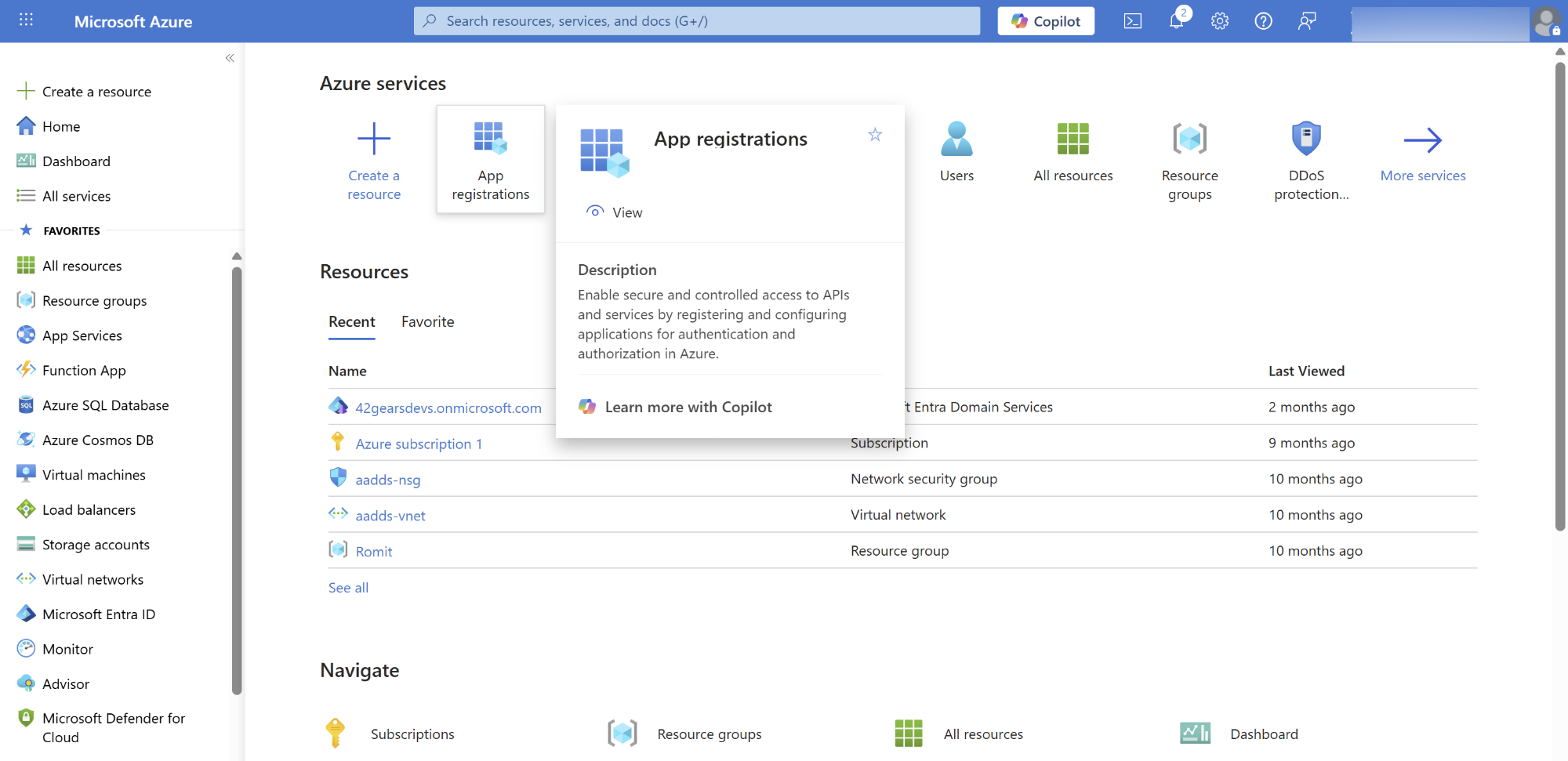
2. Go to App Registrations
- In the search bar, type App registrations
- Click App registrations under Microsoft Entra ID services
- Select + New registration
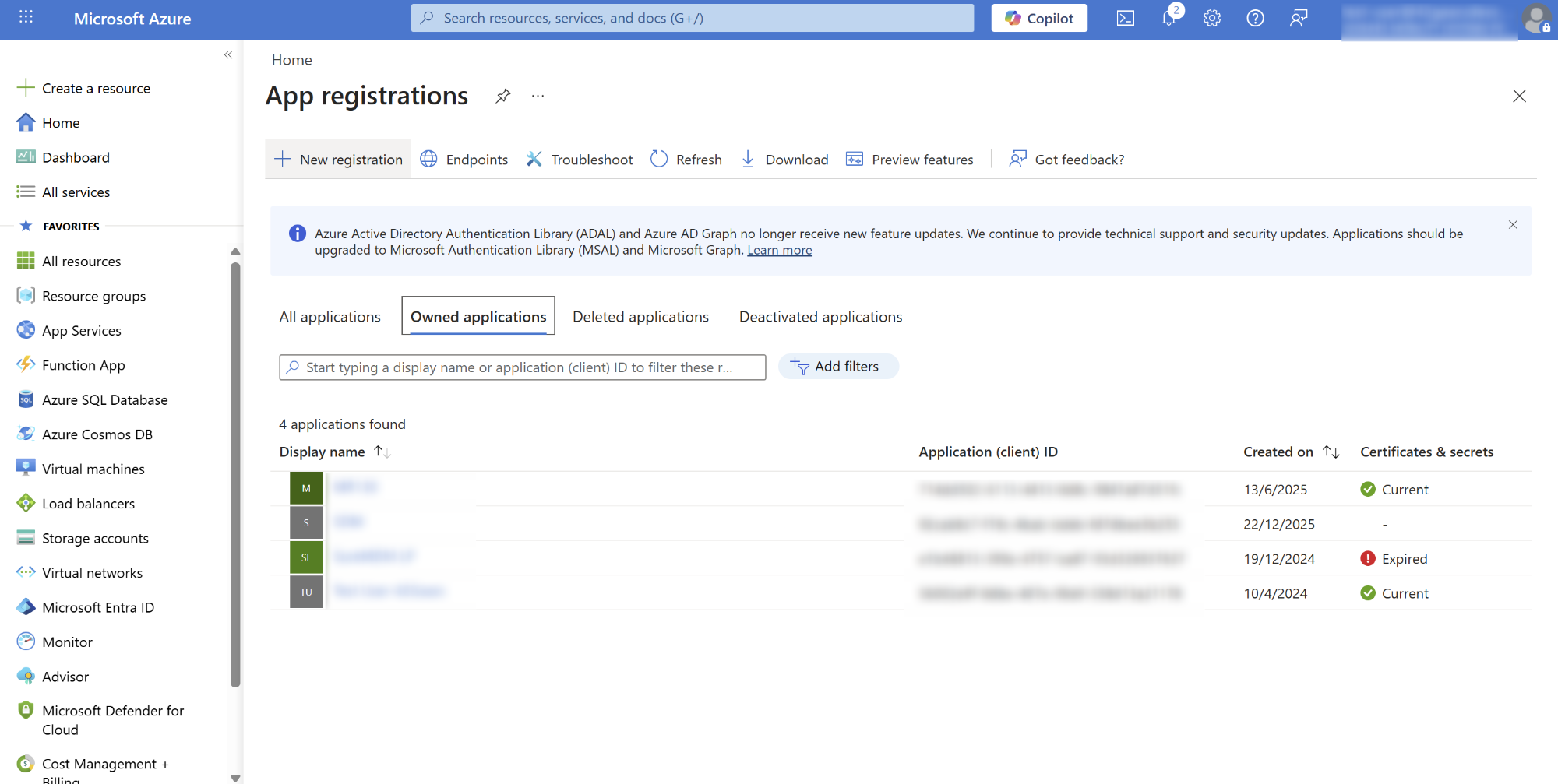
3. Register the Application
Fill in the required details:
Name
Enter a name such as SureMDM SDM SSO – iOSSupported account types
Select: Accounts in this organizational directory only (Single tenant)Click Register
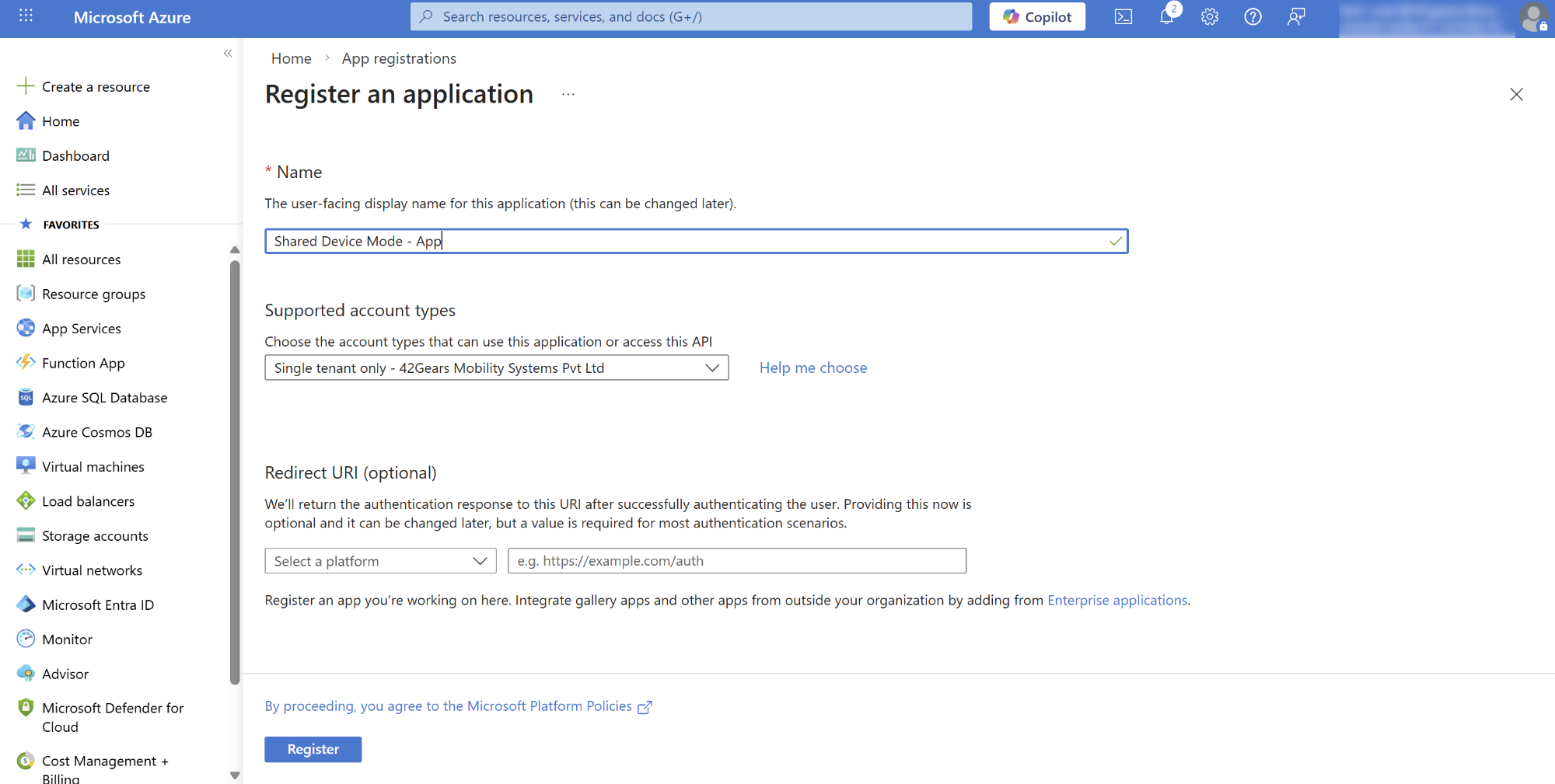
4. Redirect URI Configuration
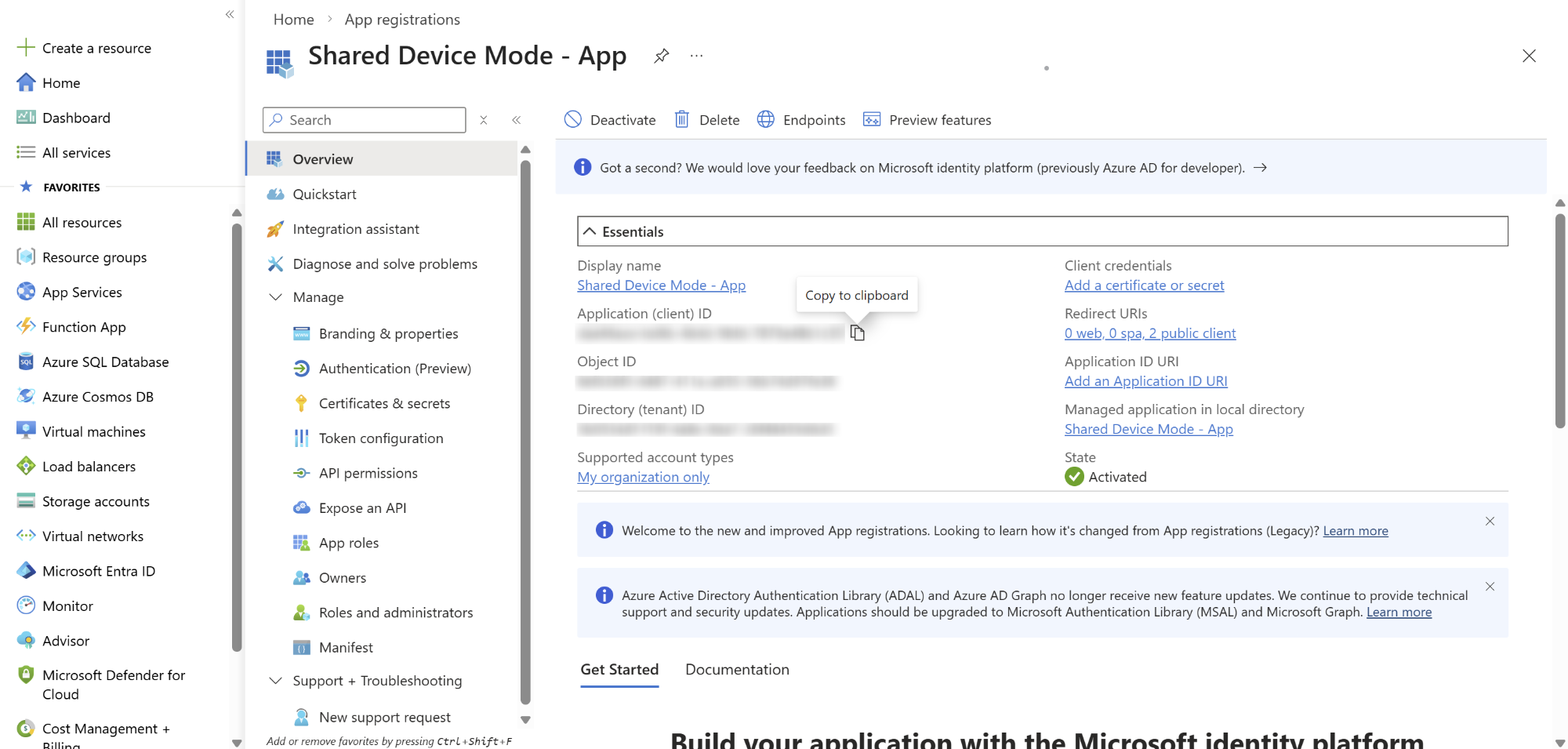
Once Registered, below Overview page will be displayed
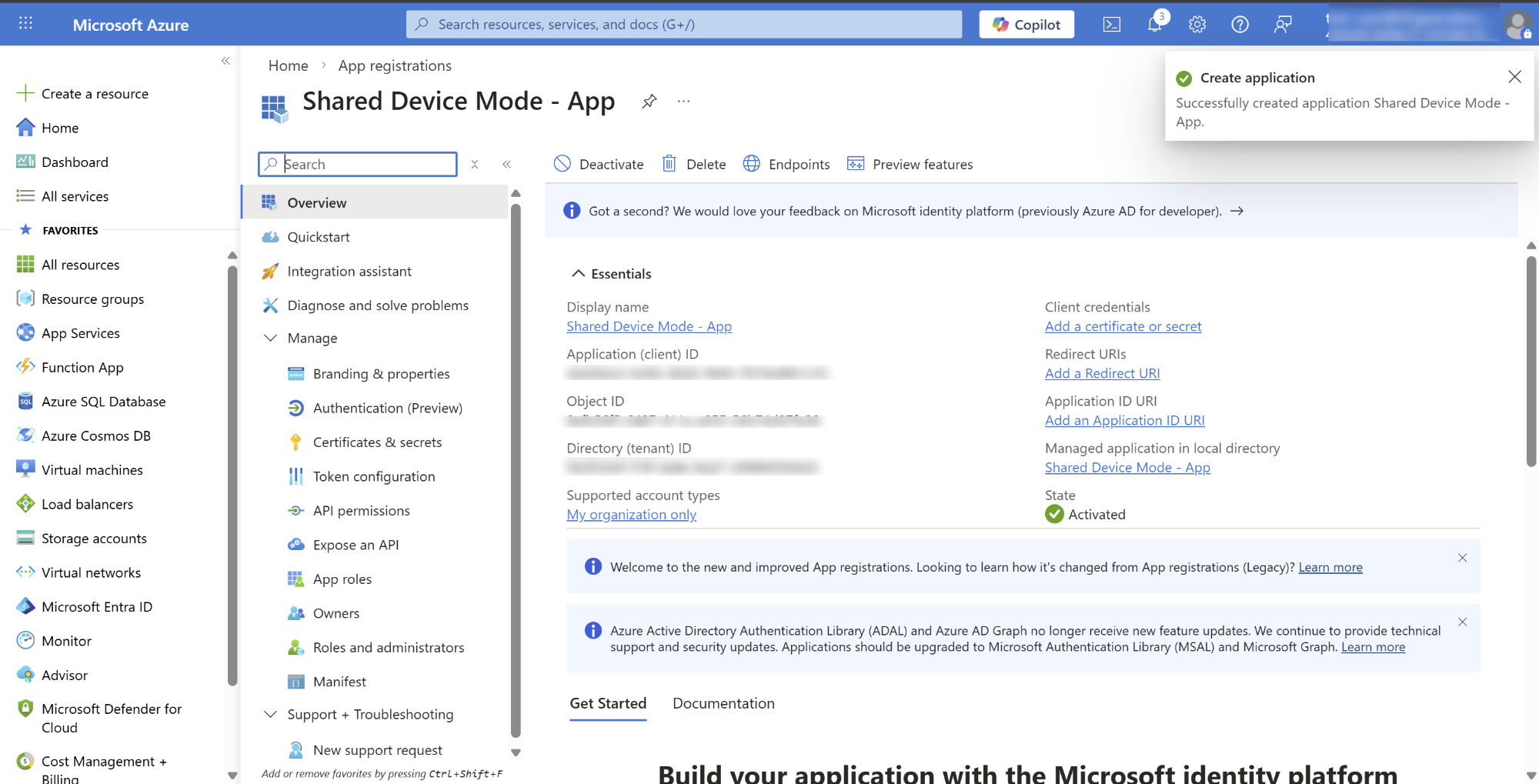
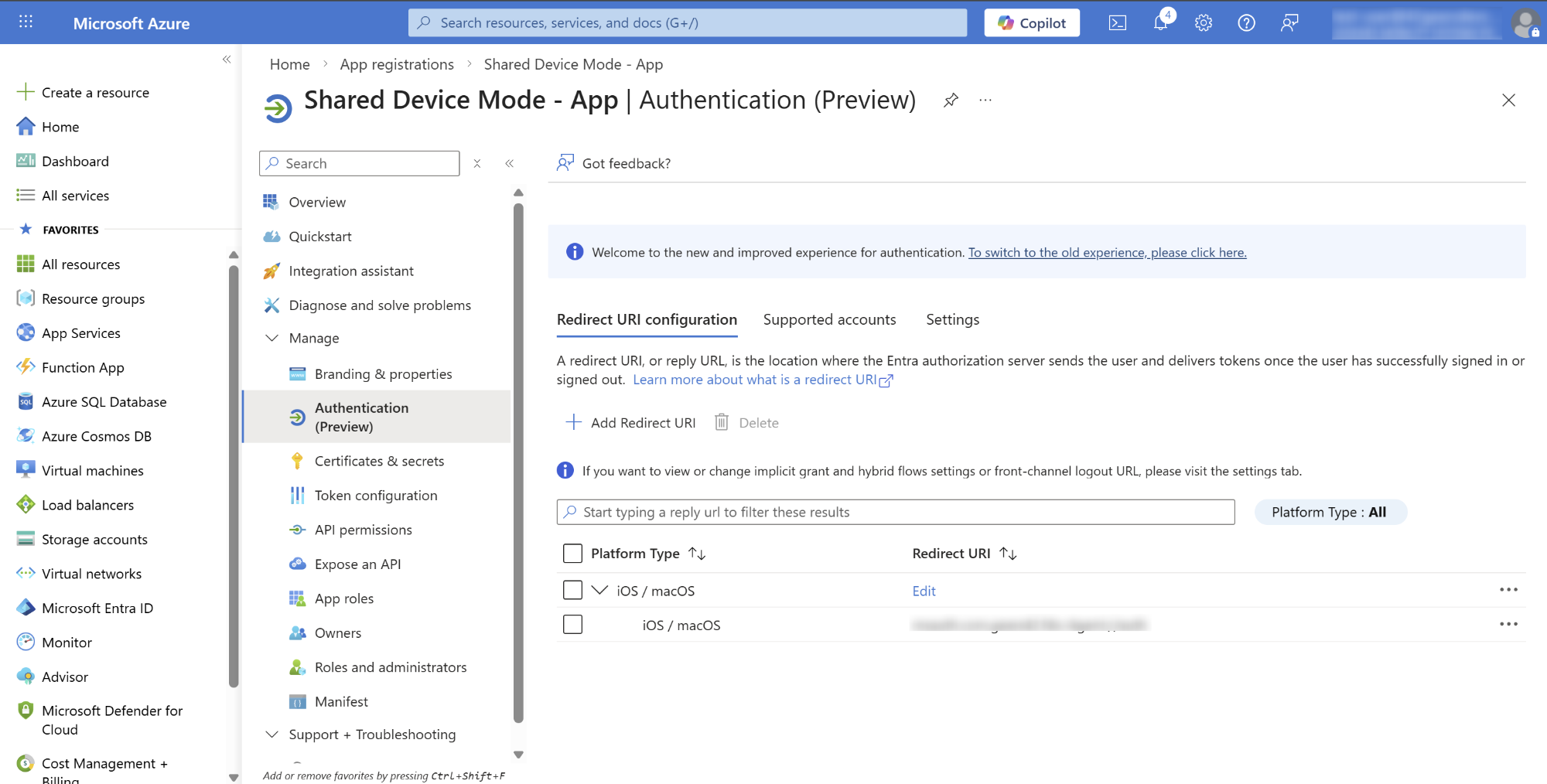
Select Authentication (Preview) and click on Add Redirect URI
Select iOS/macOS and add SureMDM Agent bundle ID
- Bundle ID of SureMDM Agent - com.gears42.Nix-Agent
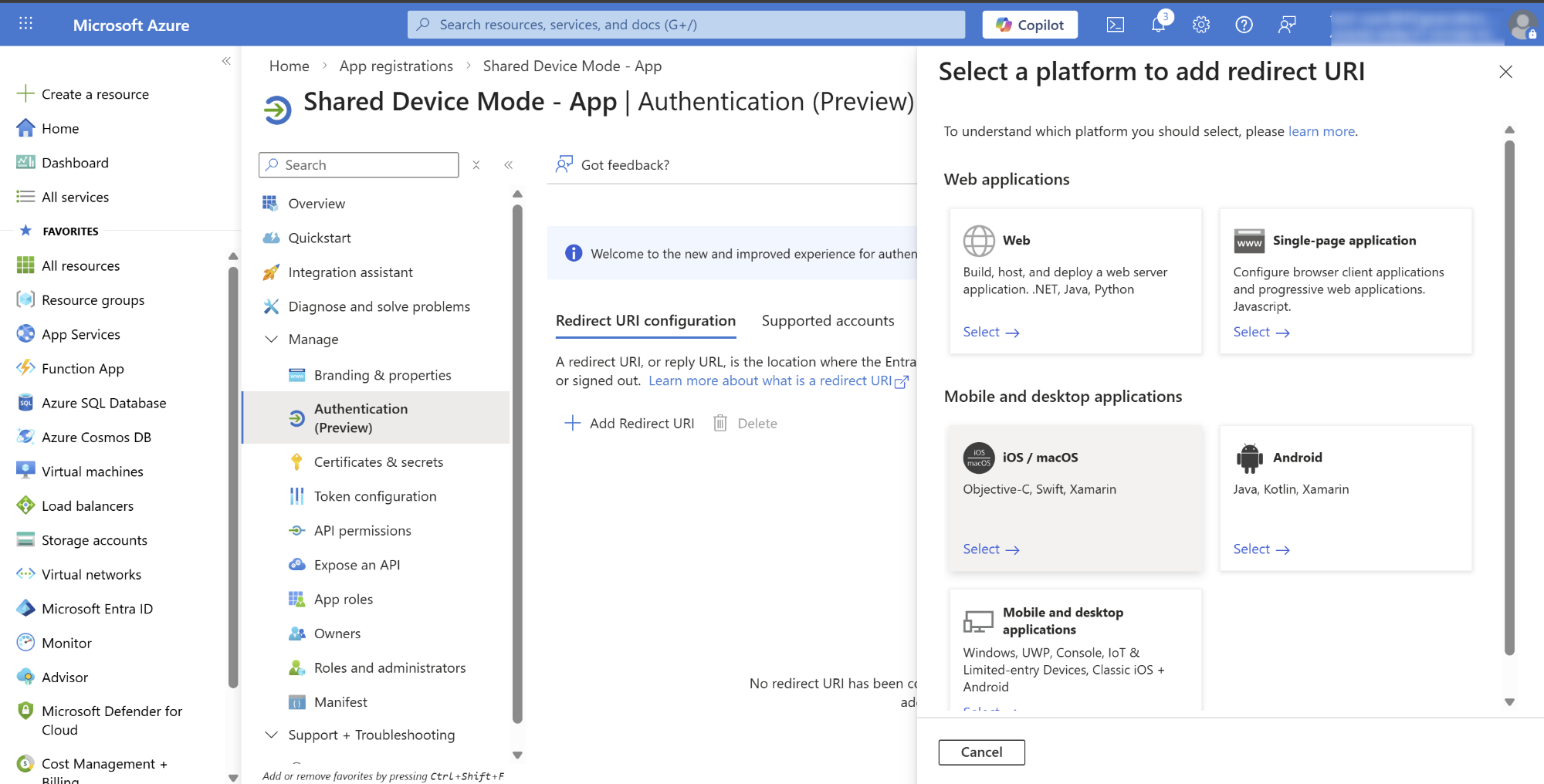
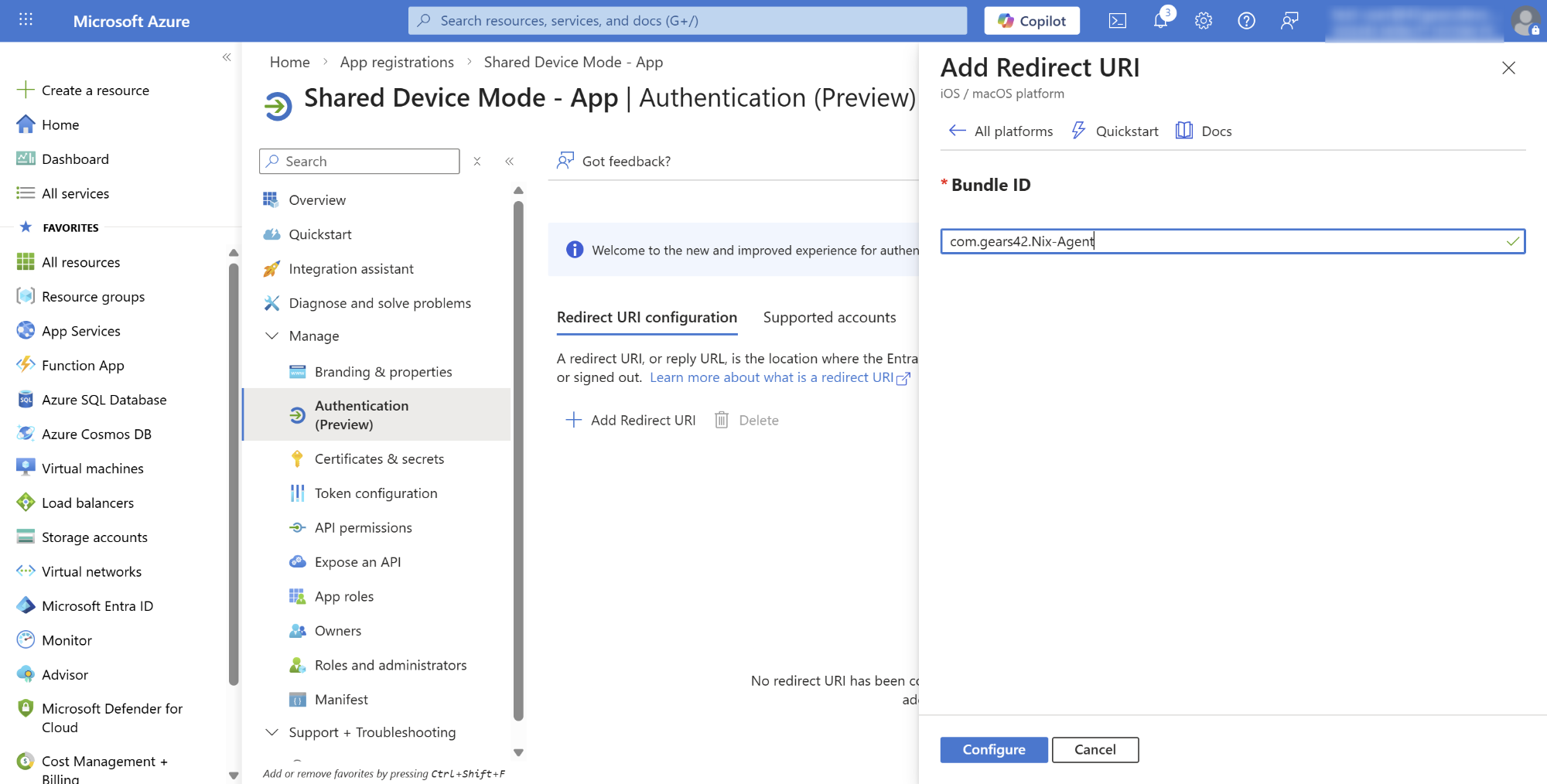
- Click Configure
5. Copy the Client ID
Navigate to Overview menu
Copy the Client ID
This Client ID will be used in the SureMDM Console
Configure Profile Mapping
Profile Mapping defines how profiles are assigned to devices during Shared Device Mode operations.
Steps to Configure Profile Mapping
Navigate to Settings → Account Settings → Shared Device Mode → iOS/iPadOS → Configure → Access Profile Mapping section.
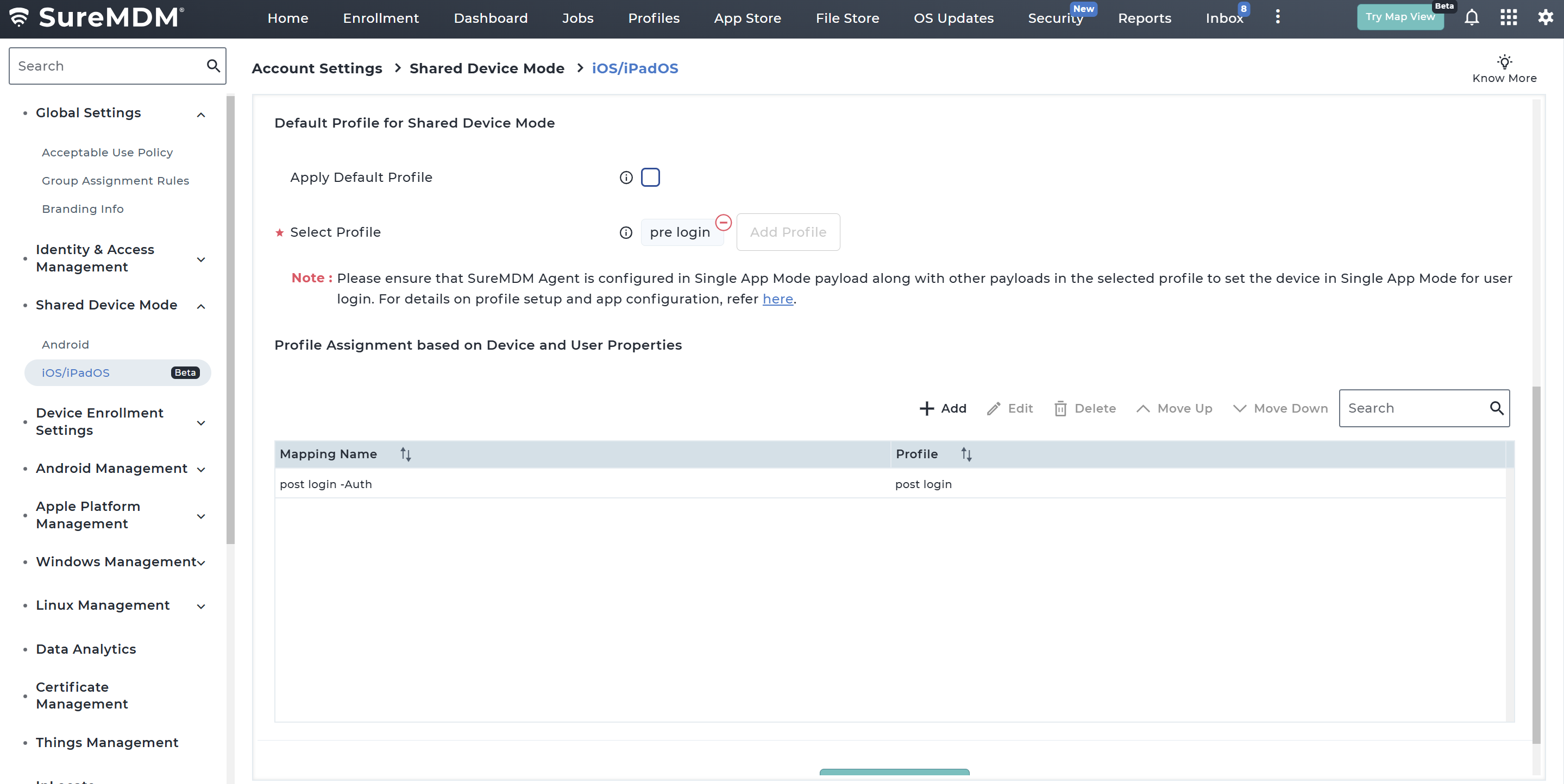
In the Profile Mapping section, configure the Profile for Shared Device Mode which would be applied:
- When Shared Device Mode is enabled
- When the user logs out
- When the user logs in
| Option | Description |
|---|---|
| Apply Default Profile | If enabled, applies the default SDM profile configured in the SureMDM backend. |
| Select Profile | Allows administrators to choose a custom profile to apply during login screen or logout state. |
Please ensure that SureMDM Agent is configured in Single App Mode payload along with other payloads in the selected profile to set the device in Single App Mode for user login.
Note: If Single Sign-On is enabled, default profile will not be applicable, only custom profile has to be selected. Ensure that the Authenticator and SureMDM Agent apps are included in the Allowlist payload, along with the required payloads in the selected profile, to support the user authentication flow when SSO is configured.
Configure Profile Assignment Based on Device Properties:
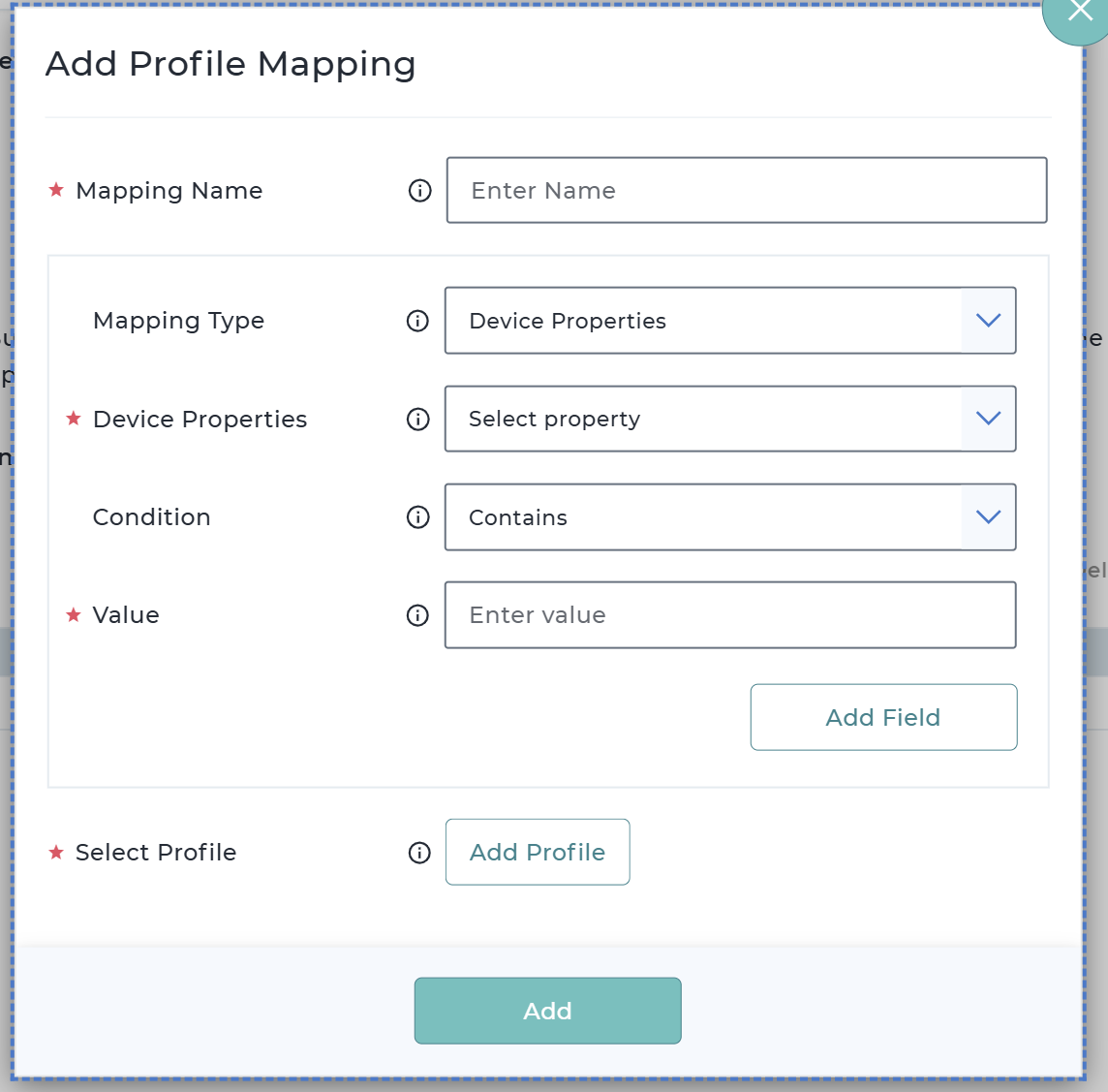
a. Click Add to create a new profile mapping rule.
| Field | Description |
|---|---|
| Mapping Name | Enter the name of the profile mapping |
| Mapping Type | Specify the mapping type / rule type |
| Device Property | Select the required device property. Supported Device Properties - Device Name - Shared Device User Name - Group Path - Email ID - User Logged In |
| Condition | Specify the matching condition such as Contains, Equals, Not Equals |
| Value | Enter the Value that would be used for comparison. |
| Select Profile | Select a profile to be applied in Shared Device Mode (SDM) when a user logs in. |
(Optional) Click Add Field to define additional conditions and combine them using:
- AND
- OR
Click Add to save the mapping entry.
The added entry will get reflected in the table section.
Profile Mapping Priority
Profile mappings follow top-down evaluation.
Example:
- The system evaluates the first mapping rule.
- If the user matches the condition, the corresponding profile is applied.
- If not, the system checks the next mapping entry.