Configure Plugin based ServiceNow in SureMDM
This section explains how to integrate SureMDM with ServiceNow using the plugin to enable seamless ticket creation and management.
Prerequisites
Ensure the following requirements are completed before installing and configuring the ServiceNow plugin:
- An active ServiceNow instance account
- Access to the ServiceNow console with permissions to create tables and fields
- A table created in the ServiceNow instance
- Required fields added to the ServiceNow table
Only one ServiceNow table can be configured per SureMDM account for ticket creation. All tickets raised from SureMDM will be inserted into this table.
Creating Tables on ServiceNow Instances
Tables created in the ServiceNow instance can be linked to the SureMDM account. This table acts as the destination where all tickets created from SureMDM will be stored.
For example, when an administrator raises a ticket in SureMDM, the ticket details are automatically added as a new record in the configured table within the ServiceNow instance.
Creating a dedicated table helps organizations structure device-related incidents separately from other service requests if required.
Create a Table in ServiceNow
To Configure ServiceNow Integration, follow these steps:
- Log in to ServiceNow.
- Click All and navigate to Tables.
- Click New and enter table details such as Label and Name.
- Click Save.
Once saved, the table becomes available in the ServiceNow instance and can be used during the plugin configuration in SureMDM.
Adding Fields to the ServiceNow Table
A field represents an individual data element stored in the ServiceNow table. These fields determine what information is captured when a ticket is created from SureMDM.
Add Required Columns
- Scroll down and under the column, add necessary fields (for example: Device Name, IMEI).
- Configure field properties:
- Type
- Max length
- Display value as True or False
- Once the configuration is completed, click Submit.
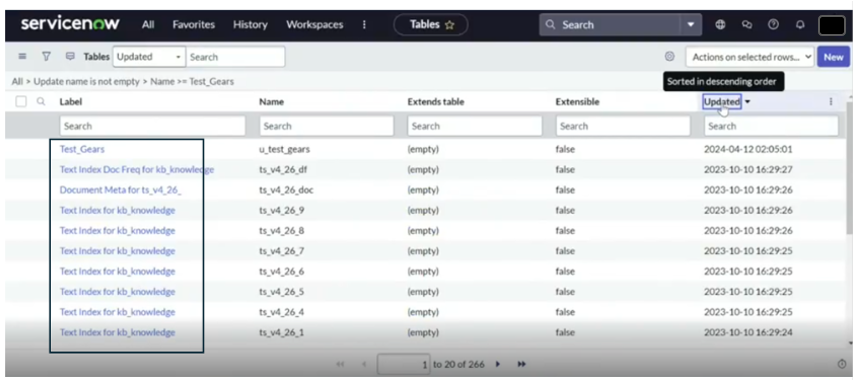
- The created fields will now be available within the table and can be mapped during the SureMDM plugin configuration.
Example fields commonly used include:
- Device Name
- Device ID
- IMEI
- Serial Number
- Issue Type
- Issue Description
- Requested By
Configure ServiceNow Plugin in SureMDM
Administrators can install and configure the ServiceNow plugin from the SureMDM console. Once installed, the plugin allows administrators to create ServiceNow tickets directly from SureMDM.
Follow the steps below to install the ServiceNow plugin:
- Log in to the SureMDM console.
- Navigate to Settings > Account Settings > Plugins > Manage Plugins.
- Click the Plugin Store to install the ServiceNow plugin.
- Select ServiceNow and click *Install.
- Go to Installed Plugins and select the plugin and click Enable.
- Now, select Apps Plugins from the SureMDM Home page.

- Selecting the ServiceNow Plugin from the list opens its configuration panel, where administrators can enter connection details, map fields, and manage ticket integration settings.
Configure Plugin Details
Enter the following details to connect SureMDM with the ServiceNow instance:
- ServiceNow URL: Enter the URL of the ServiceNow instance.
- Username: Enter the username associated with the ServiceNow account.
- Password: Enter the password for the ServiceNow account.
- Table Label: Enter the label of the table created in the ServiceNow instance.
- Table Name: Enter the table name created in the ServiceNow instance.
Once the details are entered, click Validate to verify that the provided values are correct and that SureMDM can communicate with the ServiceNow instance. After validation is successful, proceed to configure the fields.
Adding Fields in SureMDM
Before proceeding with this procedure, ensure that the required fields have already been created in the ServiceNow table.
- Click Add Field and configure the following details:
- Field Type: Choose whether the field type is Text or Dropdown.
- Field Label: Enter the field label that will appear in the ticket prompt.
- Field Name: Enter the field name exactly as defined in the ServiceNow table.
- Field Length: Enter the maximum allowed length for the field.
- Status: Choose whether the field is Optional or Mandatory.
- Value: Add values for dropdown fields.
- SureMDM Equivalent Column: Select the corresponding SureMDM attribute for the field, such as IMEI or Device ID. This allows SureMDM to automatically populate certain fields based on device data.
- Once done, click Add.
- Multiple fields can be added depending on the information required in the ServiceNow ticket.
- By clicking Preview, administrators can review how the ticket form will appear when raising a ticket. Once all details are configured, click Apply.
Enable the ServiceNow Plugin
After completing the configuration:
- Select the ServiceNow plugin.
- Click Enable. The integration is now active, and administrators can begin raising ServiceNow tickets directly from SureMDM.
Raising a Ticket from SureMDM
After the plugin is enabled, tickets can be created from different areas of the SureMDM console. Administrators can raise a ticket using the following options:
- Click Raise Ticket from the Dynamic Jobs section.
- Click Raise Ticket from the Remote screen.
- Click Raise Ticket from the Location Tracking Page.
When a ticket is raised, SureMDM displays the configured fields. After the administrator submits the request, a new record is created in the configured ServiceNow table.
The created ticket can then be viewed and managed directly from the ServiceNow instance.
How the Integration Works
Once configured, the workflow operates as follows:
- Administrator selects a device in SureMDM.
- The administrator chooses a Raise Ticket.
- SureMDM displays the configured ticket fields.
- The administrator enters the required information.
- A new record is created in the selected ServiceNow table with the details configured during ticket creation.
This process ensures device-related incidents are recorded immediately in the organization’s service management system, with all configured information from SureMDM automatically used for ticket creation in ServiceNow.
Important Notes
Fields must exist in the ServiceNow table before configuring them in SureMDM. Field names entered in SureMDM must match the field names defined in ServiceNow. Only one ServiceNow table can be configured per SureMDM account. Fields configured with Display Value set to False will be populated automatically and will not appear in the ticket prompt.