Xcode
Certificate configuration and the re-signing process
Due to security restrictions set by iOS, external tools such as Appium, Xcode, and device automation agents like WebDriverAgent cannot interact with or control physical devices unless a developer-signed component is installed. Therefore, certificates and provisioning profiles from the Apple Developer Program must be configured to sign these components. This enables platforms such as AstroFarm to establish a trusted connection and perform device interactions over USB.
The tool installations and configurations in this section are a one-time setup on one contributor machine.
Installing Xcode
Xcode provides the Apple frameworks required to detect and interact with physical iOS devices connected to the Mac. It also enables deployment of developer-signed components required for device communication.
Install Xcode on the mac contributor device.
- Xcode needs to be compatible with the contributor machine; choosing the right version based on device specifications is mandatory.
- Always use the Xcode version compatible with your macOS version, as listed in Apple's system requirements at https://xcodereleases.com/, to avoid installation failures or instability.
- Check the iOS Device / Contributor Environment Compatibility Matrix section for your OS to ensure the right version is installed.
Ensure the installed Xcode version is greater than or equal to the iOS version supported by the device. Refer to the OS compatibility list for version mapping.
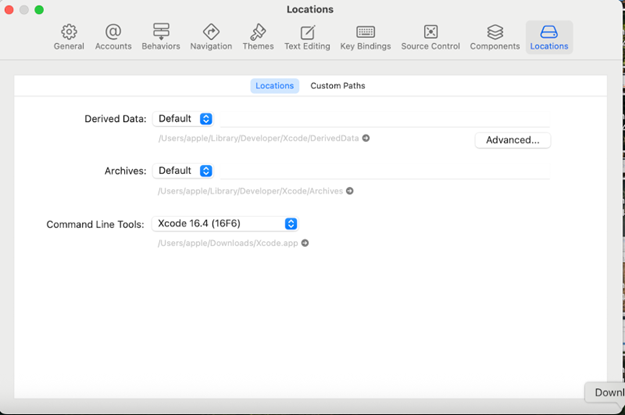
Once Xcode is installed, navigate to Xcode Settings → Location and update the command line tools to the Xcode path:
Xcode contains all the iOS SDK and device communication libraries that allow any tool to talk to a connected iPhone/iPad. Without it, the Mac has no way to interface with iOS devices at a developer level.