Scan QR Enrollment (CamLock Sentry)
Scanning QR Code is an alternate method to enroll the CamLock Sentry devices into the SureMDM account.
To enroll a new device using a QR code enrollment, follow the below steps:
1. Login to the SureMDM Web Console.
2. Navigate to the Enrollment > QR Code Enrollment > List View > Create QR Code.
3. On the Setup QR Code for Enrollment prompt, under the Enrollment Type tab,
a. Enter the Name of the QR Code.
b. Select the platform as Things.
c. Select the enrollment type as CamLock Sentry and click Next.
4. Under the Configure Options tab,
a. Enable/Disable the following CamLock Properties:
- Block Camera
- CamLock Agent Uninstallation
b. Enter the time(in seconds) in the Refresh text field.
5. Under the Save QR Code tab, click Save.
The newly created QR Code will be listed under the QR Code Enrollment section.
6. Launch the CamLock Sentry application on the device.
7. Tap Scan QR and scan the QR Code displayed on the SureMDM web console.
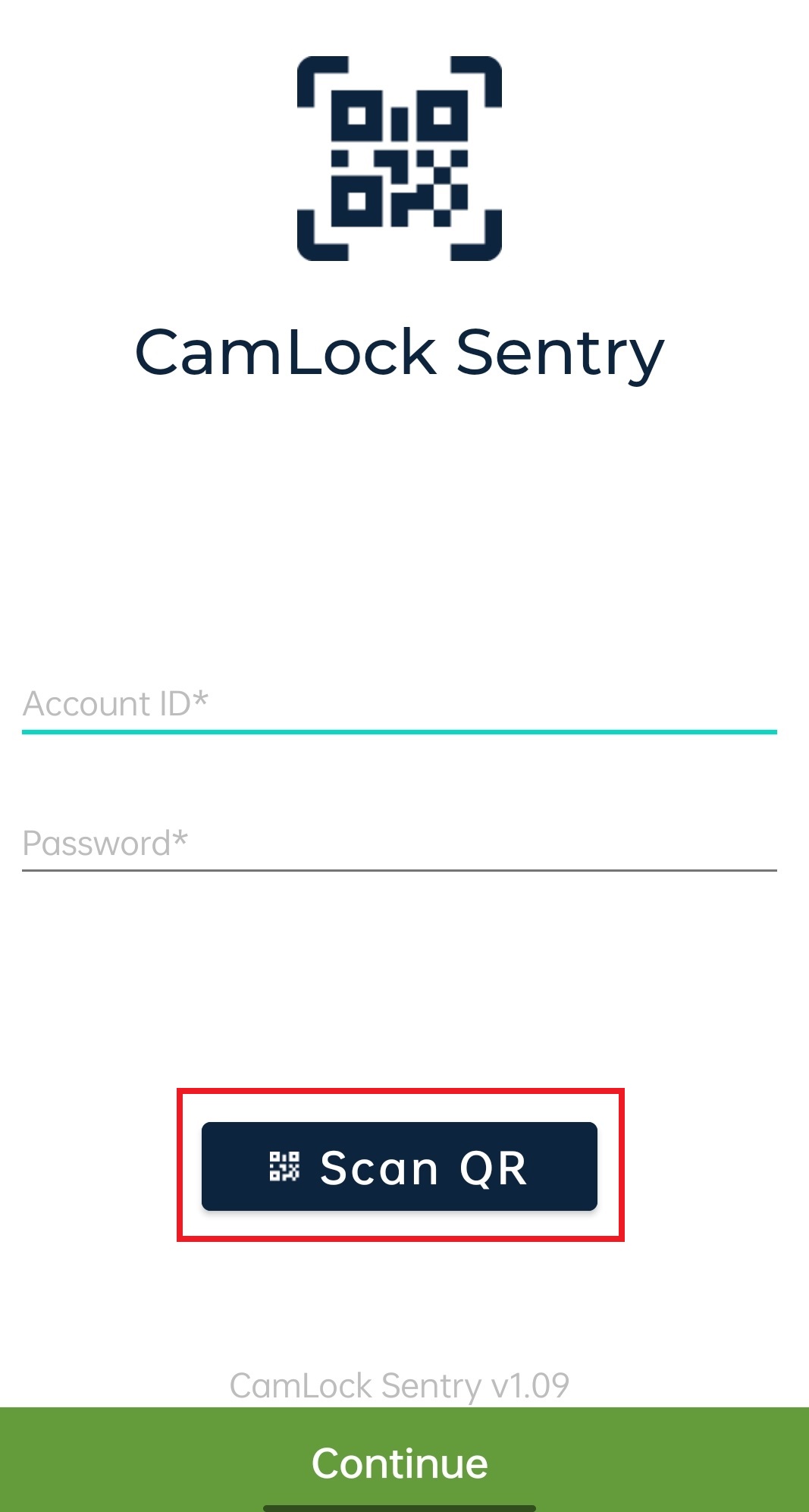
8. Enter the Device Name on the next page and tap Continue.
A QR code with CamLock properties will appear on the screen. Employees can scan the QR code to apply the CamLock properties on their device.
Admins can check the status of CamLock properties by tapping on the Properties option.