Manual Enrollment (CamLock Sentry)
To enroll the CamLock installed Android devices in the SureMDM web console, follow the below steps:
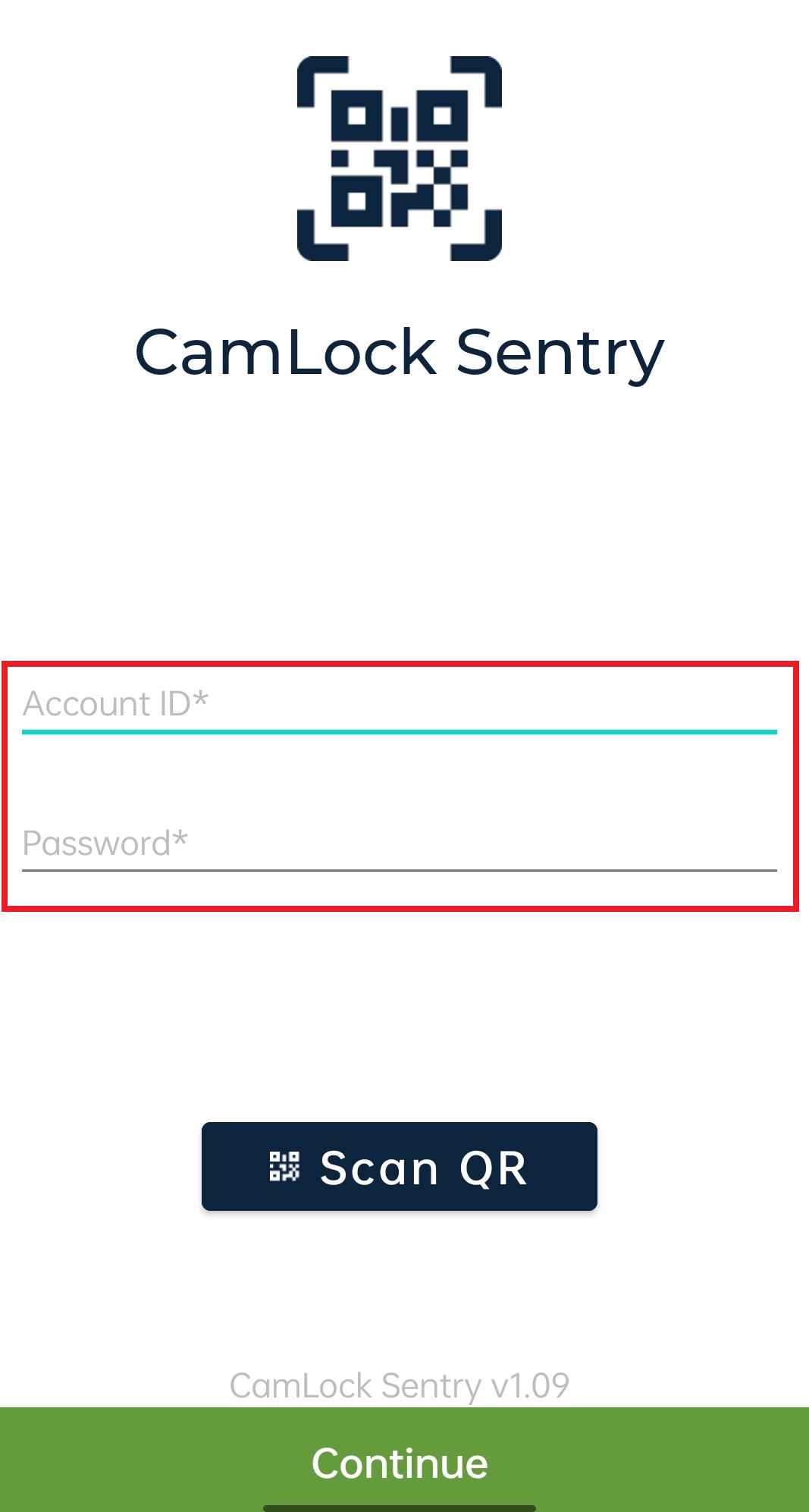
1. Launch the CamLock Sentry application on the device.
2. On the CamLock Sentry home screen, enter the Account ID, Password and tap Continue.
3. Enter the Device Name on the next page and tap Continue.
A QR code with CamLock properties (Disabled) will appear on the screen.
To enable the CamLock properties, follow the below steps:
1. Navigate to the SureMDM web console.
2. Select the CamLock Sentry device on the device grid.
3. On the Device Info panel, select the following properties and click Apply.
- Block Camera
- CamLock Agent Uninstallation
The CamLock Properties will be enabled on the CamLock Sentry device. Employees can scan the QR code to apply the CamLock properties on their devices.