Post Enrollment Registration
Post-enrollment registration allows administrators to configure Microsoft Entra Platform Single Sign-On (Platform SSO) on macOS devices that are already enrolled and managed through SureMDM. This approach enables organizations to extend Platform SSO capabilities to existing devices without requiring them to be re-enrolled.
Administrators can configure the required Extensible SSO and Platform SSO settings in a macOS profile and deploy it to the enrolled devices through the SureMDM console. Once the profile is installed, users can complete the Microsoft Entra registration process directly on their Macs.
Prerequisites
Before configuring Platform SSO in SureMDM, ensure that the following requirements are met.
- Supported macOS version: macOS 14 Sonoma or later is recommended for Platform SSO.
- Microsoft Company Portal: Install a compatible version of the Microsoft Company Portal app. Microsoft specifies version 5.2404.0 or later for Platform SSO.
- Microsoft Entra ID permissions: Users must have the necessary permissions to register or join devices to Microsoft Entra ID.
- Microsoft Authenticator: Ensure it is available and configured as required by your organization's authentication and multifactor authentication policies.
- Network access: Ensure that the device can reach the required Microsoft Entra authentication endpoints.
Refer to the Microsoft Platform SSO prerequisites for the latest requirements.
Steps to Configure Extensible SSO in SureMDM
Navigate to Profiles → macOS → Select Enrollment Type → Access Identity & Access Management → Extensible SSO → Configure.
Step 1: SSO Configuration tab
In this section, configure the options as mentioned below:
| Settings | Description |
|---|---|
| SSO Provider | Select Microsoft Enterprise SSO via Company Portal App. Based on the Microsoft Enterprise SSO, below configurations will be automatically pre-populated on this section.
|
| Extension Identifier | com.microsoft.CompanyPortalMac.ssoextension |
| Team Identifier | UBF8T346G9 |
| SSO Type | Select Redirect. |
| URLs | |
| Denied Bundle Identifiers | Specify the bundle identifiers of applications that should be excluded from SSO behavior, if applicable. |
| Screen Locked Behavior | Select the appropriate behavior for authentication when the screen is locked. |
| ExtensionData | Add additional extension-specific settings only when required by your organization's configuration. |
These values identify the Microsoft Enterprise SSO extension and configure redirect-based SSO.
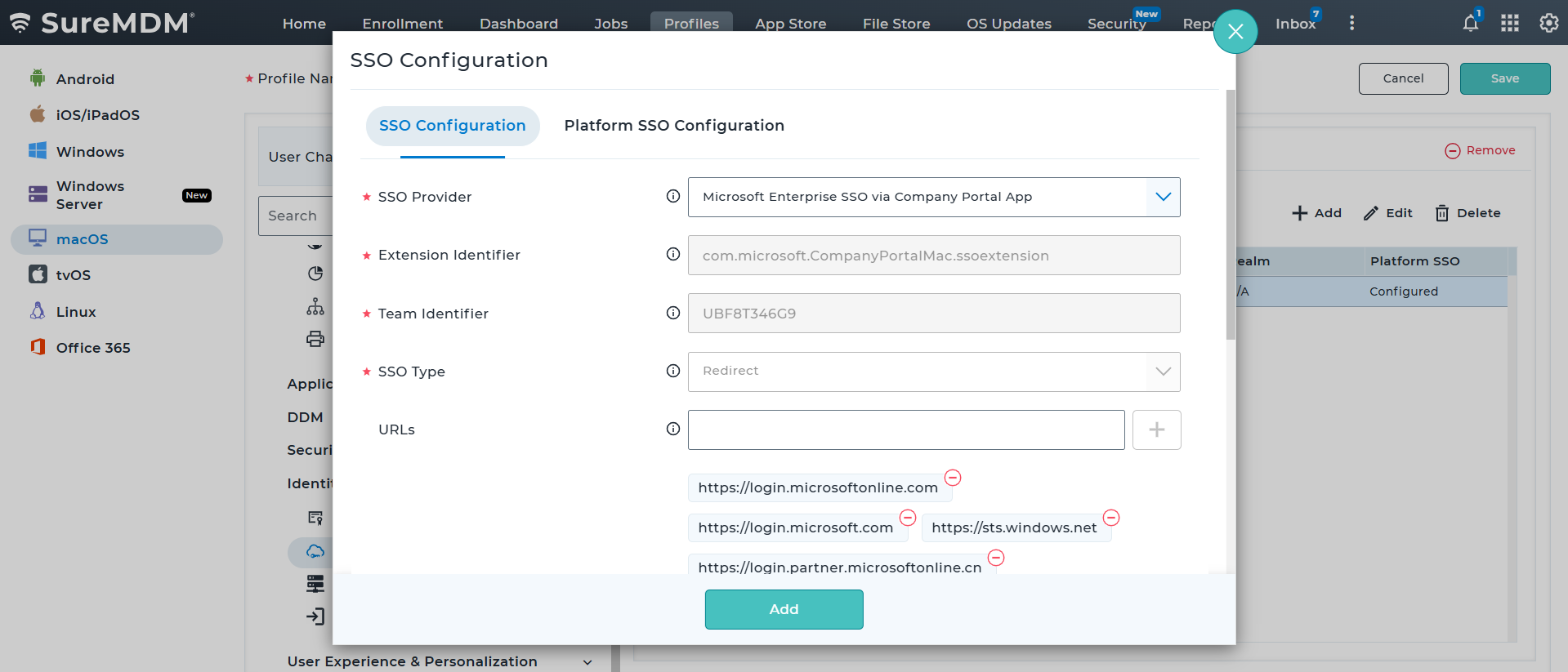
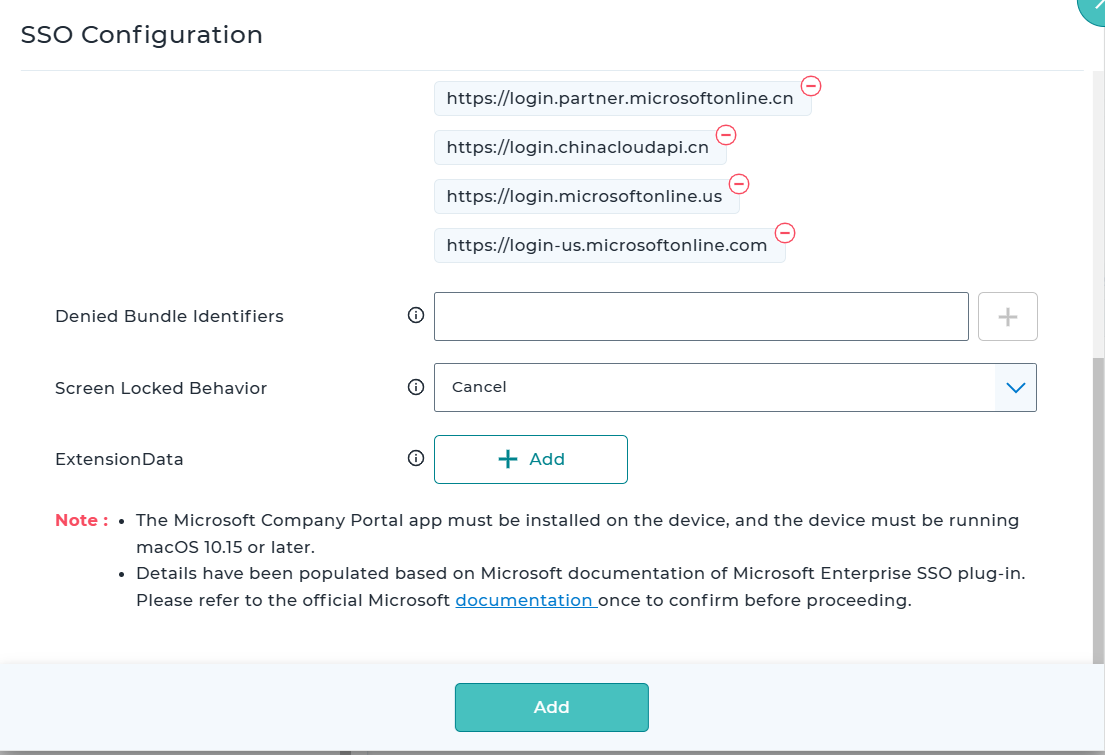
Step 2: Platform SSO Configuration tab
After configuring the SSO section, now navigate to the Platform SSO Configuration tab and configure the settings below.
| Setting | Recommended guidance |
|---|---|
| Enable Platform SSO | Enable this option to activate Platform SSO configuration. |
| Authentication Method | Select the authentication method approved for your organization.
|
| Login Frequency | Enter the duration, in hours, until the system requires a full login instead of a refresh. The minimum value is 1 hour and the default value is 18 hours. Configure according to your authentication requirements |
| Use Shared Device Keys | If checked, the system uses the same signing and encryption keys for all users. Only supported on the device channel. |
| Enable Registration During Setup | Uncheck this option to deploy the platform sso configuration on already enrolled devices. |
| Enable Create First User During Setup | Uncheck this option to deploy the platform sso configuration on already enrolled devices. |
| Create User at Login | Uncheck this option to deploy the platform sso configuration on already enrolled devices. |
| User Authorization Mode | Set it to Not Configured. |
| New User Authentication Methods | Set it to Not Configured. |
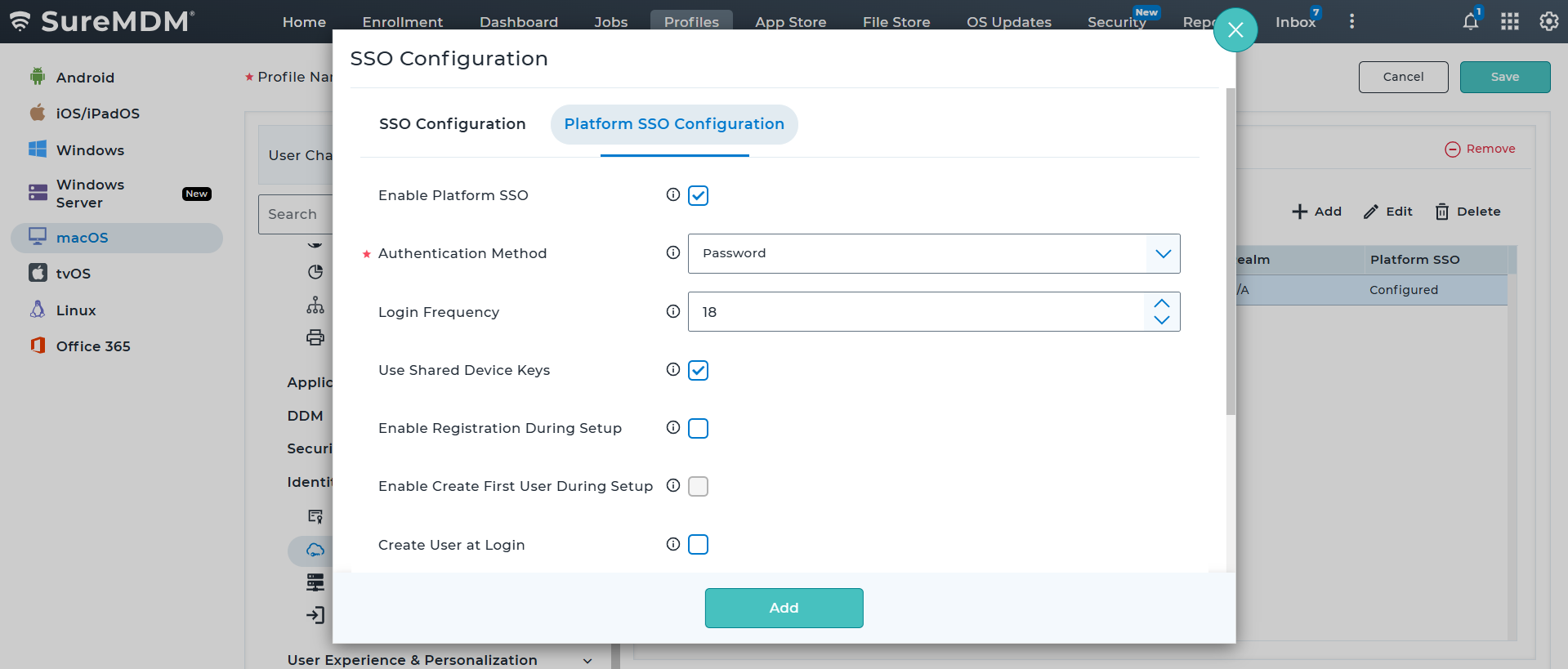
Step 3: Deploy the profile
Deploy the profile to the enrolled Mac and verify that the configuration is successfully installed.
Step 4: Complete registration on the Mac (target device)
- Platform SSO registration notification: Once the SureMDM profile is installed, macOS displays a notification indicating that registration is required. The notification prompts the user to use their identity provider password to sign in to the Mac.
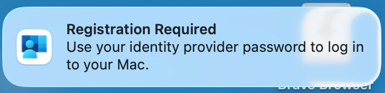
- Sign in with Microsoft Entra ID: Click the notification to open the Microsoft sign-in window. Enter the user's organizational Microsoft Entra credentials and complete the sign-in process.
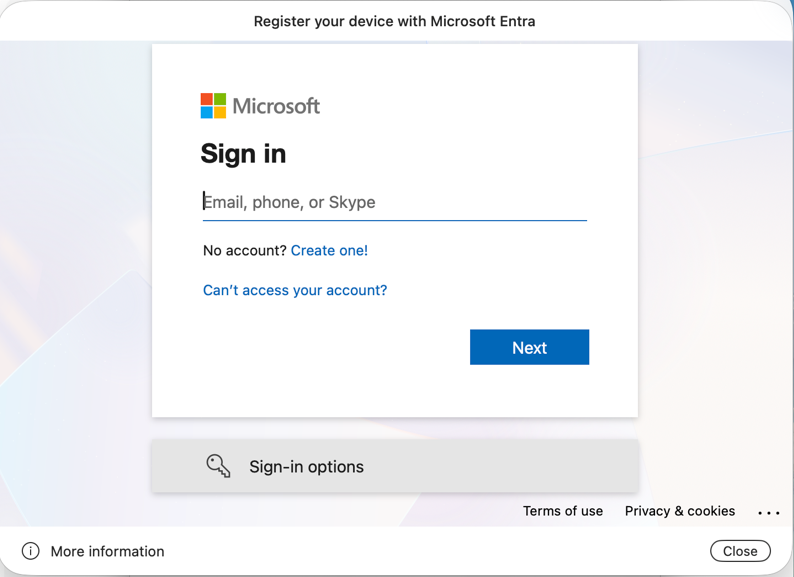
Complete device registration: Follow the on-screen instructions to register the device with Microsoft Entra ID. Complete any additional authentication or multifactor authentication steps, if prompted.
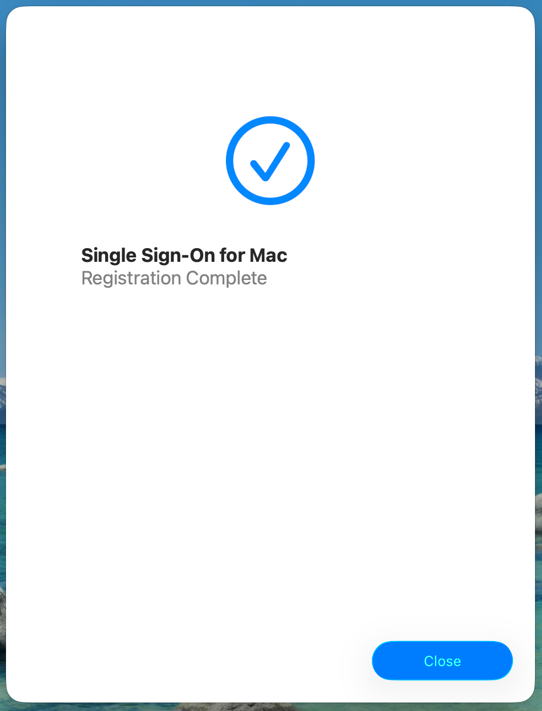
Verify successful registration: Once registration is complete, the Single Sign-On for Mac — Registration Complete screen appears. Close the screen to return to macOS.
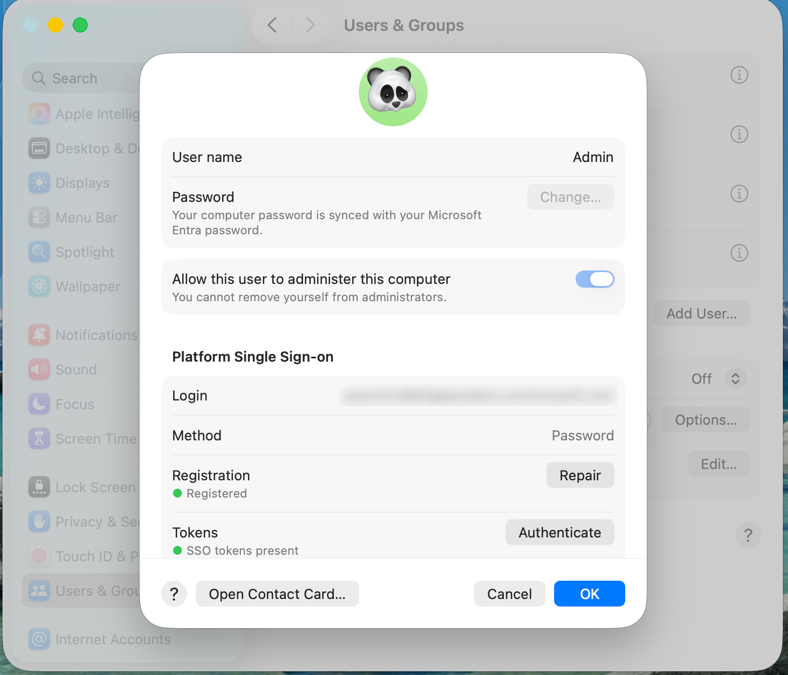
- Verify the user account status: Open System Settings → Users & Groups and select the relevant user account. Under Platform Single Sign-on, verify the following:
- Login: Displays the user's Microsoft Entra account.
- Method: Displays the configured authentication method, such as Password.
- Registration: Displays Registered.
- Tokens: Displays SSO tokens present when the required SSO tokens are available.
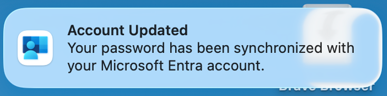
- Verify password synchronization (Password method only): After successful registration, macOS displays an Account Updated notification indicating that the local account password has been synchronized with the Microsoft Entra account. The user's local Mac password is now synchronized with their organizational password.
- Verify application access: Open a supported organizational application or website and verify that Platform SSO reduces the need for repeated sign-in prompts.
With the Secure Enclave authentication method, the local Mac account password remains separate from the Microsoft Entra password. Password synchronization behavior described above applies to the Password authentication method.