Configure Alternate Service Discovery in SureMDM
Part 1: SureMDM Console Configuration
Step 1: Create an ADE Profile
- Log in to your SureMDM console.
- Navigate to Account Settings > Apple Platform Management > ADE.
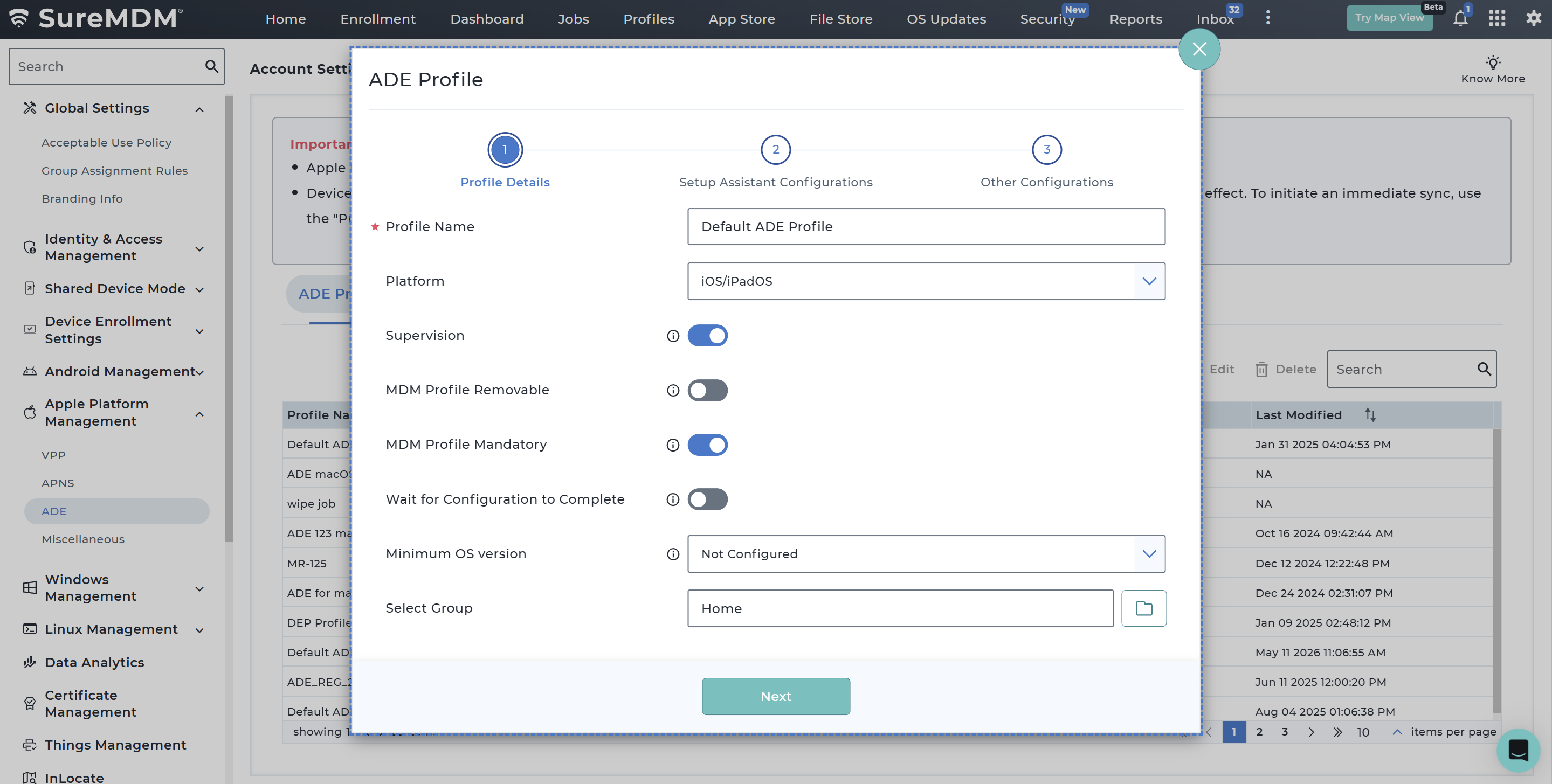
- Under the ADE Profiles tab, click Add.
- In the Profile Details section:
- Profile Name: Enter a recognizable name (e.g.,
1 ADE Profile - UE ASD). - Platform: Select iOS/iPadOS.
- Configure options such as Supervision, MDM Profile Removable, and Wait for Configuration to Complete based on your organizational requirements.
- Profile Name: Enter a recognizable name (e.g.,
- Click Next to move to Setup Assistant Configurations. Check or uncheck relevant options, then click Next.
- In the Other Configurations section, verify your application management preferences and click Save.
For detailed information about the fields available in the ADE Profile creation workflow, refer here.
Step 2: Create ADE Server
- Switch to the ADE Servers tab in the SureMDM console.
- Click Add.
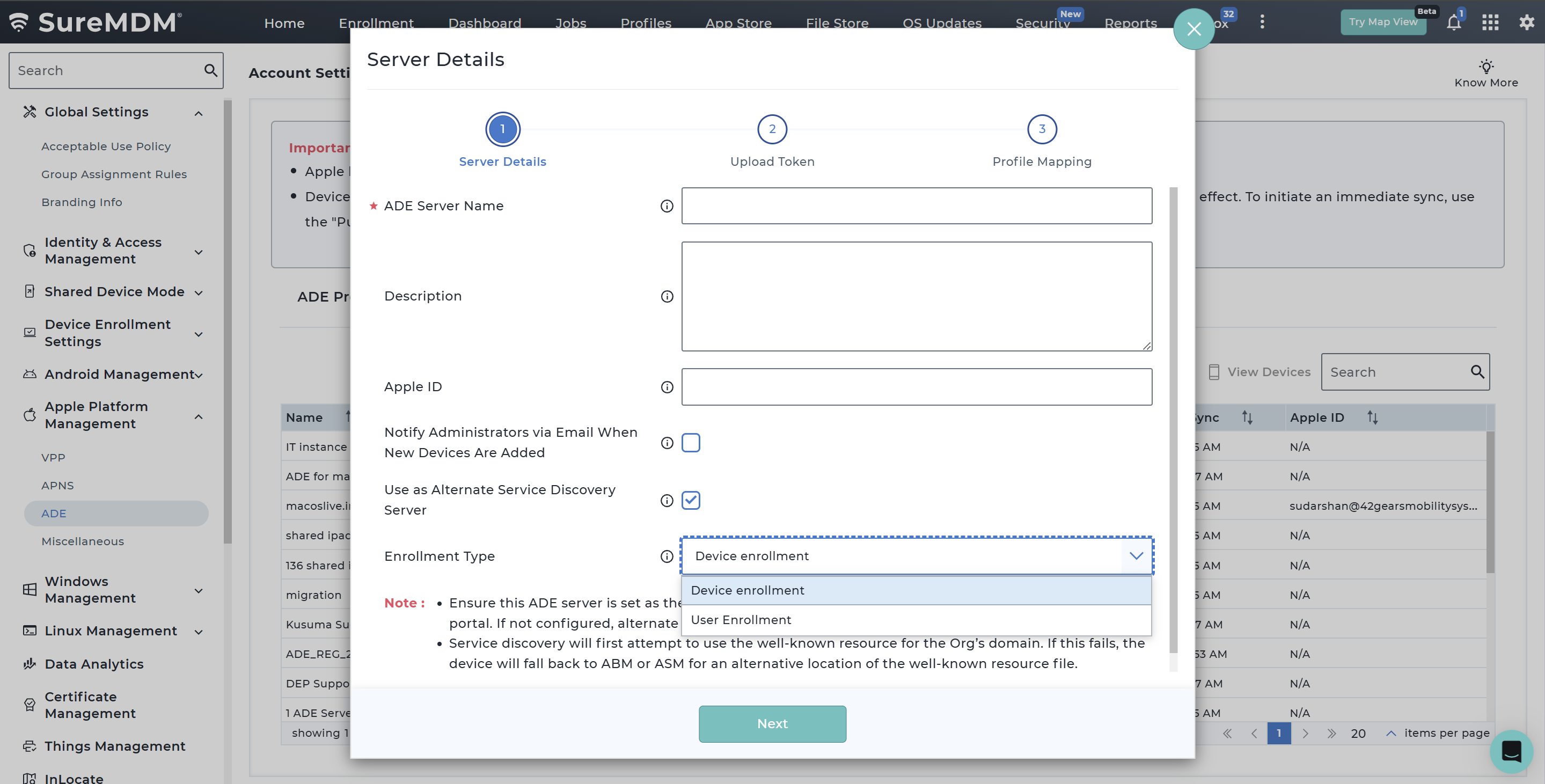
- In the Server Details section:
- Name: Enter a descriptive server name.
- Platform: Select iOS/iPadOS.
- Under the iOS/iPadOS ADE Profile dropdown, select the profile you created in Step 1.
- Enable Use as Alternate Service Discovery Server.
- Enrollment Type: Specify the enrollment type for which alternate service discovery should work.
- Click Next.
- Under the Upload Token section, click the Download link next to PEM Certificate to save the certificate file to your local machine. Keep this window open.
Part 2: Apple Business Manager (ABM) Configuration
Step 3: Add a New MDM Server in ABM
- Login to Apple Business Manager
- Go to Devices and then choose Management. Then the below screen will appear as follows:
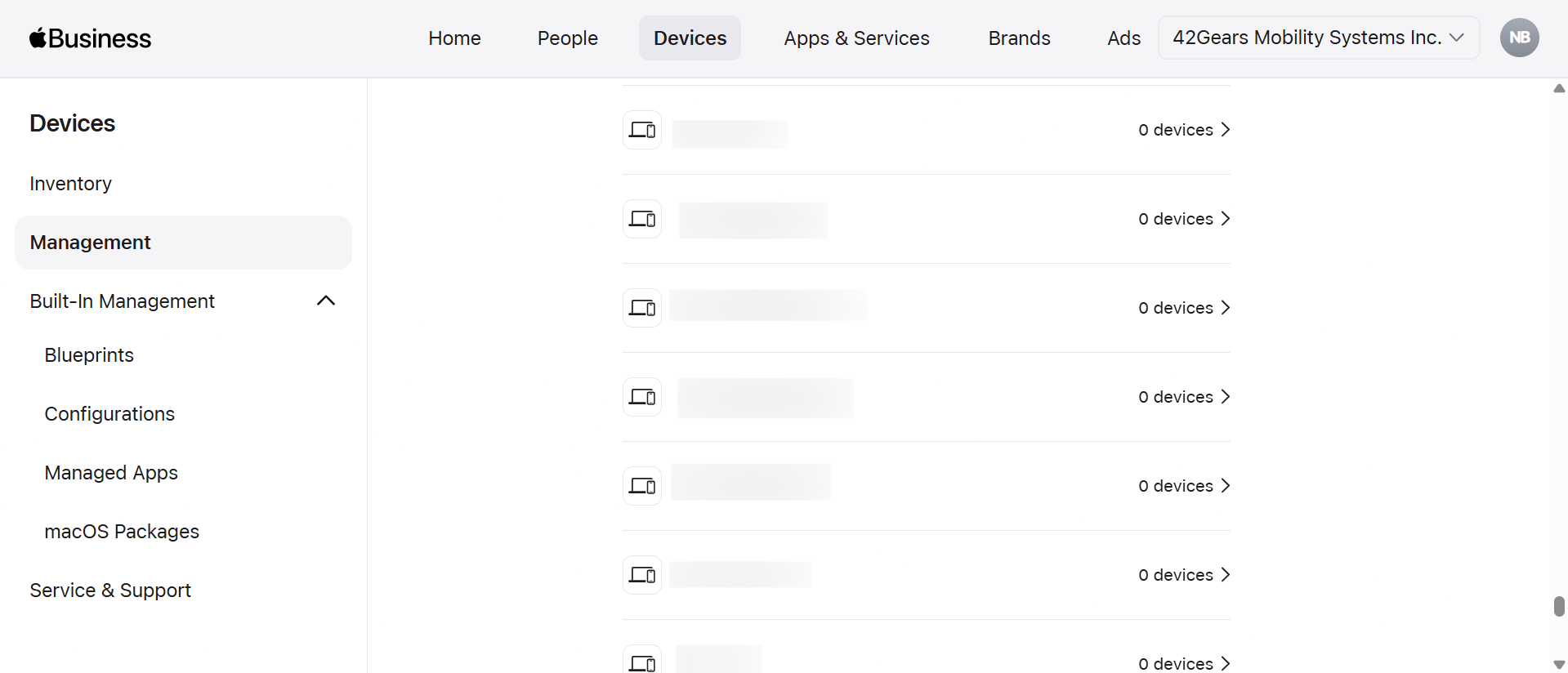
Click Add
Upon clicking Add, enter the MDM Service Name in the field provided.
Enable Allow this service to release devices if required. This option is to enable the configuration to release the devices from the created MDM server if required.
- After providing the Service Name, click Upload Certificate. Upload the .pem certificate which was downloaded from the SureMDM server. Then click Next
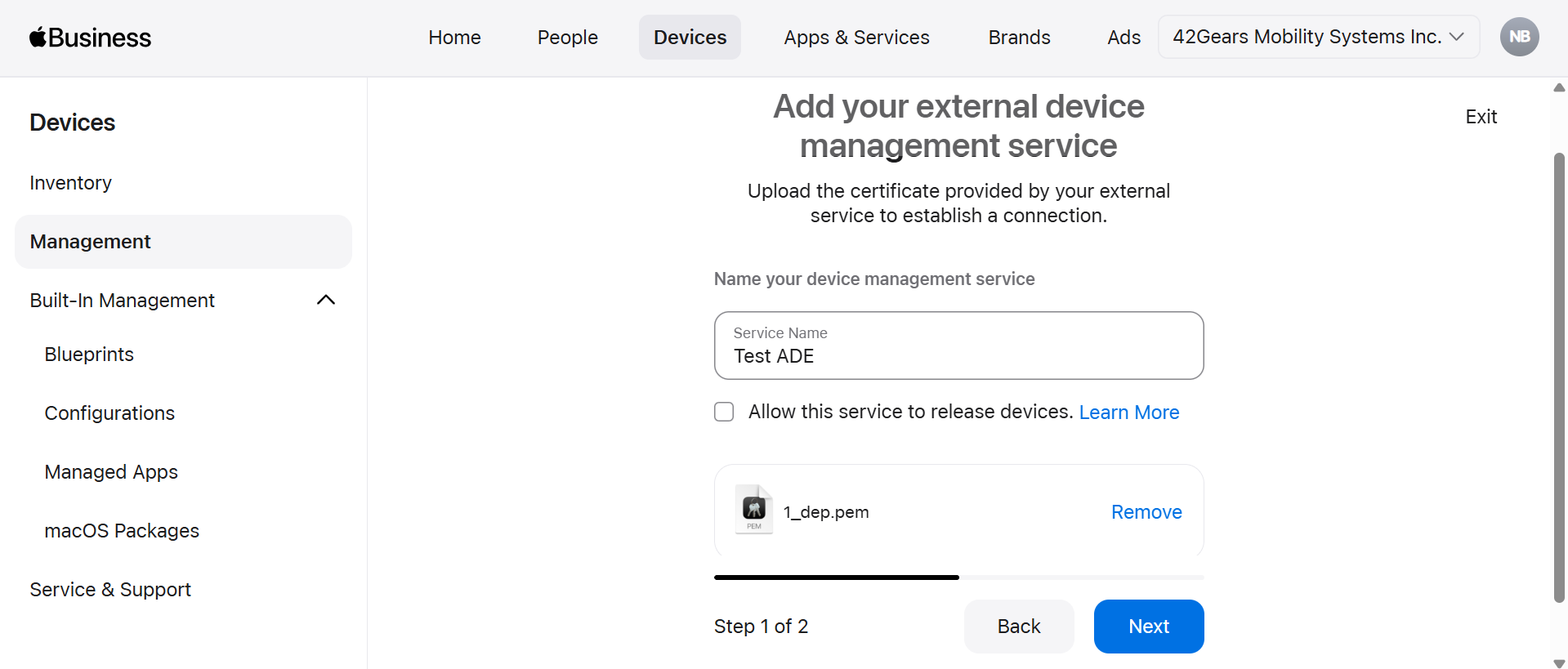
The .pem certificate should be downloaded from SureMDM Web Console > Account Settings > iOS/iPad/MacOS Settings > ADE > ADE Server tab > Upload Token > Download
- In this step, click Download Service Token to download your service token and click Done.
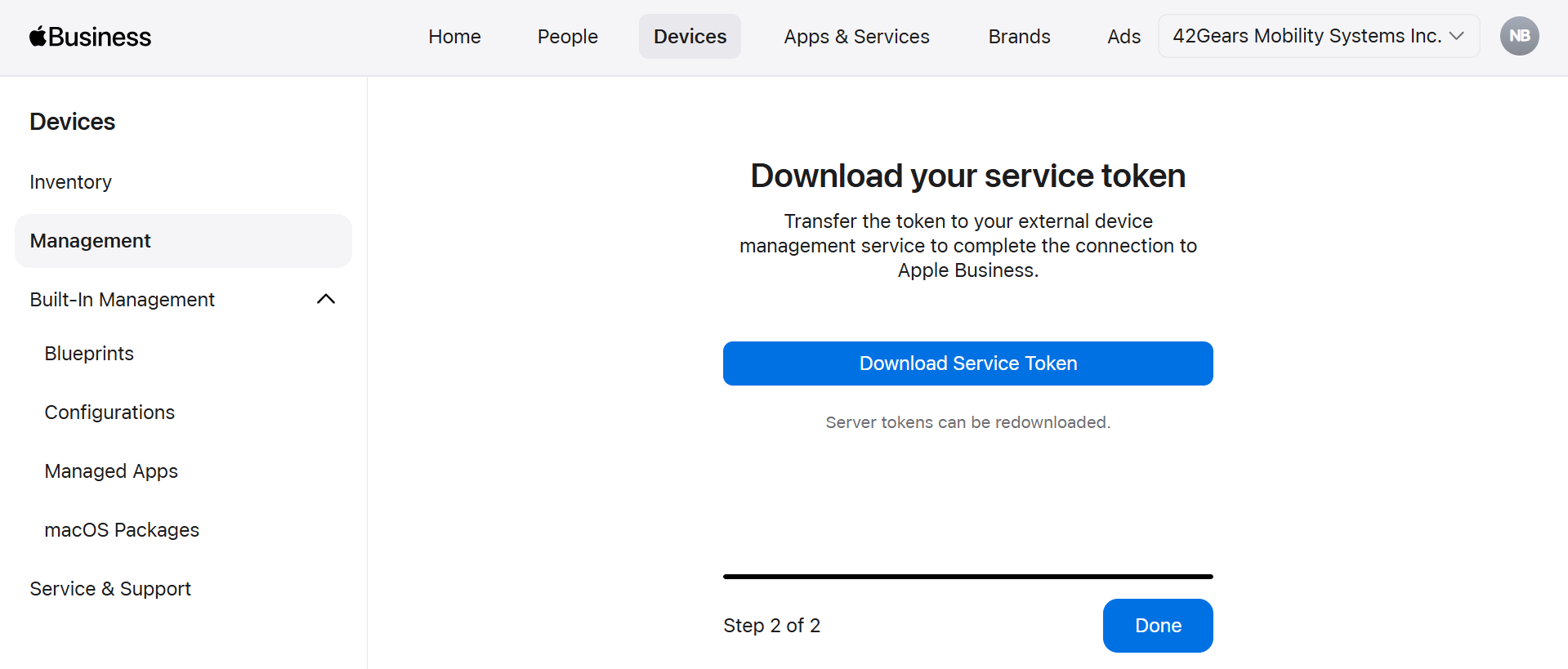
Then the token will get downloaded to your local drive.
Step 4: Configure Default Device Assignment
For Alternate Service Discovery to function correctly for a specific device type, a Default Device Assignment must be configured. Without a default assignment, alternate service discovery cannot determine the target service for enrollment.
- Navigate to Devices > Management Services
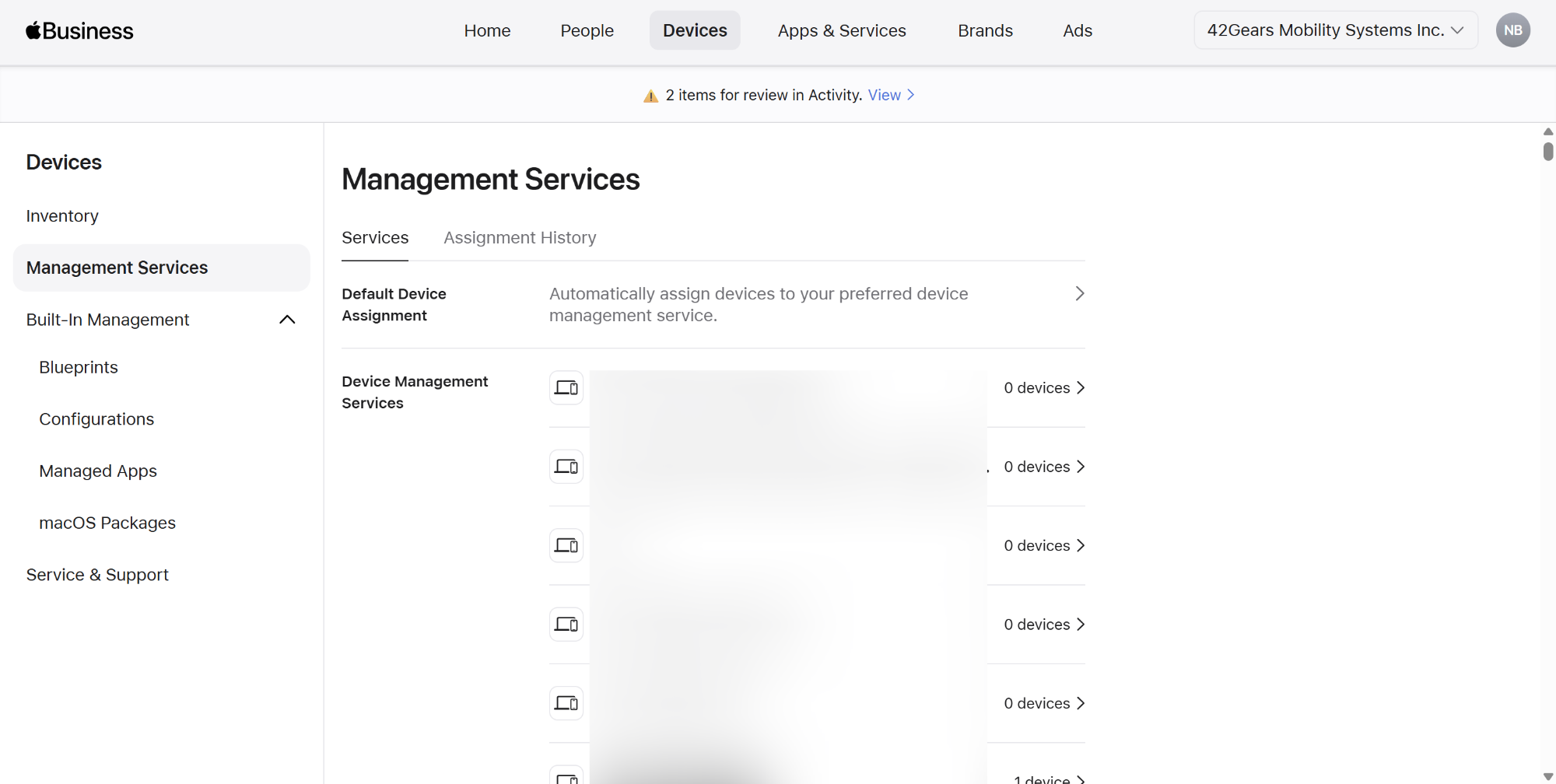
- Click on Default Device Assignment.
- Locate iPad and/or iPhone and change the default assignment from None or other profiles to your newly created MDM server. Ensure the created ADE server is set as the default MDM server for the appropriate device type in ABM or ASM portal. If not configured, alternate service discovery will not work as expected.
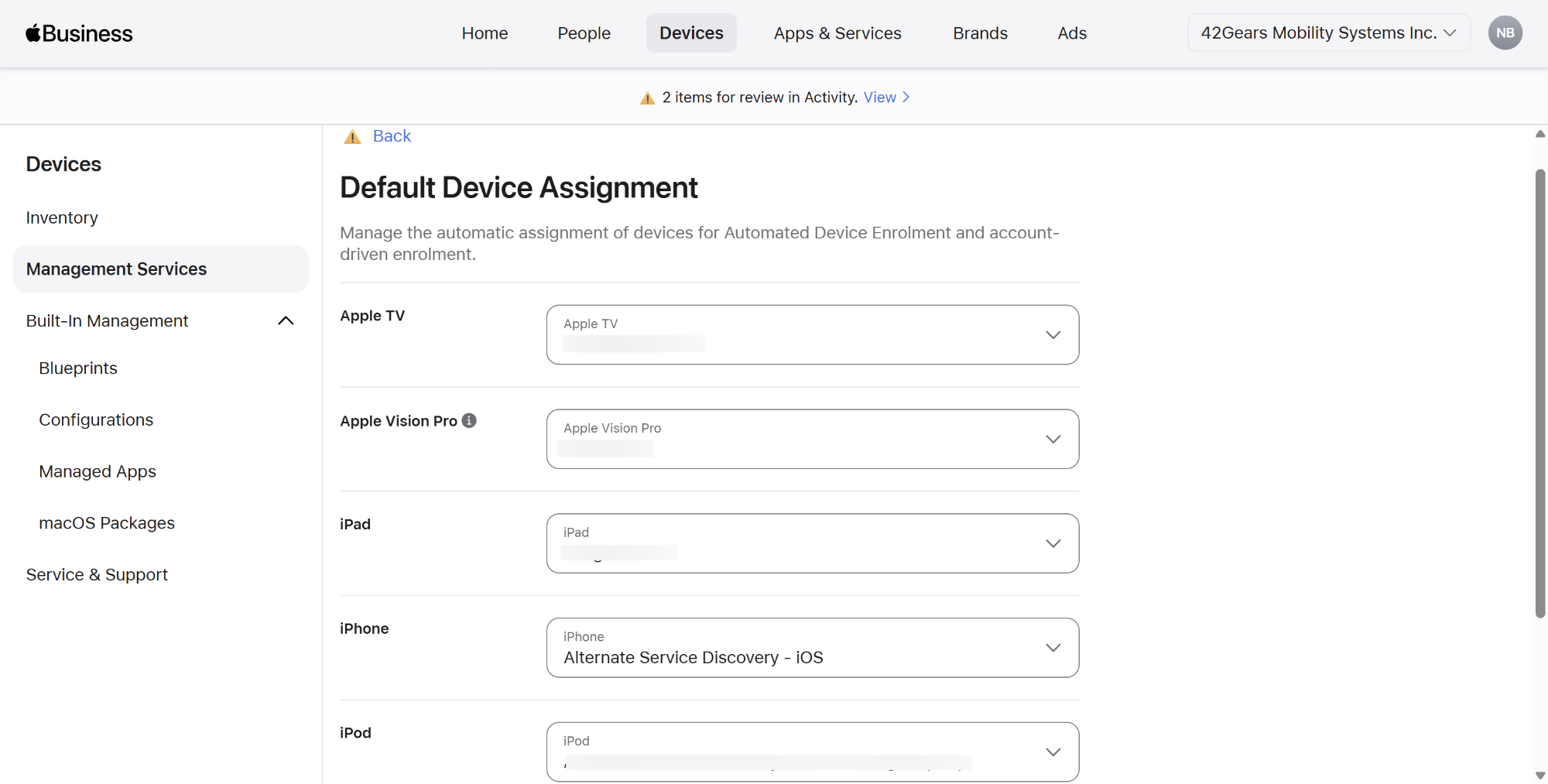
- Click Save.
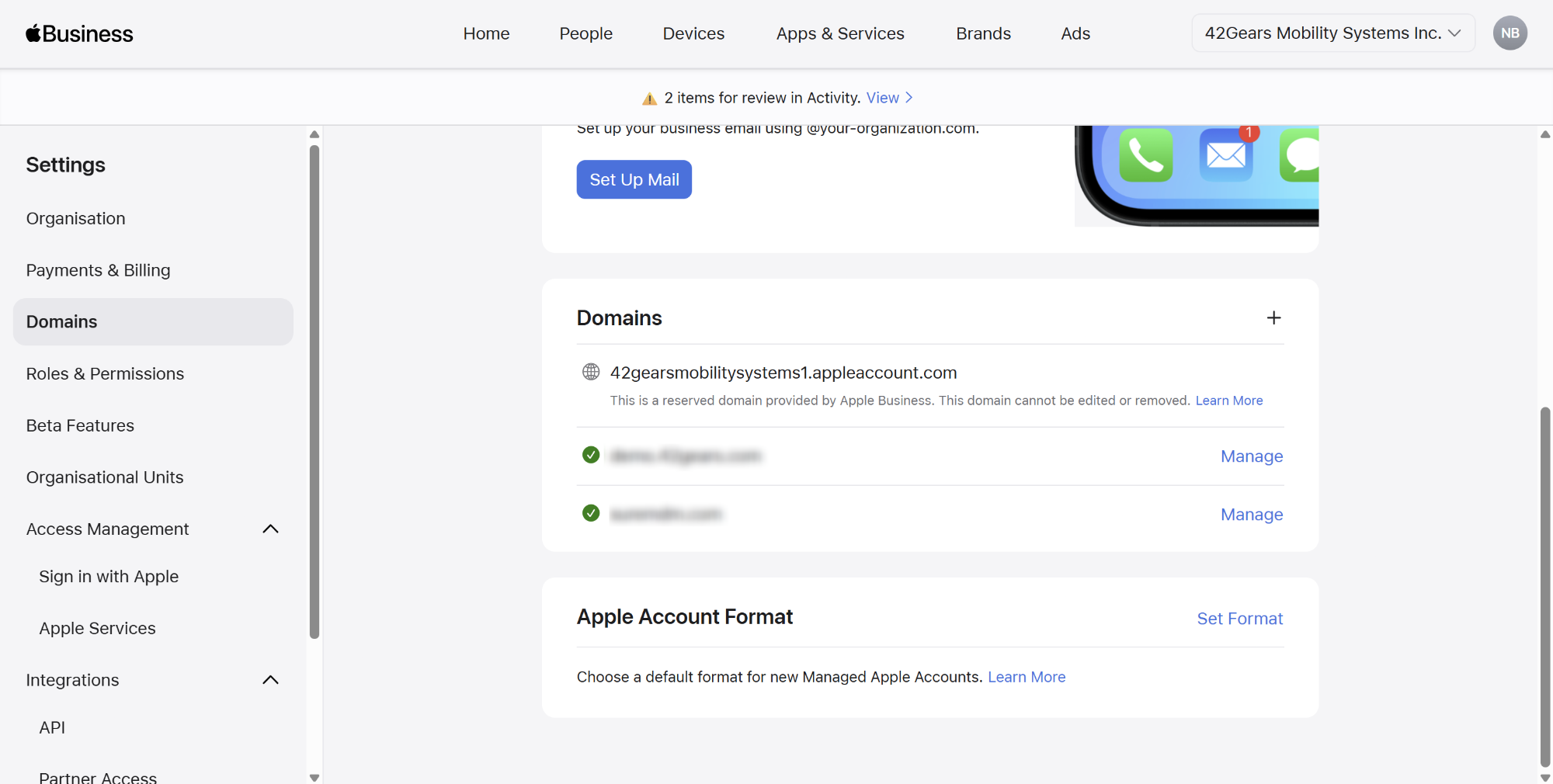
Ensure your targeted domain is verified under Settings > Domains to allow users to authenticate with their Managed Apple IDs.
Part 3: Finalizing SureMDM Linking
Step 5: Upload the Server Token to SureMDM
1. In the SureMDM Console, browse and upload the Server Token (which was downloaded from Apple Business Manager) in the Server Token field using the upload icon.
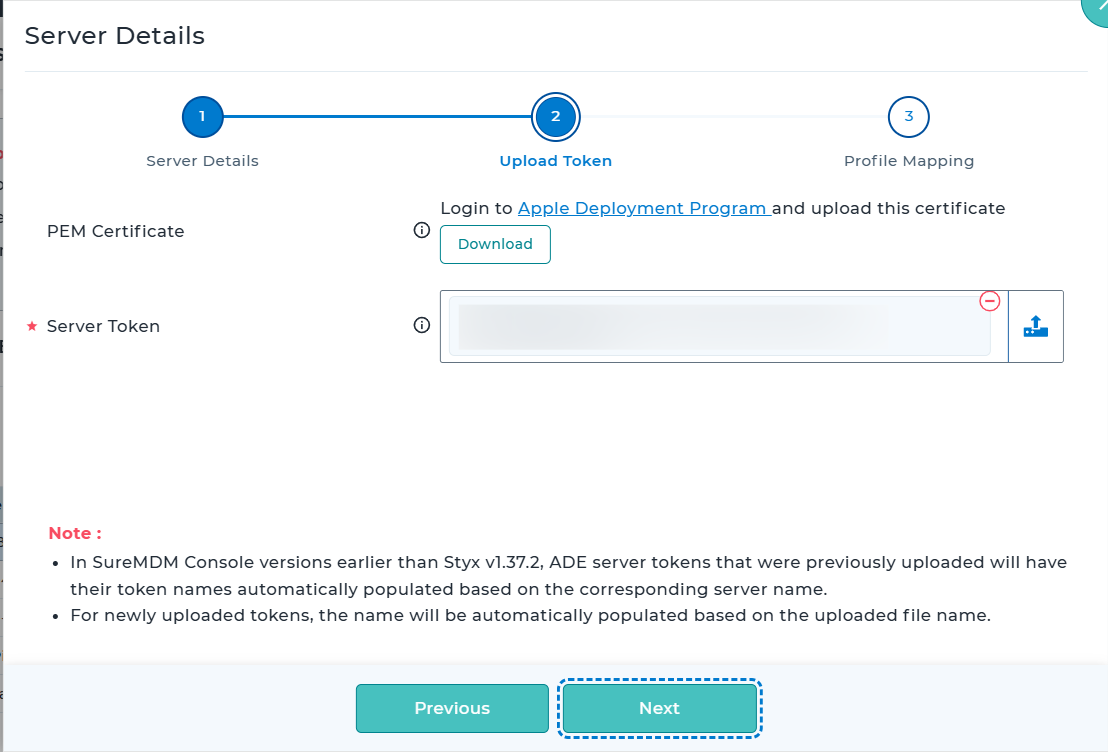
2. After uploading the server token, configure the profile mapping.
For more information on uploading the server token, refer here.
Part 4: On-Device Enrollment Steps (User Flow)
Once the backend is configured, the end-user can enroll their personal or corporate-owned iOS/iPadOS device utilizing Alternate Service Discovery.
Step 1: Initiating Account Sign-In
On the iOS/iPadOS device, open the native Settings app.
Tap Sign in to your iPhone/iPad at the top of the Settings menu.
Enter the designated Managed Apple ID email address (e.g.,
user@yourverifieddomain.com).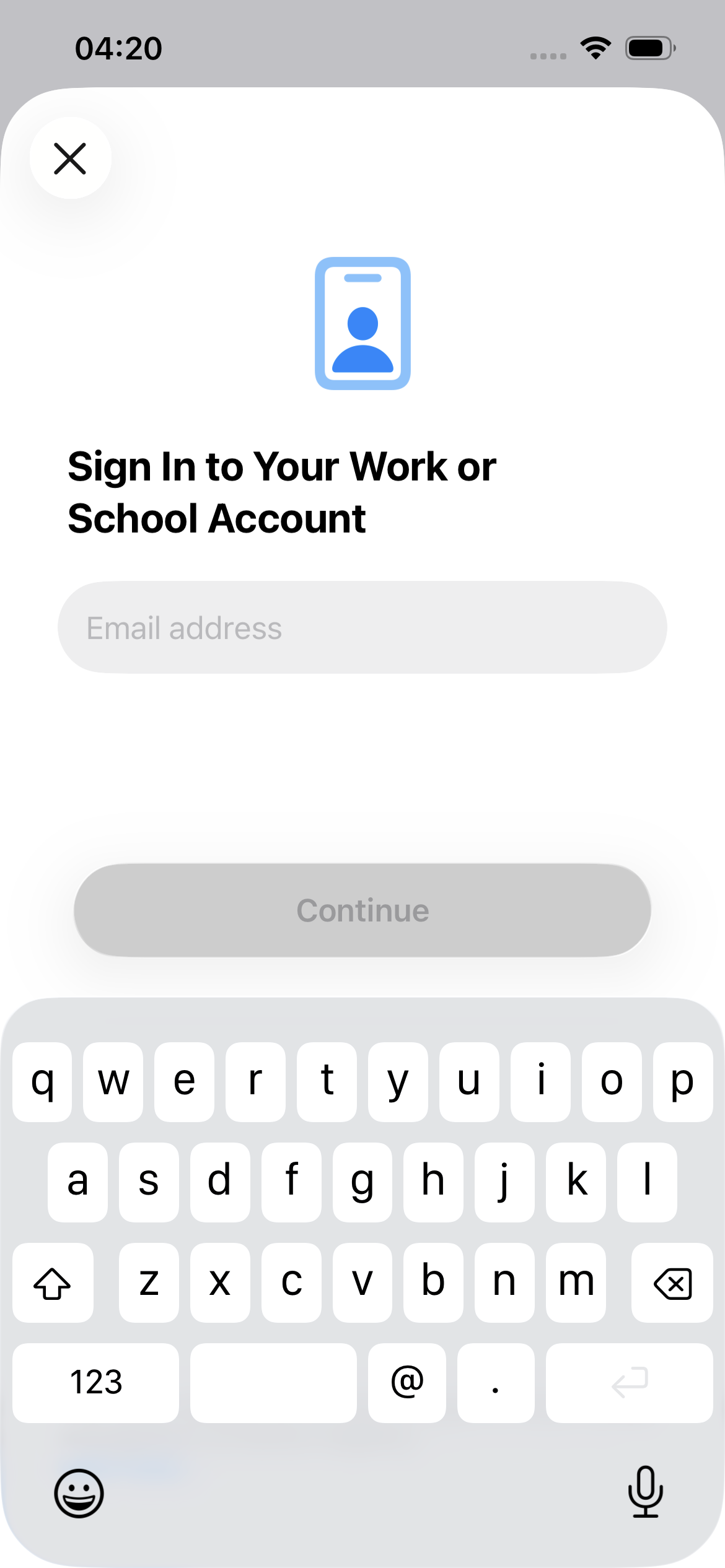
Tap Continue.
Enter the corresponding password.
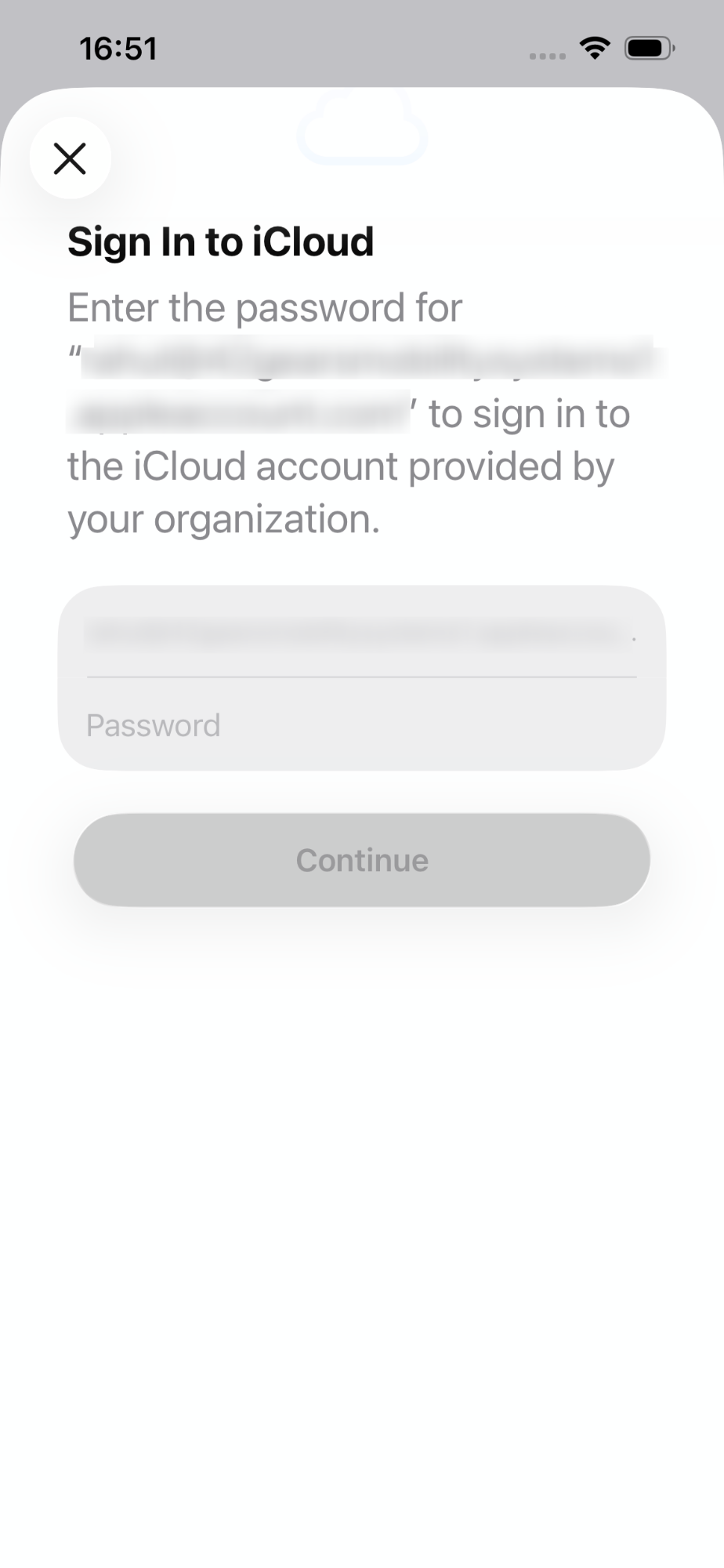
Complete any required authentication steps.
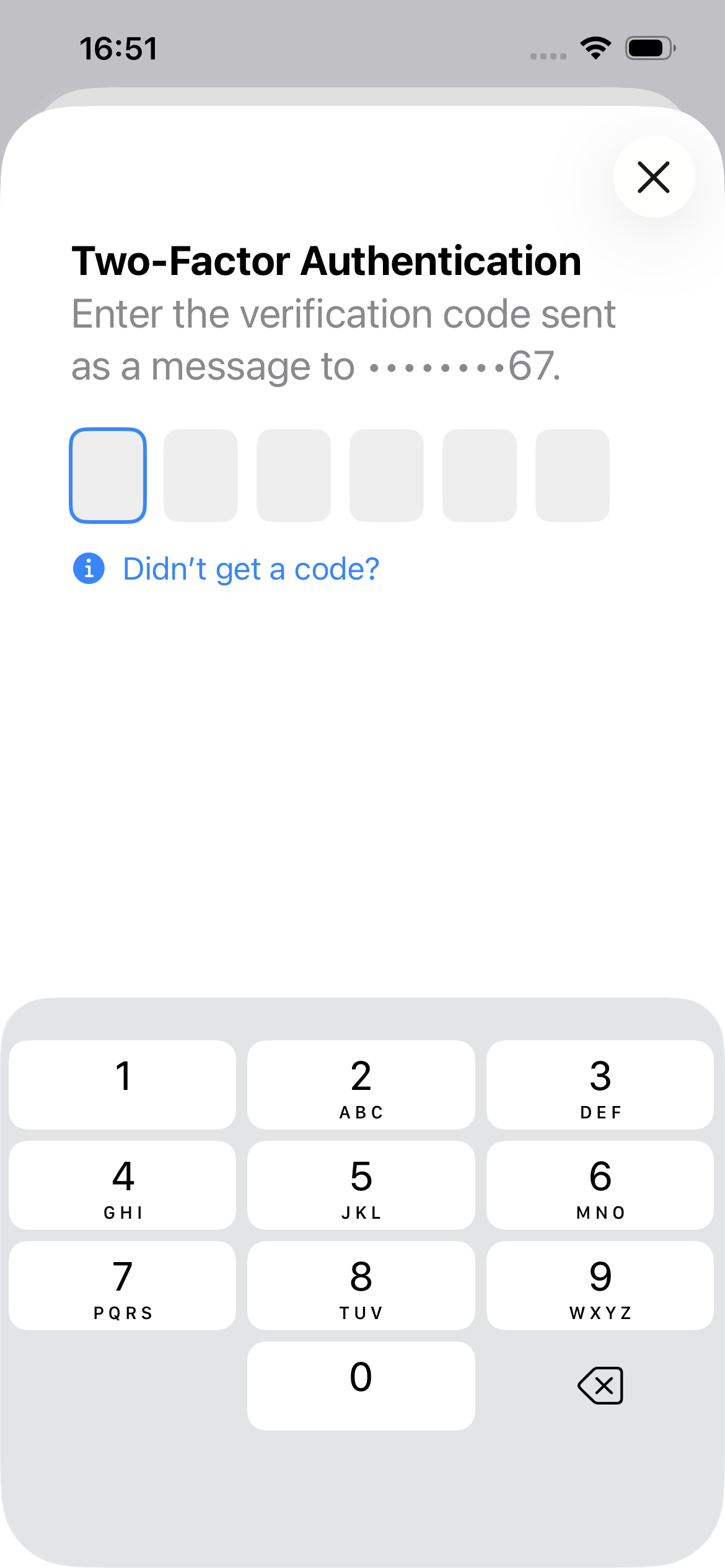
Apple Business Manager validates the Managed Apple ID and determines the associated enrollment configuration.
Step 2: Alternate Service Discovery
- Apple Business Manager checks the MDM Server associated with the Managed Apple ID.
- The configured Service Discovery URL is invoked.
- The Service Discovery service returns the enrollment details of the SureMDM server.
The device automatically retrieves the MDM enrollment information from SureMDM.
Step 3: Remote Management Screen
The device displays the Remote Management screen.
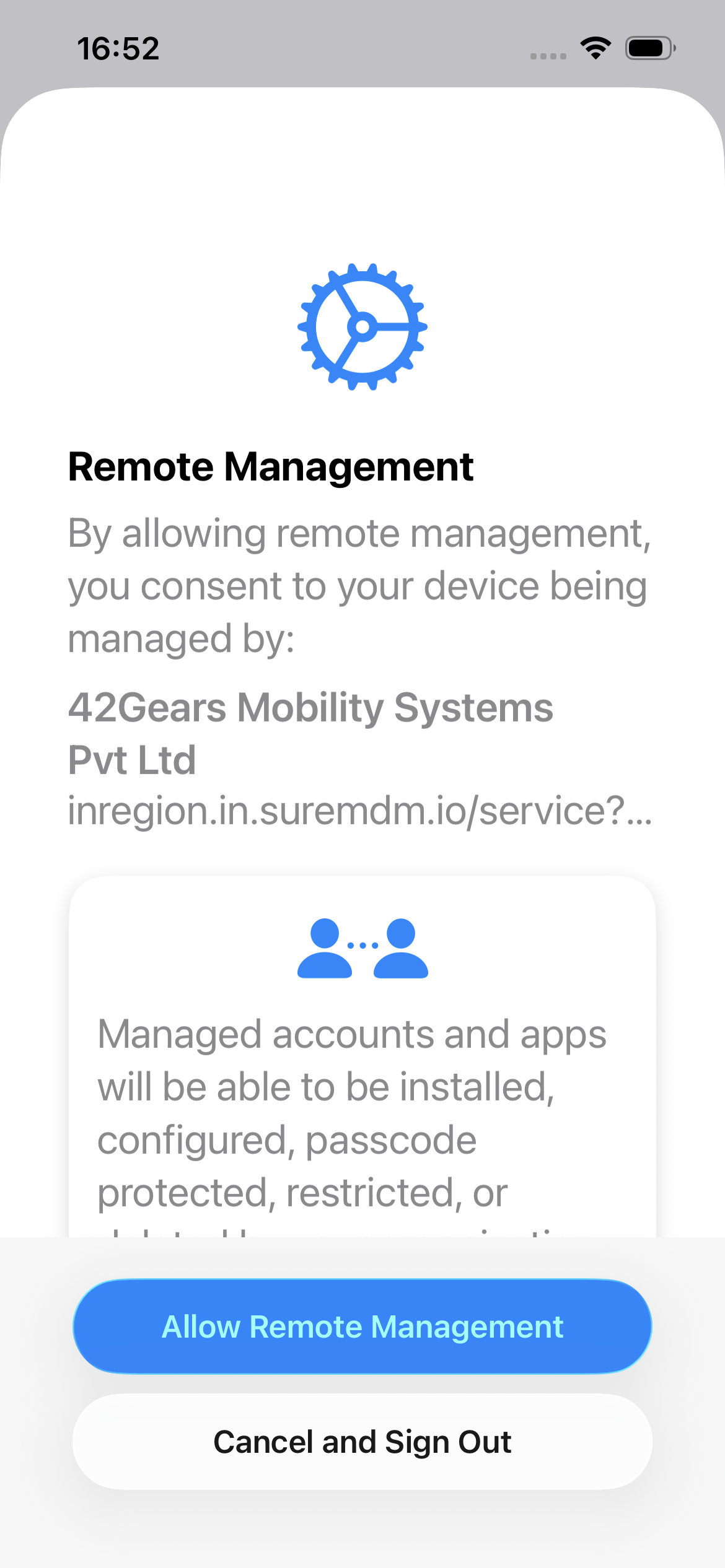
Review the enrollment information displayed on the screen.
Tap Allow Remote Management to continue.
The device begins downloading the MDM enrollment profile from SureMDM.
Step 4: Install the Management Profile and Complete Device Setup
Accept the management profile installation prompt.
If prompted, review the management information and continue with the installation.
The device installs the MDM profile and establishes communication with SureMDM.
Continue through the remaining Apple Setup Assistant screens and complete the device configuration.
Wait for the enrollment process to finish successfully.
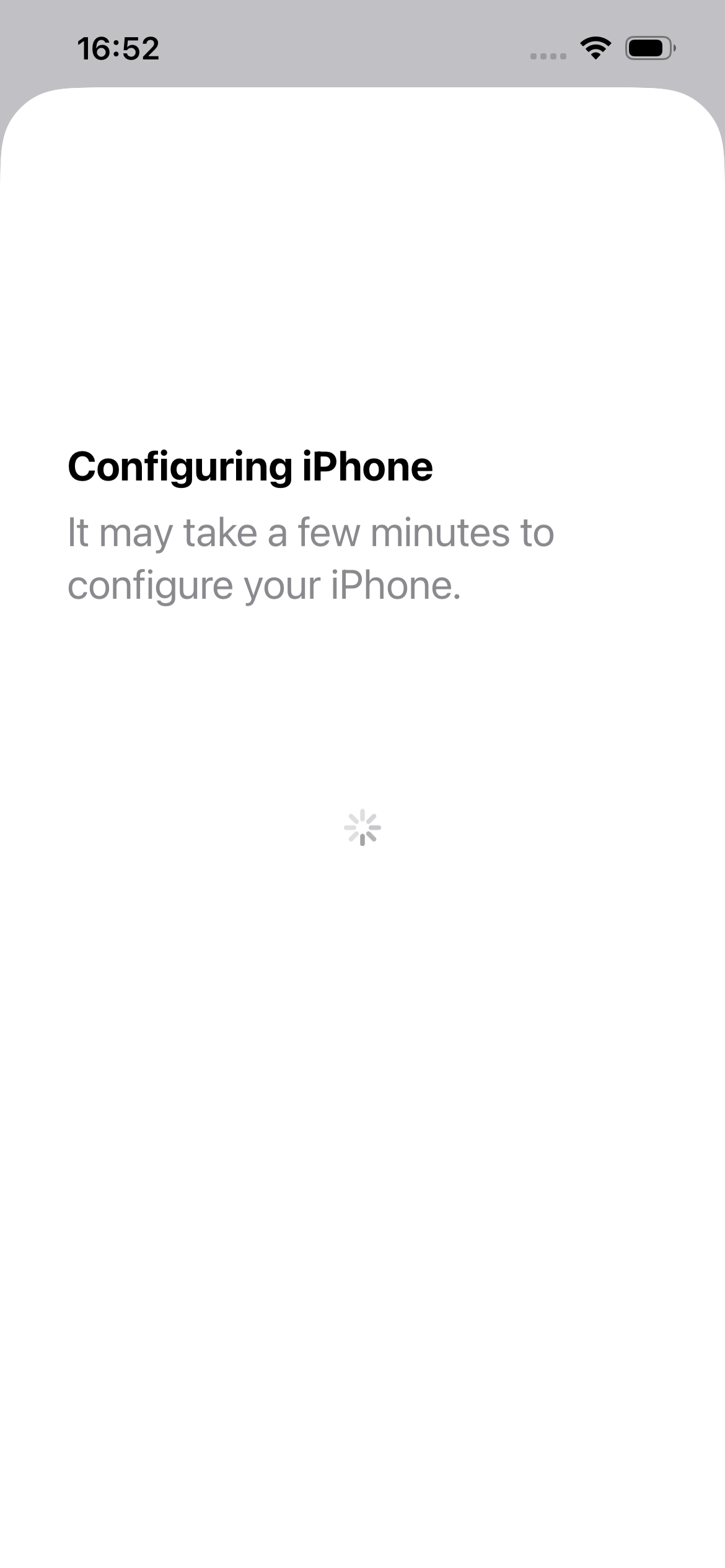
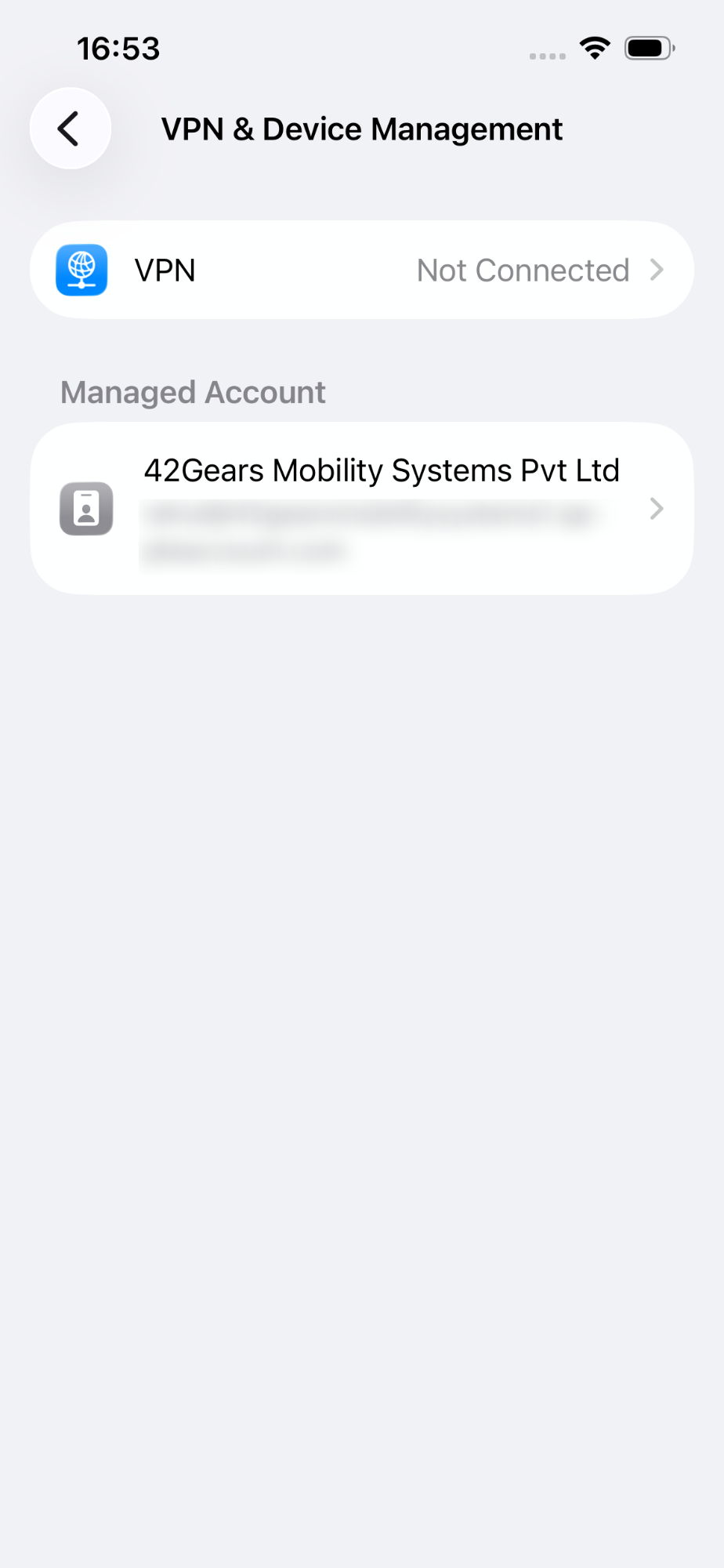
Once complete, the installed profile will be available under the VPN & Device Management section on the device.