Enrollment Using SureMDM Agent
Supported Versions
- iOS 9 Onwards
- iPadOS 13 Onwards
To enroll an iOS/iPadOS device in SureMDM, follow these steps:
- Download and install SureMDM Agent for iOS/iPadOS from the App Store using this link.
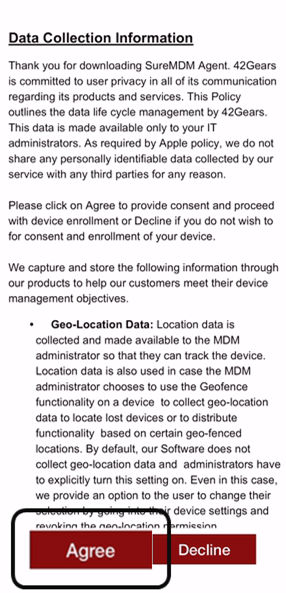
During the installation of SureMDM Agent, there would be a Terms \& Conditions page in which the user should provide consent for the application.
 |
|---|
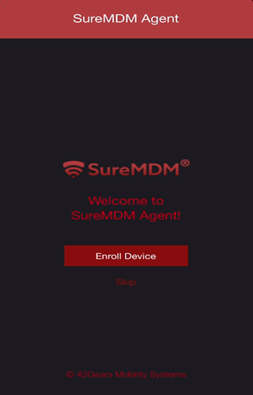
Once installed, launch the SureMDM Agent app.
On the SureMDM Agent Welcome screen, tap Enroll Device.
 |
|---|
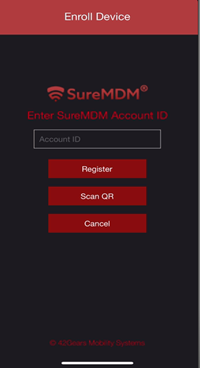
- On the SureMDM Agent home screen, you can enroll your device using either an Account ID or a QR code. Follow the steps below for each option:
Option 1: Enroll Using Account ID
To Enroll using an Account ID, enter the Account ID and tap Register to register manually.
noteNavigate to Settings on the top right corner in the SureMDM console to get the Account ID.
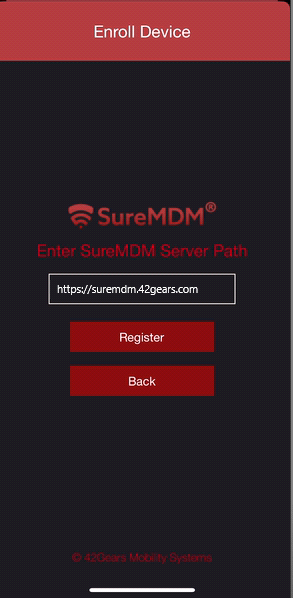
The next screen displays the Server Path field, enter the Server Path.
 note
noteThe server path can be copied from the SureMDM URL.
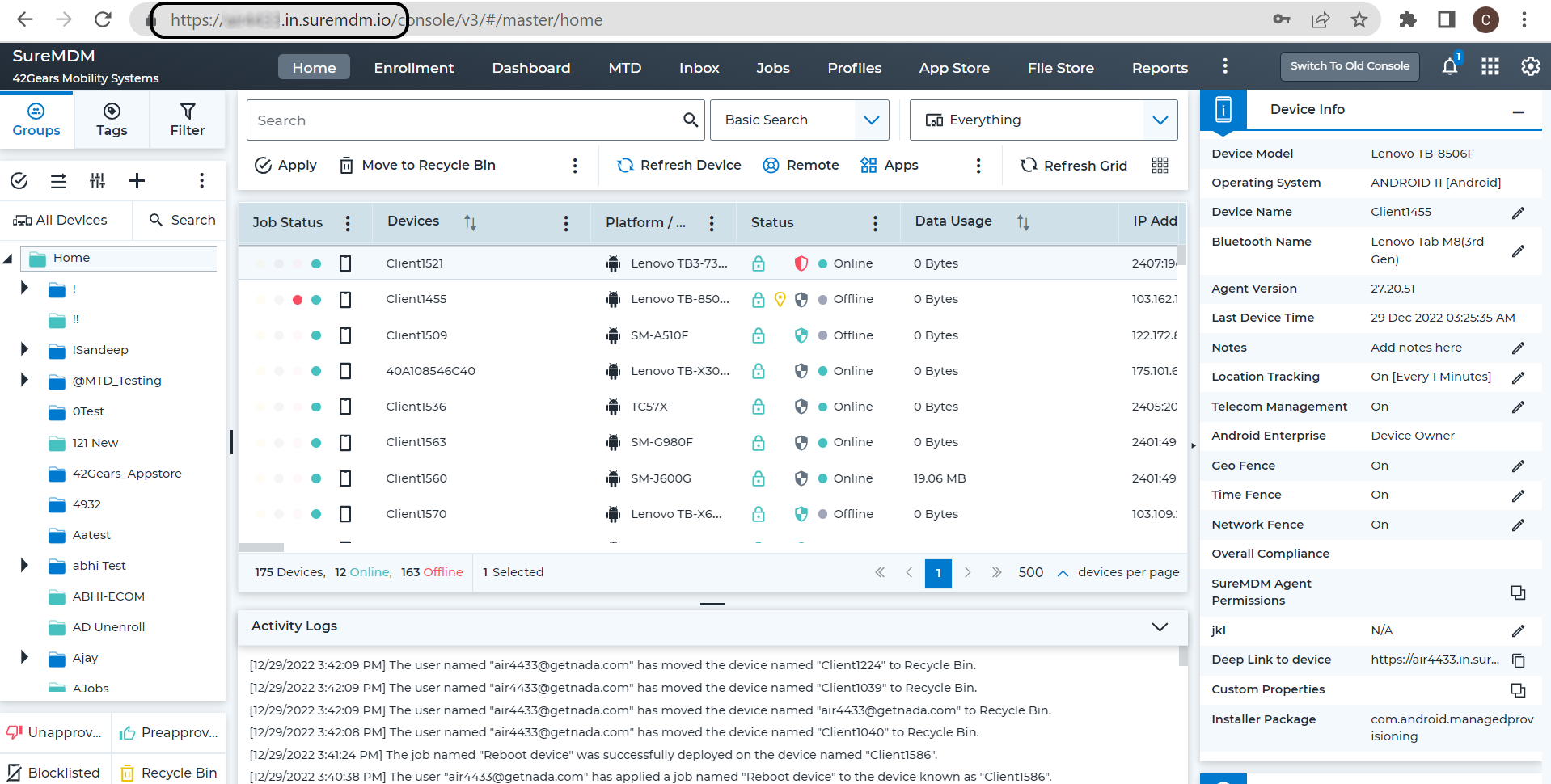
Option 2: Enroll using QR Code
QR Code Creation in SureMDM Console:
On the SureMDM Web Console, navigate to the QR Code Enrollment option from the Enrollment menu.
Click List View and then select Create QR Code option for enrollment.
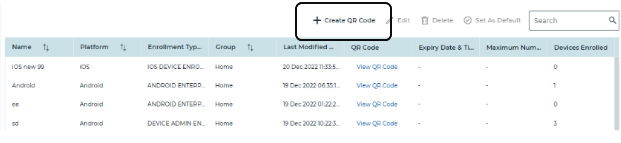
You must complete the following three steps after selecting the Create QR Code option:
(i) Enrollment Type - In this screen, provide the following information:
Name - The name of the device should be provided (for which the enrollment is about to be done).
Select Platform - The platform should be selected as iOS/iPadOS, and then click Next.
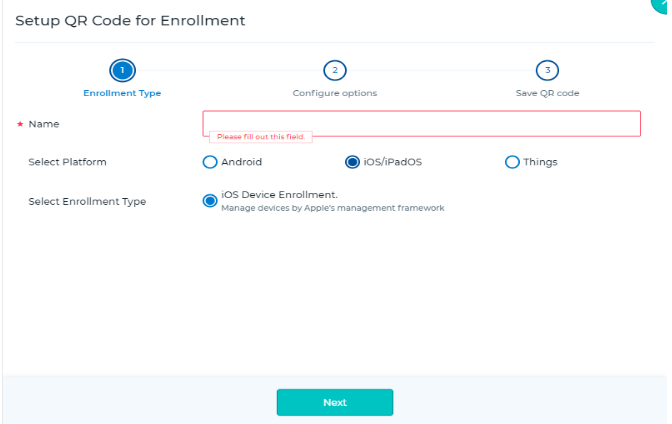
(ii) Configure Options - In this screen, select the desired group in which the device should be mapped, and then click Next.
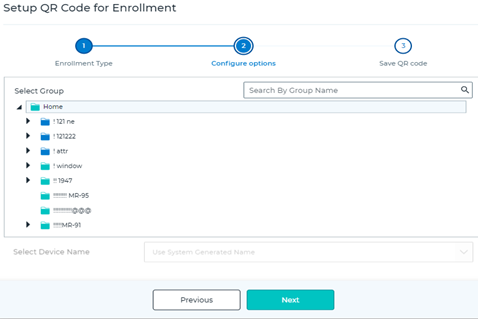
(iii) Save QR Code - Now the QR Code has been created.
Click Save.
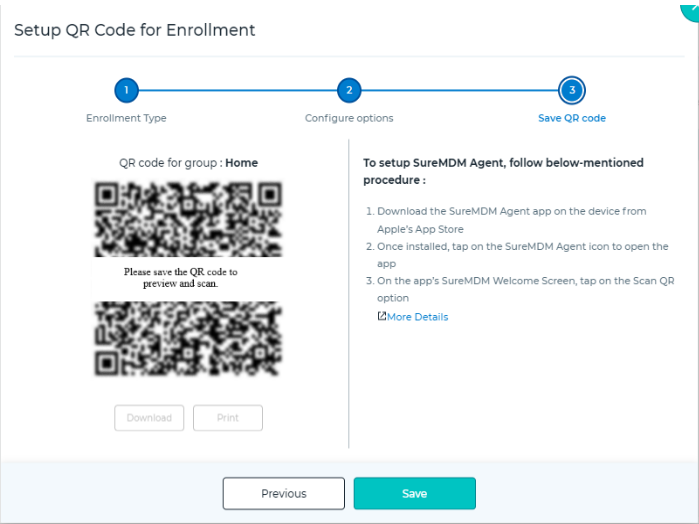
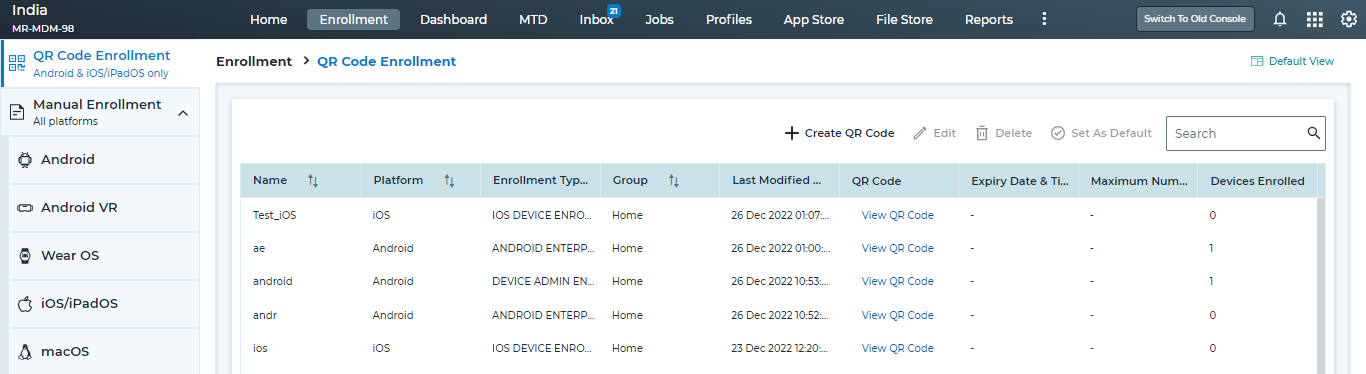
After Saving the QR Code for the specified device, it would be listed in the QR Enrollment listing page from where it can be accessed.
Click View QR Code against the created device and scan the QR Code using the device.
Enroll using QR - Device side
To enroll using QR Code, click Scan QR.
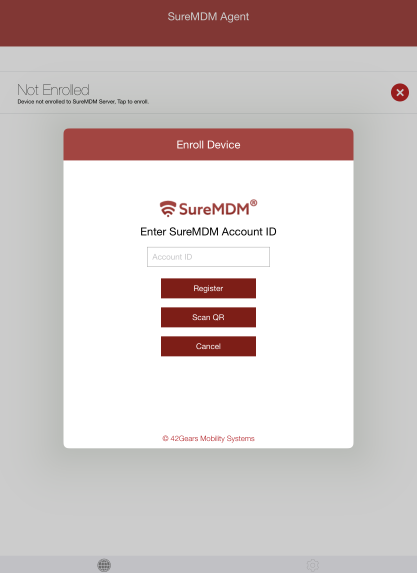
Upon clicking on the Scan QR option, the device camera will open in order to proceed with scanning. Scan the Enrollment QR Code to proceed with enrollment.
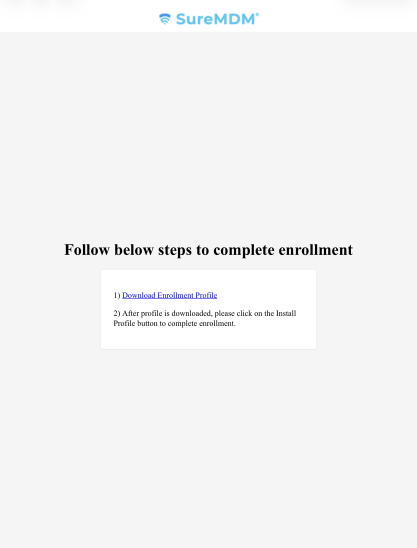
- After clicking the Register option and providing the Server Path (using Option 1) or Scanning the QR Code (using Option 2), the following screen appears where Download Enrollment Profile needs to be tapped.
 |
|---|
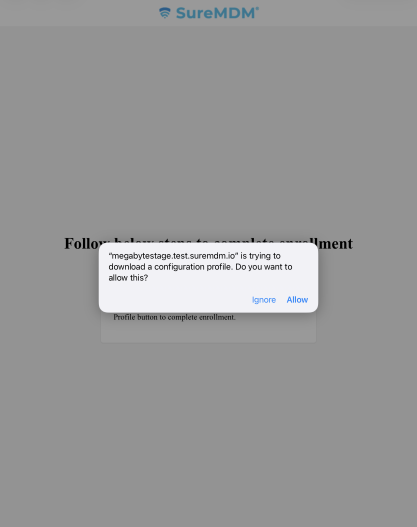
- After clicking Download the Enrollment Profile, you will be prompted to provide consent for the download. Click Allow.
 |
|---|
The profile gets downloaded. Click Close.
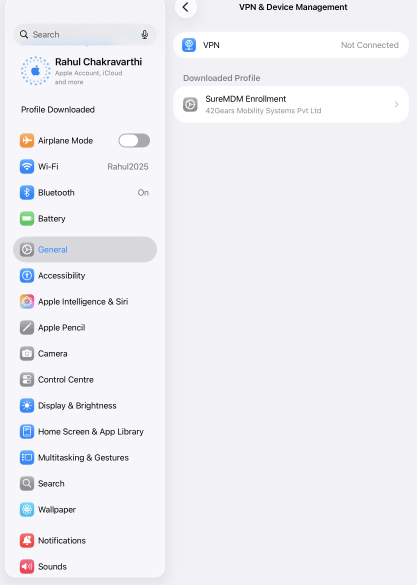
Once the profile is downloaded, navigate to the device’s Settings > General > VPN & Device Management. Click SureMDM Enrollment Profile.
 |
|---|
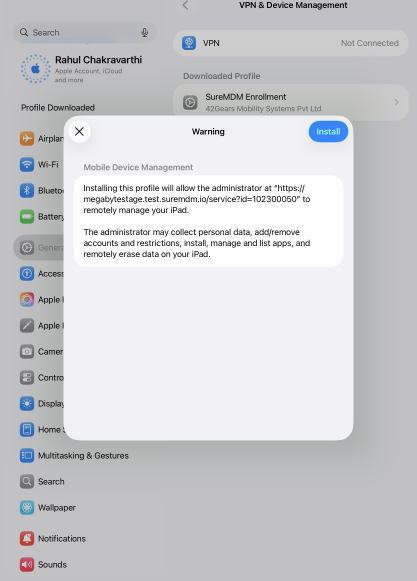
- On the Install Profile screen, tap Install.
 |
|---|
After clicking on Install, you will be prompted to provide consent for the installation. Click Install.
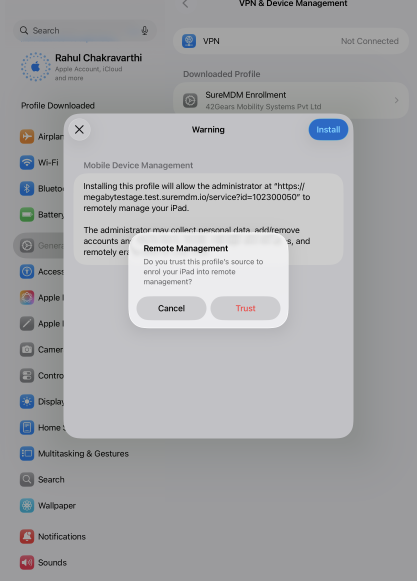
In the Remote Management popup, click Trust, then the profile gets installed.
 |
|---|
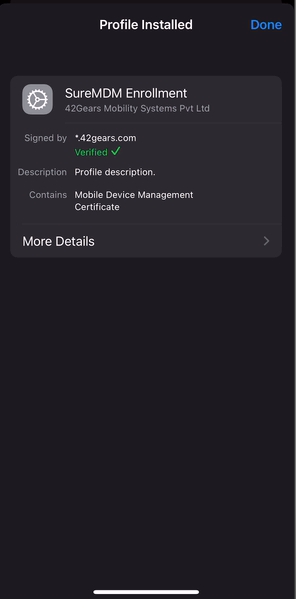
- Once the profile is installed, tap Done.
 |
|---|
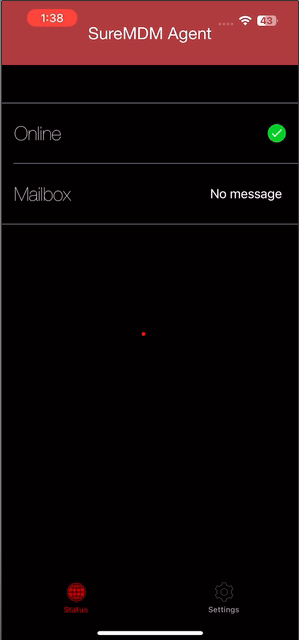
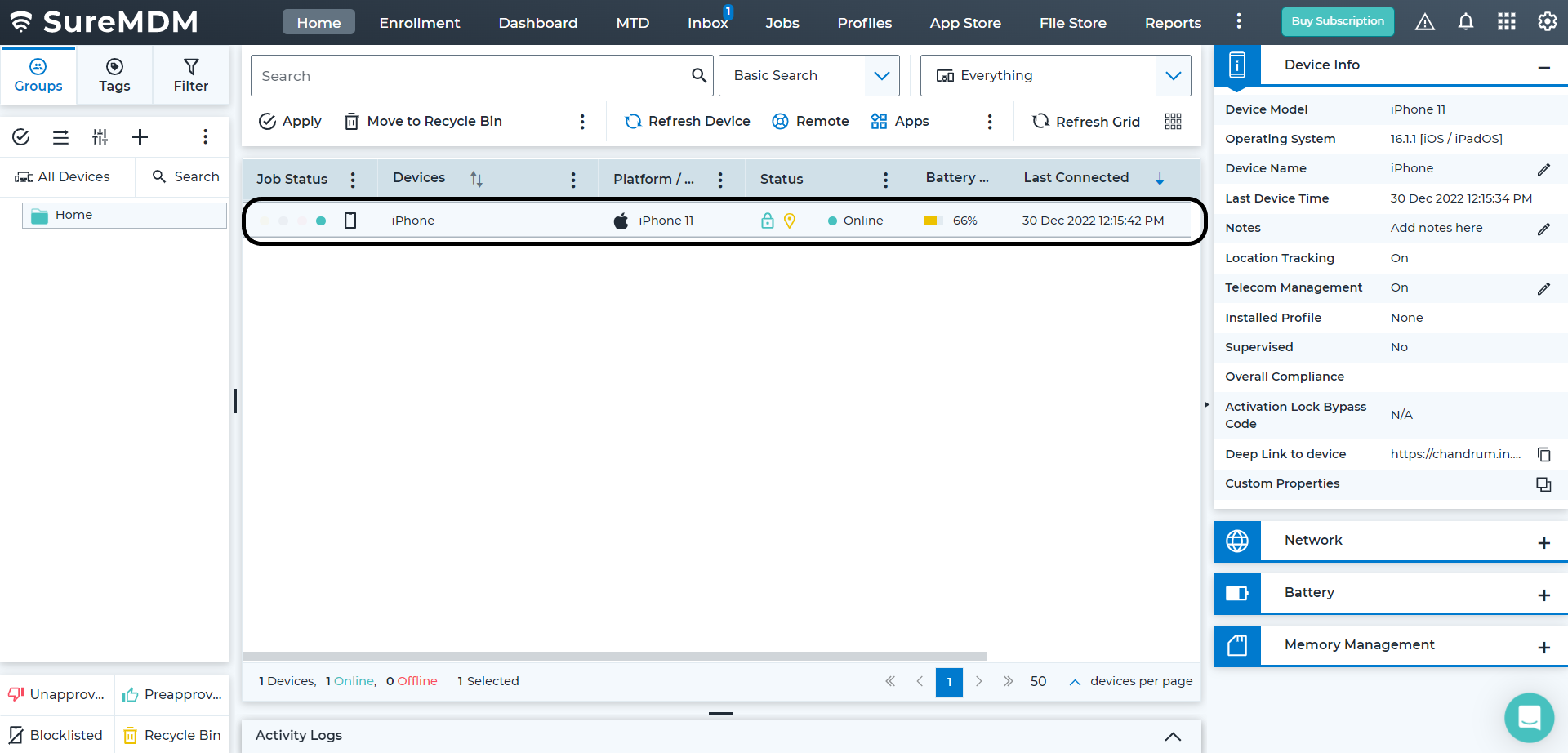
- You will know the device has been enrolled in SureMDM when:
- On the SureMDM Agent Home Screen, the device status changes to Online.
 |
|---|
- On the SureMDM Web Console, the device appears under the Device Grid.
 |
|---|
Configure SureMDM Agent Settings (iOS)
On successful launch of the SureMDM Agent application on the device, SureMDM Agent will appear with Settings options.
To configure SureMDM Agent Application settings, follow these steps:
1. Launch the SureMDM Agent Application on the device.
2. In the SureMDM Agent Home screen, tap Settings.
3. Configure the SureMDM Agent settings:
| Settings | Description |
|---|---|
| Server Path | The SureMDM Console URL to which devices will be enrolled. |
| Location Tracking Status | Allows admins to remotely track the device's location |
| How to use Location tracking with SureMDM | Tap this option to play a short video on location tracking. |
| Background App Refresh | Allows the SureMDM Agent to run in the background even when the user is not using it. |
| Location Services | Allows SureMDM Agent to fetch approximate device location from iOS Location Services. |
| Version | Displays the version of SureMDM Agent installed on the device. |