Enrollment using Apple Configurator via iPhone
To enroll a iOS / iPadOS device using Apple Configurator to SureMDM Console, follow these steps:
Step 1: Setting Up Apple Configurator on iPhone for Device Enrollment
- Download and launch the Apple Configurator app on your iPhone.
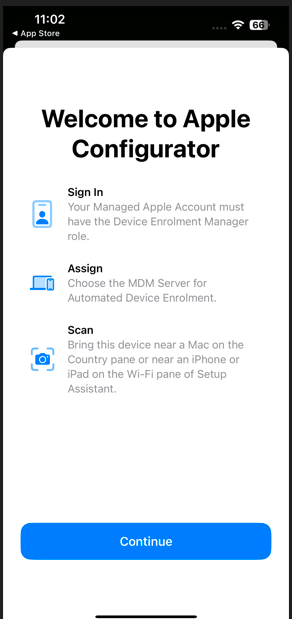
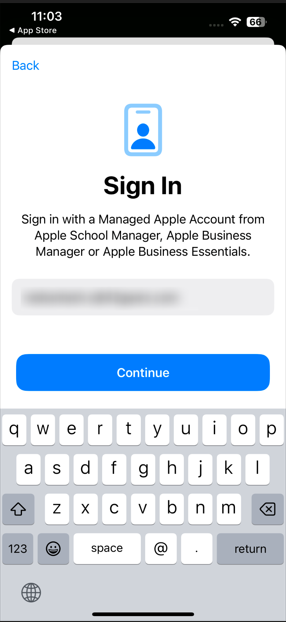
- Enter your Apple Business Manager (ABM) ID credential and tap Continue.
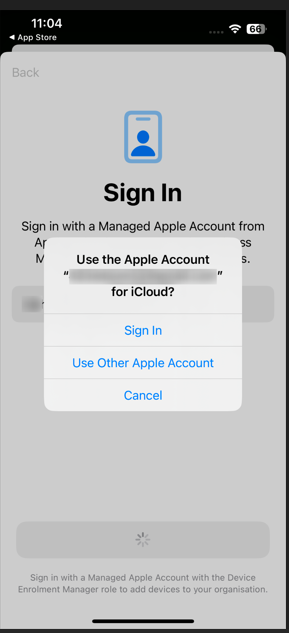
- If the iPhone is already signed in with the ABM ID, tap Sign in; otherwise, if a different Apple ID is in use, tap Use Other Apple Account and enter the required ABM credentials. If federation is enabled, proceed to complete the authentication of the Managed Apple ID.
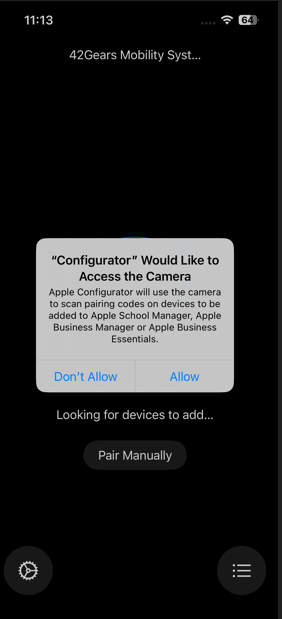
- Tap Allow when prompted to grant necessary permissions.
- Choose Share Wi-Fi to automatically transfer your iPhone’s Wi-Fi configuration to the target device, if required.
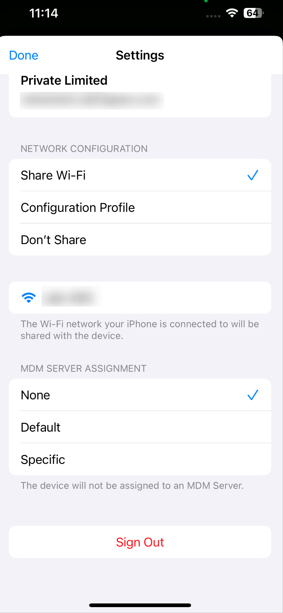
- Under MDM SERVER ASSIGNMENT, select based on your requirement:
- None - The device will not be assigned to any specific MDM, and the admin must assign the device manually once available.
- Default - The macOS device will be assigned to the pre-configured MDM server, which is selected as the default server based on the device category in the ABM portal.
- Specific - This option allows you to select one of the MDM servers configured in your ABM portal, and the device will be assigned to the chosen server.
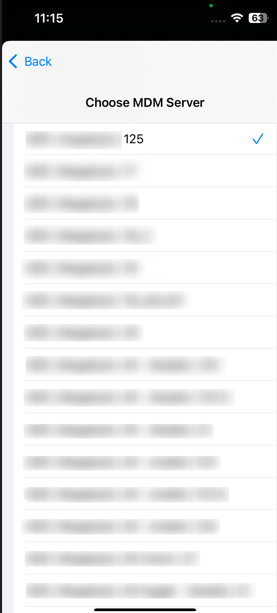
- The selected MDM server will now be displayed on the Settings page.
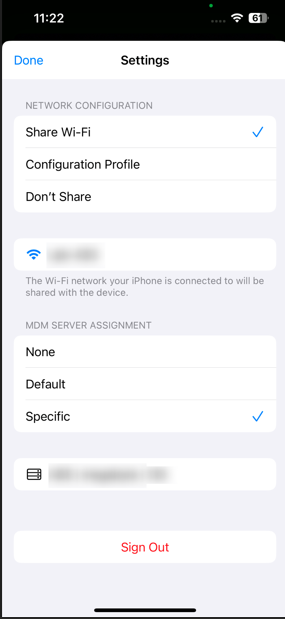
- At this stage, the iOS / iPadOS device is ready to be added to Apple Business Manager (ABM) and the SureMDM Console for further management.
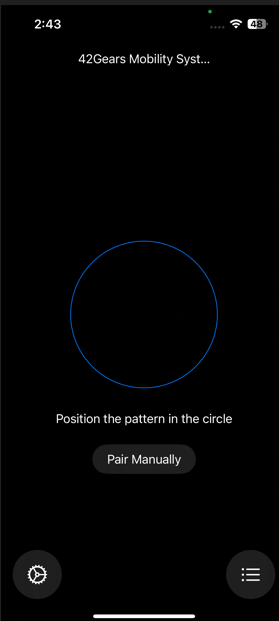
- Below is the screen that will be displayed and should be used to pair the Mac device.
Step 2: Add an iPhone / iPad using Apple Configurator
- Start up the iPhone / iPad device that needs to be enrolled and proceed through Setup Assistant until you reach the Choose a Wi‑Fi Network pane.
If the device is already configured and you want to add it to the ABM portal, you must perform a factory reset before beginning the process.
Note: You must restart the iPhone or iPad if you go past the Choose a Wi-Fi Network pane.
Once the enrolling device is at Choose a Wi‑Fi Network, bring your iPhone which has Apple Configurator installed close to the device.
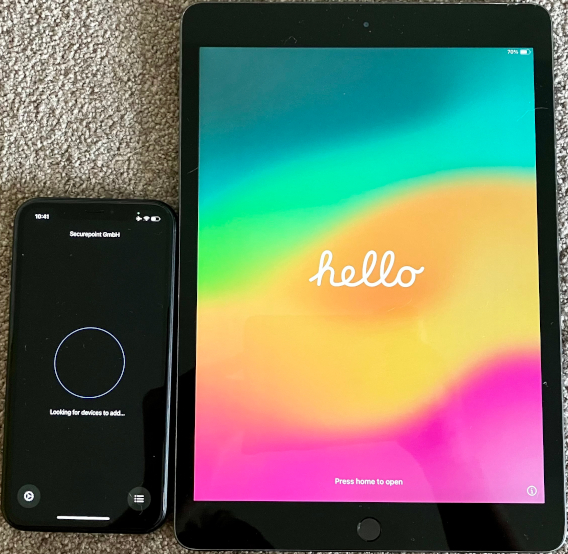
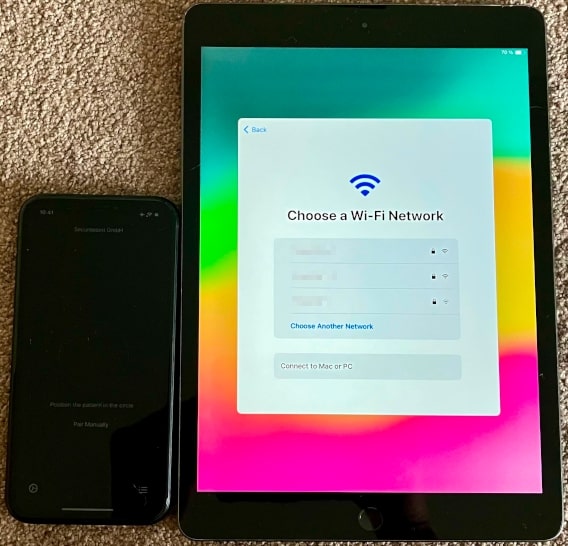
Open the Apple Configurator application and then do any one of the following:
- Scan the image that appears in Setup Assistant.
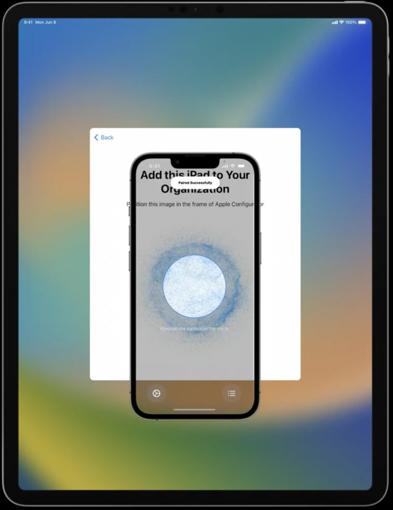
**(or)**- Alternatively, tap Pair Manually in the lower-left corner of the Setup Assistant, then tap Manual Pairing in Apple Configurator and enter the six-digit code that appears.
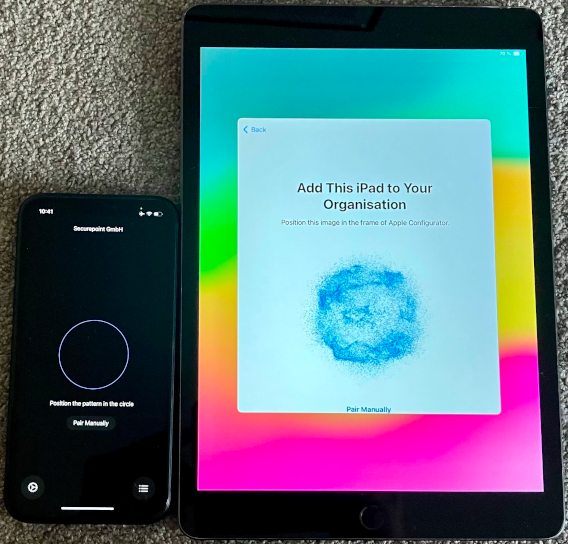
Wait for the assignment process to complete. Once completed, the serial number and other information about the iPhone or iPad are uploaded to Apple Business Manager. The admin should log in to ABM to review the device and assign it to the SureMDM server, if required.
Note: If you did not choose to automatically assign newly added devices to an MDM server when adding an iOS device, you must log in to the ABM portal and assign the MDM server for the new device.
After the device is assigned to an MDM server, tap on Erase iPhone to complete the process.
After erasing, the device will start up and, during setup, connect to ABM, fetch the required settings, and enroll into SureMDM.