Manual Enrollment
To enroll the CamLock installed Android devices in the SureMDM web console, follow these steps:
1. Launch the CamLock application on the device.
2. Select all the permissions and tap Continue.
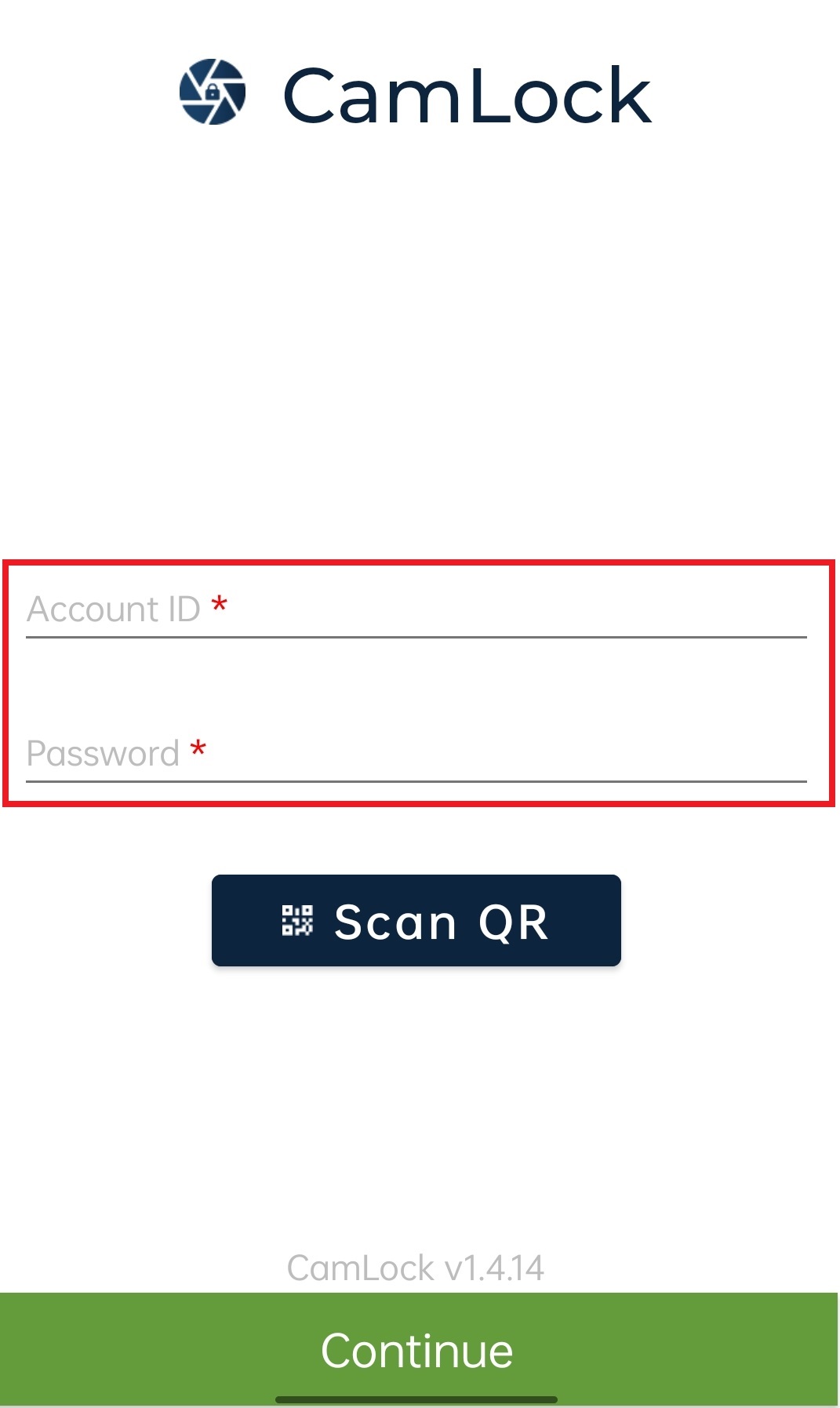
3. On the CamLock home screen, enter the Account ID, Password and tap Continue.
note
Account ID and Password can be found in the following Paths.
- Account ID: SureMDM Console > Settings.
- Password: SureMDM Console > Settings > Account Settings > Things Management.
4. Enter the Employee/Visitor Name and Employee/Visitor ID on the next page#8202;.
5. Once done, tap Continue.
- On the CamLock home screen#8202;, the device status will change to Online.
- On the SureMDM Web Console, the device will start reflecting under the Device Grid.