Adding VPP Apps from Apple Business Manager (ABM) to SureMDM
The Apple Volume Purchase Program (VPP) integrated within Apple Business Manager (ABM) enables organizations to purchase and distribute apps in bulk. SureMDM integrates with ABM to streamline app deployment on managed macOS, iOS/iPadOS and tvOS devices.
This guide covers the steps to create a location in ABM, add VPP apps, and sync them with SureMDM for distribution.
Prerequisites
- An active Apple Business Manager (ABM) account.
- A valid Server Token (.vpptoken) downloaded from ABM.
Steps to Configure VPP Apps in ABM and Sync with SureMDM
1. Add an Organisational Unit in ABM
Log in to Apple Business Manager (ABM) with an Administrator account.
Navigate to: Settings → Organisational Units.
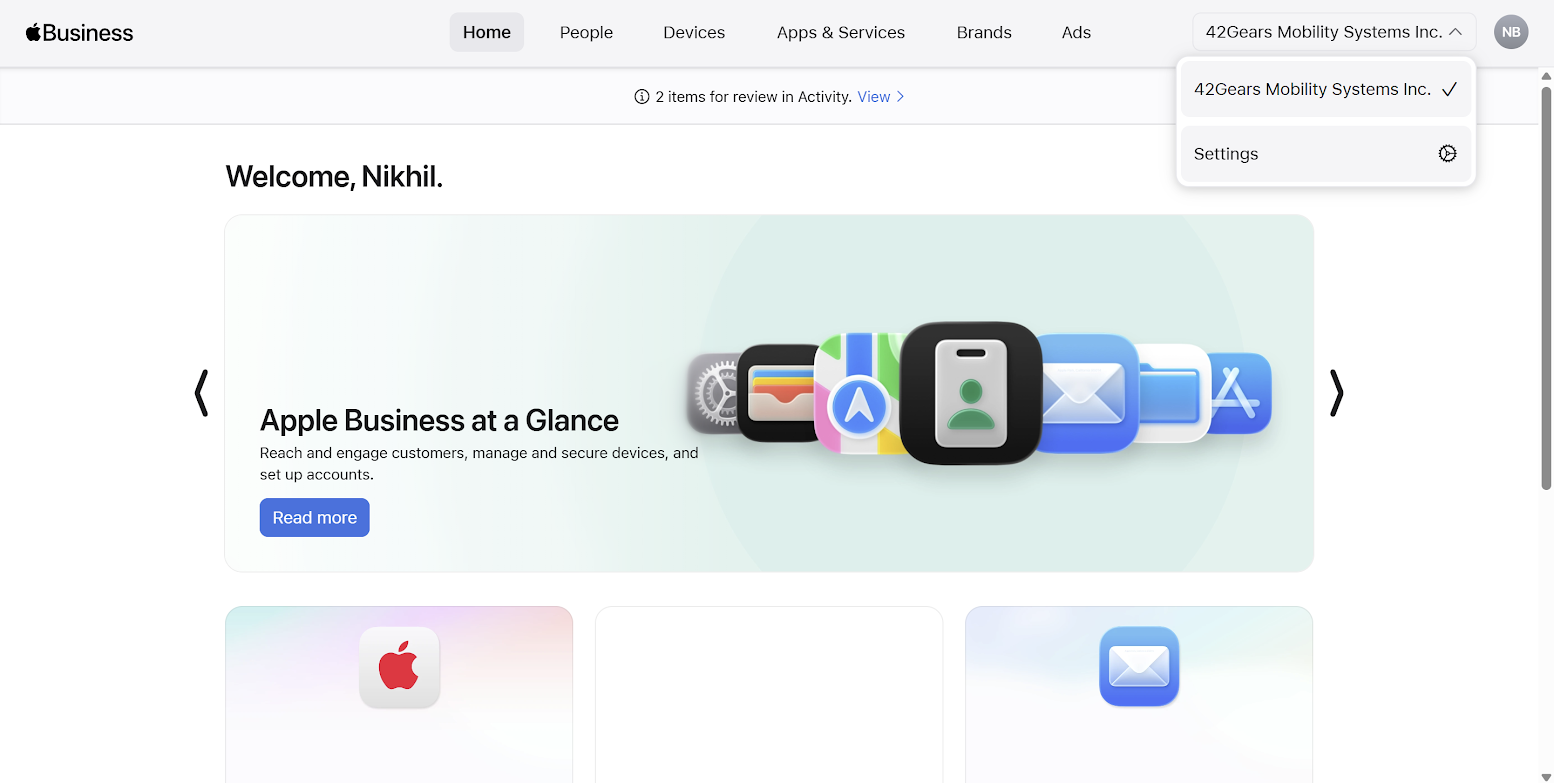
- Click Add.
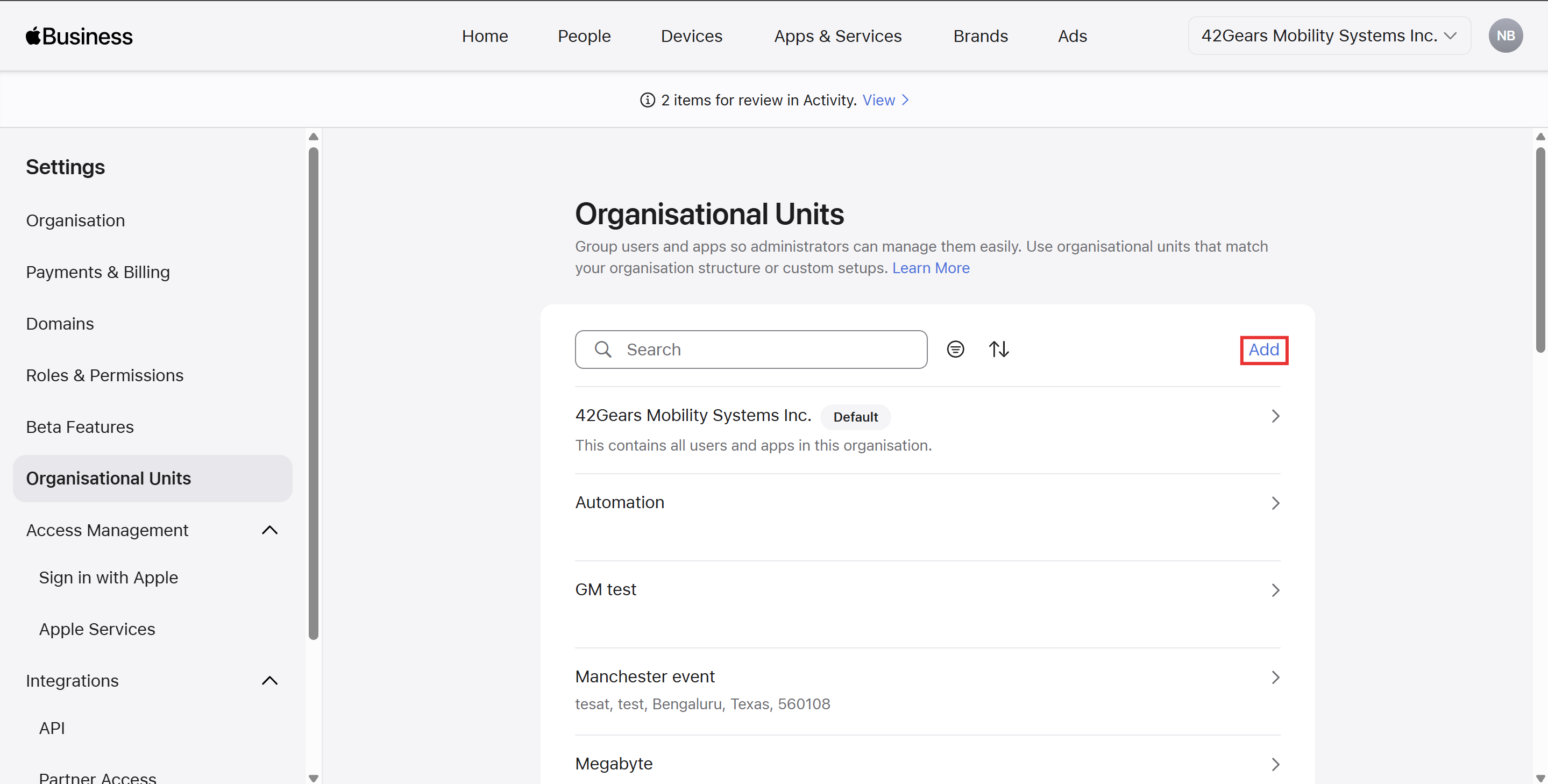
- In Add Organisational Unit Prompt, enter Organisational Unit Name and Description.
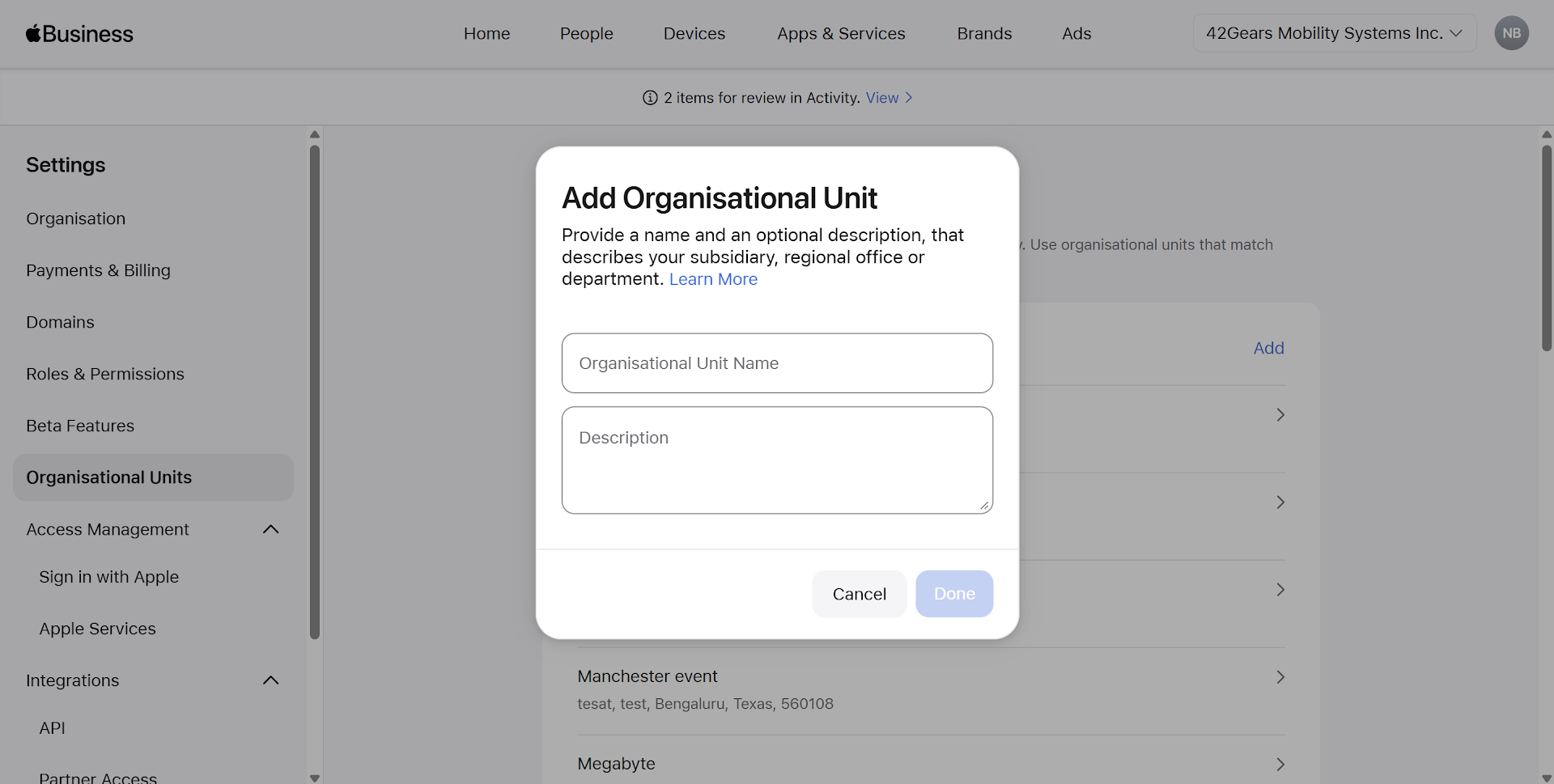
Click Done after providing the required information.
Added location will be listed.
2. Purchase / Add Apps in ABM
- Go to Apps & Services section and select Apps & Books
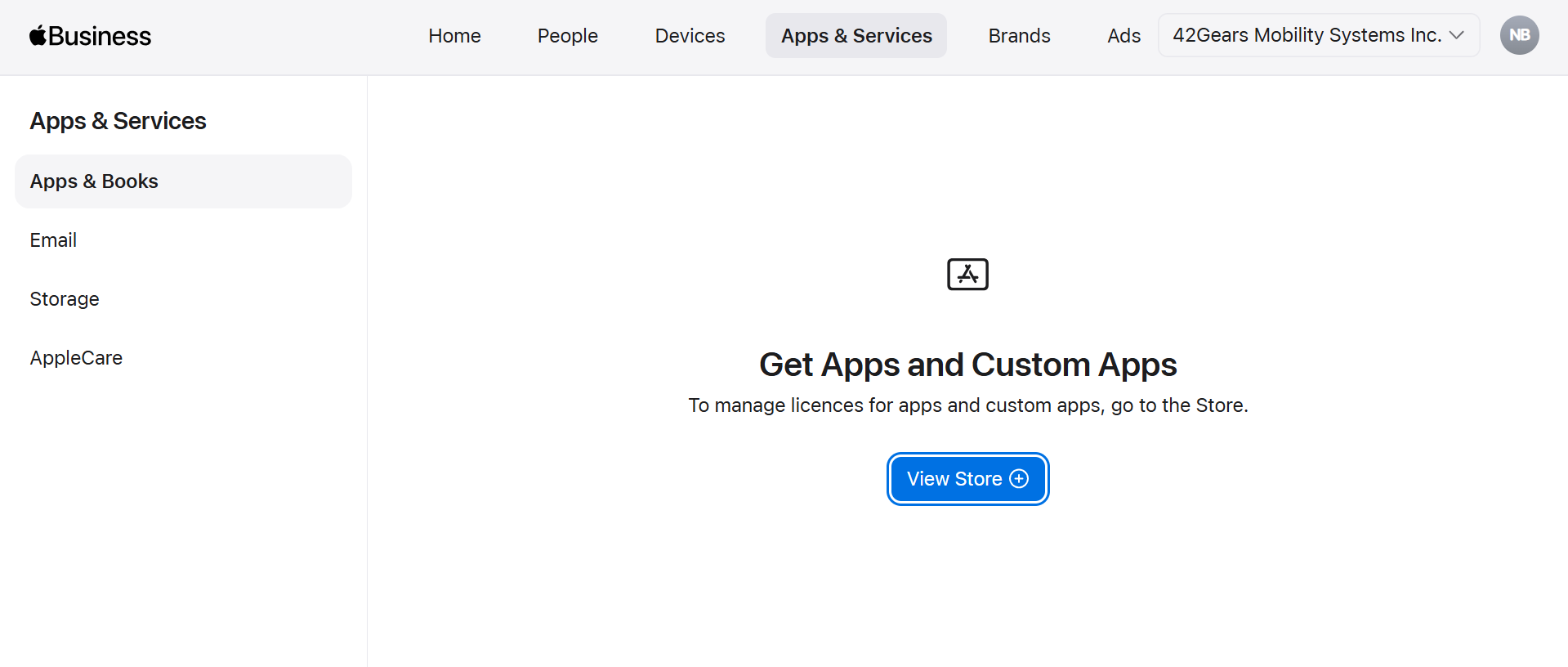
- Click View Store and search for SureMDM Agent in the search box.
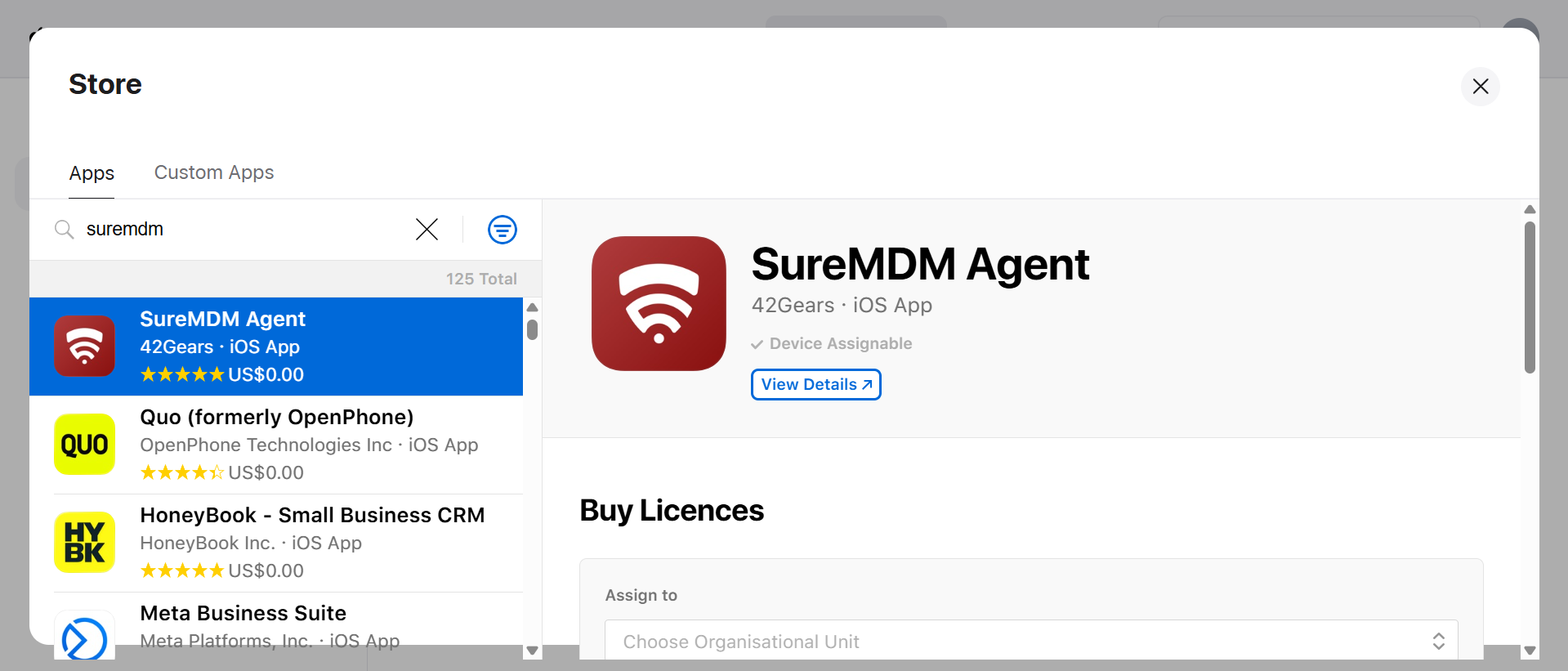
- Click on the SureMDM Agent app. Provide the following information.
Assign to - Select the organization name from the drop-down.
Quantity - Mention the number of licenses required based on the device count.
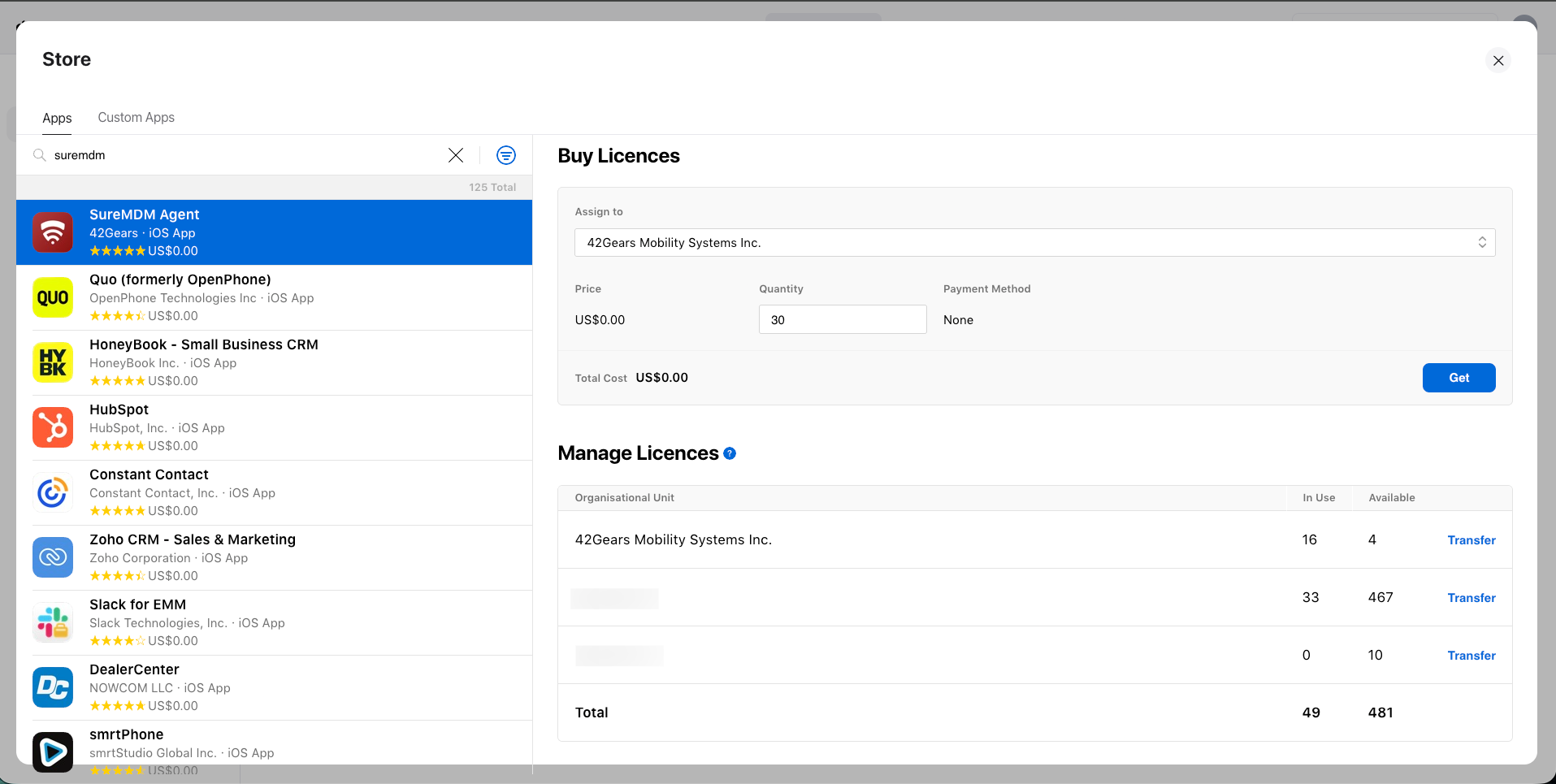
- Click Get to purchase it.

3. Download the VPP Server Token
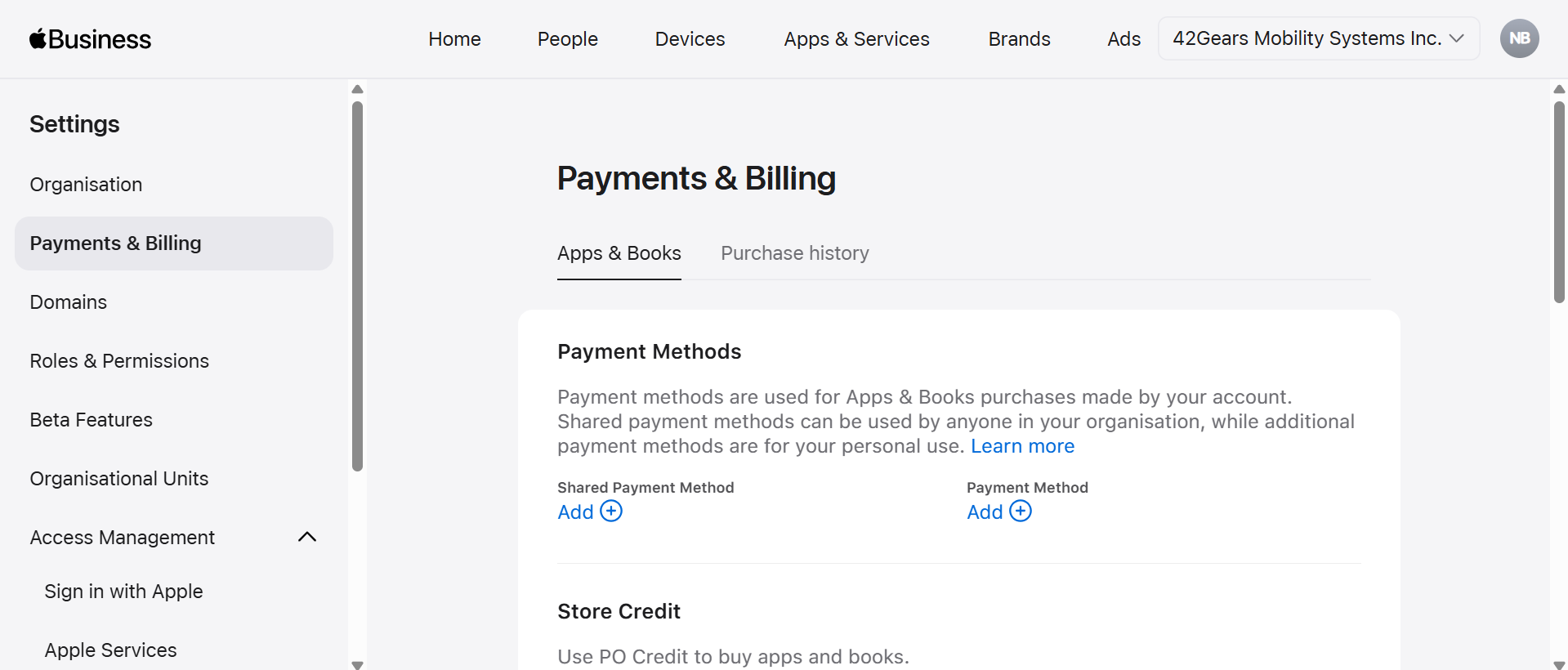
- Click on Organization Name dropdown and navigate to Settings > Payments and Billing > Apps and Books section.
- Under the Content Tokens section, click the Download option available under the respective Organization Unit instance.
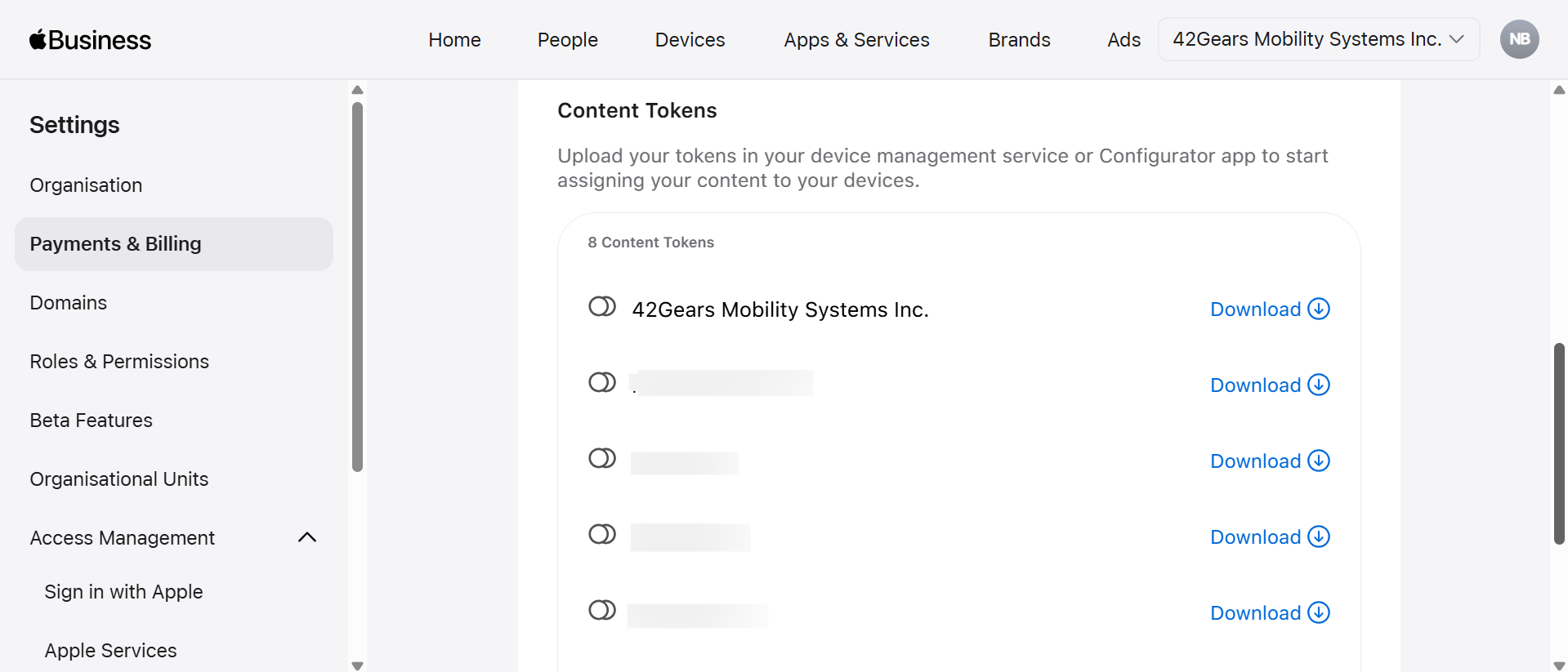
Then the Server Token will get downloaded to your local drive.
- Save this token securely to upload the same into SureMDM.
4. Add the VPP Token to SureMDM
Log in to the SureMDM Web Console.
Navigate to: Settings → Account Settings → Apple Platform Management → VPP → VPP Tokens.
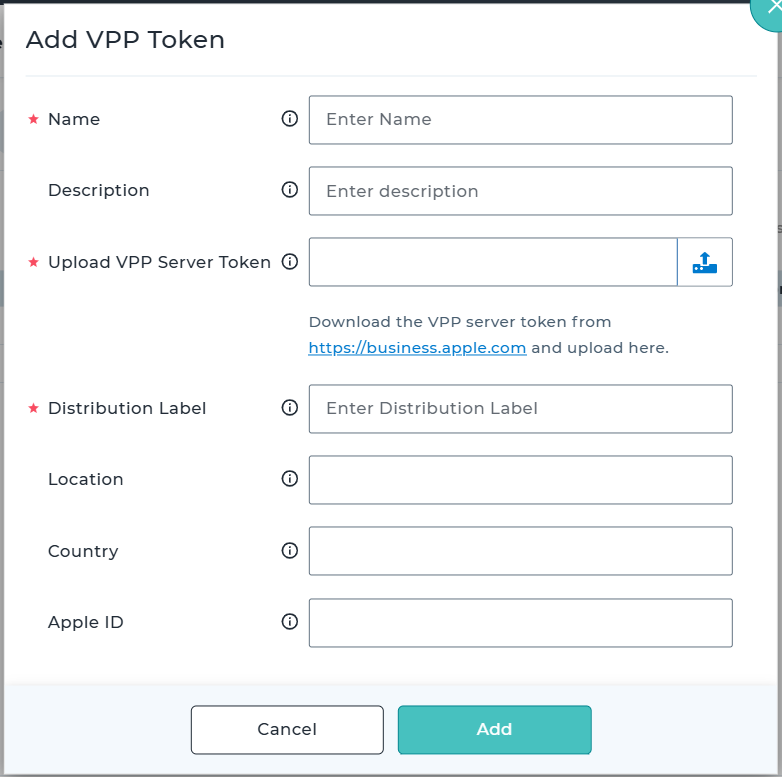
Click Add and provide the following details.
| Field Name | Description |
|---|---|
| Name | Enter the name. |
| Description | Enter the description. |
| Upload VPP Server Token | Upload the .vpptoken file downloaded from the ABM portal. Use this option to re-upload the VPP Server Token in case of renewal or replacement. |
| Distribution Label | Enter the distribution label value which will be associated to the apps present in the VPP Token. It can be used to represent regions, business units, or deployment environments. |
| Location | Displays the location that is associated with the VPP Server Token. |
| Country | Displays the country associated with the VPP Server Token. |
| Apple ID | Provide the Apple ID associated with the ABM account used for this configuration. |
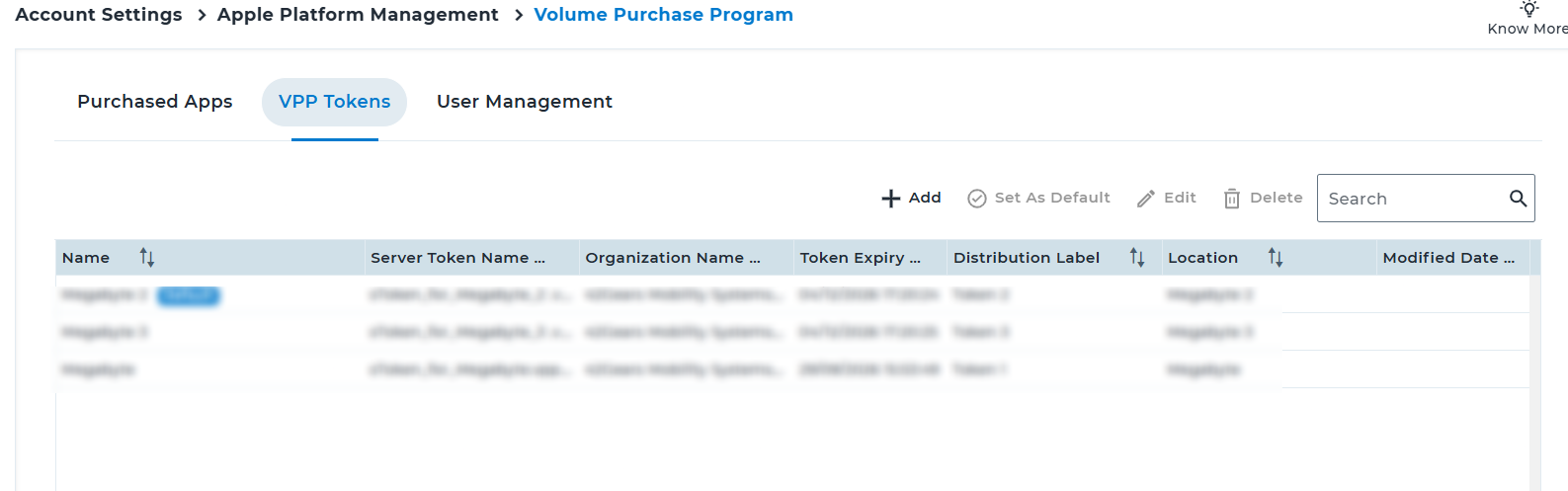
Once added, the desired VPP token will get listed in the table section.
- Table actions
| Option | Description |
|---|---|
| Add | Adds a new VPP token to the SureMDM Console. |
| Set as Default | Sets the selected VPP token as the default token in the Purchased Apps section. |
| Edit | Modifies the details of an existing VPP token. |
| Delete | Removes the selected VPP server token from the console. The deletion workflow provides flexible options to retain or remove applications, validates dependencies with Jobs and Profiles. Delete the Token, Convert iOS Apps to App Store application(s), and Remove macOS/tvOS Apps Delete the Token and all associated application(s) |
5. Displaying Apps in the Purchased Apps section
- Once the server token is uploaded successfully in the VPP Tokens tab section, the apps will be automatically listed in the Purchased Apps table section.
| Column Name | Description |
|---|---|
| Icon | Displays the application’s icon as provided in ABM for easy identification. |
| Name | Shows the name of the application synced from ABM. |
| Total License | Indicates the total number of app licenses purchased. |
| Available License | Indicates the total number of app licenses purchased and still available for assignment to devices or users. |
| Used License | Displays the number of licenses that have already been assigned to devices or users. |
| Device Assignable | Specifies whether the application supports direct device-based assignment (without requiring an Apple ID). |
| Platform | Identifies the supported platform for the application (e.g., iOS, iPadOS, macOS, tvOS). |
SureMDM also supports displaying and managing the same VPP application across multiple VPP tokens, with differentiation based on the associated distribution label.
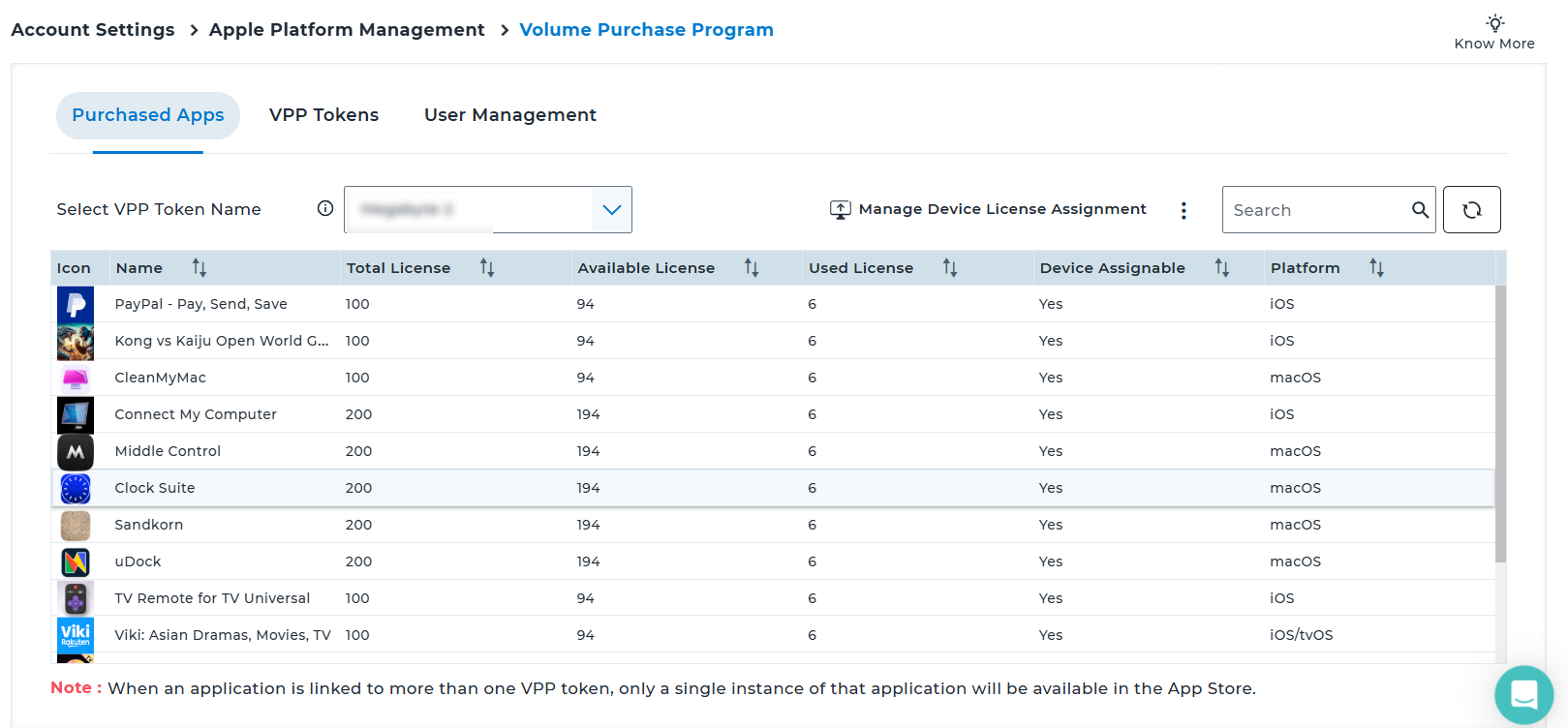
Table actions
| Option | Description |
|---|---|
| Select VPP Token | Select the VPP Token name to display the apps associated with it. |
| Manage Device License Assignment | Use this option to grant / revoke licenses to the devices. |
| Refresh | Updates the list of purchased apps to reflect the latest license and assignment status from ABM. |
| Assign To User | Assigns the selected VPP app license to a specific user. |
| Assign To Device | Assigns the selected VPP app license directly to a specific device. |
| Sync Apps | Synchronizes apps from ABM to SureMDM, ensuring any newly purchased apps or updates are reflected in the Purchased Apps list. |
| Search | Allows searching for apps within the Purchased Apps table using keywords. |
6. Granting / Revoking App Licenses to Devices
Click Manage Device License Assignment
In the Upload Device & Assign Apps tab, provide the required values and click Apply
| Field Name | Description |
|---|---|
| Action Type | Specify the action type. - Grant License - Revoke License |
| Upload Device List | Upload the device list in the specified format. For format, click Download Template to download the standard template. |
| Assign Apps | Select the apps for which licenses should be granted / revoked. Note: - Serial Numbers of the devices which aren’t even enrolled into SureMDM can also be assigned. - Based on the Action Type (Grant / Revoke), Licenses will still be assigned / revoked to the devices which are yet to be enrolled. - If the uploaded device list contains more devices than available licenses, licenses will be allocated to devices until the limit is reached. Rest of the devices will remain unassigned. |
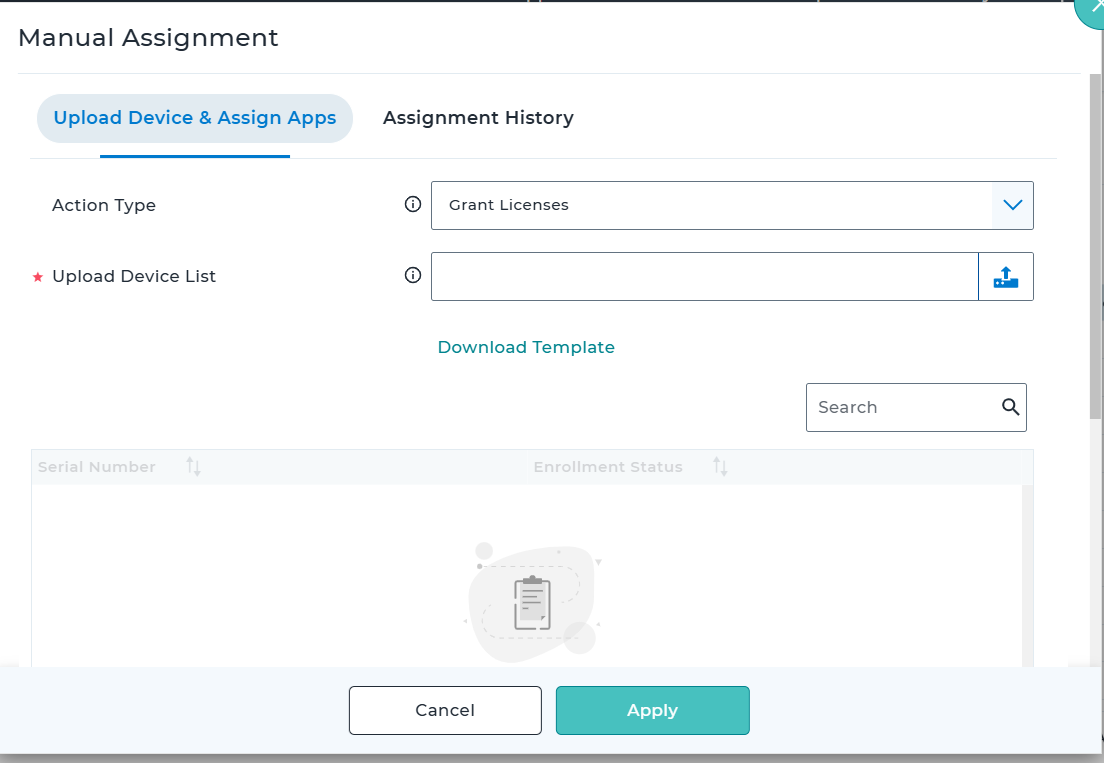
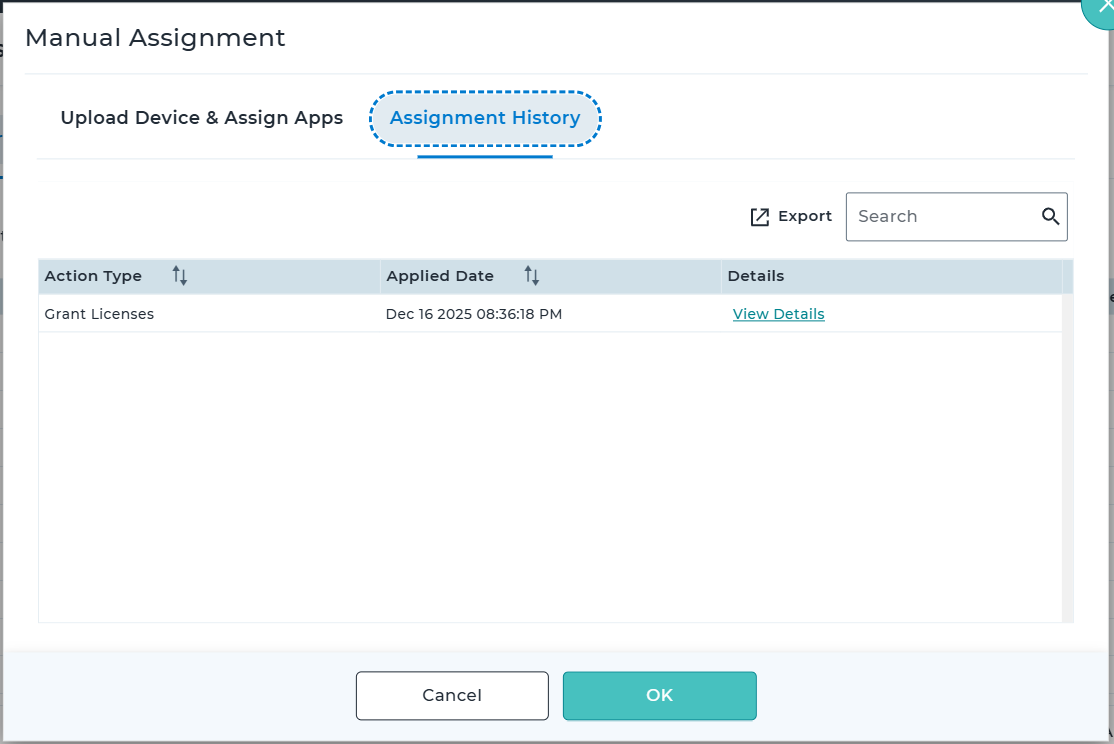
- Once licenses are granted or revoked, the details will be recorded and can be viewed in the Assignment History tab.
7. Synchronization of VPP Apps in SureMDM App Store
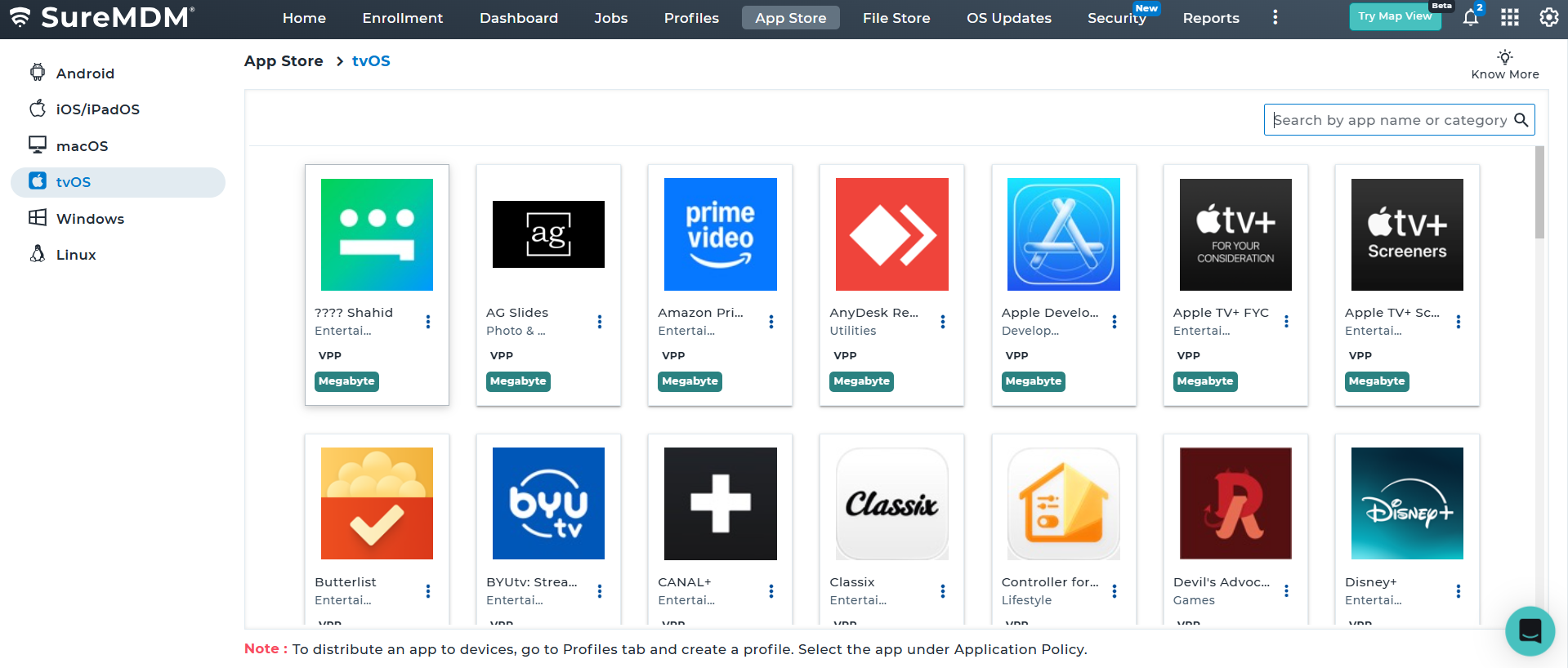
Once the VPP apps are synced in the Apple Platform Management section under Purchased Apps, the same will get reflected in the SureMDM App Store under respective platforms.
Navigation: App Store → tvOS → VPP Apps
Notes
- Apps purchased through ABM remain owned by the organization, not individual users.
- Revoked app licenses can be reassigned to other devices.
- Apps are updated automatically when newer versions are published in the App Store.