Sectigo Certificate Management
Overview
Sectigo Certificate Management in SureMDM enables administrators to integrate the platform with Sectigo Certificate Manager (SCM) for centralized device certificate management. This integration automates certificate provisioning, renewal, and revocation, ensuring secure device authentication and communication while minimizing manual administrative effort.
Prerequisite
Before configuring Sectigo Certificate Management in SureMDM, ensure you have access to the Sectigo portal and the SureMDM console.
Retrieve Required Values from the Sectigo Portal
To retrieve these values, log in to the Sectigo portal and follow the steps below:
Username and Password
Username: Log in to the Sectigo portal, click My Profile, and note the displayed username.
Password: Use the password associated with your Sectigo portal login.
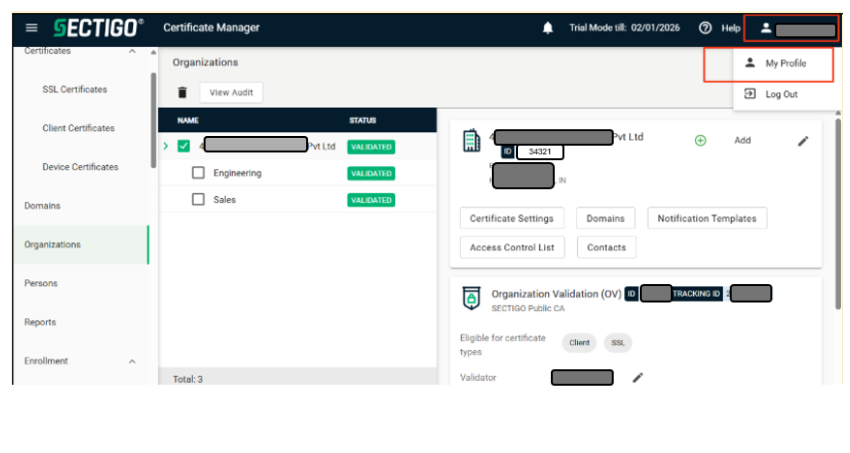
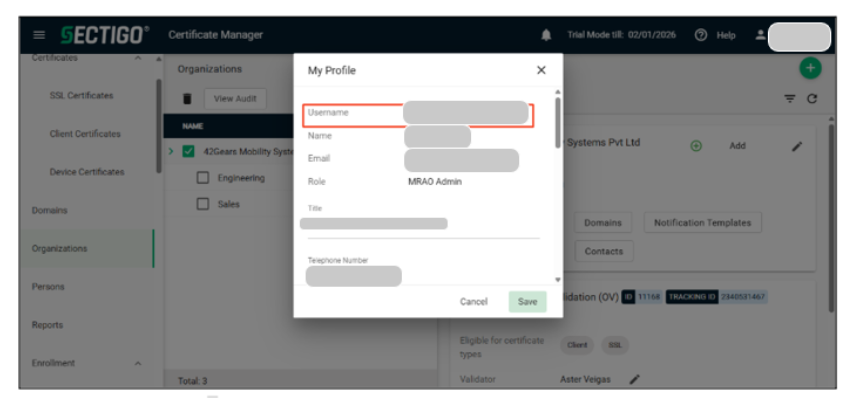
Customer URI
Retrieve the Customer URI from the Sectigo portal login page URL. Copy the Customer URI portion from the login URL.
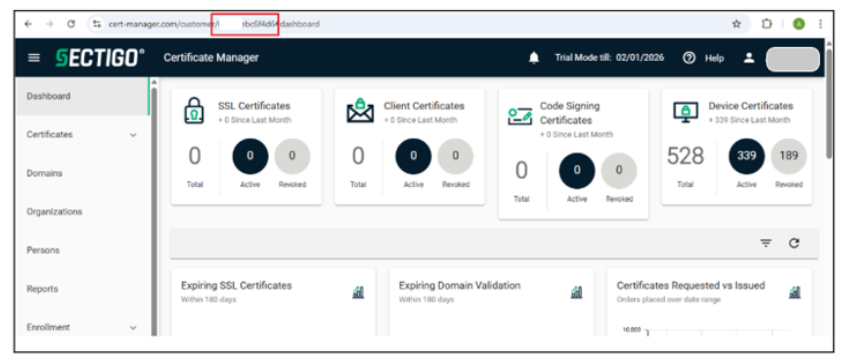
Organization ID
The Organization ID is available in the Sectigo portal. To find it, navigate to Menu > Organizations and note the displayed Organization ID.
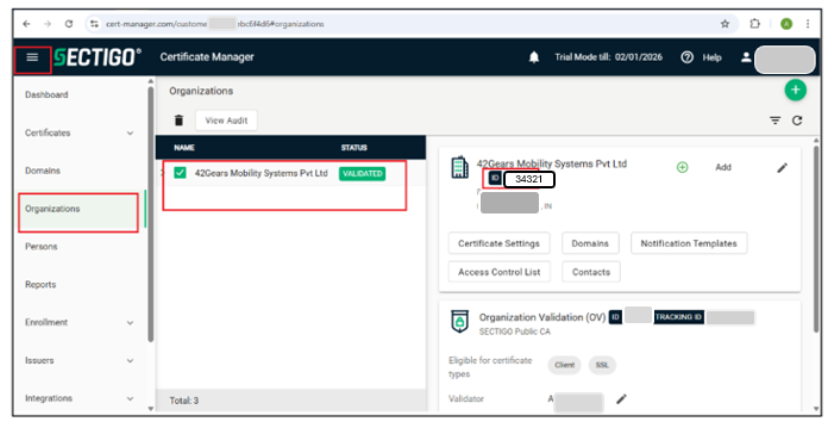
Configuration of Sectigo Certificate Management in SureMDM
Once the required values (Username, Password, Customer URI, and Organization ID) are retrieved from the Sectigo portal, follow these steps to configure Sectigo Certificate Management in SureMDM:
Log in to SureMDM Console.
Navigate to Account Settings > Certificate Management.
Configure the following settings:
| Settings | Description |
|---|---|
| Certificate Management Method | Select Sectigo |
| CA Server Address | Sectigo SCEP URL (Refer to e.iii under SCEP configurations sectigo Configurations.) |
| User Name and Password | Enter the user name and password |
| Customer URI | Enter the Customer URI |
| Organization ID | Enter the Organization ID |
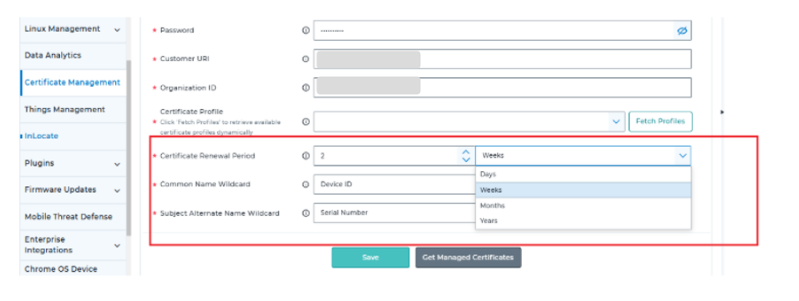
| Certificate Renewal Period | Select the Renewal period |
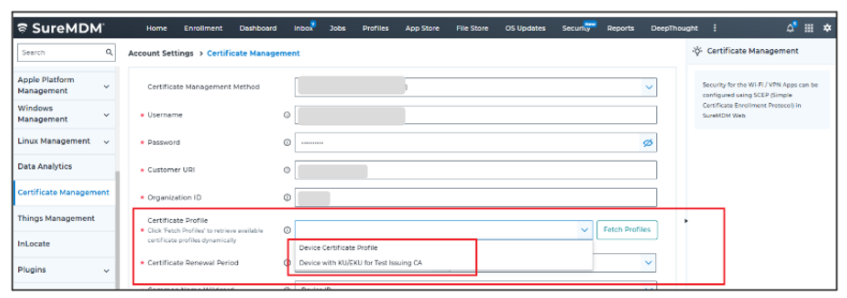
| Certificate Profile | Select the Certificate Profile from the drop-down. |
| Common Name Wild Card | Select wildcards from the drop-down, such as IMEI, Mac Address, Device ID, Serial number, or Custom wildcards/values. Custom wildcards can be E = %emailaddress% ,CN = %cn% , %ou% , %dc% |
| Subject Alternate Name Wildcard | Select wildcards such as IMEI, Mac Address, Device ID, Serial number, or Custom wildcards/values from the drop-down. Custom wildcards can be Principal Name = %upn%, RFC822 Name= %emailaddress% |
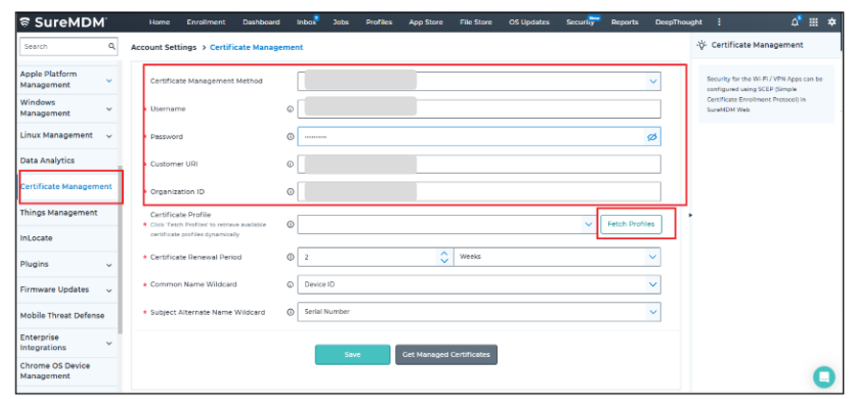
- Click Fetch Profiles and select any profile from the dropdown list.
- Select the Certificate Renewal Period, then enter the Common Name Wildcard and Subject Alternate Name Wildcard.
- Click Save to apply the changes.
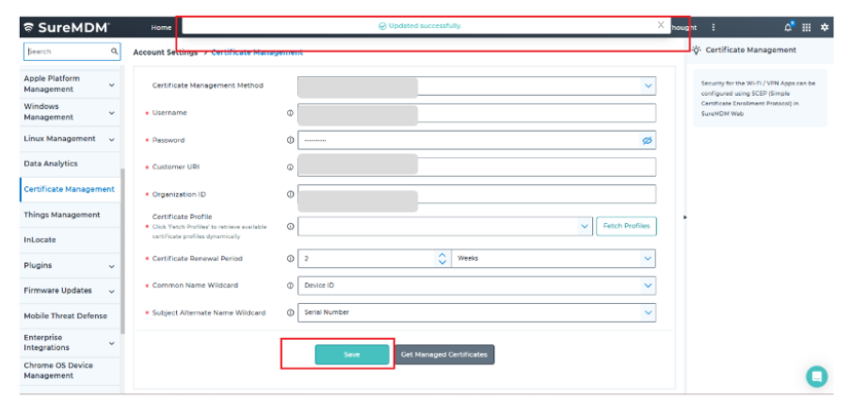
Create a Certificate Profile and deploy it to devices.
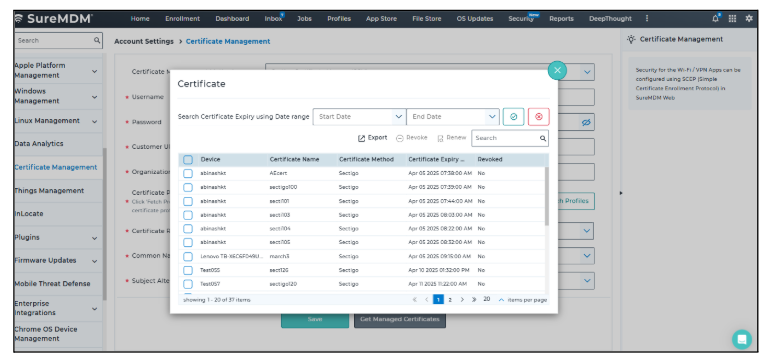
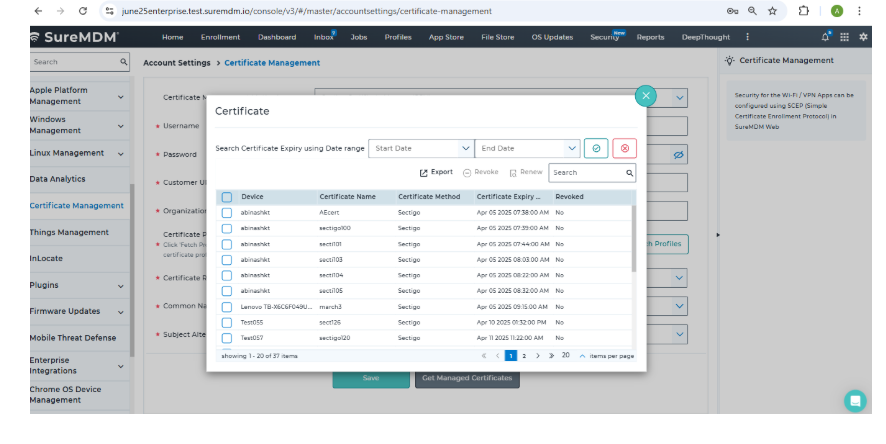
Click Get Managed Certificates to renew or revoke the certificate manually.
Create a Certificate Profile in SureMDM
Log in to the SureMDM Console.
Navigate to Profiles > Android.
Click Add Profile and enter the Profile Name.
From the left pane, select Certificate.
Click Add to open the Certificate configuration window
Configure the certificate settings as shown:
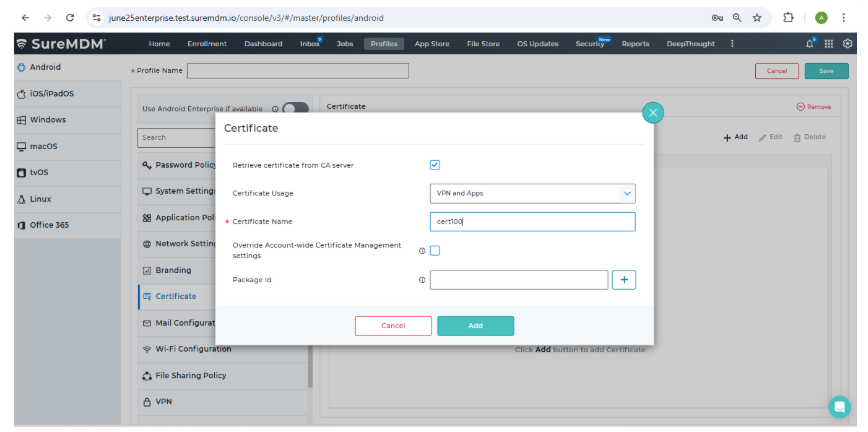
- Enable Retrieve certificate from CA server.
- Select Certificate Usage (for example, VPN and Apps)
- Enter the Certificate Name.
- (Optional) Enable Override Account-wide Certificate Management settings, if required.
- Enter the Package ID if the certificate is intended for a specific application.
- Click Add to save the certificate configuration.
- Click Save to save the profile. Once the profile is created, it can be applied to the required devices or device groups for certificate issuance.