Renew an Existing APNs Certificate in SureMDM
Key Considerations Before Renewing the APNS Certificate
Before renewing the APNS certificate, ensure the following requirements are met to maintain uninterrupted communication between Apple devices and the SureMDM server:
Use the same Apple ID:
Sign in to the Apple Push Certificates Portal using the same Apple ID that was originally used to create the APNS certificate. Renewing the certificate with a different Apple account will break the trust relationship between the devices and the MDM server.Locate the correct certificate for renewal:
In the Apple Push Certificates Portal, identify and select the APNS certificate that is due for renewal.Verify the Topic ID:
If multiple APNS certificates exist in the Apple Push Certificates Portal, verify that you select the correct certificate by comparing the Topic ID displayed in the SureMDM Console with the one shown in the Apple Push Certificates Portal.Example Topic ID:
UID=com.apple.mgmt.External.************************************
The characters after com.apple.mgmt.External. represent the Topic ID of the APNS certificate. Ensure that this value matches in both SureMDM and the Apple Push Certificates Portal.
Console Screen
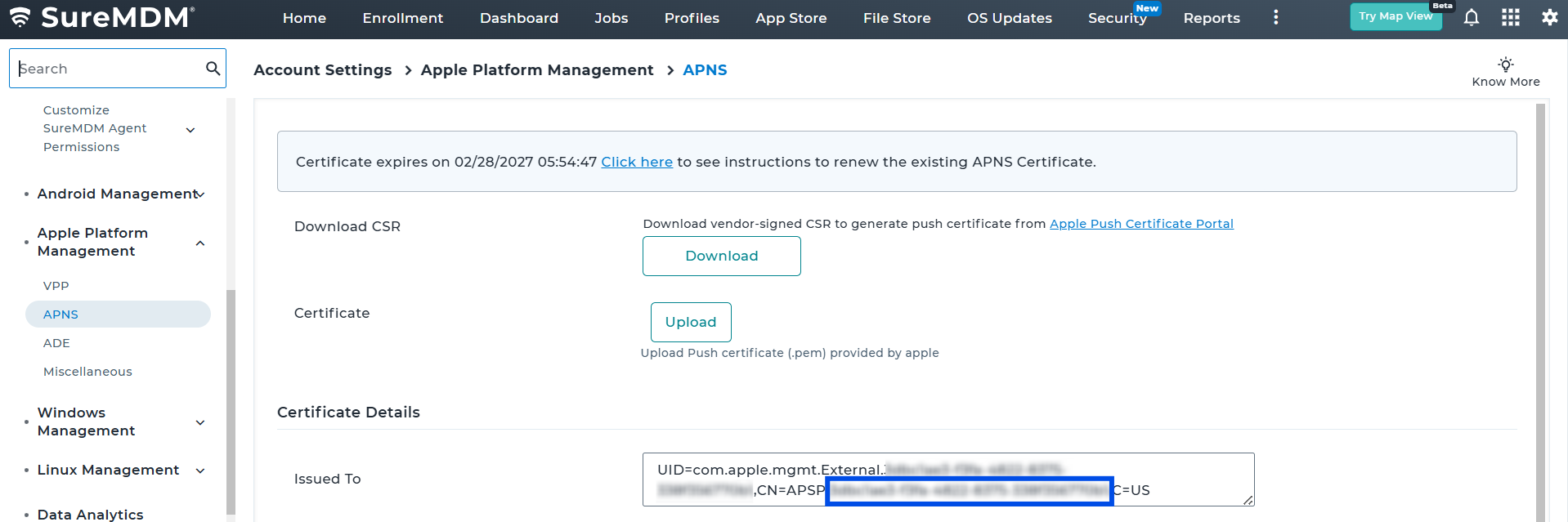
APNS Screen
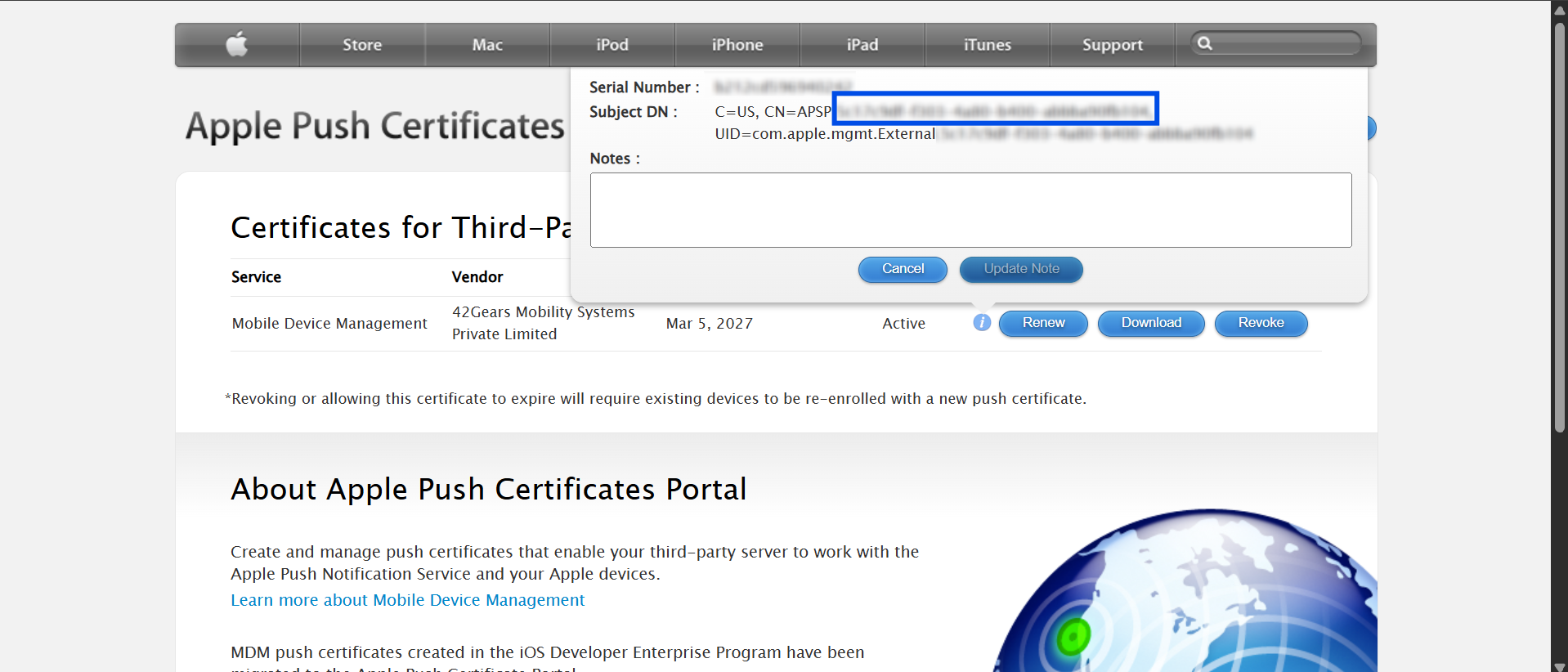
Steps to Renew the APNS Certificate
To renew the APNS certificate, follow these steps:
In the SureMDM Web Console, navigate to
Settings (icon located at the top-right corner) →
Account Settings → Apple Platform Management → APNS.On the APNS page, click Download.
This downloads the vendor-signed CSR (Certificate Signing Request).Go to the Apple Push Certificates Portal and sign in using the same Apple ID used during the initial certificate creation.
On the Certificates for Third-Party Servers page, locate the certificate and click Renew.
On the Renew Push Certificate page, upload the CSR file downloaded from the SureMDM Web Console (refer to Step 2).
After the renewal is processed, click Download to download the new push certificate.
Return to SureMDM Web Console → Account Settings → Apple Platform Management → APNS.
On the Push Certificate screen, upload the newly downloaded push certificate (refer to Step 6).
Once the upload is successful, the APNS certificate renewal process is complete.
Important Notice
Uploading a different APNS certificate instead of renewing the existing one will cause all Apple devices enrolled in the SureMDM console to lose communication with the server. In such cases, the devices must be manually re-enrolled to restore device management and connectivity.