EOBO ADCS through DCOM
Ensure that Active Directory (AD) Integration is enabled under Enterprise Integration.
You can access this setting from the SureMDM Web Console by navigating to:
Settings (icon at the top-right of the screen)> Account Settings > Enterprise Integration > AD Integration
To configure the user certificate through Microsoft’s Certificate Enroll On Behalf of Others (EOBO) function in SureMDM, follow these steps:
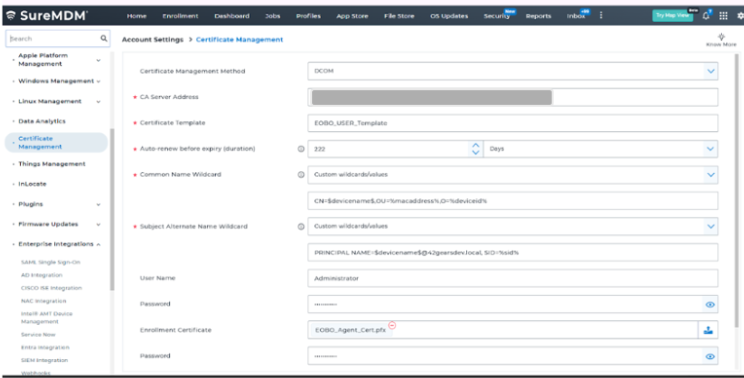
Navigate to SureMDM Web Console > Settings (icon located at the top right of the screen) > Account Settings > Certificates.
Configure the following Certificate Settings and click Save.
| Settings | Description |
|---|---|
| Certificate Management Method | Select DCOM |
| CA Server Address | Open Windows PowerShell where certificate authority is configured. Enter the below comments in the Poweshell window: Certutil Copy the value of “Config” and paste it in CA server address text field. |
| Certificate Template | Enter the template from the CA server |
| Auto-renew before expiry (duration) | Renews the certificate automatically before the specified days/weeks/months/years. |
| Common Name Wild Card | Use the drop-down menu to select the CN Type and enter the Common name in the corresponding data entry field if the Common Name Wildcard/values. To fetch values from the device, we are using custom wildcard values. For example, Principal Name \= %upn%, RFC822 Name= %emailaddress% Supported wildcards for CN are: PRINCIPAL NAME RFC822 NAME REGISTERED ID DIRECTORY NAME DNS NAME IP ADDRESS GUID URL SID |
| Subject Alternate Name Wildcard | Use the drop-down menu to select the SAN Type and enter the Common name in the corresponding data entry field if the Common Name Wildcard/values. To fetch values from the device, we are using custom wildcard values. For example, Principal Name \= %upn%, RFC822 Name= %emailaddress% Supported wildcards for SAN are: 1. PRINCIPAL NAME 2. RFC822 NAME 3. REGISTERED ID 4. DIRECTORY NAME 5. DNS NAME 6. IP ADDRESS 7. OTHER NAME 8. GUID 9. URL 10. SID |
| User Name | The username of the account to communicate with the certificate authority. |
| Password | The password of the account to communicate with the certificate authority. |
| Enrollment Certificate | Upload the EOBO agent certificate to the SureMDM Console |
| Password | Enter the Password of the EOBO agent enrollment certificate. |
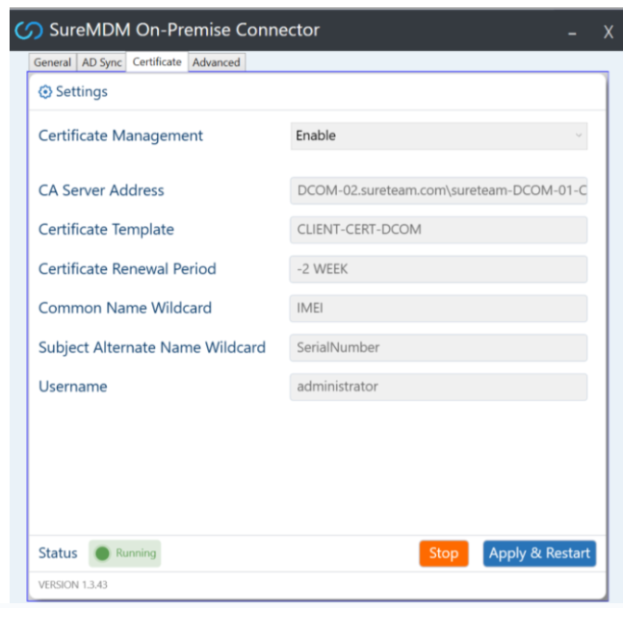
Once started, go to the Certificate tab. The values entered in the SureMDM console under Certificate Management should auto-populate here. If not, it indicates that the connector is not properly communicating with SureMDM.