Updating SureLock on the device
If SureLock is up and running on the device, there are multiple ways to install the updates.
Manual Update:
Manual update is applicable if device is physically available.
- Unlock the device by entering the administrator code. Read this for information on how to unlock the device.
- Connect the unlocked device to the desktop and setup ActiveSync connection.
- Copy the new SureLock cab to a folder on the device or on the storage card. Once the cab file is copied, tap on it for installation.
- After installation in complete, reset the device to start SureLock again or go to Start -> Programs and tap on SureLockClient icon.
Remote Update:
If SureLock is already running on the device, then new cab installation will fail or corrupt the settings.
- Launch SureLock Studio and open the project file.
- Click on Tool -> Create PreUpdate Module to generate PreUpdate.exe by entering the older administrator code.
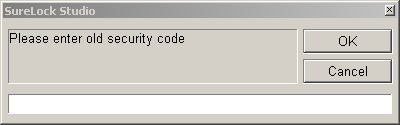
Input older administrator code to create PreUpdate.exe
-
Remotely deploy and run the PreUpdate.exe file on the device. This will unlock the device.
Note: PreUpdate.exe contains unlock code for the existing SureLock configuration. This file should be deleted immediately by the installation script or procedure. - As soon as PreUpdate unlocks the device, install the new SureLock cab.
- After the SureLock cab is installed, reset the device remotely. After reset the device will start in kiosk mode again.