Working with Projects in SureLock Studio
- Start Surelock Studio either from your desktop or from Start -> Programs -> Surelock Studio -> Surelock Studio
- Now you should see the initial screen of Surelock studio
- Create New Project either by clicking on File -> New Project or by clicking on the "New" at the top.
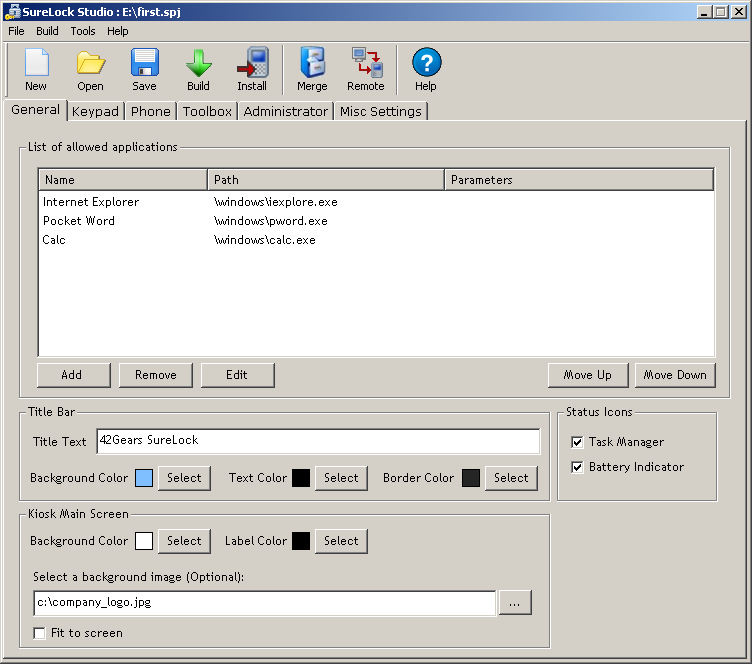
Main Screen (click to enlarge)
General Tab
- This is the default tab you are in once you have created a new project successfully.
- In this screen you can add/delete/edit the information about applications that you want to run on the device in Kiosk mode.
- You can also configure the general look and feel of the kiosk main screen on the device. This includes changing various background and text colors.
- The following flow chart covers the general look and feel functionalities.
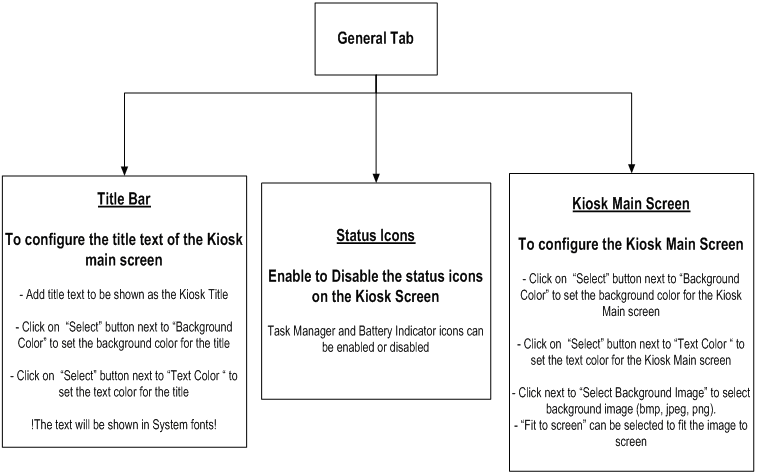
Flow Chart (click to enlarge)